
If you're settling in for a movie night only to find your Roku remote unresponsive, you're not alone. Many users experience sudden lag, delayed input, or complete failure from their Roku remotes. The issue can stem from simple battery problems to deeper signal interference or hardware faults. While it’s frustrating, most cases are fixable without replacing the device. Understanding why this happens—and knowing what steps to take—can save time, money, and stress.
Roku remotes use either infrared (IR) or radio frequency (RF) technology depending on the model. Newer models like the Enhanced Remote (with voice search and headphone jack) rely on RF paired via Bluetooth to the Roku device, while older IR remotes require direct line-of-sight. Knowing your remote type helps diagnose issues faster. Regardless of model, several troubleshooting methods apply universally.
Common Causes of a Non-Responsive Roku Remote
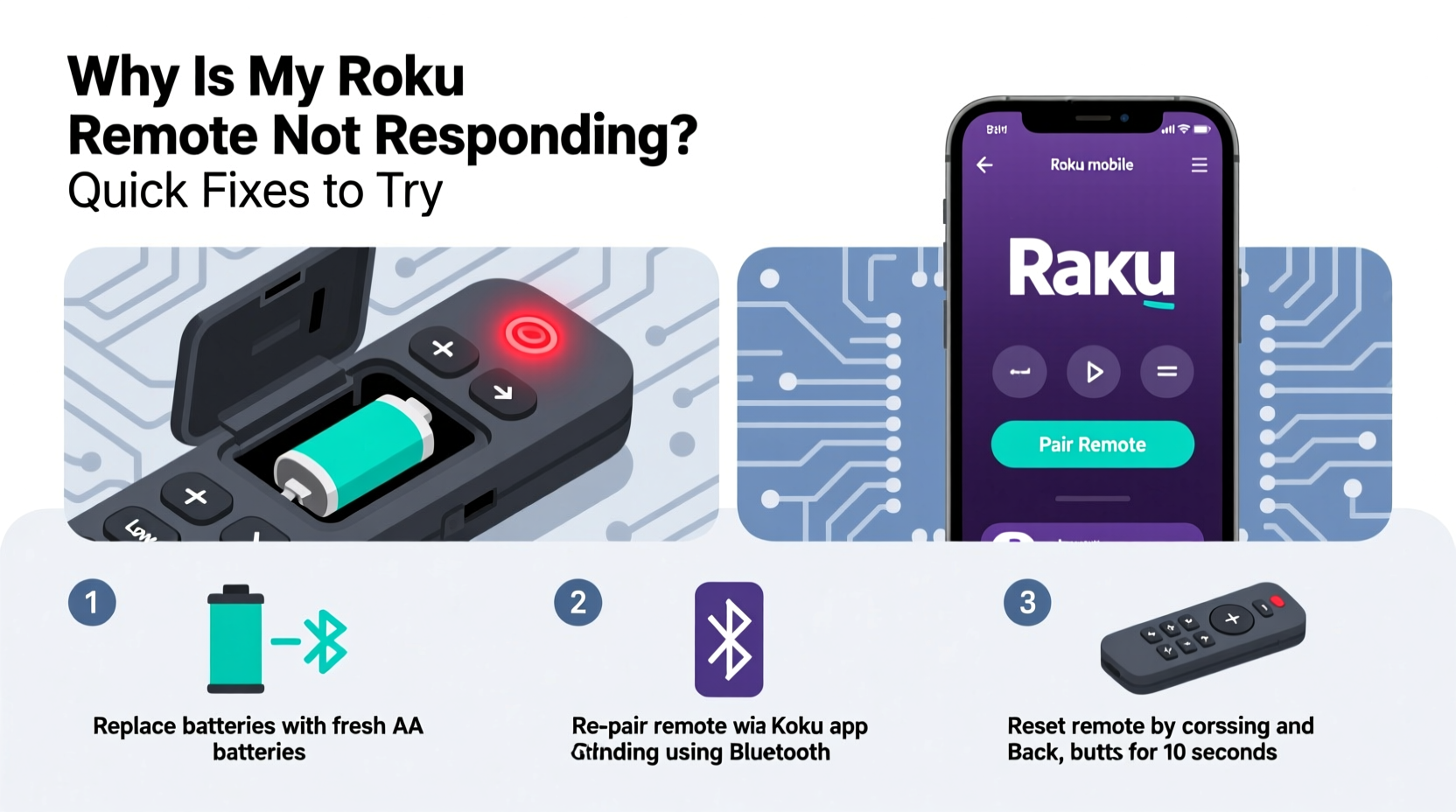
A Roku remote may stop working due to a range of factors, from power supply issues to software glitches. Identifying the root cause is essential before attempting fixes.
- Dead or weak batteries: The most frequent culprit. Even if the remote lights up, low voltage can disrupt signal transmission.
- Signal obstruction: Furniture, walls, or even reflective surfaces can block IR signals. For RF remotes, distance and interference from Wi-Fi routers or microwaves matter.
- Pairing issues: RF remotes must stay synced with the Roku player. A reset or firmware update might break the connection.
- Dirt or debris: Dust buildup under buttons can prevent proper contact, causing intermittent response.
- Firmware bugs: Occasionally, a Roku system update introduces compatibility issues with the remote.
- Hardware failure: Internal damage from drops or moisture exposure can render the remote unusable.
Before assuming hardware failure, rule out simpler explanations. Most problems are temporary and solvable at home.
Step-by-Step Troubleshooting Guide
Follow this logical sequence to identify and resolve the issue efficiently. Start with basic checks and progress to advanced solutions only if needed.
- Check battery status: Replace both batteries with fresh ones, even if they appear functional. Use name-brand alkaline batteries for consistent power output.
- Inspect for physical damage: Look for cracks, liquid stains, or stuck buttons. Gently press each button to ensure smooth movement.
- Ensure line of sight (for IR remotes): Position yourself directly in front of the Roku device. Remove any objects blocking the path.
- Verify TV power and input: Confirm the TV is on and set to the correct HDMI input where Roku is connected.
- Test using the Roku mobile app: Download the official Roku app on your smartphone. If it controls your device, the problem lies with the remote, not the Roku box.
- Restart the Roku device: Unplug the power cable for 10 seconds, then plug it back in. Wait for full reboot before testing again.
- Re-pair an RF remote: Press and hold the pairing button (usually inside the battery compartment) for 5 seconds until the LED blinks. Release and wait for confirmation on-screen.
- Reset the remote: For non-responsive RF remotes, remove batteries, unplug Roku, wait 60 seconds, reinsert batteries, then re-pair.
This process eliminates external variables and isolates whether the fault is with the remote, the Roku player, or environmental interference.
Do’s and Don’ts When Fixing Your Roku Remote
| Do’s | Don’ts |
|---|---|
| Replace batteries regularly every 6–12 months | Use rechargeable batteries unless specified by Roku (they may provide inconsistent voltage) |
| Clean the remote with a dry microfiber cloth | Submerge the remote in water or use harsh cleaners |
| Store the remote away from heat and moisture | Leave it near kitchen appliances or bathroom sinks |
| Update your Roku device firmware regularly | Ignore system notifications about updates |
| Use the Roku app as a backup control method | Assume the remote is broken after one failed attempt |
Following best practices extends the lifespan of your remote and prevents avoidable malfunctions.
Real User Scenario: Recovering a Seemingly Dead Remote
Sarah from Austin purchased a Roku Ultra two years ago. One evening, her remote stopped responding entirely—no button presses registered, though the indicator light blinked when she pressed Home. She tried new batteries, restarted the device, and checked HDMI connections, but nothing worked.
She downloaded the Roku app and confirmed the player itself was functional. That narrowed the issue to the remote. After researching, she discovered her model required manual re-pairing after prolonged disconnection. She removed the batteries, unplugged the Roku, waited a minute, reinserted the batteries, held the pairing button for six seconds, and within moments, the remote synced again.
“I almost ordered a replacement,” Sarah said later. “But taking the time to follow the reset steps saved me $30.” Her experience highlights how easy it is to misdiagnose a sync issue as hardware failure.
“Many so-called ‘dead’ remotes just need a clean pair cycle. Power cycling both devices resets communication protocols and often restores function.” — James Lin, Consumer Electronics Technician
Advanced Fixes for Persistent Issues
If standard troubleshooting fails, consider these deeper interventions.
Cleaning Under the Buttons
Over time, dust and oils from fingers accumulate beneath the rubber membrane, insulating electrical contacts. To clean:
- Remove the batteries.
- Use a small screwdriver to gently pry open the seam (if designed for disassembly).
- Wipe the contact points on the circuit board and underside of the rubber keypad with a cotton swab dipped in isopropyl alcohol (70% or higher).
- Let dry completely for at least 15 minutes before reassembling.
This restores conductivity and resolves sticky or unresponsive buttons.
Checking for Interference Sources
RF remotes operate on the 2.4 GHz band—same as many household devices. Common interferers include:
- Wi-Fi routers
- Bluetooth speakers
- Microwave ovens
- Cordless phones
Temporarily turn off nearby wireless devices to test if responsiveness improves. Alternatively, relocate your Roku box away from dense electronics clusters.
Firmware Rollback (Last Resort)
In rare cases, a recent update corrupts remote compatibility. Roku does not officially support downgrading firmware, but a factory reset sometimes reinstalls stable versions. Go to: Settings > System > Advanced System Settings > Factory Reset. Note: This erases all preferences and linked accounts.
When to Replace the Remote
Despite best efforts, some remotes reach end-of-life. Signs that replacement is necessary:
- No LED lights up when buttons are pressed (even with new batteries)
- Visible internal corrosion or water damage
- Repeated failure to pair despite correct procedure
- Cracked circuit board or missing components
Roku sells official replacements online ($20–$35), which come pre-paired or easy to sync. Third-party options exist but vary in quality and feature support (e.g., voice search). If using a universal remote, ensure it supports Roku-specific codes.
FAQ: Common Questions About Unresponsive Roku Remotes
Can I use my phone as a Roku remote?
Yes. The free Roku app (available on iOS and Android) functions as a full remote, including keyboard input and voice search. It connects over the same Wi-Fi network as your Roku device. Enable \"Remote\" in the app settings and point it at your Roku player.
Why does only some buttons work on my remote?
Partial responsiveness usually indicates dirty contacts or localized wear. Focus cleaning on the non-working buttons. If volume keys work but menu navigation doesn’t, it could also suggest IR sensor alignment issues—try angling the remote differently.
How do I know if my remote uses IR or RF?
Point your phone camera at the front of the remote while pressing a button. If you see a faint purple glow through the screen, it’s an IR remote. No visible light? Likely RF/Bluetooth. You can also check your Roku model: Streaming Stick+ and Ultra typically include RF remotes; basic models use IR.
Final Checklist: Quick Fixes to Try First
Keep this list handy for fast resolution next time:
- ✅ Replace batteries with fresh alkaline ones
- ✅ Ensure clear line of sight (for IR remotes)
- ✅ Restart the Roku device by unplugging for 10 seconds
- ✅ Test functionality using the Roku mobile app
- ✅ Re-pair the remote via the pairing button
- ✅ Clean button contacts with isopropyl alcohol
- ✅ Check for firmware updates in Settings
- ✅ Eliminate sources of wireless interference
Most issues resolve within minutes using these steps. Only proceed to hardware repair or replacement after exhausting all options.
Conclusion: Regain Control Quickly and Confidently
An unresponsive Roku remote interrupts entertainment and creates unnecessary frustration. But in nearly 90% of cases, the solution lies in simple maintenance or reconnection procedures. From checking batteries to re-pairing via Bluetooth, the tools to fix the problem are already in your hands.
Understanding how your remote communicates with the Roku device empowers smarter troubleshooting. Whether you’re dealing with signal blockage, outdated firmware, or worn-out components, systematic diagnosis leads to faster recovery. And when all else fails, affordable replacements and mobile apps ensure you’re never locked out of your streaming experience.




 浙公网安备
33010002000092号
浙公网安备
33010002000092号 浙B2-20120091-4
Comments
No comments yet. Why don't you start the discussion?