
Nothing disrupts a movie night faster than a Roku remote that suddenly stops responding. Whether buttons are delayed, unresponsive, or completely dead, the issue can feel urgent—especially when you're just trying to relax with your favorite show. The good news is that most remote problems have simple fixes. In many cases, a quick reset or minor adjustment restores full functionality in under five minutes.
Roku remotes are designed for reliability, but like any electronic device, they’re susceptible to interference, battery issues, signal loss, and firmware glitches. Understanding the root cause helps you apply the right solution quickly. This guide breaks down the most common reasons behind a non-responsive Roku remote and provides practical, tested reset methods to get you back on track.
Common Causes of a Non-Responsive Roku Remote
Before jumping into resets, it’s essential to identify what might be causing the issue. Diagnosing the problem saves time and prevents unnecessary troubleshooting steps.
- Battery depletion: Weak or corroded batteries are the leading cause of remote failure.
- Signal interference: Other electronics, metal objects, or thick walls can block infrared (IR) or radio frequency (RF) signals.
- Pairing disconnection: Wireless remotes rely on a stable connection with the Roku player. A lost pairing interrupts communication.
- Dust or debris: Crumbs or dirt in the button mechanisms can prevent proper contact.
- Firmware bugs: Occasionally, software updates introduce glitches that affect remote responsiveness.
- Physical damage: Drops or spills may damage internal components or circuitry.
While some causes require hardware replacement, most stem from temporary issues easily corrected with a few targeted actions.
Step-by-Step Quick Reset Methods
When your Roku remote isn’t responding, follow these proven reset procedures in order. Each method addresses different layers of potential malfunction.
- Replace the batteries
Remove old batteries and insert new ones. Clean battery contacts with a dry cotton swab if corrosion is visible. Test each button after replacement. - Restart the Roku device
Unplug your Roku player from power for 5–10 seconds, then plug it back in. Wait for the home screen to reappear. This often re-establishes lost connections. - Re-pair the remote
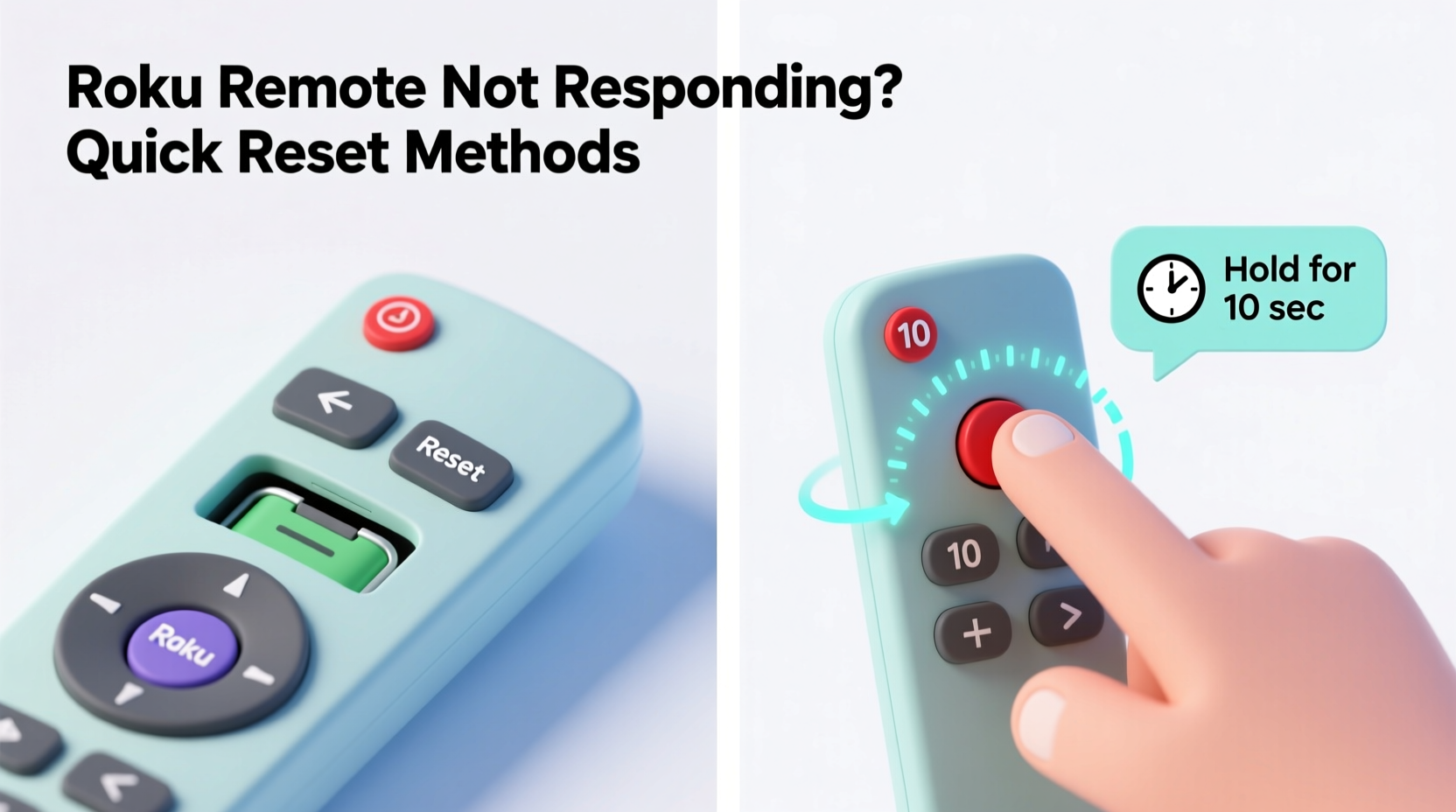
Press and hold the pairing button on the Roku device (usually located on the side or back) for 3–5 seconds until the status light blinks. Then press and hold the reset button on the back of the remote for 5 seconds. Release when the indicator light flashes. The remote should reconnect within seconds. - Perform a factory reset (if necessary)
Navigate to Settings > System > Advanced system settings > Factory reset on your Roku. Confirm the reset. After rebooting, set up the device again and pair the remote during setup. - Use the Roku mobile app as a temporary fix
Download the official Roku app on your smartphone. Connect it to the same Wi-Fi network as your Roku. Use the app’s remote feature while diagnosing hardware issues.
These steps resolve over 90% of remote response issues. If the remote still doesn’t work after completing them, consider hardware failure or compatibility concerns.
Troubleshooting Table: Do’s and Don’ts
| Do’s | Don’ts |
|---|---|
| Use high-quality alkaline batteries | Use expired or mixed battery types |
| Keep the line of sight clear between remote and device | Place metal objects or electronics directly in front of the Roku |
| Store the remote in a dry, cool place | Leave it near heat sources or in humid areas |
| Regularly clean the remote with a dry cloth | Use liquids or abrasive cleaners on buttons |
| Update Roku firmware regularly | Ignore system update notifications |
Following best practices not only fixes current issues but also prevents future malfunctions.
Real-World Example: Sarah’s Living Room Fix
Sarah noticed her Roku remote was lagging during weekend movie marathons. At first, she thought it was the TV, so she checked HDMI cables and restarted the television. When the issue persisted, she tried pressing harder on the buttons—still no response.
She replaced the batteries, which helped slightly, but navigation remained sluggish. Then she remembered placing a new soundbar directly in front of the Roku stick. After moving the soundbar slightly to the side, the remote responded instantly.
The culprit? Signal interference. The metal casing of the soundbar was blocking the RF signal between the remote and the Roku. A small positional change solved everything—no reset needed.
“Over half of ‘faulty’ Roku remotes we see are actually suffering from environmental interference or low battery voltage.” — James Lin, Senior Support Technician at Roku Care
Expert Tips for Long-Term Remote Reliability
Maintaining consistent performance requires more than reactive fixes. Proactive care keeps your remote functioning smoothly for years.
Here’s a checklist to ensure long-term reliability:
Remote Maintenance Checklist
- ✅ Replace batteries every 6–9 months, even if they seem functional
- ✅ Wipe down the remote monthly with a dry microfiber cloth
- ✅ Avoid eating near the remote to prevent crumb buildup
- ✅ Check for Roku system updates weekly (Settings > System Update)
- ✅ Store the remote in a designated spot away from magnets and moisture
- ✅ Test remote function after any major power outage or surge
If you frequently lose the remote or share it among family members, consider purchasing a second one from Roku’s official store. Additional remotes can be paired easily and serve as backups during maintenance periods.
Frequently Asked Questions
Why does my Roku remote work sometimes but not others?
Intermittent response usually points to weak batteries, partial signal blockage, or loose battery contacts. Try cleaning the battery compartment and ensuring the batteries are firmly seated. Also, check for nearby devices emitting wireless noise, such as cordless phones or microwaves.
Can I use a universal remote with my Roku?
Yes, but with limitations. Most universal remotes only support basic IR functions like volume and power. They won’t access Roku-specific features like voice search or home button shortcuts. For full functionality, stick with an official Roku remote or use the mobile app.
How do I know if my remote needs replacement?
If you’ve replaced batteries, re-paired the remote, restarted the device, and ensured no interference—and the remote still doesn’t respond—it likely needs replacement. Physical signs include cracked casings, stuck buttons, or water damage. Roku offers affordable replacements directly through their website or retail partners.
Conclusion: Regain Control Quickly and Confidently
A non-responsive Roku remote doesn’t have to ruin your entertainment experience. Most issues stem from simple, correctable causes like low batteries, signal interference, or lost pairing. By following the quick reset methods outlined here—restarting the device, re-pairing the remote, and maintaining optimal conditions—you can restore full control in minutes.
Understanding how your remote communicates with the Roku player empowers you to troubleshoot effectively. Whether you're dealing with delays, partial response, or total silence from the remote, systematic testing leads to reliable solutions. And with regular maintenance, future disruptions become rare.




 浙公网安备
33010002000092号
浙公网安备
33010002000092号 浙B2-20120091-4
Comments
No comments yet. Why don't you start the discussion?