
It’s a common and confusing scenario: your router’s LED is flashing red, signaling something might be wrong, yet your devices stay connected to Wi-Fi. You can stream, browse, and even video call without interruption. So why the warning light? Is your network truly stable, or is a failure just around the corner?
Routers use LED indicators as a quick visual status system. A solid red light typically means a critical issue—like no internet connection or hardware failure. But a blinking red light is more ambiguous. It doesn’t always mean disaster. In fact, many users experience intermittent blinking during normal operations such as firmware updates, reboot cycles, or temporary signal disruptions.
Understanding what a blinking red light signifies—and whether it requires action—can save you from unnecessary panic or prevent overlooking a real underlying problem. This guide breaks down the most common causes, diagnostic steps, and solutions so you can confidently assess your router’s health.
What a Blinking Red Light Usually Means
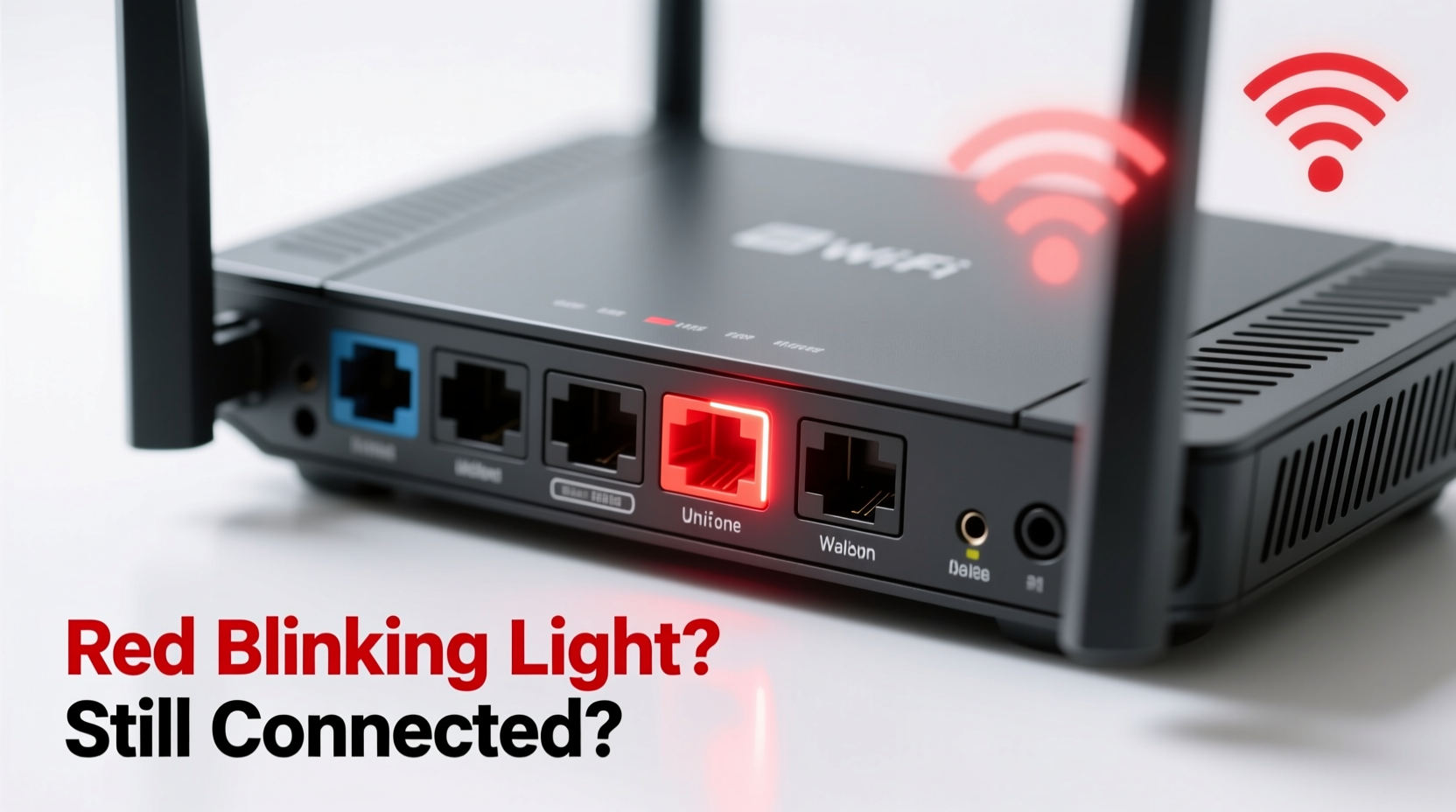
Routers from major brands like Netgear, TP-Link, ASUS, and Xfinity often use color-coded LEDs to communicate device status. While exact meanings vary slightly by manufacturer, a blinking red light generally indicates one of the following:
- Loss of internet connection (but local Wi-Fi may still work)
- Ongoing firmware update or boot process
- Hardware malfunction or overheating
- Authentication failure with the ISP
- Security alert, such as unauthorized access attempt
The key point: a blinking red light does not automatically mean your Wi-Fi is down. The wireless radios inside the router can remain active even when the external internet feed is disrupted. That’s why your phone, laptop, or smart TV may still detect the network and allow local communication—like file sharing between devices—but fail to load websites or stream online content.
Common Causes and How to Diagnose Them
Below are five frequent reasons your router blinks red while still broadcasting Wi-Fi, along with methods to identify and resolve each.
1. Internet Connection Loss (ISP Outage or Modem Issue)
If the router has lost its upstream link to the modem or ISP, it may display a blinking red light. However, since the internal Wi-Fi module operates independently, local network services continue functioning.
To test:
- Open a browser and try visiting a site like google.com.
- Check if you get a “No Internet” error despite being connected to Wi-Fi.
- Ping an external IP (e.g., 8.8.8.8) via command prompt or terminal.
If pings fail, the issue lies beyond your local network.
2. Firmware Update in Progress
Some routers flash red during automatic or manual firmware updates. This process can take several minutes. Interrupting it may brick the device.
Look for signs:
- Recent changes in router settings
- Unusual silence from usual startup sounds
- Admin interface inaccessible temporarily
Wait at least 10–15 minutes before taking further action.
3. Overheating or Hardware Stress
Prolonged usage, poor ventilation, or dust buildup can cause internal components to overheat. Routers may respond by throttling performance or triggering warning lights—even while maintaining basic Wi-Fi functions.
Check:
- Touch the router—does it feel unusually hot?
- Is it placed near heat sources or enclosed spaces?
- Are vents blocked?
4. Authentication or PPPoE Failure
In some regions, especially where DSL or fiber uses PPPoE (Point-to-Point Protocol over Ethernet), incorrect login credentials stored on the router can prevent internet access. The router remains operational locally but cannot authenticate with the ISP.
This commonly occurs after service changes, resets, or power outages.
5. Temporary Glitch or Boot Loop
A software hiccup or corrupted session table can cause erratic LED behavior. Sometimes, the router completes boot-up successfully but fails to clear the error indicator.
This is often resolved through a restart or reset.
Step-by-Step Troubleshooting Guide
Follow this logical sequence to isolate and fix the root cause of the blinking red light.
- Verify Internet Access: Try loading a website on multiple devices. If none can reach the internet, the issue is upstream.
- Inspect Physical Connections: Ensure the Ethernet cable between modem and router is secure and undamaged. Check that both devices are powered on.
- Restart Both Devices: Power off the modem and router. Wait 60 seconds. Turn on the modem first, wait until fully synced (steady lights), then power on the router.
- Log Into Router Interface: Access your router’s admin page (usually http://192.168.1.1 or http://192.168.0.1). Look for WAN/Internet status messages.
- Check Firmware Version: Navigate to Administration > Firmware Update. If an update was recently applied, allow extra time for stabilization.
- Review System Logs: Many routers provide logs under “System Tools” or “Status.” Look for entries like “WAN Disconnected,” “PPPoE Failed,” or “Overtemperature.”
- Perform Factory Reset (if needed): As a last resort, press and hold the reset button for 10 seconds. Reconfigure the router afterward with correct ISP settings.
“LED indicators are helpful, but they’re not diagnostic tools. Always cross-check with actual network performance and system logs.” — David Lin, Network Infrastructure Engineer at OpenNet Labs
Troubleshooting Checklist
- ✅ Confirm Wi-Fi devices can access the internet
- ✅ Inspect cables and power adapters
- ✅ Restart modem and router in proper order
- ✅ Log into router admin panel and check WAN status
- ✅ Review recent firmware updates or configuration changes
- ✅ Monitor temperature and placement of the router
- ✅ Check ISP outage map or contact customer support
- ✅ Consider factory reset if issues persist
Do’s and Don’ts Table
| Do’s | Don’ts |
|---|---|
| Wait 10–15 minutes if the light appears after reboot | Don’t unplug the router mid-update |
| Place the router in a well-ventilated area | Don’t stack books or electronics on top of it |
| Regularly update firmware from official sources | Don’t ignore repeated blinking patterns |
| Contact ISP if WAN connection repeatedly drops | Don’t assume blinking = immediate hardware failure |
| Use labeled Ethernet cables for clarity | Don’t bypass the modem unless instructed by ISP |
Real Example: Home Office Connectivity Crisis
Sarah, a freelance graphic designer in Portland, noticed her router—a TP-Link Archer AX50—started blinking red one Monday morning. Her laptop showed full Wi-Fi bars, but cloud storage wouldn’t sync, and Zoom meetings failed to connect.
She followed these steps:
- Tested another device—same result: connected to Wi-Fi, no internet.
- Checked the modem; its lights were normal.
- Restarted both devices. After reboot, the red blink persisted.
- Accessed the router dashboard and found a message: “PPPoE Authentication Failed.”
She recalled her ISP had sent an email about credential updates due to backend migration. She logged into the router, entered the new username and password provided by the ISP, and saved the settings. Within two minutes, the red light turned solid blue, and internet access resumed.
Sarah avoided a costly technician visit by checking the admin interface instead of assuming hardware failure.
Frequently Asked Questions
Can I still use Wi-Fi if my router is blinking red?
Yes, in many cases. A blinking red light often indicates a problem with the internet connection (WAN), not the local Wi-Fi (LAN). You can use local network features like printer sharing or media streaming, but you won’t be able to browse the web or access online services.
Is a blinking red light dangerous for my router?
Not inherently. It’s a warning signal, not a threat. However, if caused by overheating or electrical instability, prolonged exposure could shorten the device’s lifespan. Address ventilation and power quality promptly.
How long should I wait before acting on a blinking red light?
Allow 10–15 minutes after a reboot or suspected update. If the light continues blinking and internet remains unavailable, proceed with troubleshooting. For consistent blinking after stable operation, investigate within 24 hours to avoid extended downtime.
When to Contact Your ISP or Replace the Router
After completing all basic diagnostics, consider external support if:
- The modem shows no internet signal even when directly connected to a computer (via DMZ or bridge mode).
- Your ISP confirms no outages but authentication keeps failing despite correct credentials.
- The router emits burning smells, excessive heat, or unusual noises.
- You’ve performed a factory reset and reconfiguration without success.
Many ISPs offer free router replacements under warranty or service agreements. Older routers (5+ years) may struggle with modern bandwidth demands and security protocols, making upgrade a wise investment.
Conclusion: Stay Calm, Stay Connected
A blinking red router light isn’t a death sentence—it’s a signal to pay attention. In many cases, Wi-Fi continues working because the local network layer remains intact, even when the internet feed falters. By understanding the distinction between local connectivity and external access, you can diagnose issues more accurately and act appropriately.
From simple restarts to firmware checks and ISP coordination, most problems are resolvable without technical expertise. Use the checklist, monitor your setup, and don’t hesitate to dig into your router’s admin panel. Knowledge is your best tool against network anxiety.




 浙公网安备
33010002000092号
浙公网安备
33010002000092号 浙B2-20120091-4
Comments
No comments yet. Why don't you start the discussion?