
If you’ve ever been startled by your laptop or phone screen suddenly dimming or blinding you with a sudden flash of brightness, you’re not alone. Automatic brightness adjustments are designed to enhance user comfort and conserve battery life, but they often misfire—dimming in dark rooms or staying too bright under low light. This unpredictable behavior can strain your eyes, disrupt focus, and even interfere with productivity or media consumption.
The good news: this feature can be controlled, fine-tuned, or completely disabled. Understanding why your screen brightness changes automatically—and knowing how to manage it—is essential for a smoother digital experience. Whether you're using a Windows PC, Mac, iPhone, or Android device, this guide breaks down the mechanisms behind automatic brightness, explains when it helps (and when it doesn’t), and provides clear steps to take back control.
What Causes Automatic Brightness Changes?
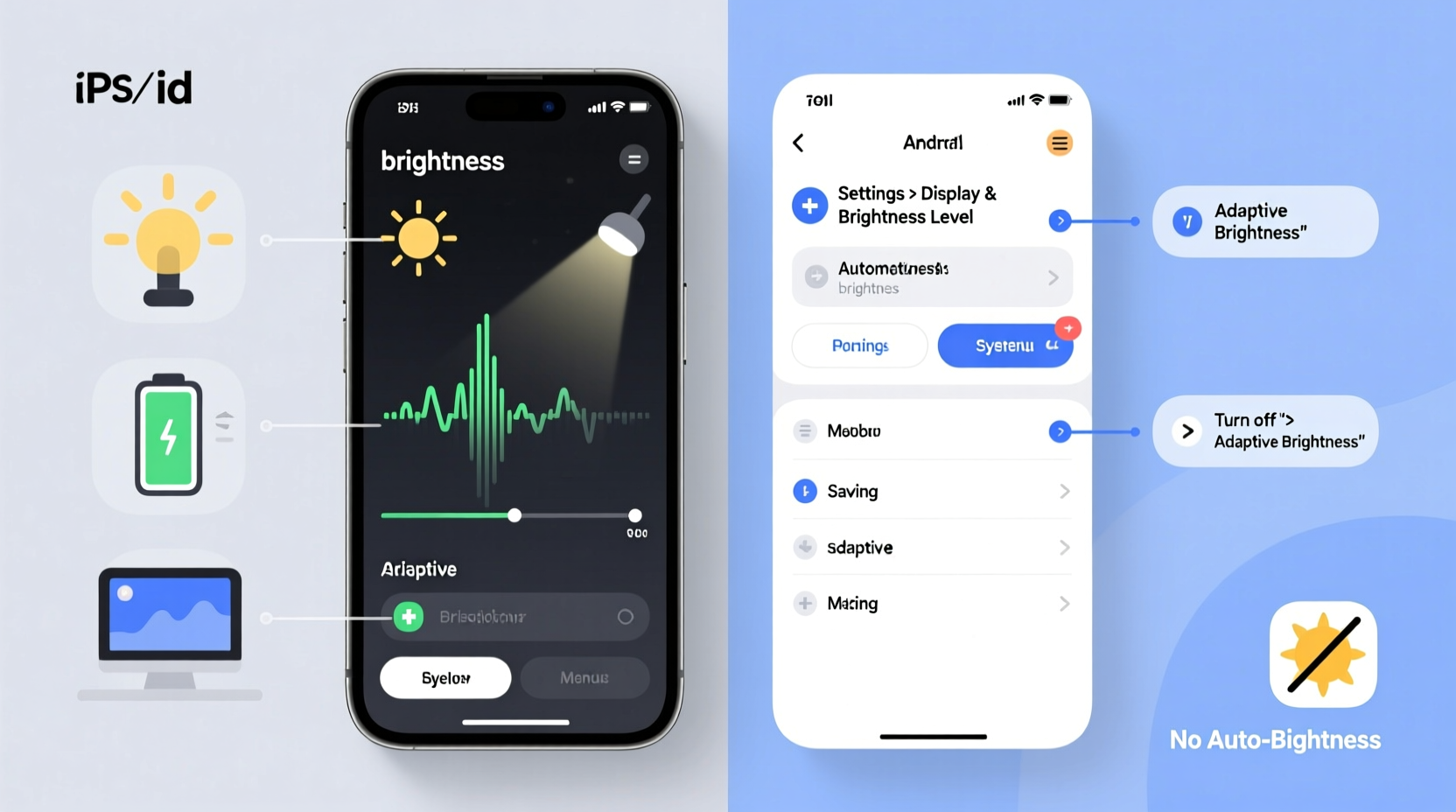
Automatic screen brightness is driven by ambient light sensors and software algorithms that adjust display output based on environmental lighting conditions. Most modern devices—from smartphones to laptops—include built-in light sensors that detect how much light surrounds the screen. When you move from a brightly lit room to a dim one, the sensor signals the system to lower brightness to reduce eye strain and save power.
However, several factors can make this system unreliable:
- Inaccurate sensors: Dust, screen protectors, or poor sensor placement can interfere with readings.
- Software bugs: Operating system updates sometimes introduce glitches in brightness management.
- Power-saving modes: Battery optimization features may override manual settings.
- Adaptive display settings: Some devices use AI-driven models that learn from usage patterns, which can lead to unwanted adjustments.
These issues explain why users often feel like their screens have a mind of their own. The technology aims to help, but without proper calibration or user control, it can do more harm than good.
How Auto-Brightness Works Across Devices
Different platforms implement automatic brightness differently. While the goal is consistent—optimizing visibility and energy efficiency—the execution varies significantly. Below is a breakdown of how major operating systems handle this feature.
| Device/OS | Sensor Type | Key Settings Location | Can Be Fully Disabled? |
|---|---|---|---|
| Windows 10/11 | Ambient light sensor (if hardware present) | Settings > System > Display | Yes |
| macOS (M1/M2 MacBooks) | Advanced ambient light sensor | System Settings > Displays | Yes (on most models) |
| iOS (iPhone/iPad) | True Tone & ambient sensor | Settings > Accessibility > Display & Text Size | Yes |
| Android (various brands) | Varies by manufacturer | Settings > Display > Brightness | Usually yes, but may depend on brand |
Not all devices come equipped with physical light sensors. In such cases, software estimates lighting conditions using camera data or usage patterns—a less accurate method that often leads to erratic behavior.
“Auto-brightness should adapt seamlessly to your environment, not dictate your viewing experience. When it fails, disabling it restores predictability.” — Dr. Lena Patel, Human-Computer Interaction Researcher, MIT Media Lab
Step-by-Step: How to Disable Auto-Brightness
Taking control starts with accessing the correct settings menu. Follow these platform-specific instructions to turn off automatic brightness adjustments.
On Windows 10 and 11
- Open Settings (press Win + I).
- Navigate to System > Display.
- Find the toggle labeled \"Change brightness automatically when lighting changes\".
- Switch it to Off.
- (Optional) Uncheck \"Use HDR\" if enabled, as it can affect perceived brightness.
If the option is missing, your device may not have an ambient light sensor. In that case, brightness changes are likely due to power-saving settings rather than environmental detection.
On macOS (macBook Air/Pro)
- Click the Apple menu and select System Settings (or System Preferences on older versions).
- Go to Displays.
- Look for the checkbox labeled \"Automatically adjust brightness\".
- Uncheck it.
- To prevent True Tone from influencing color and luminance, go to Display > True Tone and disable it if desired.
Note: On some Mac models, especially non-Retina displays, this option may not appear.
On iPhone and iPad (iOS/iPadOS)
- Open the Settings app.
- Tap Accessibility, then Display & Text Size.
- Toggle off Auto-Brightness.
- For additional control, disable True Tone under Display & Brightness if colors shifting with ambient light is also bothersome.
You can still manually adjust brightness using the Control Center slider after disabling this feature.
On Android Devices
- Open Settings.
- Tap Display (may be under \"Screen\" or \"Device\" on some brands).
- Select Brightness Level or similar.
- Turn off the switch for Adaptive Brightness or Auto-Adjust.
- Set your preferred brightness using the manual slider.
On Samsung Galaxy phones, look for “Adaptive brightness” under Settings > Display. On Pixel devices, it's labeled “Adaptive brightness” or “Helpful suggestions” depending on OS version.
Mini Case Study: A Freelancer’s Productivity Fix
Jamal, a freelance graphic designer in Portland, began experiencing frequent headaches while working remotely. He noticed his MacBook Pro screen would dim unexpectedly during evening sessions, forcing him to constantly readjust brightness. Initially dismissing it as fatigue, he later realized the issue coincided with turning on a desk lamp. The ambient light sensor interpreted the directional light as overall brightness and reduced screen output.
After reading about auto-brightness quirks, Jamal disabled the setting via System Settings > Displays. He set a fixed brightness level suitable for his workspace and turned off True Tone to maintain consistent color temperature. Within days, eye strain decreased significantly, and his workflow became more stable. “I didn’t realize how much mental load came from fighting my screen,” he said. “Now I just focus on design.”
This case highlights how subtle tech behaviors can accumulate into real-world discomfort—and how simple fixes yield outsized benefits.
When to Keep Auto-Brightness Enabled
While disabling auto-brightness solves many problems, there are scenarios where keeping it on makes sense:
- Frequent environment changes: If you regularly move between indoor and outdoor spaces (e.g., commuting, working near windows), auto-adjustment helps maintain visibility.
- Battery conservation: On mobile devices, adaptive brightness can extend battery life by up to 15%, according to Apple’s energy reports.
- Accessibility needs: Users with light sensitivity may benefit from dynamic adjustments that reduce glare automatically.
If you choose to keep the feature active, consider calibrating it:
- Test brightness levels in different rooms.
- Clean the sensor area (usually near the front camera).
- Update your OS to ensure optimal sensor performance.
- Manually override brightness occasionally so the system learns your preferences (especially on Android).
Checklist: Regain Control Over Screen Brightness
Follow this checklist to diagnose and resolve unwanted brightness changes:
- ✅ Determine if your device has an ambient light sensor.
- ✅ Locate auto-brightness settings in your OS.
- ✅ Disable automatic adjustment across all linked devices.
- ✅ Clean the sensor area (near camera or top bezel).
- ✅ Manually set a comfortable brightness level for your primary environment.
- ✅ Check for OS updates that might fix sensor-related bugs.
- ✅ Monitor battery impact after disabling the feature.
- ✅ Re-enable temporarily if moving through highly variable lighting.
Frequently Asked Questions
Why does my screen dim even after I turned off auto-brightness?
This could be due to power-saving features. On Windows, check your power plan settings—some plans dim the screen after inactivity. On mobile devices, look for \"Screen timeout\" or \"Battery saver\" modes that override manual brightness. Disable these or adjust the timing to prevent unwanted dimming.
Can a dirty screen cause brightness fluctuations?
Not directly—but grime over the ambient light sensor (often near the front-facing camera) can block light detection, causing incorrect readings. Wipe the top edge of your phone or the bezel around your laptop’s webcam with a microfiber cloth to restore accuracy.
Does disabling auto-brightness drain the battery faster?
Potentially, yes—if you leave brightness at maximum. However, setting it to a moderate level (around 50–70%) typically results in minimal battery impact. For most users, the trade-off in comfort and control outweighs slight reductions in battery longevity.
Conclusion: Take Back Control of Your Viewing Experience
Your screen should serve you—not surprise you. Automatic brightness was designed with good intentions, but its inconsistent performance often undermines comfort and usability. By understanding how and why your device adjusts brightness, you can make informed decisions about whether to keep, tweak, or disable the feature entirely.
Whether you're editing photos, reading in bed, or coding late into the night, consistent screen behavior matters. A few minutes spent adjusting settings can eliminate hours of frustration. Apply the steps outlined here, test what works best for your routine, and enjoy a more predictable, personalized display experience.




 浙公网安备
33010002000092号
浙公网安备
33010002000092号 浙B2-20120091-4
Comments
No comments yet. Why don't you start the discussion?