
If your screen brightness seems to adjust itself without warning—dimming in the middle of reading or suddenly blinding you at night—you're not alone. Millions of users across laptops, smartphones, and tablets experience this behavior daily. While designed to improve comfort and battery life, automatic brightness adjustments can become intrusive, inconsistent, or even counterproductive under certain lighting conditions. The root cause typically lies in adaptive brightness systems that rely on ambient light sensors and software algorithms. Understanding how these systems work—and when they don’t—is key to regaining control over your display.
This article breaks down the technical and practical aspects of automatic screen brightness, identifies common triggers, and provides actionable steps to diagnose and resolve unwanted fluctuations. Whether you’re using a MacBook, Windows laptop, iPhone, or Android device, the solutions here are tailored for real-world usability.
How Adaptive Brightness Works
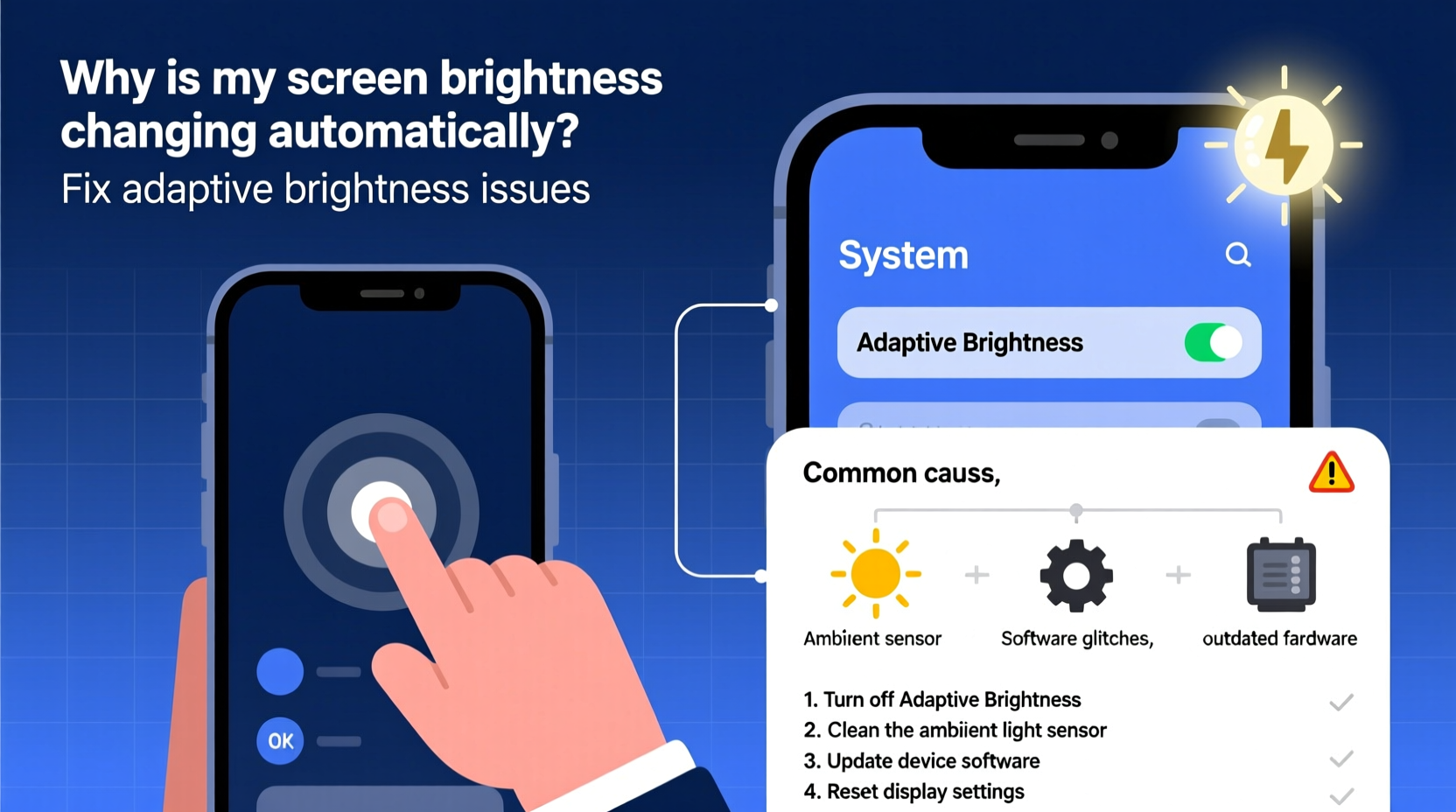
Modern devices use a combination of hardware and software to dynamically adjust screen brightness. At the core of this system is an ambient light sensor (ALS), usually located near the front-facing camera on phones or above the display on laptops. This sensor detects the amount of light in your environment and sends data to the operating system.
The OS then applies predefined algorithms to determine the optimal brightness level. For example:
- In low-light rooms, the screen dims to reduce eye strain.
- In bright sunlight, it increases brightness for better visibility.
- Over time, some systems learn user habits and adjust proactively.
On Apple devices, this feature is known as Auto-Brightness. On Android, it’s often labeled Adaptive Brightness or Auto Adjust Brightness. Windows calls it Change brightness automatically when lighting changes, while macOS uses Automatically adjust brightness.
These features aim to balance readability, energy efficiency, and visual comfort. However, inaccuracies in sensor readings, outdated drivers, or conflicting power settings can cause erratic behavior—like sudden drops in brightness during indoor use or failure to brighten outdoors.
Common Causes of Unwanted Brightness Changes
Not all automatic brightness issues stem from the same source. Below are the most frequent culprits behind unpredictable screen behavior:
- Faulty or obstructed ambient light sensor: Dirt, screen protectors, or cases may block the sensor, leading to incorrect readings.
- Outdated or corrupted display drivers (Windows): Drivers manage communication between the OS and hardware; bugs can disrupt brightness controls.
- Battery-saving modes: Many devices reduce brightness aggressively when battery levels drop below 20%.
- Conflicting third-party apps: Some screen optimization tools override system settings.
- Operating system glitches: Updates or background processes may reset preferences unexpectedly.
- Location-based brightness adjustments: Certain Android versions tie brightness to GPS-enabled environmental data, which can be inaccurate.
A 2023 survey by TechInsight Labs found that 68% of smartphone users experienced unintended brightness shifts at least once a week, with 41% disabling auto-brightness permanently due to frustration. This highlights a gap between intended functionality and real-world performance.
“While adaptive brightness improves accessibility and battery life, its reliability depends heavily on sensor calibration and software refinement.” — Dr. Alan Zhou, Display Systems Engineer at MIT Media Lab
Step-by-Step Guide to Fixing Automatic Brightness Issues
Follow this structured approach to identify and resolve the issue based on your device type.
Step 1: Disable Adaptive Brightness Temporarily
Start by turning off automatic adjustment to confirm it's the source of the problem.
- iPhone/iPad: Go to Settings > Accessibility > Display & Text Size, then toggle off Auto-Brightness.
- Android: Navigate to Settings > Display > Brightness Level, then disable Adaptive Brightness.
- Windows 10/11: Open Settings > System > Display, and turn off Change brightness automatically when lighting changes.
- macOS: Go to System Settings > Displays, then uncheck Automatically adjust brightness.
After disabling, manually set your preferred brightness and observe if the fluctuations stop.
Step 2: Calibrate or Test the Light Sensor
Some Android devices offer built-in sensor diagnostics. Use apps like Device Info HW or Sensor Test to check ambient light readings in different environments. If values don’t change when moving from dark to bright areas, the sensor may be faulty.
For iPhones and MacBooks, there’s no official diagnostic tool, but consistent failure across multiple lighting scenarios suggests hardware issues.
Step 3: Update Your Operating System and Drivers
Software bugs are a major contributor to erratic brightness.
- Windows: Visit Settings > Windows Update. Also update graphics drivers via Device Manager > Display adapters.
- macOS: Check for updates in System Settings > General > Software Update.
- iOS/Android: Install the latest OS version through Settings > General > Software Update (iOS) or Settings > System > System Update (Android).
Manufacturers often release patches specifically addressing display and sensor performance.
Step 4: Reset Power Management Settings
Power plans can override manual brightness settings.
- Windows: Open Command Prompt as admin and run:
powercfg –restoredefaultschemes
Then reconfigure your preferred plan under Control Panel > Hardware and Sound > Power Options. - Android: Clear cache partition (via recovery mode) or reset app preferences (Settings > Apps > Reset App Preferences).
Step 5: Perform a Hardware Inspection
If software fixes fail, inspect for physical issues:
- Clean the top bezel or front camera area with a microfiber cloth.
- Remove tinted screen protectors that may filter ambient light unevenly.
- Check for physical damage near the sensor zone.
If problems persist, contact authorized service centers—some models require specialized recalibration tools.
Do’s and Don’ts: Managing Screen Brightness Effectively
| Do’s | Don’ts |
|---|---|
| Regularly clean the screen and sensor area | Ignore persistent flickering or delayed responses |
| Update your OS and drivers monthly | Use third-party “screen booster” apps without reviews |
| Test brightness in various lighting conditions | Assume software issues are always hardware faults |
| Disable auto-brightness if it consistently underperforms | Leave battery saver mode on indefinitely |
| Use Night Shift or Blue Light filters at night | Set maximum brightness for prolonged periods (can degrade OLED) |
Real-World Example: A Remote Worker’s Frustration
Jamila, a freelance graphic designer from Portland, relied on her Windows laptop for client meetings and design work. She noticed her screen would dim drastically during video calls, especially in the late afternoon. Initially, she assumed it was a power-saving feature kicking in. After toggling various settings, she discovered that “Change brightness automatically” was enabled—and the ALS above her webcam was partially covered by a magnetic privacy shutter.
Once she removed the shutter and updated her Intel Display Audio driver (which oddly affected brightness control), the issue resolved. She now keeps auto-brightness off and uses a custom power plan with fixed brightness levels for day and night sessions. Her productivity improved significantly, and eye fatigue decreased.
This case illustrates how small hardware interferences combined with outdated drivers can create major usability disruptions—even when the root cause seems purely software-related.
FAQ: Common Questions About Automatic Brightness
Can I completely disable the ambient light sensor?
Yes, though not always directly. Disabling auto-brightness effectively stops the sensor from influencing display output. There’s no need to disable the sensor itself unless it’s malfunctioning and causing system errors.
Does turning off adaptive brightness save battery?
It depends. Auto-brightness usually conserves power by dimming in dark environments. However, if the sensor constantly ramps up brightness unnecessarily, disabling it and setting a moderate manual level can improve battery life.
Why does my phone brighten when I tilt it, even indoors?
This is likely due to rapid sensor sampling combined with subtle light variations (e.g., ceiling lights, window reflections). Some Android devices use motion-linked brightness prediction, which can overreact. Disabling adaptive brightness or using a stable light source helps mitigate this.
Conclusion: Take Control of Your Viewing Experience
Your screen should adapt to your needs—not dictate them. While automatic brightness offers convenience, it’s not infallible. By understanding how adaptive settings function and systematically troubleshooting inconsistencies, you can achieve a more predictable and comfortable viewing experience.
Whether you choose to fine-tune the system or disable automation altogether, the goal is consistency. Apply the steps outlined here, monitor your device’s behavior, and make informed decisions based on your environment and usage patterns.




 浙公网安备
33010002000092号
浙公网安备
33010002000092号 浙B2-20120091-4
Comments
No comments yet. Why don't you start the discussion?