
If you've ever been working on your laptop or scrolling through your phone, only to have the screen suddenly dim or flare up without warning, you're not alone. Automatic brightness adjustments can be helpful in theory, but in practice, they often misfire—dimming too aggressively indoors or failing to brighten in sunlight. The result? Eye strain, disrupted focus, and frustration. Understanding why this happens and how to take control is essential for a comfortable digital experience.
Automatic brightness is designed to adapt your display to ambient lighting conditions using built-in sensors. While this feature aims to save battery and improve visibility, it doesn’t always work as intended. Sometimes, software glitches, outdated drivers, or overly sensitive sensors cause erratic behavior. The good news: you can disable or fine-tune automatic brightness across most devices. This guide breaks down the causes, solutions, and best practices to regain full control over your screen’s brightness.
What Causes Automatic Brightness Changes?
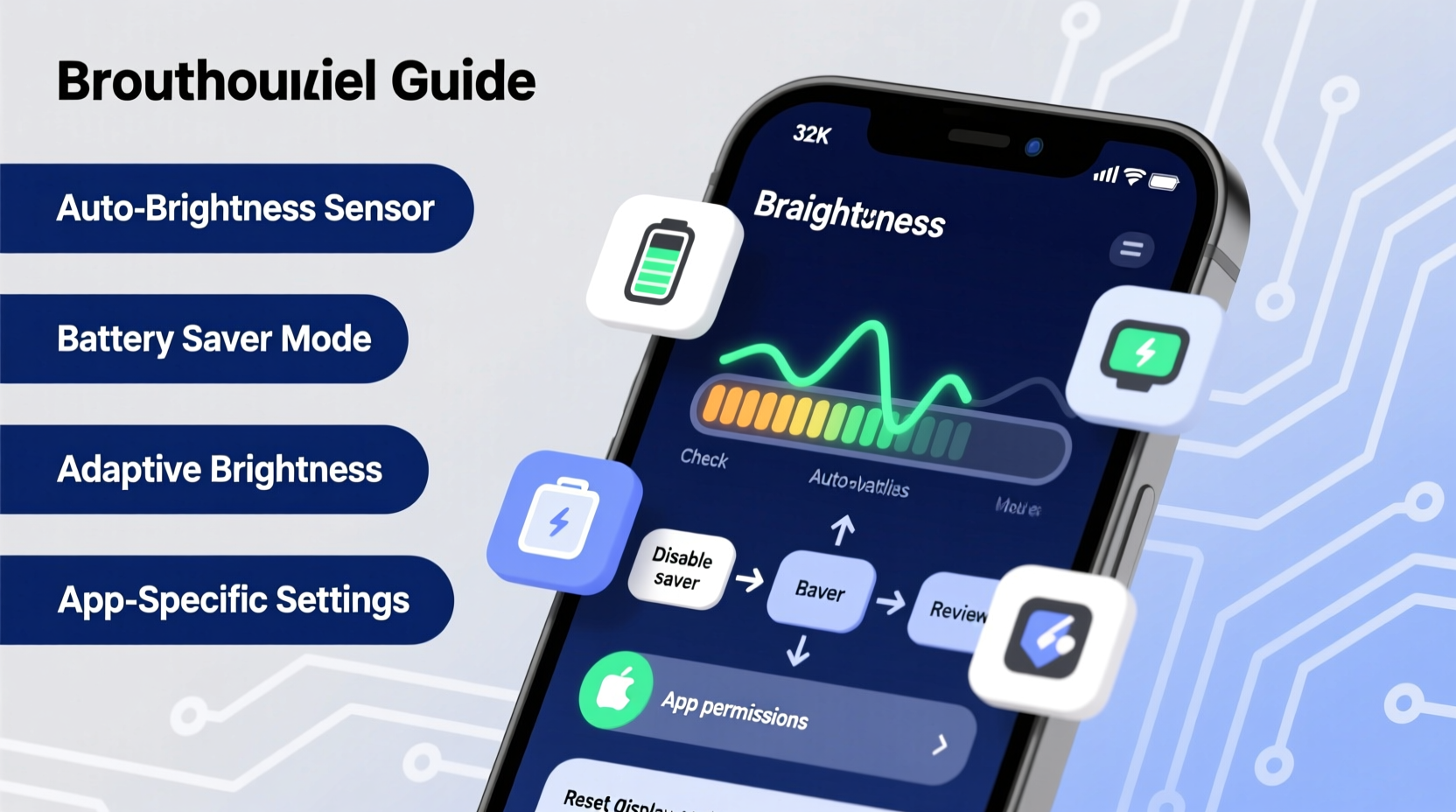
Screen brightness that changes on its own is typically driven by adaptive brightness systems. These systems rely on ambient light sensors (ALS) located near the front-facing camera or top bezel of your device. When the sensor detects changes in surrounding light, it signals the operating system to adjust brightness accordingly.
While the technology is useful, several factors can interfere with its accuracy:
- Inconsistent lighting: Rapid shifts between shadows and light (e.g., walking under trees) confuse sensors.
- Dust or obstruction: A dirty sensor or case covering the sensor can lead to false readings.
- Software bugs: OS updates sometimes introduce glitches in brightness management.
- Power-saving settings: Some devices reduce brightness after periods of inactivity, even if auto-brightness is off.
- Driver issues: On Windows laptops, outdated or corrupted display drivers may trigger unwanted adjustments.
“Adaptive brightness works best in stable environments. In dynamic lighting, manual control often provides a better user experience.” — Dr. Lin Zhao, Human-Computer Interaction Researcher, MIT Media Lab
How to Stop Automatic Brightness on Different Devices
The method to disable automatic brightness varies by operating system and device type. Below are detailed instructions for the most common platforms.
Windows Laptops and PCs
On Windows 10 and 11, automatic brightness is managed through both system settings and graphics drivers (especially Intel, AMD, or NVIDIA).
- Open Settings (Win + I).
- Navigate to System > Display.
- Toggle off \"Change brightness automatically when lighting changes\".
If the option is missing or grayed out, check your graphics driver settings:
- Intel Graphics: Open the Intel Graphics Command Center > Display > Enable/Disable \"Adaptive Brightness.\"
- NVIDIA: Use NVIDIA Control Panel > Display > Adjust desktop color settings > Disable Dynamic Range if linked to brightness shifts.
macOS (MacBooks)
Apple refers to this feature as \"Auto-Brightness.\" It's enabled by default on most MacBooks with ambient light sensors.
- Click the Apple logo and select System Settings (or System Preferences on older versions).
- Go to Displays.
- Uncheck \"Automatically adjust brightness\".
Note: This option may not appear on external monitors or older Mac models without ALS.
iOS (iPhone and iPad)
iOS uses a feature called \"Auto-Brightness\" powered by the True Tone system on supported models.
- Open the Settings app.
- Tap Accessibility > Display & Text Size.
- Toggle off \"Auto-Brightness\".
You can also disable True Tone separately in Settings > Display & Brightness if the color temperature shifts are distracting.
Android Phones and Tablets
Android devices vary by manufacturer, but the general path is consistent.
- Open Settings.
- Go to Display.
- Find Brightness level or Adaptive brightness.
- Turn off the toggle switch.
Some brands like Samsung, OnePlus, or Xiaomi may label this as “Adaptive Display” or “Auto-adjust brightness.” Check under “Advanced settings” if not immediately visible.
Troubleshooting Persistent Brightness Issues
Sometimes, turning off auto-brightness doesn’t fully solve the problem. Here’s how to address stubborn cases.
Check for Software Updates
Outdated firmware or OS versions can cause display bugs. Ensure your device is running the latest software:
- Windows: Settings > Update & Security > Check for updates.
- macOS: Apple menu > System Settings > Software Update.
- iOS: Settings > General > Software Update.
- Android: Settings > System > System Update.
Calibrate or Clean the Ambient Light Sensor
A dirty or obstructed sensor gives inaccurate readings. Gently clean the top edge of your device—near the front camera—with a soft, dry microfiber cloth. Avoid liquids or abrasive materials.
For deeper calibration, some Android devices offer sensor calibration tools in the developer options or diagnostic menus (e.g., Samsung's *Device Care > Diagnostics*).
Reset Display Settings
If brightness behaves erratically, reset display-related configurations:
- Windows: Reset graphics driver (press Win + Ctrl + Shift + B to restart GPU).
- macOS: Reset SMC (System Management Controller) on Intel Macs: Shut down, press Shift+Control+Option+Power for 10 seconds, then restart.
- Android: Boot into safe mode to check if third-party apps are interfering.
Do’s and Don’ts of Managing Screen Brightness
| Action | Do | Don't |
|---|---|---|
| Adjusting brightness manually | Set brightness to a comfortable level in your current environment. | Keep it at maximum for long periods—it strains eyes and drains battery. |
| Using auto-brightness | Enable it when frequently moving between indoor and outdoor spaces. | Rely on it in flickering or inconsistent lighting (e.g., fluorescent offices). |
| Maintaining your device | Clean the sensor area monthly to prevent dust buildup. | Cover the top bezel with thick cases or screen protectors that block the sensor. |
| Updating software | Install OS updates promptly—they often include display fixes. | Ignore repeated brightness issues after an update; report them to support. |
Real-World Example: Fixing Auto-Brightness on a Work Laptop
Sarah, a freelance graphic designer, noticed her Windows 11 laptop kept dimming during client video calls. She worked from a home office with consistent lighting, so automatic adjustments weren’t necessary. After toggling off \"Change brightness automatically\" in Settings, the issue returned within hours.
She dug deeper and discovered her Intel Graphics driver had re-enabled Adaptive Brightness after a recent update. By opening the Intel Graphics Command Center and disabling the feature there permanently, she stopped the unwanted changes. Additionally, she updated her display driver through Dell’s support site (her laptop brand), which resolved occasional flickering.
Sarah now manually sets her brightness to 70% during the day and uses night mode after sunset. Her productivity improved, and eye fatigue decreased significantly.
Expert Tips for Long-Term Display Comfort
Controlling brightness isn’t just about convenience—it impacts eye health and battery life. Consider these advanced strategies:
- Use Night Light or Blue Light Filters: Reduce eye strain in low-light conditions without lowering brightness excessively.
- Set Power Plan Limits (Windows): In Control Panel > Power Options, set \"Display brightness\" to a fixed percentage for both battery and plugged-in modes.
- Monitor Battery Impact: Auto-brightness can save energy, but aggressive dimming may force you to increase brightness manually, negating benefits.
- Consider Environment First: Improve room lighting instead of relying solely on screen adjustments. Natural light or warm LEDs reduce glare and contrast stress.
Frequently Asked Questions
Why does my screen keep getting brighter even after I turn off auto-brightness?
This could be due to a background app, driver override, or power management setting. Check graphics driver software (Intel, NVIDIA) and ensure no third-party apps (like f.lux or Twilight) are controlling brightness. Also, verify that your power plan isn’t adjusting brightness based on usage.
Can I disable auto-brightness on an external monitor?
Most external monitors don’t have ambient light sensors, so auto-brightness isn’t active. However, if your monitor has built-in features (e.g., ASUS Smart Contrast), disable them via the monitor’s on-screen menu. On Windows, external displays aren’t affected by the OS auto-brightness toggle.
Is it bad to keep auto-brightness turned off?
No. While auto-brightness can help conserve battery and adapt to lighting, many users prefer manual control for consistency. Turning it off doesn’t harm your device. Just remember to adjust brightness yourself in different environments to maintain comfort and efficiency.
Take Control of Your Viewing Experience
Your screen should serve you—not decide for you. Automatic brightness might seem like a convenience, but when it malfunctions or misinterprets your environment, it becomes a distraction. By understanding how the system works and where to disable it, you reclaim control over your digital experience.
Whether you’re working late, reading in bed, or presenting on a sunny patio, consistent brightness settings reduce eye strain and improve focus. Take a few minutes to review your device settings, clean the sensor, and lock in your preferred brightness level. Small adjustments today lead to more comfortable, productive screen time tomorrow.




 浙公网安备
33010002000092号
浙公网安备
33010002000092号 浙B2-20120091-4
Comments
No comments yet. Why don't you start the discussion?