
There’s nothing more frustrating than adjusting your screen brightness only to find it shifting minutes later—sometimes dimming in the middle of reading or suddenly blinding you in a dark room. If you’ve ever asked, “Why is my screen brightness changing automatically?” you’re not alone. Millions of users across laptops, smartphones, and tablets experience this issue daily. While automatic brightness is designed to enhance comfort and save battery life, it often misfires due to faulty sensors, software bugs, or aggressive power-saving features. The good news: most cases can be resolved with a few targeted settings changes. This guide breaks down the causes, offers step-by-step fixes, and helps you regain full control over your display.
Understanding Automatic Brightness: How It Works
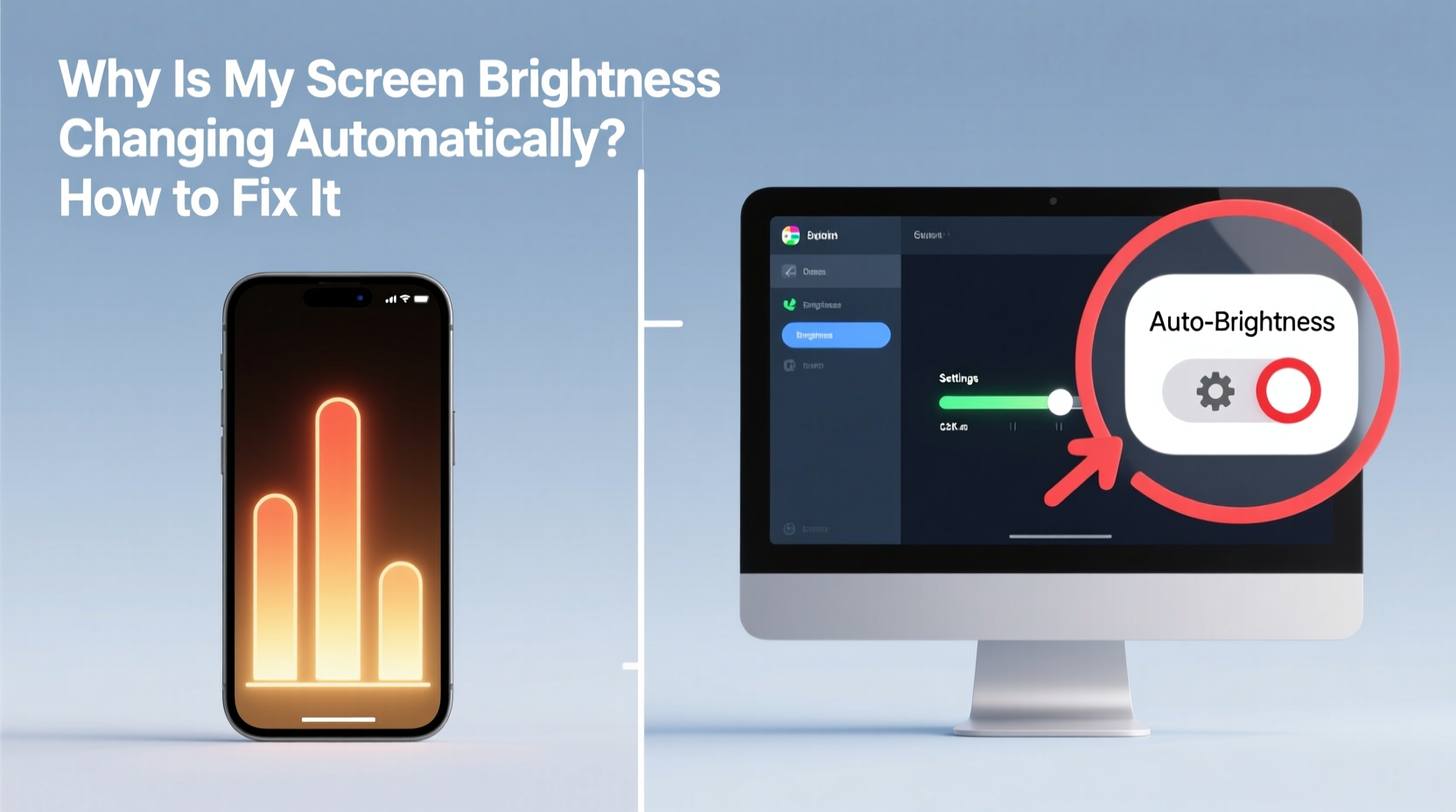
Modern devices use ambient light sensors (ALS) to detect the amount of light in your environment. Based on this input, the operating system adjusts screen brightness to maintain optimal visibility while conserving energy. For example, in a brightly lit room, your screen will brighten; in dim conditions, it dims. This feature is commonly labeled as “Auto-Brightness,” “Adaptive Brightness,” or “True Tone” depending on the device and OS.
The technology aims to reduce eye strain and extend battery life. However, sensor inaccuracies, outdated drivers, or conflicting apps can cause erratic behavior—such as sudden drops in brightness or failure to respond to actual lighting changes.
“Automatic brightness should adapt seamlessly, but when calibration fails or the sensor is obstructed, user experience suffers.” — Dr. Lena Patel, Display Technology Researcher at MIT Media Lab
Common Causes of Unwanted Brightness Changes
Before diving into fixes, it's essential to identify what might be triggering the unwanted shifts:
- Faulty or covered ambient light sensor: On many devices, especially smartphones and ultrabooks, the sensor is near the front camera. A case, finger, or dirt can block it, leading to incorrect readings.
- Outdated graphics drivers: On Windows PCs, corrupted or outdated display drivers may interfere with brightness controls.
- Power-saving modes: Battery saver or adaptive battery features on mobile devices often override manual brightness settings.
- Operating system bugs: Updates sometimes introduce glitches that affect display behavior.
- Third-party apps: Some apps, particularly battery optimizers or night mode tools, can force brightness changes without user consent.
- Adaptive brightness settings enabled: Even if you manually adjust brightness, the system may revert to auto-adjustments if the feature remains active.
Step-by-Step Fixes by Device Type
The solution depends on your device’s operating system. Below are detailed instructions for the most common platforms.
Fixing Auto-Brightness on Windows 10/11
- Disable Adaptive Brightness:
- Press Windows + I to open Settings.
- Navigate to System > Display.
- Toggle off “Change brightness automatically when lighting changes”.
- Update Graphics Drivers:
- Right-click the Start button and select Device Manager.
- Expand Display adapters, right-click your GPU (e.g., Intel UHD Graphics), and choose Update driver.
- Select Search automatically for updated driver software.
- Adjust Power Plan Settings:
- Go to Control Panel > Hardware and Sound > Power Options.
- Click Change plan settings next to your active plan.
- Select Change advanced power settings.
- Expand Display > Enable adaptive brightness and set both On battery and Plugged in to Disabled.
- Calibrate the Display (Optional):
- In Settings > System > Display, scroll down and click Run calibration under Color calibration.
- Follow the prompts to adjust gamma, brightness, and contrast visually.
Fixing Auto-Brightness on macOS
- Turn Off Auto-Brightness:
- Click the Apple menu and go to System Settings (or System Preferences).
- Select Displays.
- Uncheck “Automatically adjust brightness”.
- Disable True Tone (if applicable):
- In the same Displays panel, look for True Tone and toggle it off.
- Note: True Tone adjusts color temperature, but some users report it indirectly affects perceived brightness.
- Reset SMC (for older Macs):
- If brightness issues persist, reset the System Management Controller (SMC).
- For Macs with T2 chip: Shut down, press and hold Control + Option + Shift for 7 seconds, then press power.
- For Intel MacBooks: Shut down, press Shift + Control + Option + Power simultaneously for 10 seconds.
Fixing Auto-Brightness on Android
- Disable Adaptive Brightness:
- Open Settings > Display.
- Tap Brightness level.
- Toggle off Adaptive brightness or Auto-brightness.
- Check App Permissions:
- Go to Settings > Apps > Special access > Modify system settings.
- Ensure no third-party app has permission to change brightness unless trusted.
- Disable Battery Optimization for Display Services:
- Navigate to Settings > Battery > Battery optimization.
- Select All apps, find services like “Display” or “Screen,” and set them to Don’t optimize.
Fixing Auto-Brightness on iPhone/iPad
- Turn Off Auto-Brightness:
- Open Settings > Accessibility > Display & Text Size.
- Toggle off Auto-Brightness.
- Disable True Tone and Night Shift:
- Go to Settings > Display & Brightness.
- Turn off True Tone and Night Shift if enabled.
- Clean the Proximity Sensor:
- Use a soft, dry cloth to clean the area around the front-facing camera and earpiece—this is where the light sensor is located.
Troubleshooting Persistent Issues
Sometimes, even after disabling auto-brightness, the screen continues to fluctuate. Here’s how to dig deeper:
Check for Software Updates
Manufacturers frequently release patches for display-related bugs. Ensure your OS is up to date:
- Windows: Settings > Update & Security > Check for updates.
- macOS: Apple menu > System Settings > Software Update.
- Android: Settings > System > System update.
- iOS: Settings > General > Software Update.
Boot in Safe Mode (Android)
If third-party apps are interfering:
- Press and hold the power button until the power menu appears.
- Long-press the “Power off” option until “Reboot to safe mode” appears.
- Tap OK. In safe mode, only system apps run. Test brightness behavior.
- If the problem stops, uninstall recently installed apps one by one.
Hardware Inspection
If none of the above works, consider hardware issues:
- A damaged ambient light sensor may send erratic signals.
- Liquid damage or physical trauma can impair sensor function.
- Contact authorized service centers for diagnostics—especially if under warranty.
Do’s and Don’ts: Managing Screen Brightness
| Do’s | Don’ts |
|---|---|
| ✅ Disable auto-brightness if it interferes with your workflow. | ❌ Don’t ignore persistent brightness flickering—it may indicate deeper software issues. |
| ✅ Clean the screen and sensor area regularly. | ❌ Don’t use abrasive cleaners on sensor zones. |
| ✅ Use keyboard shortcuts (e.g., Fn keys) for quick adjustments. | ❌ Don’t rely solely on touch sliders—calibrate via system settings for accuracy. |
| ✅ Schedule night mode or blue light filters instead of constant brightness changes. | ❌ Don’t install multiple brightness-control apps—they often conflict. |
Real-World Example: Sarah’s Laptop Woes
Sarah, a freelance writer, noticed her Windows 11 laptop kept dimming during evening work sessions. She’d adjust it manually, only for it to drop again within minutes. Initially, she assumed it was a battery-saving feature. After following the steps above, she discovered that while “Change brightness automatically” was off in Settings, her power plan still had adaptive brightness enabled under advanced settings. Once she disabled it there, the issue stopped. A week later, she updated her Intel graphics driver, which further stabilized display performance. Her takeaway: always check both surface-level settings and deeper system configurations.
Expert Insight: Why Auto-Brightness Isn’t Always Smart
While adaptive brightness is marketed as user-friendly, experts caution against over-reliance.
“Human perception of brightness is nuanced. Sensors measure lux levels, but they can’t interpret context—like whether you're reading fine print or watching a movie. Manual control often provides a better experience.” — Dr. Rajiv Mehta, Human-Computer Interaction Specialist, Stanford University
FAQ: Common Questions About Auto Brightness
Can I completely disable the ambient light sensor?
Most operating systems don’t offer a direct “disable sensor” option, but turning off auto-brightness effectively stops the system from using it. On rooted or jailbroken devices, third-party tools may allow deeper sensor control, though this is not recommended for average users.
Why does my screen dim even after disabling auto-brightness?
This could be due to power-saving modes (e.g., Windows dims screen when idle), display timeout settings, or apps forcing brightness changes. Check your power plan settings and review app permissions.
Is automatic brightness bad for my eyes?
Not inherently. When functioning correctly, it reduces eye strain by matching ambient light. However, rapid or inaccurate changes can cause visual fatigue. If the adjustments feel jarring, manual control is preferable.
Final Checklist: Regain Control of Your Screen
- ☑ Disable auto-brightness in display settings.
- ☑ Check power or battery settings for hidden adaptive options.
- ☑ Update your operating system and graphics drivers.
- ☑ Clean the ambient light sensor area.
- ☑ Review third-party apps with brightness permissions.
- ☑ Test in safe mode (on Android) to isolate software conflicts.
- ☑ Consider professional repair if hardware failure is suspected.
Conclusion: Take Back Control Today
Your screen should respond to you—not the other way around. Automatic brightness features were designed to help, but when they malfunction, they disrupt productivity and comfort. By understanding how these systems work and applying the right settings, you can eliminate unwanted fluctuations for good. Whether you're working late, reading in bed, or presenting on a laptop, consistent brightness makes a real difference. Apply the steps outlined here, perform regular maintenance, and enjoy a display that behaves exactly as you want it to.




 浙公网安备
33010002000092号
浙公网安备
33010002000092号 浙B2-20120091-4
Comments
No comments yet. Why don't you start the discussion?