
There’s nothing more frustrating than adjusting your screen brightness only to find it dimming or brightening again minutes later—without your input. Whether you're working late at night, reading in daylight, or trying to preserve battery life, unexpected changes in screen brightness can disrupt focus, strain your eyes, and reduce productivity. The good news is that most of these issues are fixable. This guide explains the common causes behind automatic brightness adjustments and offers actionable solutions across devices.
Understanding Automatic Brightness: How It Works
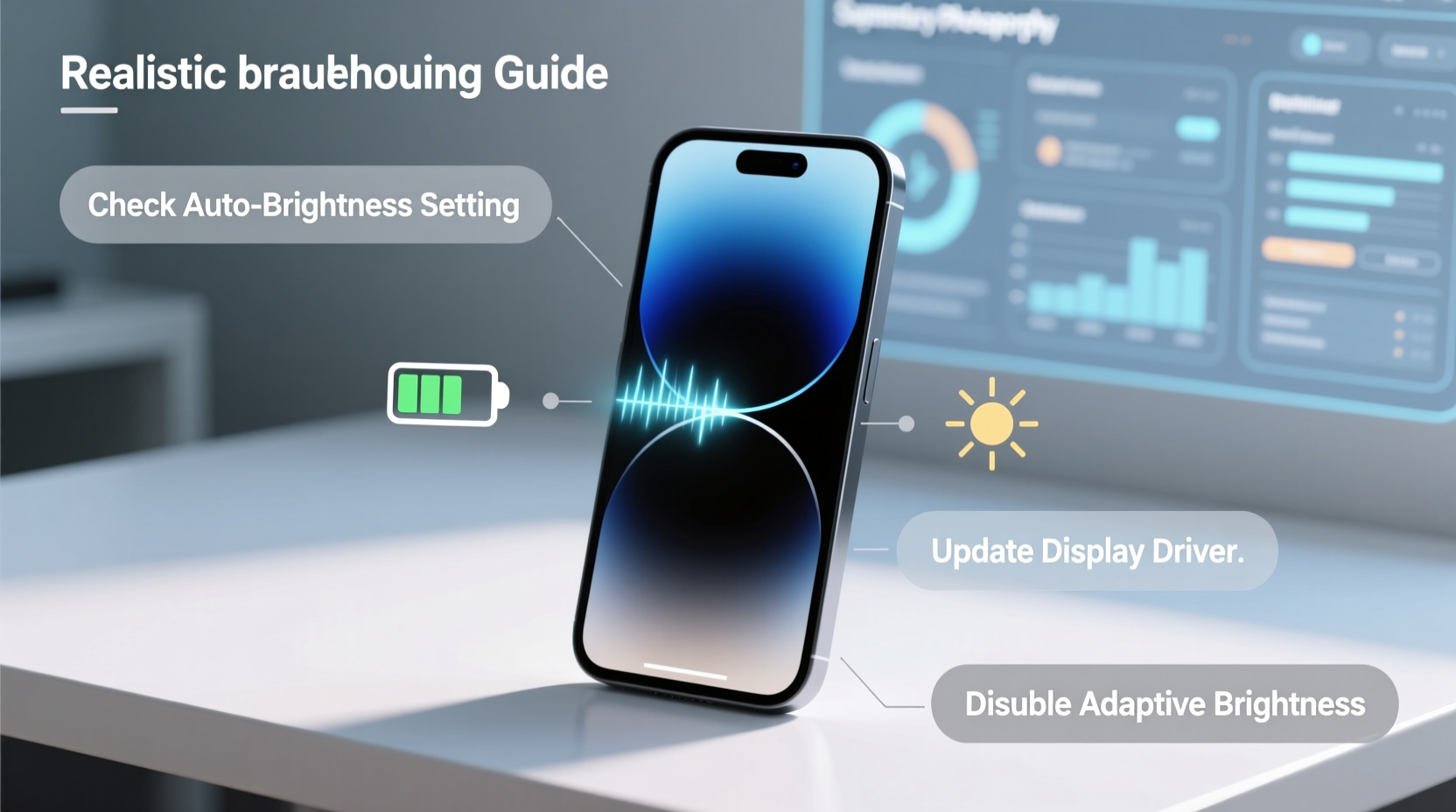
Modern screens—from smartphones to laptops—are equipped with ambient light sensors that detect the surrounding light levels. Based on this data, the device adjusts screen brightness to optimize visibility and conserve energy. This feature, often labeled as “Auto-Brightness,” “Adaptive Brightness,” or “Dynamic Brightness,” aims to enhance user comfort by reducing eye strain in low-light environments and improving clarity in bright conditions.
While well-intentioned, the system doesn’t always respond accurately. Sudden shifts during video playback, inconsistent behavior indoors, or delayed reactions to lighting changes can make the feature more of a nuisance than a help. In some cases, software bugs or misconfigured settings override manual adjustments entirely.
“Automatic brightness systems rely on predictive algorithms and sensor inputs. When either component malfunctions, users experience erratic screen behavior.” — Dr. Lena Patel, Display Technology Researcher at MIT Media Lab
Common Causes of Unwanted Brightness Changes
Before attempting fixes, it's essential to identify what’s triggering the changes. Here are the most frequent culprits:
- Ambient light sensor interference: Dust, screen protectors, or cases blocking the sensor (usually near the front camera) can cause inaccurate readings.
- Enabled auto-brightness settings: The feature may be turned on without your knowledge, especially after software updates.
- Power-saving modes: Some energy-saving profiles override brightness settings to extend battery life.
- Software glitches: Operating system bugs, particularly after updates, can corrupt display settings.
- Graphics driver issues (on PCs): Outdated or faulty drivers may trigger dynamic brightness controls even when disabled.
- Third-party apps: Certain apps, especially those related to battery optimization or screen filters, can manipulate brightness independently.
Step-by-Step Guide to Stop Automatic Brightness Changes
Follow this systematic approach to regain control over your screen brightness. These steps apply to most major platforms, including Windows, macOS, Android, and iOS.
- Disable Auto-Brightness in Settings
- Android: Go to Settings > Display > Brightness Level, then toggle off “Adaptive Brightness.”
- iOS: Navigate to Settings > Accessibility > Display & Text Size, and turn off “Auto-Brightness.”
- Windows: Open Settings > System > Display, and disable “Change brightness automatically when lighting changes.”
- macOS: Go to System Settings > Displays, and uncheck “Automatically adjust brightness.”
- Check for Active Power-Saving Modes
On both mobile and desktop devices, power-saving features often re-enable brightness throttling. Disable Battery Saver (Android), Low Power Mode (iOS), or any third-party optimization tools temporarily to test their impact.
- Clean the Ambient Light Sensor
Use a soft, dry microfiber cloth to gently clean the area around the front-facing camera. Avoid liquids or abrasive materials. On laptops, the sensor is often near the webcam bezel.
- Update Your Operating System and Drivers
Ensure your device is running the latest software version. For Windows users, update graphics drivers via Device Manager or the manufacturer’s website (e.g., NVIDIA, Intel, AMD).
- Reset Display Settings
If settings seem unresponsive, reset display preferences to default. On Android, try resetting app preferences (Settings > System > Reset options). On Windows, use the Graphics Settings reset option under Display.
- Test in Safe Mode (Mobile Devices)
Boot your phone in safe mode to determine if a third-party app is causing the issue. If brightness stabilizes in safe mode, uninstall recently installed apps one by one to isolate the culprit.
Troubleshooting by Device Type
Different platforms handle brightness differently. Below is a comparison of key settings and known quirks.
| Device | Auto-Brightness Setting Location | Common Issues | Solution Notes |
|---|---|---|---|
| iPhone/iPad | Settings > Accessibility > Display & Text Size | Auto-Brightness persists after disabling | Restart device; check for iOS updates |
| Android Phone/Tablet | Settings > Display > Brightness | Adaptive Brightness resets after reboot | Disable via Accessibility if standard toggle fails |
| Windows Laptop | Settings > System > Display | Brightness changes despite setting off | Update GPU driver; disable adaptive brightness in BIOS/UEFI if available |
| MacBook | System Settings > Displays | Screen dims rapidly in low light | Hold Option + Shift while clicking brightness icon to disable auto-adjust temporarily |
Mini Case Study: Resolving Persistent Brightness on a Work Laptop
Sarah, a freelance writer using a Windows 10 Dell laptop, noticed her screen dimmed every time she moved from her desk near a window to a shaded chair. She manually adjusted brightness multiple times per hour, affecting her writing flow. After disabling “Change brightness automatically” in Settings, the problem persisted. Further investigation revealed that Dell’s proprietary support assistant had re-enabled adaptive brightness after a recent update. By uninstalling the redundant utility and updating her Intel graphics driver, Sarah restored full manual control. This case highlights how manufacturer-specific software can override system settings—a common but overlooked cause.
Do’s and Don’ts of Managing Screen Brightness
To maintain consistent display performance, follow these best practices:
| Do’s | Don’ts |
|---|---|
| Regularly clean the front sensor area | Ignore software updates related to display drivers |
| Use dark mode in low-light environments to reduce eye strain | Assume the issue is hardware-related without checking settings first |
| Set a comfortable manual brightness level and lock it | Apply third-party screen filter apps without reviewing permissions |
| Monitor brightness behavior after OS updates | Use compressed air on sensors—moisture or force can damage components |
When Hardware Might Be the Issue
If all software fixes fail, the problem could stem from hardware. A malfunctioning ambient light sensor, damaged display cable (in laptops), or failing backlight system can cause erratic brightness. Signs of hardware failure include:
- Flickering brightness with no pattern
- No response to manual adjustments
- Screen pulsing between bright and dim states
- Error messages related to display calibration
For smartphones and tablets, consider visiting an authorized service center. On laptops, run built-in diagnostics (e.g., Dell Diagnostics, Apple Diagnostics) to test sensor functionality. Replacing a faulty sensor is usually cost-effective compared to ignoring the issue long-term.
FAQ
Why does my screen keep getting brighter in sunlight?
This is normal behavior when auto-brightness is enabled. The sensor detects high ambient light and increases screen output for better visibility. To prevent this, disable auto-brightness and set a fixed level suitable for outdoor use.
Can I permanently disable automatic brightness on my iPhone?
Yes. Go to Settings > Accessibility > Display & Text Size and turn off “Auto-Brightness.” Note that iOS may re-enable it after major updates, so verify the setting periodically.
Does disabling auto-brightness save battery?
Not necessarily. While manual control prevents unnecessary brightening, auto-brightness can actually extend battery life by lowering brightness in dark environments. The key is finding a balance—set a moderate manual level if you prefer consistency over optimization.
Final Checklist: Regain Control Over Your Screen
Use this checklist to systematically eliminate unwanted brightness changes:
- ☑ Disable auto-brightness in system settings
- ☑ Turn off battery saver or low power modes
- ☑ Clean the ambient light sensor gently
- ☑ Update operating system and graphics drivers
- ☑ Test in safe mode (mobile devices)
- ☑ Uninstall suspicious third-party apps
- ☑ Restart the device after making changes
- ☑ Run hardware diagnostics if problems persist
Conclusion
Automatic screen brightness changes are designed to improve usability, but when they misfire, they do more harm than good. By understanding how the system works and methodically addressing potential causes—from simple setting toggles to deeper software conflicts—you can restore reliable control over your display. Most fixes require no technical expertise and take less than ten minutes. Take action today to create a more stable, comfortable viewing experience across all your devices.




 浙公网安备
33010002000092号
浙公网安备
33010002000092号 浙B2-20120091-4
Comments
No comments yet. Why don't you start the discussion?