
Have you ever been working on your laptop or scrolling through your phone when suddenly the screen dims—or becomes blindingly bright—without any input from you? You're not imagining things. This frustrating behavior is more common than you think, affecting millions of users across smartphones, tablets, and computers. While designed to enhance user experience, automatic brightness adjustments can sometimes do more harm than good, especially in stable lighting environments or during focused tasks like reading or editing.
The root cause usually lies in ambient light sensors and software features meant to optimize battery life and visual comfort. But when these systems misfire or overreact, they disrupt workflow, strain the eyes, and create unnecessary annoyance. The good news: most of these issues are fixable. Whether you're using a Windows PC, MacBook, iPhone, or Android device, this guide walks you through exactly why your screen brightness changes unexpectedly—and how to stop it for good.
What Causes Automatic Brightness Changes?
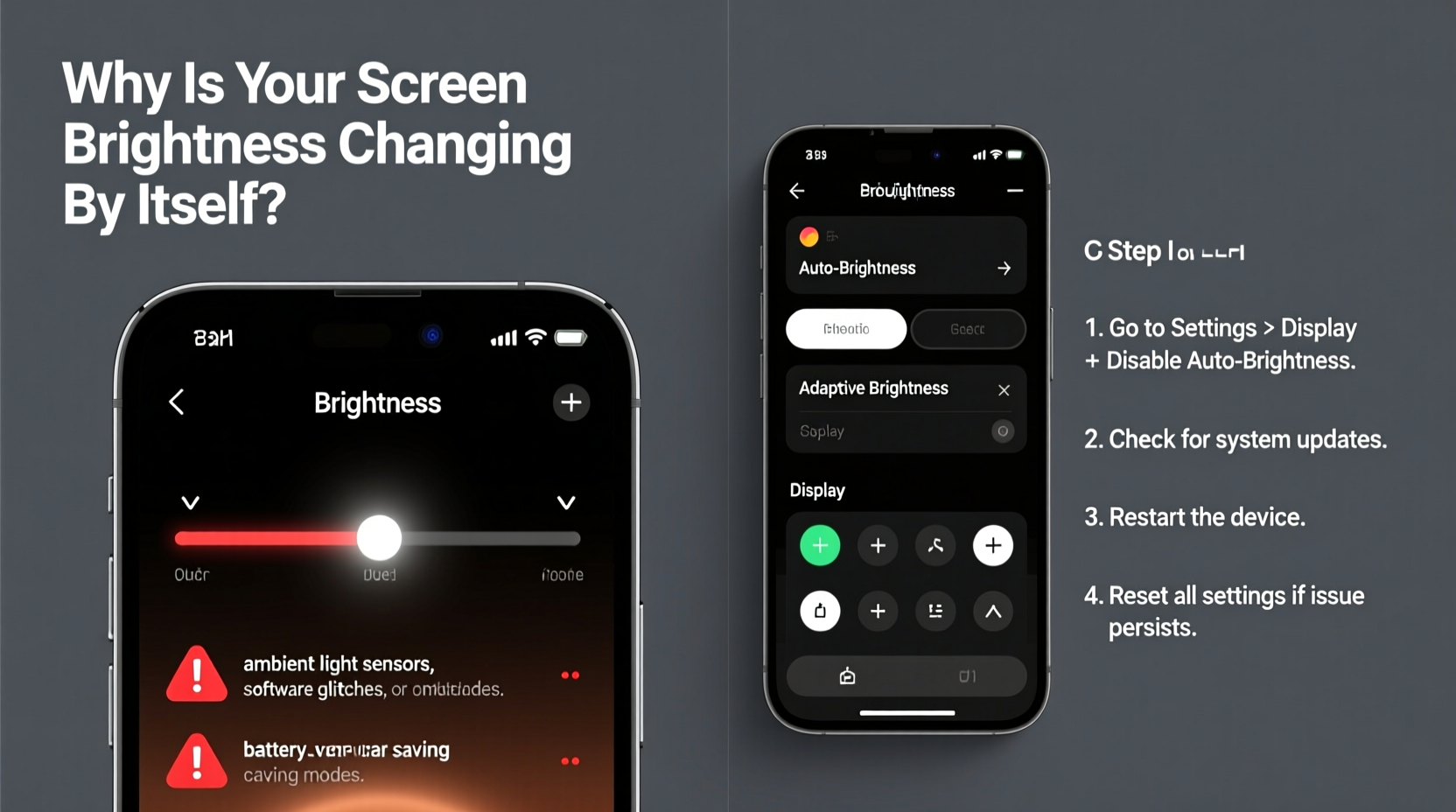
Modern devices come equipped with adaptive display technologies that adjust screen brightness based on environmental conditions. These systems rely on a combination of hardware and software components:
- Ambient Light Sensors (ALS): Tiny sensors located near the front-facing camera detect surrounding light levels and signal the system to dim or brighten the screen accordingly.
- Operating System Algorithms: Platforms like Windows 10/11, macOS, iOS, and Android use intelligent algorithms to interpret sensor data and adjust brightness smoothly.
- Battery Saver Modes: On mobile devices, power-saving settings often reduce brightness automatically to extend usage time.
- Graphics Drivers (PCs): Some GPU drivers include dynamic brightness controls, particularly Intel’s Display Power Saving Technology (DPST).
While helpful in theory, these features don’t always behave as expected. A flickering overhead light, shadows cast by your hand, or even software bugs can trick the sensor into making abrupt or incorrect adjustments.
“Automatic brightness is designed for convenience, but poor calibration or outdated firmware can make it counterproductive.” — Dr. Lena Torres, Human-Computer Interaction Researcher at MIT Media Lab
How to Disable Automatic Brightness by Device
The process for disabling auto-brightness varies depending on your operating system and device type. Below is a comprehensive breakdown for major platforms.
Windows 10 and 11
Windows includes a feature called “Adaptive Brightness” that adjusts screen levels based on ambient light. It's often enabled by default on laptops with built-in light sensors.
- Open Settings (Windows + I).
- Navigate to System > Display.
- Toggle off \"Change brightness automatically when lighting changes\".
If you don’t see this option, your device may not have an ambient light sensor. However, some brightness fluctuations could still stem from Intel Graphics Command Center settings.
macOS (MacBooks)
Apple refers to this feature as \"Auto-Brightness.\" It uses the iSight camera and proximity sensors to estimate ambient light.
- Click the Apple menu and select System Settings (or System Preferences on older versions).
- Go to Displays.
- Uncheck the box labeled \"Automatically adjust brightness\".
Note: This option only appears if your Mac model supports ambient light sensing (e.g., MacBook Pro, MacBook Air). Desktop iMacs without sensors won't show this setting.
iOS (iPhone and iPad)
iOS uses True Tone technology on supported models, which adjusts both brightness and color temperature based on surroundings.
- Open the Settings app.
- Tap Accessibility > Display & Text Size.
- Toggle off \"Auto-Brightness\".
To disable True Tone separately (which affects color more than brightness):
- Settings → Display & Brightness → Toggle off True Tone.
Android Devices
Most Android phones label this feature as \"Adaptive Brightness\" or \"Auto-Adjust Brightness.\"
- Open Settings.
- Tap Display (may be under \"Sound & Display\" or similar).
- Find Brightness Level or Brightness Adjustment.
- Disable the toggle for Adaptive Brightness or Auto-Brightness.
On Samsung devices, this may be labeled “Adaptive brightness” under Settings > Display > Brightness level. Some manufacturers also integrate AI-based learning that predicts preferred brightness—disabling auto-brightness stops this too.
Common Scenarios Where Auto-Brightness Fails
Even when properly configured, automatic brightness doesn’t always perform well. Here are real-world examples where it tends to malfunction:
Case Study: Office Worker Distracted by Screen Fluctuations
Sarah, a technical writer in Chicago, began noticing her MacBook screen dimming every afternoon around 3 PM. She worked near a window, and as sunlight shifted due to cloud cover, the ambient sensor interpreted the changes as decreasing light. The screen would dim mid-sentence, forcing her to manually readjust multiple times per hour. After disabling \"Automatically adjust brightness\" in System Settings, her productivity improved significantly. She now sets brightness manually each morning based on natural light availability.
Mobile Users in Mixed Lighting Environments
Commuting users often move between dark subway tunnels and sunlit streets. Auto-brightness struggles to keep up, leading to jarring transitions. In such cases, manually setting brightness to medium-high ensures consistency, especially when reading e-books or checking messages.
Laptops Under Artificial Lighting
Fluorescent office lights that flicker at high frequency can confuse ambient sensors. Combined with reflections from glossy screens, this leads to erratic brightness behavior. Disabling the feature eliminates the issue entirely.
Troubleshooting Persistent Brightness Issues
Even after disabling auto-brightness, some users report continued fluctuations. This suggests deeper system-level problems. Consider the following diagnostic steps:
Check for Software Updates
Outdated OS versions or driver bugs can cause improper sensor communication. Ensure your device is running the latest software:
- Windows: Settings → Update & Security → Check for updates.
- macOS: Apple Menu → System Settings → General → Software Update.
- iOS: Settings → General → Software Update.
- Android: Settings → System → System Update.
Reset Sensor Calibration (Android)
Some Android devices allow recalibration of light sensors via hidden service menus or third-party apps. Alternatively, booting into safe mode can help determine if a downloaded app is interfering.
Update Graphics Drivers (Windows)
Intel HD Graphics drivers are frequent culprits. Visit Intel’s official Driver & Support Assistant to download the latest version compatible with your chipset.
| Issue | Possible Cause | Solution |
|---|---|---|
| Screen dims randomly indoors | Fluorescent light interference | Disable auto-brightness; update display drivers |
| Brightness jumps suddenly outdoors | Sensor overwhelmed by rapid light changes | Turn off adaptive brightness; set manual level |
| No brightness control available | Missing drivers or corrupted settings | Reinstall GPU drivers; reset display settings |
| Auto-brightness won’t stay disabled | Third-party app override (e.g., battery savers) | Review permissions; uninstall aggressive optimization apps |
Best Practices for Managing Screen Brightness
Disabling automatic brightness is just the first step. To maintain visual comfort and prolong device lifespan, follow these expert-backed strategies:
Checklist: Optimize Your Display Settings
- ✅ Disable auto-brightness across all devices used for focused work.
- ✅ Set brightness to match ambient lighting—avoid overly bright screens in dark rooms.
- ✅ Use night mode or blue light filters in the evening to reduce eye strain.
- ✅ Clean the front sensor area regularly (near the earpiece on phones) to prevent dust obstruction.
- ✅ Adjust backlight timeout settings to conserve battery without compromising usability.
Maintain Consistent Viewing Conditions
Position your desk or seating to avoid direct glare from windows or lamps. For laptops, choose matte screen protectors to reduce reflections that confuse sensors. On mobile devices, avoid covering the top bezel with fingers while holding the phone sideways—this can block the light sensor.
Use Keyboard Shortcuts for Quick Adjustments
Familiarize yourself with brightness controls:
- Windows: Fn + Brightness keys (varies by manufacturer).
- Mac: F1 (dim) and F2 (brighten), or Control + Brightness keys.
- iOS: Swipe down Control Center and drag the brightness slider.
- Android: Swipe down notification panel and adjust the brightness tile.
Frequently Asked Questions
Does disabling auto-brightness drain the battery faster?
Not necessarily. If you keep brightness set too high, yes—it will consume more power. However, manually setting an optimal level (around 50–70% in most indoor settings) often results in better energy efficiency than an erratic auto-adjusting system.
Can I schedule brightness changes instead?
Yes. On Android, use Digital Wellbeing to set brightness profiles by time. On iPhones, use Focus modes with custom display settings. Third-party apps like Tasker (Android) or Shortcuts (iOS) allow advanced automation based on location or time of day.
Why does my screen still dim even after turning off auto-brightness?
This could be due to power-saving features. On Windows, check Power Options → Change plan settings → Turn off adaptive brightness. On phones, disable Battery Saver mode or review app-specific restrictions that may force dimming.
Take Control of Your Viewing Experience
Your screen should serve you—not dictate how you interact with it. Unwanted brightness changes are more than a minor annoyance; they disrupt concentration, contribute to digital eye strain, and undermine confidence in your device’s reliability. By understanding the mechanisms behind auto-brightness and knowing how to disable it effectively, you regain full control over your display environment.
Start today: locate the auto-brightness setting on each of your devices and turn it off. Calibrate your preferred brightness level based on typical usage scenarios. Combine this with regular maintenance and smart habits, and you’ll enjoy a smoother, more predictable digital experience.




 浙公网安备
33010002000092号
浙公网安备
33010002000092号 浙B2-20120091-4
Comments
No comments yet. Why don't you start the discussion?