
Screen flickering is more than just a visual annoyance—it can strain your eyes, reduce productivity, and signal deeper hardware or software issues. Whether you're using a laptop, desktop monitor, or even a mobile device, intermittent flashing, pulsing brightness, or jittery visuals should never be ignored. While many users immediately suspect faulty hardware, the root cause often lies in overlooked display settings, driver conflicts, or power management configurations. Understanding the interplay between system settings and hardware performance is key to diagnosing and resolving flickering effectively.
Common Causes of Screen Flickering
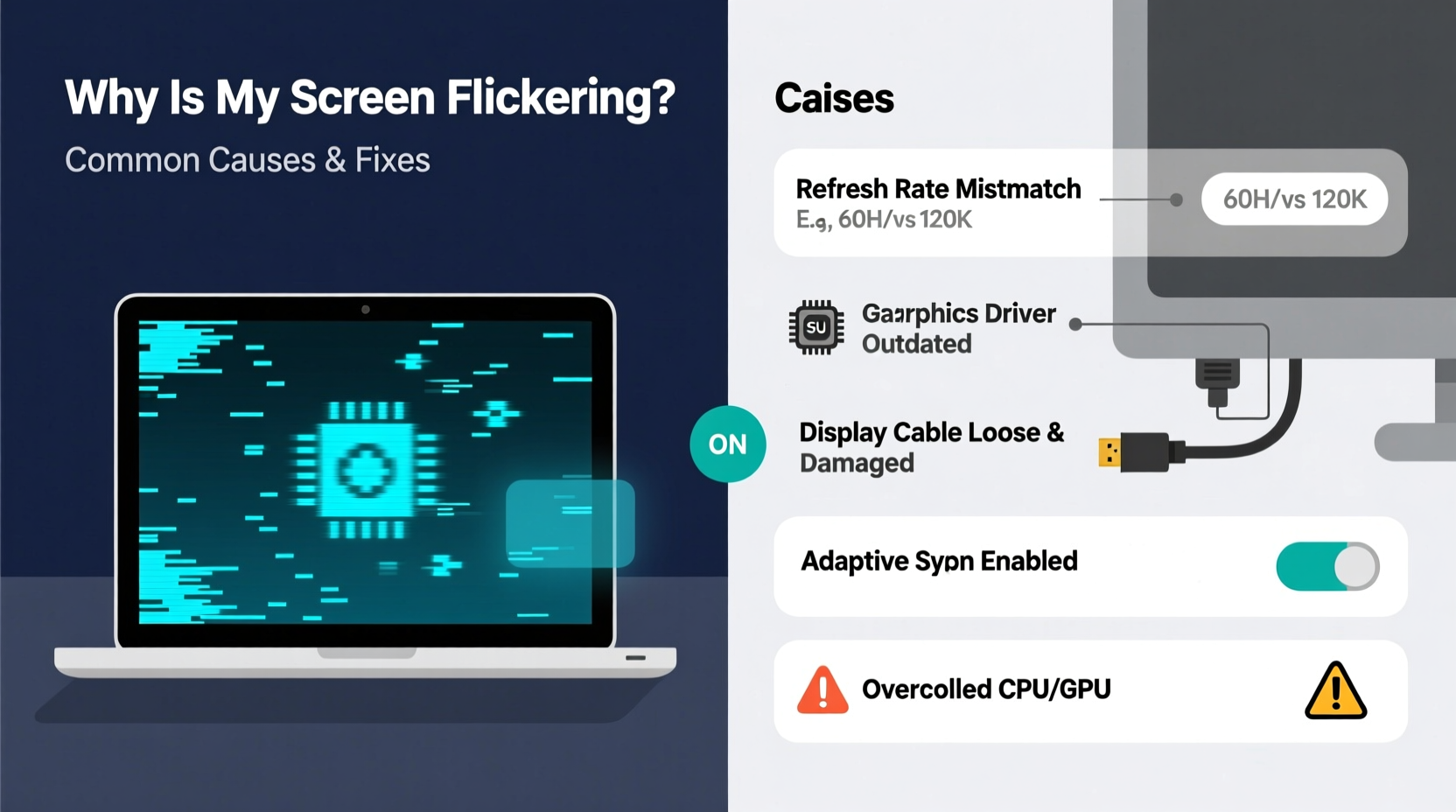
Before adjusting any settings, it’s essential to identify potential causes. Flickering can stem from both physical and digital sources. Some issues require professional repair, while others can be resolved with a few configuration tweaks.
- Outdated or corrupt graphics drivers: Drivers act as the communication bridge between your operating system and GPU. When outdated or corrupted, they may fail to render visuals properly.
- Incompatible refresh rate settings: Setting your monitor to a refresh rate it doesn’t support can result in visible flickering.
- Brightness or adaptive sync settings: Features like auto-brightness or variable refresh rate (e.g., FreeSync, G-Sync) can malfunction and create flicker.
- Power-saving modes: Aggressive power plans may throttle GPU performance or dim the screen inconsistently.
- Loose cable connections: A damaged HDMI, DisplayPort, or internal LVDS cable can introduce signal instability.
- Failing backlight or inverter (older LCDs): In aging displays, the backlight may pulse due to electrical degradation.
Display Settings That Can Trigger Flickering
Many users are unaware that seemingly harmless display settings can directly impact screen stability. Adjusting the wrong parameter—even slightly—can introduce flicker, especially on sensitive panels.
Refresh Rate Mismatches
The refresh rate, measured in hertz (Hz), determines how many times per second your screen updates its image. Most monitors default to 60Hz, but high-performance models support 75Hz, 120Hz, or higher. If your system outputs a refresh rate incompatible with your display, flickering or screen tearing may occur.
To check or change this setting on Windows: Right-click desktop > Display settings > Advanced display settings > Refresh rate dropdown. On macOS: System Settings > Displays > Refresh Rate (if available).
Adaptive Sync Technologies
Technologies like AMD FreeSync and NVIDIA G-Sync synchronize the monitor’s refresh rate with the GPU’s frame output to eliminate tearing. However, if enabled on unsupported hardware or misconfigured, they can induce flickering—especially at low frame rates.
“Enabling G-Sync on a non-G-Sync-certified monitor may not break your hardware, but it can definitely destabilize the display output.” — David Lin, Senior Hardware Engineer at Vantec Displays
Brightness and Auto-Dimming Features
Modern laptops and monitors often include ambient light sensors that adjust brightness dynamically. While useful for battery conservation, these sensors can cause subtle flickering when rapidly responding to changing light conditions. Similarly, software-based night modes (like Night Light or f.lux) modulate color temperature and brightness in ways that some users perceive as flicker.
Resolution Scaling and DPI Settings
On high-DPI displays (e.g., 4K monitors), scaling settings help make text and apps readable. But improper scaling—especially values not natively supported by the display—can lead to rendering artifacts and flickering during window transitions or scrolling.
Troubleshooting Checklist: Step-by-Step Guide
Follow this systematic approach to isolate and resolve screen flickering caused by settings or software.
- Restart your device: Rule out temporary glitches with a full reboot.
- Check physical connections: Ensure all video cables are securely plugged in. Try swapping cables if possible.
- Boot into Safe Mode: Start Windows in Safe Mode with minimal drivers. If flickering stops, the issue is likely driver- or software-related.
- Update graphics drivers: Visit your GPU manufacturer’s website (NVIDIA, AMD, Intel) and install the latest stable driver.
- Roll back recent driver updates: If flickering began after a driver update, roll back via Device Manager > Display adapters > Properties > Roll Back Driver.
- Reset display settings: Set resolution to native, refresh rate to recommended, and disable all advanced features (FreeSync, HDR, etc.).
- Disable adaptive brightness: Go to Power Options > Change plan settings > Change advanced settings > Display > Enable adaptive brightness → set to “Off” for both battery and plugged in.
- Turn off hardware acceleration: In browsers (Chrome, Edge) and apps (Skype, Discord), disable hardware acceleration temporarily to test.
- Test on another monitor: Connect your computer to a different display. If flickering persists, the issue is likely internal.
- Scan for malware: Some malicious software hijacks GPU resources, leading to erratic behavior.
Settings Comparison: What to Enable vs. Disable During Flicker Diagnosis
| Setting | Safe Default | Potential Risk if Misconfigured |
|---|---|---|
| Refresh Rate | Native (e.g., 60Hz, 144Hz) | Flickering, tearing if mismatched |
| Resolution | Native (e.g., 1920x1080) | Blurriness, flicker if scaled improperly |
| Adaptive Sync (FreeSync/G-Sync) | Off (until confirmed compatible) | Stuttering, flicker on unsupported panels |
| Hardware Acceleration | On (but disable during testing) | Can trigger flicker in buggy apps |
| Adaptive Brightness | Off | Perceived flicker due to rapid dimming |
| Color Filters / Night Mode | Off | May introduce PWM-like flicker |
Real-World Example: Resolving Persistent Flicker on a Work Laptop
Sarah, a financial analyst, reported persistent screen flickering on her Dell Latitude 7420 after returning from vacation. The flicker was most noticeable during Excel use and video calls. IT support initially suspected hardware failure, but further investigation revealed the issue started after a Windows update forced a driver upgrade.
The team followed the checklist: they rebooted, checked cable integrity (internal display, so no external cable), then booted into Safe Mode—where the flickering stopped. This pointed to a software or driver issue. They rolled back the Intel Iris Xe graphics driver to the previous version, disabled adaptive brightness in the power plan, and turned off hardware acceleration in Microsoft Teams. The flickering ceased immediately. A newer, stable driver was installed a week later without recurrence.
This case underscores that even enterprise-grade devices are vulnerable to driver conflicts, and simple settings adjustments can yield dramatic improvements.
When It’s Not a Setting: Hardware and Environmental Factors
While settings are common culprits, don’t overlook physical causes:
- Failing backlight: Older LCD screens use CCFL backlights that degrade over time. A flickering screen that worsens in dark environments may indicate backlight failure.
- Panel-level defects: Dead subpixels, faulty transistors, or manufacturing flaws can cause localized flickering.
- Electromagnetic interference: Placing your monitor near unshielded speakers, power supplies, or microwaves can disrupt signal integrity.
- GPU overheating: Thermal throttling or failing thermal paste on the graphics chip can lead to display anomalies, including flickering.
If you’ve ruled out all software and settings issues, consider professional diagnostics. For laptops, this may involve replacing the display assembly; for desktops, testing with a different GPU or monitor can isolate the fault.
Frequently Asked Questions
Can screen flickering damage my eyes?
Yes, prolonged exposure to flickering screens can contribute to eye strain, headaches, and fatigue. The human eye may not always consciously detect rapid flicker (especially from PWM dimming), but the brain still processes the inconsistency, leading to discomfort over time.
Is PWM the cause of my screen flicker?
Pulse Width Modulation (PWM) is a method used to control screen brightness by rapidly turning the backlight on and off. Low-frequency PWM (below 1000Hz) is often perceptible and can appear as flickering, particularly in peripheral vision. Look for monitors labeled “flicker-free” or those using DC dimming instead.
Why does my screen flicker only when I plug in the charger?
This is often due to ground loop interference or power supply noise introduced by a faulty or non-OEM charger. Try using a different power adapter or plugging into a grounded outlet. If the flicker stops, the original charger may be introducing electrical noise into the system.
Conclusion: Take Control of Your Display Experience
Screen flickering is rarely random. More often than not, it's a symptom of misaligned settings, outdated drivers, or environmental factors that can be corrected without costly repairs. By methodically reviewing your display configuration—from refresh rate to power management—you can restore stability and protect your visual comfort. Don’t tolerate flicker as an unavoidable quirk of modern tech. With the right knowledge, most cases are preventable or easily fixed.




 浙公网安备
33010002000092号
浙公网安备
33010002000092号 浙B2-20120091-4
Comments
No comments yet. Why don't you start the discussion?