
A flickering screen on a MacBook can be more than just an annoyance—it can disrupt work, strain your eyes, and raise concerns about hardware failure. Whether the flicker appears intermittently or constantly, understanding the root cause is essential for restoring smooth performance. The issue may stem from software glitches, outdated drivers, display settings, or deeper hardware complications. Fortunately, most cases are resolvable with targeted troubleshooting. This guide explores the common causes behind MacBook screen flickering and provides step-by-step solutions to restore stability and clarity to your display.
Common Causes of Screen Flickering on MacBook
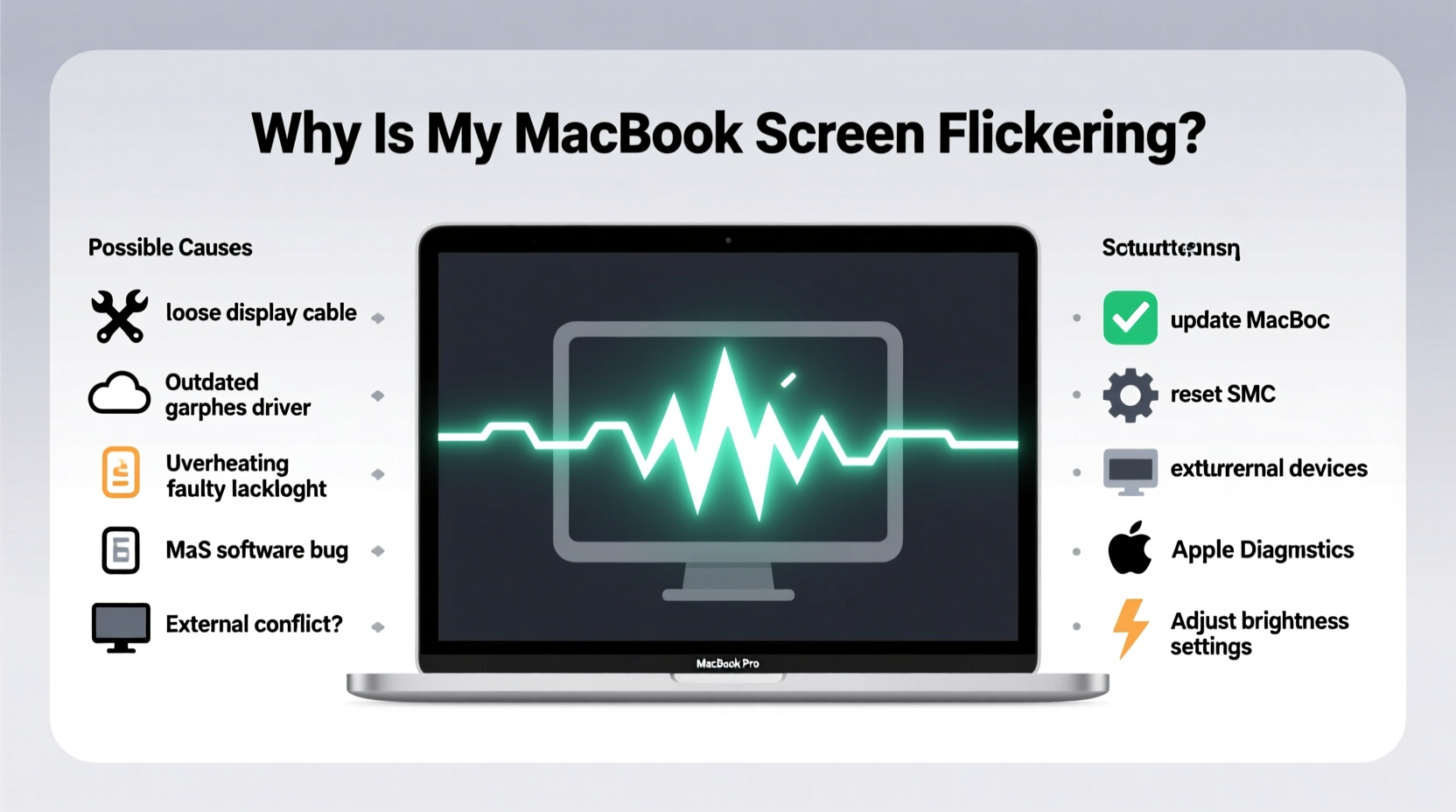
Screen flickering on a MacBook isn't always a sign of imminent hardware failure. In many cases, it's tied to software conflicts, system updates, or user settings. Identifying the underlying cause helps determine whether the fix is simple or requires professional service.
- Outdated macOS version: Running an older operating system can lead to compatibility issues with display drivers.
- Graphics driver issues: Integrated or discrete graphics processors may malfunction due to corrupted or outdated GPU drivers.
- Incompatible third-party apps: Some applications—especially those that modify screen brightness or color (like f.lux or Night Shift alternatives)—can interfere with display rendering.
- Loose display cable or connection: On older MacBook models, physical wear can loosen internal display connectors, especially after repairs or drops.
- Faulty display hardware: A failing LCD panel, backlight, or logic board component may cause persistent flickering.
- Brightness and refresh rate settings: Aggressive brightness transitions or incompatible external monitor settings can create visual instability.
Troubleshooting Steps to Fix Screen Flickering
Before assuming hardware damage, conduct a series of diagnostic checks. Many flickering problems can be resolved without opening the device or visiting a service center.
Step 1: Restart Your MacBook
A simple restart clears temporary system glitches and reloads display processes. Press Control + Command + Power to restart immediately.
Step 2: Check for macOS Updates
Apple frequently releases patches that resolve known bugs affecting graphics performance.
- Click the Apple logo in the top-left corner.
- Select System Settings (or System Preferences on older versions).
- Navigate to General > Software Update.
- Install any available updates, including minor point releases.
Step 3: Boot in Safe Mode
Safe Mode loads macOS with minimal drivers and startup programs, helping isolate software conflicts.
- Shut down your MacBook completely.
- Press the power button and immediately hold Shift until the login window appears.
- Log in and observe if the flickering persists.
If the screen remains stable in Safe Mode, a third-party app or login item is likely responsible.
Step 4: Reset SMC and NVRAM
The System Management Controller (SMC) manages power delivery, including display components. Resetting it can resolve erratic behavior.
To reset SMC on MacBooks with Apple Silicon (M1/M2/M3):
- Shut down the Mac.
- Wait 15 seconds.
- Press and hold the power button for 10 seconds.
- Release and wait a few moments before powering on.
For Intel-based MacBooks with non-removable battery:
- Shut down.
- Press Shift + Control + Option on the left side of the keyboard, then press the power button simultaneously.
- Hold all four keys for 10 seconds, then release.
- Power on normally.
Resetting NVRAM (non-volatile random-access memory) can also help if display settings are corrupted.
- Shut down.
- Turn on the Mac and immediately press Option + Command + P + R.
- Hold for about 20 seconds, then release.
Check for Problematic Applications
Third-party software is a frequent culprit in display anomalies. Apps that adjust screen color temperature, enhance video playback, or manage multiple monitors often conflict with macOS’s native display engine.
Consider temporarily uninstalling or disabling:
- f.lux or Iris
- DisplayLink drivers (for external monitors)
- Graphics-intensive tools like OBS Studio or Adobe Premiere when running in background
- Any recently installed utility that modifies UI appearance
Use Activity Monitor to check CPU and GPU usage. An app consuming excessive resources might be forcing the GPU into unstable states.
“Over 60% of reported screen flickering cases I’ve handled were resolved by removing conflicting third-party display managers.” — Jordan Lee, Apple-Certified Mac Technician
Hardware Diagnostics and Physical Inspection
If software fixes fail, the issue may lie in the hardware. Begin with Apple Diagnostics, a built-in tool that scans for hardware faults.
Run Apple Diagnostics
- Disconnect all external devices except the power adapter.
- Shut down the MacBook.
- Press the power button and immediately hold the D key.
- Wait for diagnostics to load and follow on-screen instructions.
If a hardware issue is detected, note the error code (e.g., VDH002) and consult Apple Support.
Inspect for Physical Damage
On older MacBook Pro models (particularly 2011–2015), a known issue called “GPU failure” caused widespread screen flickering due to solder joint degradation on the graphics chip. While Apple offered a repair program, it has since expired.
Signs of hardware-related flickering include:
- Flickering worsens when the laptop heats up
- Vertical lines or color distortions appear alongside flicker
- External monitors also flicker when connected
- Issue persists across macOS reinstalls
In such cases, logic board replacement or professional reflowing may be necessary—but weigh cost against upgrading to a newer model.
External Monitor and Connection Issues
If you use an external display, flickering may originate from the monitor, cable, or port—not your MacBook’s internal screen.
| Potential Issue | Solution |
|---|---|
| Faulty HDMI/USB-C cable | Replace with a certified Thunderbolt or HDMI 2.0+ cable |
| Loose connection at port | Ensure secure insertion; clean port gently with soft brush |
| Monitor refresh rate mismatch | Set external display to 60Hz in Displays settings |
| Defective docking station | Bypass dock and connect monitor directly |
Test the external monitor with another device. If flickering continues, the problem is likely not your MacBook.
Preventive Measures and Best Practices
Maintaining display health involves both software hygiene and physical care. Implement these habits to reduce future flickering risks.
Software Maintenance
- Keep macOS updated—security and driver patches often improve stability.
- Limit auto-launching apps to reduce boot-time conflicts.
- Regularly clear cache files using built-in tools or trusted utilities like OnyX.
Thermal Management
Overheating stresses internal components, including the GPU. Ensure proper ventilation:
- Avoid using MacBook on soft surfaces like beds or couches.
- Clean dust from vents with a microfiber cloth or low-suction vacuum.
- Consider a cooling pad for extended high-performance tasks.
Physical Handling
The display cable runs through the hinge. Repeated rough handling can degrade connections over time.
- Open and close the lid gently—never lift by one corner.
- Keep the screen clean with a lint-free cloth; avoid abrasive cleaners.
- Don’t place heavy objects on the closed laptop.
“Proper thermal management and gentle handling extend not just display life but overall MacBook longevity.” — Dr. Alicia Mendez, Hardware Reliability Engineer
When to Seek Professional Repair
While many flickering issues are fixable at home, some require expert intervention. Consider professional service if:
- Flickering is accompanied by graphical artifacts (lines, spots, distorted colors).
- The screen fails entirely or displays no image.
- You smell burning or notice unusual heat near the keyboard or display.
- Apple Diagnostics reports a hardware fault.
Visit an Apple Store or authorized service provider. Attempting DIY repairs on modern MacBooks—especially those with glued batteries or fused displays—can cause further damage and void warranties.
FAQ
Can a virus cause my MacBook screen to flicker?
True malware infections on macOS are rare, but malicious scripts or adware could potentially interfere with system processes. Run a scan using Malwarebytes or Apple’s built-in security tools to rule this out.
Does screen flickering drain the battery faster?
Yes. Constant redrawing of pixels increases GPU workload, which consumes more power. Resolving flickering can improve battery efficiency.
Will reinstalling macOS fix screen flickering?
It may help if the issue is software-related. Back up your data with Time Machine, then reinstall macOS from Recovery Mode (Command + R at startup). However, if the problem persists post-reinstall, it’s likely hardware-based.
Conclusion
Screen flickering on a MacBook doesn’t automatically mean your device is failing. In most cases, the solution lies in timely software updates, eliminating conflicting apps, or recalibrating system controllers. By methodically testing each potential cause—from Safe Mode boots to hardware diagnostics—you can pinpoint the issue and apply the right fix. For persistent or physically rooted problems, professional support ensures safe and effective resolution.
Don’t ignore early signs of display trouble. Address flickering promptly to prevent escalation and maintain productivity. With proper care and informed troubleshooting, your MacBook’s screen can remain sharp, stable, and reliable for years to come.




 浙公网安备
33010002000092号
浙公网安备
33010002000092号 浙B2-20120091-4
Comments
No comments yet. Why don't you start the discussion?