
A brand-new laptop should offer a seamless experience—crisp visuals, smooth performance, and reliable operation. So when your screen starts flickering shortly after unboxing, it’s more than an annoyance; it can disrupt work, strain your eyes, and raise concerns about long-term reliability. While screen flickering might suggest a hardware defect, many cases stem from software glitches, driver issues, or incorrect settings that are easily corrected. The good news? You don’t need to return the device immediately. With a few targeted troubleshooting steps, you can often resolve the problem in under 30 minutes.
Understanding Screen Flickering: What It Means
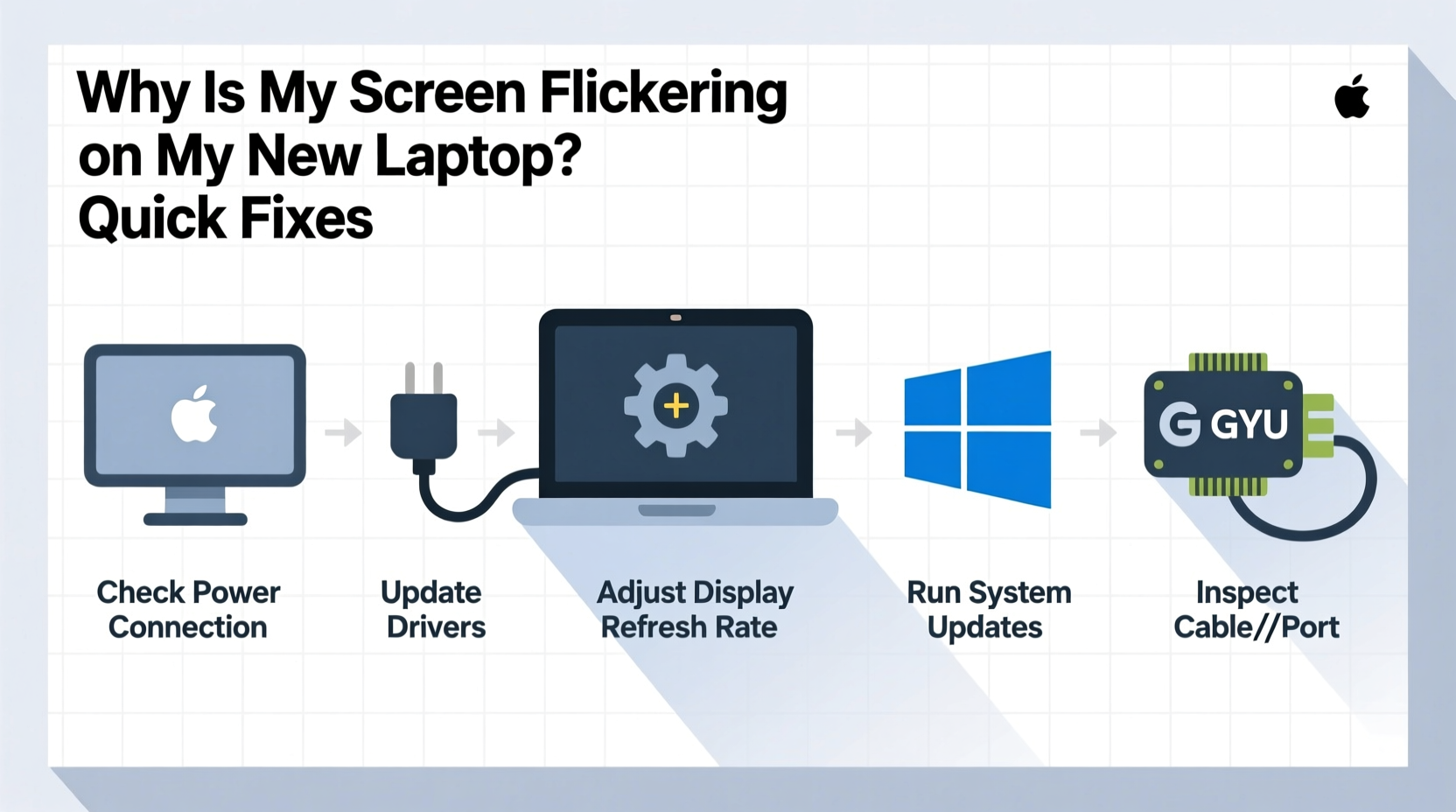
Screen flickering on a new laptop typically presents as rapid flashing, intermittent dimming, horizontal lines scrolling across the display, or sections of the screen momentarily going black. These symptoms can vary in frequency and severity. Before assuming the worst, consider the possible causes:
- Graphics driver issues: Outdated, corrupted, or incompatible drivers are among the most common culprits.
- Operating system bugs: Recent Windows or macOS updates may introduce display-related bugs.
- Brightness or power settings: Adaptive brightness or aggressive power-saving modes can trigger flickering.
- Loose internal connections: Physical disconnections between the display panel and motherboard—rare but possible in new units.
- Faulty display hardware: Defective LCD/LED panels or backlight systems, though less common.
- External interference: Nearby electromagnetic sources or faulty peripherals affecting signal integrity.
Most users encounter flickering within the first few days of use—often during setup or after installing updates. This timing points strongly toward software rather than hardware failure.
“Over 70% of reported screen flickering cases in new laptops are resolved through driver updates or OS configuration changes.” — Tech Support Division, Dell Global Services
Step-by-Step Troubleshooting Guide
Follow this logical sequence to isolate and resolve the cause of screen flickering. Start with the simplest fixes and progress only if needed.
- Restart your laptop – A basic reboot clears temporary glitches and resets display processes. Hold the power button for 10 seconds if the system is unresponsive, then restart normally.
- Check for external devices – Unplug all peripherals (docks, monitors, USB hubs). Sometimes a malfunctioning accessory interferes with display output.
- Test in Safe Mode – Boot into Safe Mode (Windows: Shift + Restart > Troubleshoot > Advanced Options > Startup Settings > Enable Safe Mode; macOS: Hold Shift during startup). If flickering stops, the issue is likely software-related.
- Update your operating system – Install pending updates. Microsoft and Apple frequently release patches addressing known display bugs.
- Roll back recent updates – If flickering began after an update, uninstall it temporarily via Settings > Update & Security > View update history > Uninstall updates (Windows) or System Preferences > Software Update (macOS).
Fix Graphics Drivers: The Most Common Solution
Graphics drivers act as translators between your operating system and GPU. If they’re outdated or corrupted, screen flickering is a frequent symptom—especially on new laptops where default drivers may not be optimized.
Updating or Reinstalling Graphics Drivers (Windows)
For Intel, NVIDIA, or AMD integrated/discrete GPUs:
- Press Win + X and select Device Manager.
- Expand Display adapters.
- Right-click your graphics card (e.g., Intel Iris Xe, NVIDIA GeForce RTX) and choose Update driver.
- Select Search automatically for updated driver software.
- If no update is found, visit the manufacturer’s website:
- Download and install the latest WHQL-certified driver for your exact model.
If updating doesn’t help, try uninstalling the driver:
- In Device Manager, right-click the graphics adapter and select Uninstall device.
- Check “Delete the driver software for this device” if available.
- Restart your laptop. Windows will reinstall a generic driver.
- Reinstall the manufacturer’s driver afterward.
For macOS Users
macOS handles drivers differently—most are bundled with system updates. However, resetting the NVRAM/PRAM can resolve display anomalies:
- Shut down your Mac.
- Turn it on and immediately press and hold Option + Command + P + R for about 20 seconds.
- Release and allow normal startup.
This resets display calibration, speaker volume, and startup disk selection—sometimes resolving flicker issues.
Adjust Power and Display Settings
Power management features can conflict with display hardware, especially on energy-efficient new models.
Disable Adaptive Brightness
Adaptive brightness adjusts screen luminance based on ambient light. On some laptops, the sensor or algorithm malfunctions, causing erratic flickering.
To disable in Windows:
- Go to Settings > System > Display.
- Toggle off “Change brightness automatically when lighting changes.”
On macOS:
- Open System Settings > Displays.
- Uncheck “Automatically adjust brightness.”
Modify Power Plan Settings
Aggressive power-saving modes may reduce GPU performance intermittently, leading to flickering.
In Windows:
- Navigate to Control Panel > Hardware and Sound > Power Options.
- Select your active plan and click Change plan settings > Change advanced power settings.
- Expand PCI Express > Link State Power Management and set both options to Off.
- Expand Graphics Processor > Power Saving Mode and set to Maximum Performance.
- Click Apply.
Hardware Checks and When to Seek Help
If software fixes fail, consider hardware factors—even in new devices.
Inspect Physical Connections (Advanced)
Inside the laptop, a ribbon cable connects the display to the motherboard. Minor manufacturing defects or drops during shipping can loosen this connection. While opening the device may void the warranty, some models allow access to the display connector without full disassembly.
Warning: Only attempt this if you're comfortable with hardware and your warranty permits user servicing. Otherwise, skip to professional support.
- Power off and unplug the laptop.
- Remove the bottom panel (refer to your model’s service manual).
- Locate the display cable near the hinge area.
- Gently unplug and reconnect it, ensuring a snug fit.
- Reassemble and test.
Test the Built-in Diagnostics
Many manufacturers include hardware diagnostics:
- Dell: Press F12 at boot > Diagnostics
- HP: Press Esc then F2 at startup
- Lenovo: Novo button (small pinhole near power) > Diagnostics
- ASUS: Press F2 for BIOS, then run Built-in Self-Test
These tools check display integrity, memory, and GPU function. If flickering occurs during diagnostics, it’s likely a hardware issue.
When to Contact Support
Reach out to the manufacturer or retailer if:
- Flickering persists in Safe Mode or diagnostics.
- You notice physical damage (lines, dead pixels, discoloration).
- The screen flickers even on external monitors (indicates GPU failure).
- The laptop is under warranty—don’t risk voiding it with DIY repairs.
“If a new laptop exhibits consistent screen flickering beyond initial setup, it qualifies for replacement under most consumer protection laws.” — Consumer Electronics Association, Warranty Standards Report 2023
Troubleshooting Checklist
✅ Quick Fix Checklist: Stop Screen Flickering Now
- Restart the laptop
- Disconnect all external devices
- Boot into Safe Mode to test
- Update or reinstall graphics drivers
- Install OS updates
- Disable adaptive brightness
- Adjust power plan settings
- Run built-in hardware diagnostics
- Contact manufacturer support if unresolved
Common Mistakes That Make It Worse
Avoid these pitfalls while troubleshooting:
| Mistake | Why It’s Harmful | What to Do Instead |
|---|---|---|
| Ignoring firmware updates | BIOS/UEFI updates often include display fixes | Check manufacturer’s support site for firmware |
| Using third-party driver updaters | They may install incompatible or malicious software | Download drivers only from official sources |
| Applying pressure to the screen | Can worsen loose internal connections | Handle gently; avoid closing with force |
| Delaying support contact | Warranty claims have time limits | Report issues within 30 days if possible |
Real Example: Sarah’s New Laptop Flicker Fix
Sarah, a freelance graphic designer, received her new HP Spectre x360 last week. Within hours, she noticed flickering when switching between apps. At first, she assumed it was eye strain. But when the flickering worsened during video calls, she knew something was wrong.
She started by restarting the laptop—no change. Then she disconnected her USB-C hub and external monitor. The flickering stopped. She reconnected each device one by one and identified a faulty HDMI adapter causing signal interference. After replacing the adapter, the screen remained stable.
Later, she discovered a pending BIOS update that improved display stability. She installed it and disabled adaptive brightness—her final tweaks to ensure smooth performance.
Sarah’s case shows how external factors and minor oversights can mimic serious hardware failure. A methodical approach saved her time, stress, and a potential return.
FAQ: Common Questions About Laptop Screen Flickering
Is screen flickering covered under warranty?
Yes, in nearly all cases. Persistent flickering on a new laptop is considered a manufacturing defect and qualifies for repair or replacement under standard warranty terms, typically 1-year limited coverage.
Can malware cause screen flickering?
Rarely. While some malicious software manipulates display settings, flickering is almost always due to driver, OS, or hardware issues. Run a full antivirus scan if you suspect compromise, but prioritize driver and system fixes first.
Does screen flickering damage my eyes?
Prolonged exposure to flickering screens can cause eye strain, headaches, and fatigue. The American Optometric Association recommends taking breaks every 20 minutes (20-20-20 rule: look at something 20 feet away for 20 seconds). Resolve flickering promptly to protect visual comfort.
Final Steps and When to Act
Your new laptop should perform flawlessly from day one. Screen flickering isn’t something you should tolerate—it’s a sign that something needs attention. In most cases, the fix is simple: a driver update, a setting tweak, or a reboot. But if the problem persists despite thorough troubleshooting, don’t hesitate to escalate.
Manufacturers expect early-life issues and have streamlined support for them. Whether it’s a replacement, repair, or technician-guided fix, you’re entitled to a fully functional device. Keep records of your troubleshooting steps—they help support teams diagnose faster.




 浙公网安备
33010002000092号
浙公网安备
33010002000092号 浙B2-20120091-4
Comments
No comments yet. Why don't you start the discussion?