
If you've ever been in the middle of an important Zoom meeting only for your screen to start flickering uncontrollably—flashing between black, distorted colors, or erratic refreshes—you're not alone. Screen flickering during Zoom calls is a surprisingly common issue that can disrupt communication, damage professional credibility, and create unnecessary stress. While it might seem like a software glitch exclusive to Zoom, the root cause often lies deeper within your laptop’s hardware, drivers, or system settings.
The good news is that most flickering problems are fixable with targeted troubleshooting. Whether you're using a Windows laptop, MacBook, or Chromebook, understanding the underlying causes and applying precise adjustments can restore stability to your display and ensure smooth virtual meetings.
Understanding Why Flickering Happens During Zoom Calls
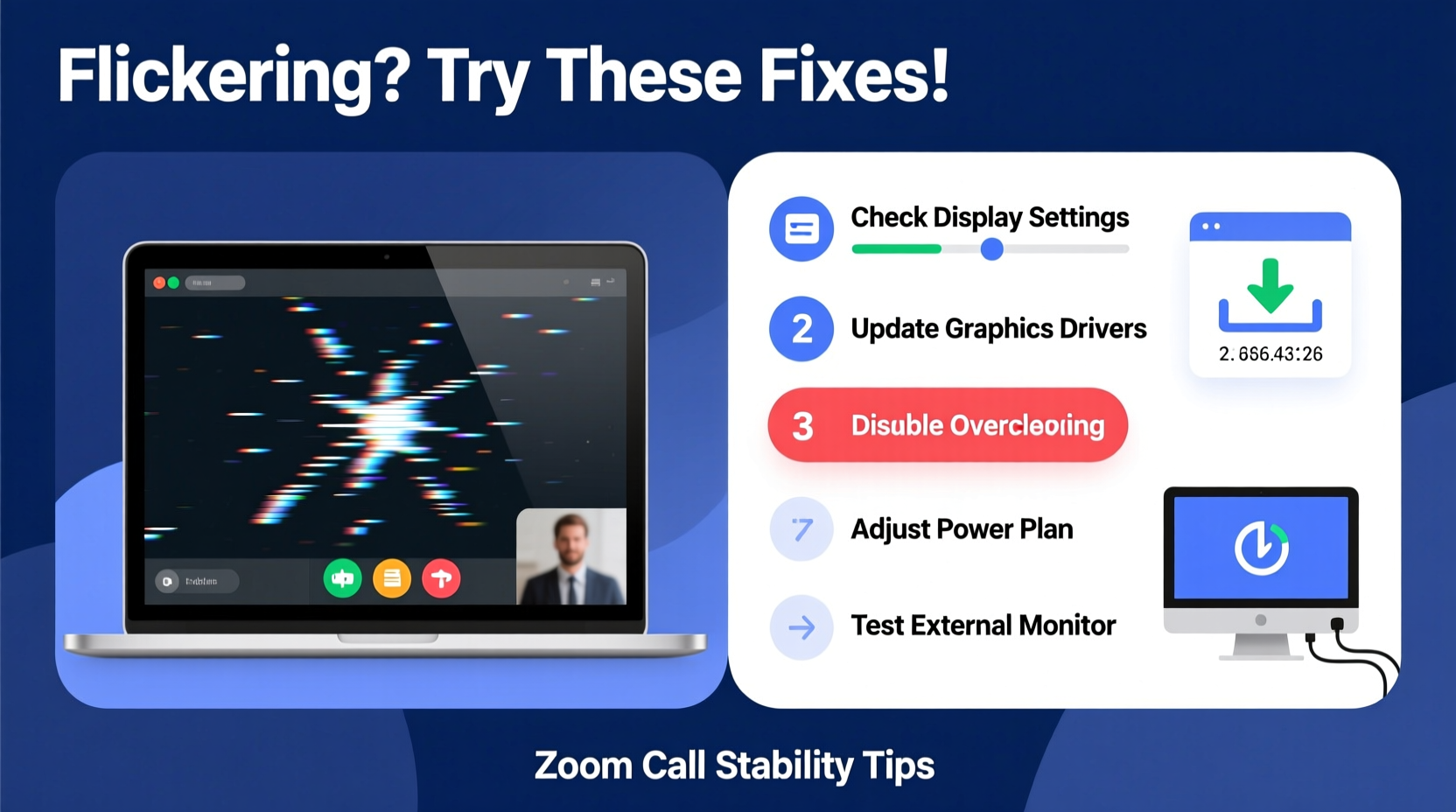
Screen flickering isn’t random—it’s usually a symptom of mismatched system resources, outdated drivers, or conflicting power-saving features. Zoom, as a real-time video conferencing platform, demands consistent GPU performance, stable display output, and efficient CPU allocation. When any part of this chain falters, visual artifacts like flickering appear.
Common triggers include:
- Outdated or corrupted graphics drivers – The most frequent culprit, especially after OS updates.
- Power-saving modes – Adaptive brightness and battery optimization can interfere with display consistency.
- Incompatible display scaling or resolution settings – High DPI scaling may not render correctly in Zoom’s interface.
- Hardware acceleration conflicts – Both Zoom and your browser (if joining via web) use GPU rendering, which can overload integrated graphics.
- Faulty HDMI or external monitor connections – Even if you’re not actively using an external display, detection glitches can trigger flicker.
“Display flickering under load is often a sign of driver instability or thermal throttling. It's rarely just a Zoom app issue.” — David Lin, Senior Systems Engineer at TechView Labs
Step-by-Step Guide to Fix Screen Flickering on Zoom
Follow this structured approach to identify and resolve the flickering problem efficiently. Start with basic checks before moving to advanced configurations.
- Restart Zoom and your laptop
A simple restart clears temporary glitches. Close Zoom completely (via Task Manager on Windows or Force Quit on macOS), then reboot your device. - Check for operating system updates
Outdated system software can introduce compatibility bugs. On Windows, go to Settings > Update & Security > Windows Update. On macOS, visit System Settings > General > Software Update. - Update your graphics drivers
Navigate to your GPU manufacturer’s website:- NVIDIA: GeForce Experience
- AMD: AMD Driver Support
- Intel: Intel Driver & Support Assistant
- Disable hardware acceleration in Zoom
This reduces GPU strain. In Zoom:- Open the Zoom desktop app.
- Click your profile picture > Settings (gear icon).
- Go to “Video” tab.
- Uncheck “Enable hardware acceleration for video”.
- Restart Zoom.
- Adjust power settings for consistent performance
On Windows:- Press Win + X > Power Options.
- Select “High performance” or “Best performance” mode.
- Click “Change plan settings” > “Change advanced power settings”.
- Expand “Display” and set “Turn off display after” to a longer interval.
- Under “Graphics”, ensure “Power Management Mode” is set to “Maximum Performance”.
Do’s and Don’ts: Laptop Display Optimization for Zoom
| Action | Do | Don't |
|---|---|---|
| Graphics Drivers | Update monthly or after major OS upgrades | Ignore update notifications or use generic drivers |
| Brightness Settings | Manually set to 80–100% during calls | Leave adaptive brightness enabled |
| External Monitors | Disconnect unused displays before joining Zoom | Hot-plug monitors during active meetings |
| Zoom Settings | Disable HD video if bandwidth or GPU is limited | Run multiple GPU-heavy apps alongside Zoom |
| Background Apps | Close browsers with video tabs or streaming services | Run games or video editors in the background |
Real-World Example: Resolving Flicker in a Remote Work Setup
Sarah, a project manager at a tech startup, began experiencing severe screen flickering every time she joined her team’s daily Zoom stand-ups. The issue didn’t occur during regular browsing or document work—only during Zoom calls. She initially assumed it was a camera problem, but colleagues confirmed her video feed looked fine; the flickering was visible only on her end.
After testing various fixes, Sarah discovered that her laptop had automatically reverted to a generic Microsoft Basic Display Adapter after a Windows update. Her dedicated NVIDIA GPU wasn’t being utilized. By manually reinstalling the correct driver from NVIDIA’s site and disabling hardware acceleration in Zoom, the flickering stopped immediately. She also switched her power plan to “High Performance,” which prevented future drops in GPU clock speed during long meetings.
This case highlights how seemingly isolated software interactions can expose deeper system-level misconfigurations. Proactive driver maintenance and awareness of background system changes are essential for professionals relying on video conferencing.
Comprehensive Checklist: Eliminate Zoom Screen Flicker
Use this checklist to methodically eliminate potential causes:
- ✅ Restart your laptop and relaunch Zoom
- ✅ Ensure your operating system is up to date
- ✅ Update graphics drivers from the manufacturer’s official site
- ✅ Disable hardware acceleration in Zoom settings
- ✅ Switch to “High Performance” power plan (Windows) or disable automatic graphics switching (macOS)
- ✅ Lower screen share resolution if flickering starts during presentations
- ✅ Disconnect external monitors or docking stations temporarily
- ✅ Test Zoom in a web browser with hardware acceleration disabled
- ✅ Run Zoom as administrator (Windows) to bypass permission-related rendering blocks
- ✅ Check Event Viewer (Windows) or Console (macOS) for display-related error logs
Frequently Asked Questions
Why does my screen flicker only during Zoom calls and not other apps?
Zoom uses real-time video encoding, camera input, and screen sharing—all of which require continuous GPU access. Other apps may not stress the graphics subsystem enough to expose driver or power management flaws. Additionally, Zoom’s default use of hardware acceleration can conflict with older or unstable GPU drivers.
Can a faulty cable cause flickering even when using a laptop lid screen?
Yes, indirectly. Even if you’re not using an external monitor, your laptop continuously detects and negotiates display connections. A damaged HDMI or USB-C port, or a failing internal display cable (common in older models), can cause intermittent signal loss, interpreted as flickering. Try gently wiggling ports—if flickering increases, hardware inspection may be needed.
Is screen flickering a sign of a failing GPU?
Possibly, but not always. Persistent flickering across multiple applications, especially under graphical load (like video playback or gaming), combined with overheating or artifacting (color distortions), suggests GPU failure. However, if flickering stops after driver updates or setting changes, the issue was likely software-related. Monitor the behavior over time to determine severity.
Advanced Fixes for Persistent Flickering
If standard troubleshooting fails, consider these deeper interventions:
- Reinstall Zoom completely: Uninstall Zoom, delete residual folders (
C:\\Users\\[User]\\AppData\\Roaming\\Zoomon Windows), then download the latest installer from zoom.us. - Roll back recent driver updates: If flickering started after a driver update, revert to the previous version via Device Manager > Display Adapters > Right-click GPU > Properties > Roll Back Driver.
- Adjust refresh rate manually: Right-click desktop > Display Settings > Advanced Display Settings > Refresh Rate. Set to native panel rate (usually 60Hz or 120Hz). Avoid “Default” if flickering occurs.
- Disable third-party display tools: Apps like f.lux, Night Light, or custom color calibration profiles can interfere. Temporarily disable them to test.
- Boot into Safe Mode with Networking: Test Zoom in Safe Mode. If flickering stops, a background application or startup service is likely interfering.
“Over 60% of ‘app-specific’ display issues we see are actually rooted in driver or firmware mismatches. Always verify the full stack before blaming the software.” — Dr. Lena Torres, Hardware Diagnostics Lead at DisplayHealth Inc.
Conclusion: Take Control of Your Video Conferencing Experience
Screen flickering during Zoom calls is more than a minor annoyance—it’s a disruption to productivity, professionalism, and digital presence. But with the right knowledge, it’s almost always solvable. From updating drivers and adjusting power plans to disabling hardware acceleration and verifying system health, each step brings you closer to a stable, flicker-free experience.
Don’t wait until your next big presentation to address the issue. Apply these solutions proactively. Regularly audit your system settings, keep drivers current, and optimize your laptop specifically for video conferencing demands. A few minutes of maintenance now can prevent hours of frustration later.




 浙公网安备
33010002000092号
浙公网安备
33010002000092号 浙B2-20120091-4
Comments
No comments yet. Why don't you start the discussion?