
Smart bulbs promise convenience, energy efficiency, and customizable lighting. But when they start flickering—especially without warning—it can be more than just annoying. It raises concerns about safety, device longevity, and whether your home automation system is functioning properly. While flickering may seem like a minor glitch, it often points to deeper compatibility or electrical issues that, if left unresolved, could lead to hardware failure or inconsistent performance.
Flickering in smart bulbs isn’t always due to a defective unit. In fact, most cases stem from mismatched components, firmware conflicts, or incompatible dimmer switches. Understanding the root causes allows you to diagnose the issue quickly and apply targeted fixes. This guide breaks down the most common reasons for flickering, emphasizes compatibility pitfalls, and delivers practical, tested solutions you can implement immediately.
Understanding Why Smart Bulbs Flicker
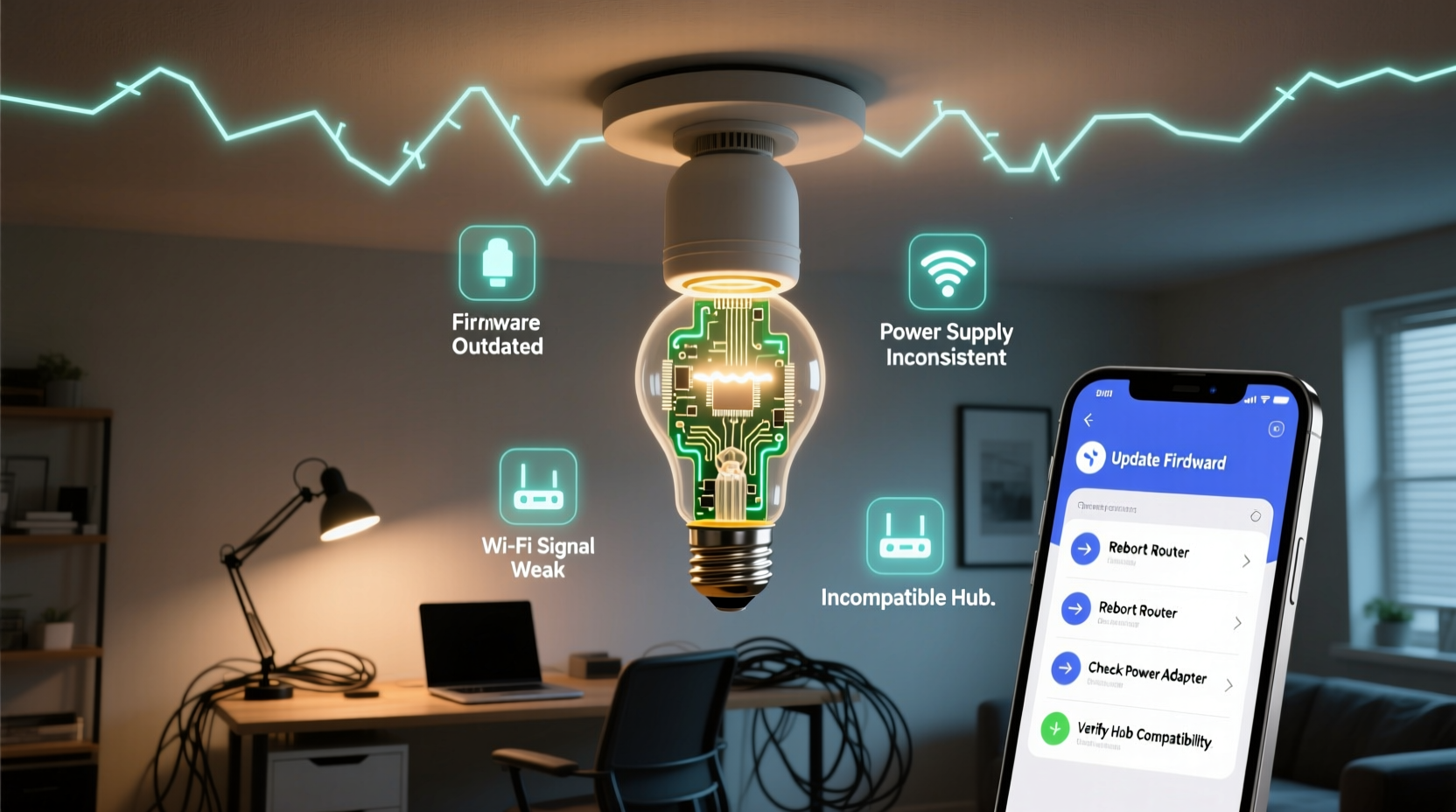
Unlike traditional incandescent bulbs, smart bulbs rely on internal circuitry to manage Wi-Fi or Bluetooth connectivity, color changes, brightness levels, and remote commands. This complexity makes them more sensitive to voltage fluctuations, signal interference, and incompatible fixtures.
The primary reason for flickering lies in inconsistent power delivery. Smart bulbs require a stable minimum current to remain connected to your network and maintain settings. When power dips—even slightly—the bulb may reset momentarily, causing a visible flicker. This is especially common when used with older dimmer switches designed for high-wattage incandescent loads, not low-power LEDs.
Other contributing factors include:
- Voltage fluctuations from household appliances cycling on and off.
- Overloaded circuits affecting consistent power flow.
- Signal interference from nearby wireless devices disrupting communication.
- Firmware bugs causing erratic behavior after updates.
- Incompatible hub or bridge configurations leading to command delays.
While some flickering occurs during startup or mode transitions (e.g., turning on or changing colors), persistent or random flickering under normal operation indicates an underlying problem that needs attention.
Compatibility Issues: The Hidden Culprit Behind Flickering
One of the most overlooked causes of smart bulb flickering is component incompatibility. Many users assume that because a bulb screws into a socket, it will work seamlessly. However, smart lighting systems involve multiple layers—electrical, mechanical, and digital—that must all align.
Dimmer Switch Conflicts
Traditional wall dimmers reduce voltage using phase-cutting methods like trailing-edge or leading-edge dimming. Most smart bulbs are designed to operate at full voltage and regulate brightness internally via PWM (pulse-width modulation). When paired with legacy dimmers, the reduced input voltage destabilizes the bulb’s driver circuit, resulting in flickering, buzzing, or intermittent shutdowns.
Even “LED-compatible” dimmers may not support smart bulbs. These dimmers are typically rated for non-connected LED bulbs and lack the minimum load requirements needed for smart bulb stability.
Hubs, Bridges, and Protocol Mismatches
Smart bulbs use various communication protocols—Zigbee, Z-Wave, Wi-Fi, or Bluetooth. Using a Philips Hue bulb with a non-Hue bridge, or trying to control a Zigbee bulb through a Wi-Fi-only hub, leads to dropped signals and erratic behavior. Similarly, mixing brands within a single ecosystem without proper integration increases the risk of command lag or misfires, which can manifest as flickering.
“More than 60% of reported smart bulb flickering cases we see are tied to outdated or mismatched dimmer switches.” — Jordan Lee, Senior Lighting Engineer at LumaTech Systems
Power Supply and Fixture Limitations
Enclosed fixtures trap heat, which degrades electronic components over time. Poor ventilation can cause thermal throttling, where the bulb dims or flickers to protect itself. Additionally, older fixtures with corroded contacts or loose sockets create intermittent connections, mimicking flickering symptoms.
Solutions Checklist: Fix Flickering Fast
Before replacing hardware, follow this systematic checklist to identify and resolve the issue efficiently.
- ✅ Ensure the bulb is fully screwed in and making solid contact.
- ✅ Turn off the breaker and inspect the fixture for corrosion or damage.
- ✅ Remove any existing dimmer switch and replace it with a standard on/off switch.
- ✅ Test the bulb in a different fixture to isolate the problem.
- ✅ Update the bulb’s firmware via the manufacturer’s app.
- ✅ Reset the bulb to factory settings and reconnect it to your network.
- ✅ Confirm that your hub or bridge supports the bulb’s protocol and model.
- ✅ Reduce Wi-Fi congestion by moving the router closer or switching to 5 GHz band.
- ✅ Avoid using extension cords or power strips with built-in surge protection for smart bulbs.
- ✅ Replace bulbs older than 2–3 years, as capacitors degrade over time.
Step-by-Step Guide: Eliminate Flickering Permanently
If your smart bulb continues to flicker despite basic troubleshooting, follow this detailed sequence to address both electrical and digital causes.
Step 1: Disconnect and Inspect
Turn off power at the circuit breaker. Remove the bulb and examine the base for dark spots, warping, or residue. Check the socket for discoloration or bent contacts. Clean gently with a dry cloth if needed.
Step 2: Eliminate the Dimmer
Replace any dimmer switch with a standard toggle switch. If you need dimming functionality, choose a smart bulb with app-based dimming and use the wall switch only for on/off control.
Step 3: Test in a Known-Good Fixture
Install the bulb in a simple lamp or ceiling fixture confirmed to work with other smart bulbs. If flickering stops, the original fixture or wiring is likely the issue.
Step 4: Perform a Factory Reset
Follow the manufacturer’s reset procedure—usually involving rapid on/off cycles or holding the switch in a specific pattern. For example, Philips Hue bulbs require five quick power cycles to reset.
Step 5: Update Firmware
Open your smart home app (e.g., Hue, Kasa, or SmartThings) and check for pending updates. Outdated firmware can cause instability, especially after network changes or router resets.
Step 6: Re-Pair the Bulb
Add the bulb back to your network as if it were new. Ensure your phone or hub is within range and the Wi-Fi signal is strong. Avoid pairing during peak internet usage times.
Step 7: Monitor for Automation Conflicts
Review your automation schedules. A rule that turns the light “on” every few minutes due to a misconfigured motion sensor or sunrise trigger can appear as flickering.
Step 8: Evaluate Circuit Load
If multiple smart devices flicker simultaneously, consider having an electrician assess voltage stability. Use a multimeter to test outlet voltage; it should stay within ±5% of 120V (in North America).
Do’s and Don’ts: Smart Bulb Compatibility Table
| Action | Do | Don’t |
|---|---|---|
| Using with dimmers | Use only smart dimmers (e.g., Lutron Caséta) or control dimming via app | Use traditional triac dimmers not rated for smart bulbs |
| Fixture type | Use in open or well-ventilated fixtures | Install in sealed enclosures unless rated for enclosed use |
| Hub compatibility | Pair Zigbee/Z-Wave bulbs with matching hubs | Assume all smart bulbs work with Alexa or Google Home directly |
| Power sources | Plug into stable outlets without surge suppressors | Use with extension cords or multi-plug adapters long-term |
| Firmware | Check for updates monthly | Ignore update notifications for extended periods |
Real-World Example: Resolving a Persistent Flicker Issue
A homeowner in Portland installed four Philips Hue White Ambiance bulbs in their living room recessed lighting. Within days, two bulbs began flickering randomly—sometimes once per hour, sometimes continuously. The issue worsened at night.
Initial attempts included resetting the bulbs and updating the Hue Bridge firmware, but the flickering persisted. A technician discovered that the home had Lutron MA-T5LV dimmer switches labeled “LED Compatible.” Although these worked fine with standard LED bulbs, they did not provide enough minimum load for the Hue bulbs’ constant Wi-Fi signaling.
The solution? Replace the dimmers with Lutron Caséta PD-6WCL smart dimmers, which communicate directly with the Hue Bridge via integration. Once paired, the dimming function was controlled through the Hue app, eliminating voltage instability. The flickering stopped completely, and the homeowner regained reliable voice and app control.
This case highlights how even reputable “LED-compatible” hardware can fail with smart bulbs due to subtle electrical mismatches.
Frequently Asked Questions
Can a flickering smart bulb be dangerous?
Occasional flickering is usually not a fire hazard, but persistent flickering may indicate loose wiring, overheating, or failing components. If accompanied by buzzing, burning smells, or discoloration, turn off the fixture immediately and consult an electrician.
Why does my smart bulb flicker when turned off?
This is often caused by “ghost voltage” or induced current from nearby live wires. Some electronic switches leak small amounts of electricity even when off, which charges the bulb’s capacitor enough to briefly illuminate. Installing a bypass resistor or neutral wire (if available) resolves this issue.
Will using a smart plug stop my bulb from flickering?
Yes, in certain cases. Plugging a smart bulb into a smart socket allows you to control power digitally while keeping the wall switch always on. This ensures consistent voltage and eliminates interference from mechanical switches. However, ensure the smart plug supports the bulb’s wattage and doesn’t introduce its own signal noise.
Final Thoughts and Action Plan
Flickering smart bulbs are rarely a dead-end problem. More often, they signal a mismatch between modern technology and legacy infrastructure. By methodically addressing compatibility, power stability, and firmware health, you can restore smooth, reliable lighting throughout your home.
The key is not to treat flickering as a random glitch but as diagnostic feedback. Each blink or flash offers a clue—whether it’s an outdated dimmer, a failing connection, or a silent firmware bug. With the right approach, most issues can be resolved in under an hour using tools you likely already have.
Start by removing dimmers, testing in a simple fixture, and updating software. If problems persist, examine your hub ecosystem and electrical environment. Remember: smart lighting should enhance your life, not disrupt it. Take control today, and enjoy the full benefits of a truly intelligent home.




 浙公网安备
33010002000092号
浙公网安备
33010002000092号 浙B2-20120091-4
Comments
No comments yet. Why don't you start the discussion?