
Flickering smart bulbs are more than just a nuisance—they can disrupt your daily routine, affect your mood, and even raise concerns about electrical safety. While it’s tempting to assume the worst and call an electrician immediately, many cases of flickering stem from easily fixable issues related to connectivity, compatibility, or settings. Before scheduling a professional visit, try diagnosing and resolving the problem with these practical, step-by-step solutions. Most flickering problems aren’t due to faulty wiring but rather misconfigurations in your smart lighting ecosystem.
Common Causes of Smart Bulb Flickering
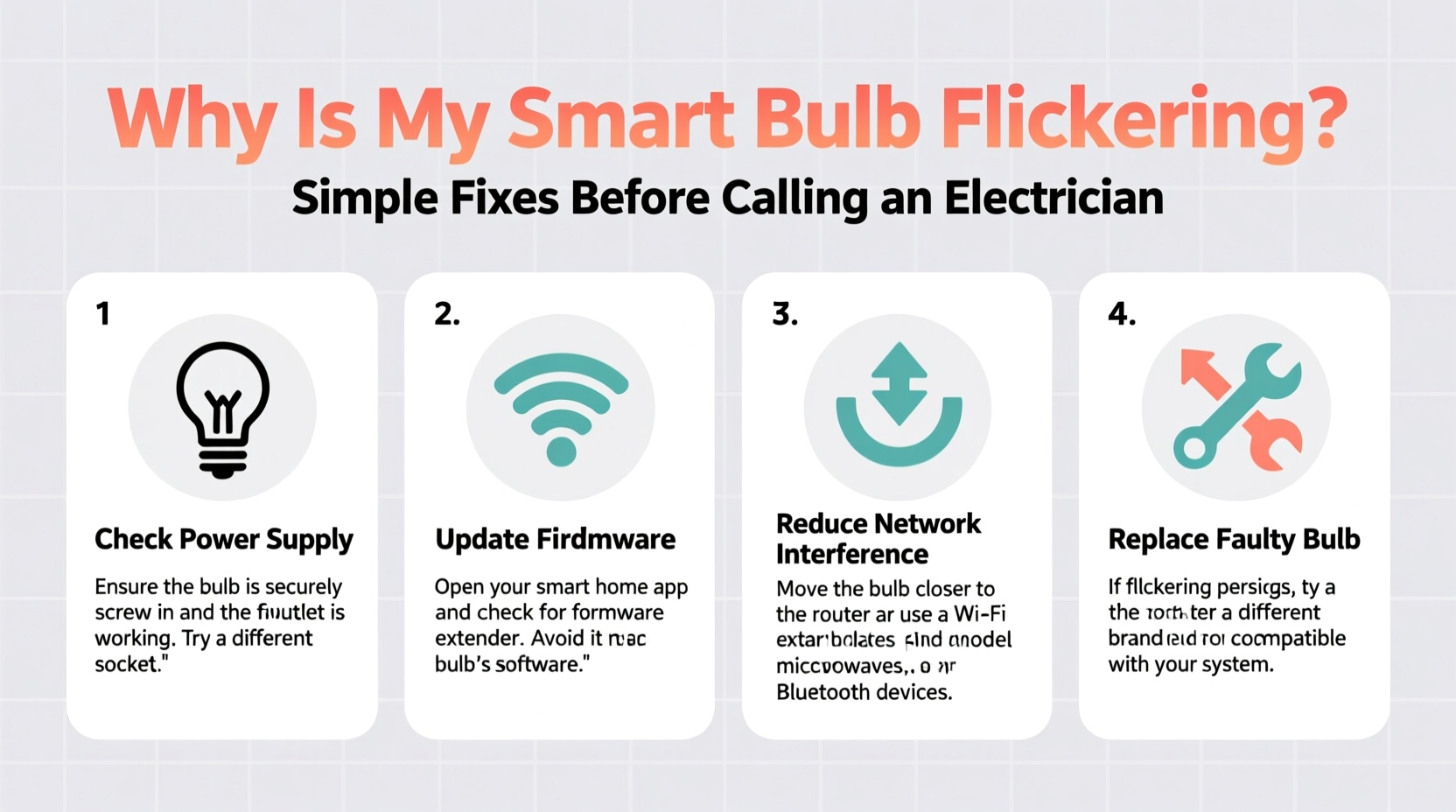
Smart bulbs operate on a combination of electrical current and wireless communication (usually Wi-Fi or Bluetooth). When either component is unstable, flickering can occur. The root cause often falls into one of several categories: power supply inconsistencies, incompatible dimmer switches, firmware bugs, network congestion, or physical bulb defects.
Unlike traditional incandescent bulbs, smart bulbs contain microprocessors that regulate brightness, color, and responsiveness. These components are sensitive to voltage fluctuations and signal interference. A brief interruption in power or data flow may not shut off the bulb completely but instead cause it to flicker intermittently.
Power Supply Issues
Inconsistent voltage delivery is a leading cause of flickering. This can happen if the circuit is overloaded, the fixture has poor contact, or there's a loose wire in the socket. Even minor resistance in the connection between the bulb base and socket can create intermittent power flow, causing the bulb to flicker—especially when adjusting brightness levels.
Incompatible Dimmer Switches
Many homes use older dimmer switches designed for high-wattage incandescent bulbs. Smart LEDs consume far less power, and traditional dimmers may not handle the low load properly. This mismatch often results in flickering, buzzing, or delayed responses. Look for dimmers labeled “LED-compatible” or “CL” (for capacitive load) if you plan to use smart bulbs on dimmable circuits.
Wi-Fi or Bluetooth Interference
Smart bulbs rely on stable wireless signals. If your router is too far away, or if there are too many devices competing for bandwidth, the bulb may lose connection momentarily, resulting in erratic behavior. Walls, metal fixtures, and large appliances like microwaves can also block or interfere with 2.4 GHz signals commonly used by smart bulbs.
Step-by-Step Troubleshooting Guide
Before assuming hardware failure, follow this logical sequence to isolate and resolve the issue. Most flickering problems can be corrected without tools or technical expertise.
- Turn off the bulb via the app or voice assistant – Confirm whether the flickering continues when the bulb is \"off.\" Some models emit a faint glow or pulse when in standby mode due to residual current.
- Check the physical connection – Turn off the switch, remove the bulb, and inspect the socket for discoloration, debris, or bent contacts. Reinsert firmly to ensure full contact.
- Test the bulb in another fixture – Move the bulb to a different lamp or ceiling socket known to work well. If the flickering stops, the original fixture may be the culprit.
- Try a different bulb in the same fixture – If the problem persists with multiple bulbs, the issue likely lies with the fixture, switch, or circuit.
- Reset the bulb – Follow the manufacturer’s reset procedure (usually involves rapid on/off cycles) to clear corrupted settings.
- Update firmware – Open your smart home app (e.g., Philips Hue, LIFX, or Kasa) and check for available updates. Outdated firmware can cause instability.
- Reconnect to Wi-Fi – Remove the bulb from your network and re-add it. This refreshes the connection and can resolve pairing glitches.
Compatibility and Configuration Checklist
Use this checklist to verify that your setup meets optimal conditions for reliable smart bulb performance.
- ✅ Bulb is compatible with your smart home platform (Alexa, Google Home, Apple HomeKit)
- ✅ Dimmer switch (if present) is LED-compatible and properly rated for low-wattage loads
- ✅ Router is within 30 feet of the bulb, with minimal obstructions
- ✅ No more than 25 smart devices on the same 2.4 GHz band
- ✅ Firmware is up to date across all bulbs and hub devices
- ✅ Bulb is not covered by insulation or enclosed in an airtight fixture (overheating can cause flicker)
- ✅ Power supply voltage is stable (use a multimeter if you suspect electrical issues)
Do’s and Don’ts: Smart Bulb Installation Table
| Do’s | Don’ts |
|---|---|
| Use LED-rated dimmer switches | Use old incandescent-only dimmers |
| Install bulbs in open or ventilated fixtures | Enclose bulbs in sealed, insulated recessed cans |
| Keep firmware updated monthly | Ignore software update notifications |
| Group bulbs on a dedicated 2.4 GHz network | Run smart lights on the same network as streaming devices |
| Check for electromagnetic interference near appliances | Place bulbs directly behind microwaves or refrigerators |
Real-World Example: Resolving Persistent Flickering
Sarah installed four Philips Hue bulbs in her living room ceiling fan, only to notice they flickered every few minutes, especially at night. She assumed the fan’s motor was interfering with the signal. After testing each bulb in a table lamp (where they worked perfectly), she focused on the fixture.
She discovered the ceiling fan used an old Lutron dimmer switch not rated for LEDs. Even though the dimmer was set to maximum, it still imposed a slight voltage modulation. Sarah replaced it with a Lutron CL dimmer designed for LEDs, and the flickering stopped immediately. The fix took 15 minutes and cost $28—far less than an electrician’s minimum service fee.
This case highlights how a seemingly complex issue often traces back to a single overlooked component: compatibility.
“Over 60% of smart bulb complaints we see are resolved by updating firmware or replacing outdated dimmers.” — Raj Patel, Senior Support Engineer at Philips Hue
When It Might Be Electrical—And When It Isn’t
Not all flickering indicates a dangerous electrical fault. However, certain patterns should prompt caution:
- Random flickering across multiple rooms: Likely network-related, not electrical.
- Bulbs dimming or pulsing in sync with appliance cycling: Could indicate shared circuit overload.
- Visible sparking, burning smell, or warm switch plate: Stop using immediately and consult an electrician.
- Flickering only when other lights are turned on: Suggests loose neutral wire or overloaded circuit—professional inspection advised.
If multiple non-smart devices (like lamps or outlets) behave erratically, the issue may lie in your home’s wiring. But if only one or two smart bulbs flicker—and only under specific conditions—it’s almost certainly a configuration or compatibility issue.
Firmware and App Settings That Cause Flicker
Some flickering is intentional—or at least programmed. Features like “breathing mode,” “sunset simulation,” or motion-activated night lights cause bulbs to pulse softly. Check your automation schedules and disable any effects that mimic malfunction.
Also, ensure your bulb isn’t set to respond to “status indicators.” For example, some brands make bulbs flash briefly when connected to Wi-Fi or receiving commands. This is normal behavior, not a defect.
Frequently Asked Questions
Can a smart bulb flicker because of a bad Wi-Fi signal?
Yes. A weak or unstable Wi-Fi connection can cause command delays or packet loss, leading the bulb to misinterpret signals. This often results in random on/off cycles or color shifts that appear as flickering. Improve signal strength by moving your router closer, using a Wi-Fi extender, or switching to a mesh network.
Is it safe to leave a flickering smart bulb installed?
In most cases, yes—especially if the flicker is occasional and doesn’t involve sparks, heat, or strange odors. However, persistent flickering can shorten the bulb’s lifespan due to thermal stress on internal electronics. Resolve the issue promptly to avoid premature failure.
Why do my smart bulbs flicker when I turn them off?
This is commonly caused by “ghost voltage” or “induced current” from nearby live wires, especially when using electronic switches or timers. Some smart bulbs remain partially powered to stay connected to the network. Installing a bypass resistor or neutral wire (if supported) can eliminate this phantom glow.
Final Steps Before Calling an Electrician
Before contacting a professional, exhaust all user-level troubleshooting options. Document what you’ve tried: which bulbs flicker, when it happens, whether it’s isolated or widespread, and any recent changes to your electrical or network setup. This information helps electricians diagnose faster—if help is truly needed.
Consider investing in a smart plug or outlet monitor (like the TP-Link KP125) to measure actual power draw and detect voltage fluctuations. These devices provide data that can confirm whether the issue is electrical or digital.
Conclusion: Take Control Before You Call for Help
Smart bulb flickering is rarely an emergency. In the vast majority of cases, the solution lies in proper setup, updated software, or compatible hardware—not rewiring your home. By methodically testing connections, reviewing settings, and ensuring compatibility, you can restore smooth, reliable lighting without the cost or hassle of a service call.
Start with the simplest fixes: reseat the bulb, reboot your router, and check for firmware updates. Work through each possibility before concluding that the issue is beyond your control. With a little patience and attention to detail, you’ll not only solve the flickering—you’ll gain deeper insight into how your smart home really works.




 浙公网安备
33010002000092号
浙公网安备
33010002000092号 浙B2-20120091-4
Comments
No comments yet. Why don't you start the discussion?