
As the holiday season approaches, smart Christmas lights promise a seamless blend of festive charm and modern convenience. With color-changing effects, music synchronization, and remote control via smartphone apps, these lights elevate seasonal décor. But when the app crashes or fails to connect, the magic fades fast. You’re left staring at unresponsive strings and a frustrated family. The good news: most issues are fixable with systematic troubleshooting. This guide dives into the root causes behind app crashes and connectivity failures, offering practical, tested solutions to restore your smart lighting experience—without needing technical expertise.
Understanding the Common Causes of App Crashes
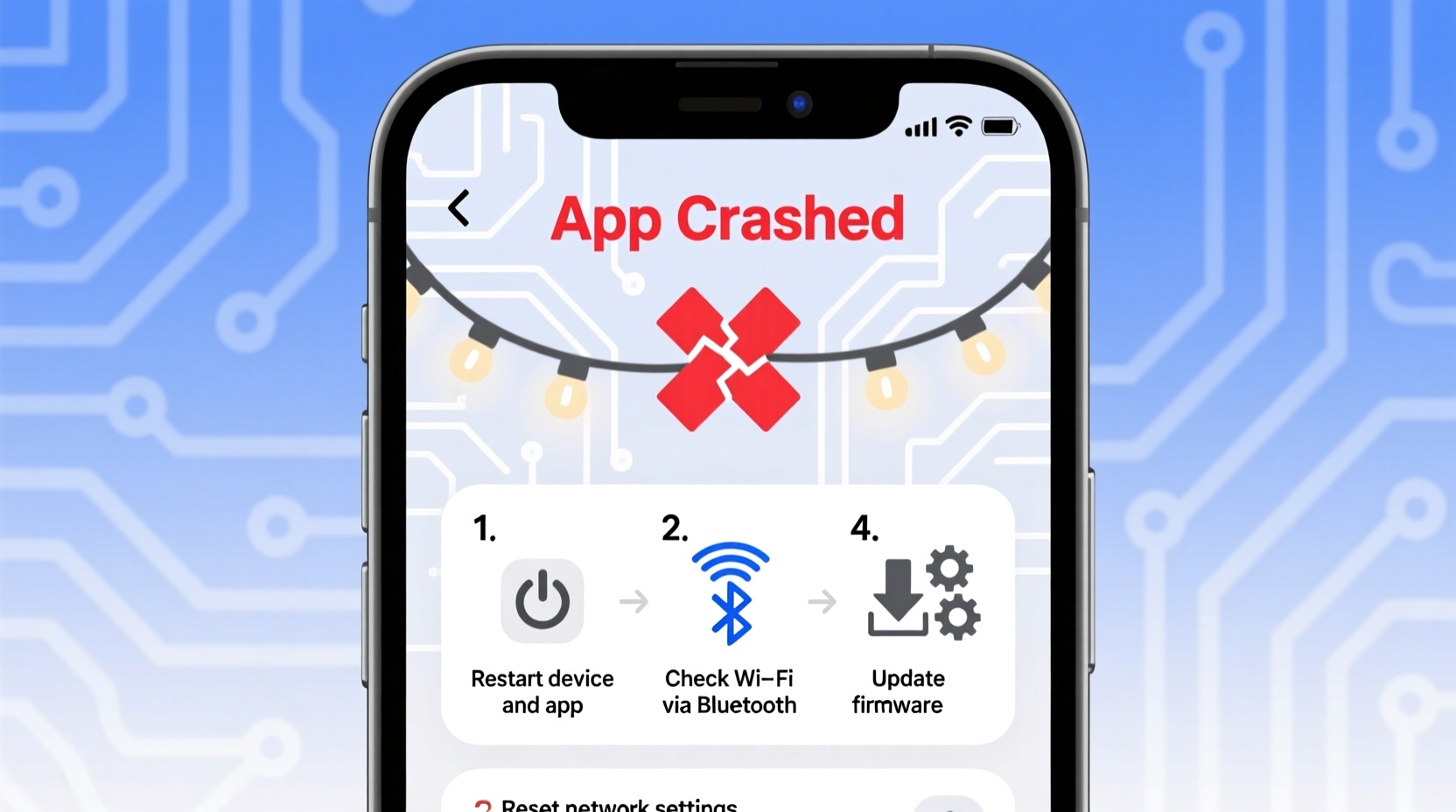
Smart lighting apps crash for a variety of reasons, often stemming from software conflicts, outdated systems, or hardware limitations. Unlike traditional bulbs, smart lights rely on continuous communication between the device, app, and network. Any weak link in this chain can cause instability.
The most frequent culprits include:
- Incompatible operating system versions – Older Android or iOS versions may not support newer app features.
- App bugs or corrupted data – Glitches from previous updates or background processes can corrupt temporary files.
- Insufficient device memory – If your phone is low on storage, the app may fail to load properly.
- Conflicting apps or permissions – Security apps or battery savers might block necessary background functions.
- Unstable internet connection – Even minor fluctuations in Wi-Fi can disrupt real-time communication.
Before jumping into complex fixes, start by ruling out the simplest explanations. A quick reboot or update often resolves the issue.
Step-by-Step Guide to Restore App Functionality
Follow this logical sequence to diagnose and resolve app crashes efficiently. Each step builds on the previous one, minimizing guesswork.
- Restart your smartphone – This clears temporary memory and resets active processes that may interfere with the app.
- Force-stop the app – Go to Settings > Apps > [Your Smart Light App] > Force Stop, then relaunch it.
- Clear app cache and data – In the same menu, tap \"Storage\" and select \"Clear Cache\" first. If the problem persists, choose \"Clear Data\" (note: this resets app settings).
- Reinstall the app – Uninstall completely, restart the phone, then download the latest version from the official app store.
- Test on another device – Install the app on a second phone or tablet to determine if the issue is device-specific.
If the app still crashes after reinstallation, the problem likely lies outside the software—possibly in network configuration or hardware compatibility.
Diagnosing and Fixing Connectivity Issues
Even a perfectly functioning app can’t control your lights if the connection fails. Smart Christmas lights typically use Wi-Fi, Bluetooth, or a hybrid protocol like Wi-Fi + cloud relay. Understanding which method your system uses is key to fixing connectivity problems.
Common signs of poor connectivity include:
- Lights appear offline despite being powered
- Delayed responses when changing colors or patterns
- Inability to add new devices to the app
- Intermittent disconnections during scheduled routines
Start by verifying the basics: ensure the lights are within range, powered on, and showing indicator lights (usually blinking blue or green). Then proceed with targeted diagnostics.
Wi-Fi Signal Strength and Router Compatibility
Many smart lights operate only on 2.4 GHz networks. If your router broadcasts both 2.4 GHz and 5 GHz under the same SSID, the app may struggle to maintain a stable link. Separate the bands in your router settings so you can manually connect the lights to the correct frequency.
Additionally, signal strength matters. Lights placed far from the router—especially outdoors or through multiple walls—may drop connection. Use a Wi-Fi analyzer app to measure signal quality near the light string. Anything below -70 dBm is considered weak.
Router Settings That Block Smart Devices
Some routers have security features that inadvertently block IoT devices. These include:
- AP Isolation – Prevents devices on the same network from communicating; disable this in router settings.
- MAC Filtering – Only allows pre-approved devices; ensure your lights’ MAC address is whitelisted.
- Firmware Outdated – Older firmware may lack support for modern protocols; update to the latest version.
Access your router’s admin panel (usually via 192.168.1.1 or 192.168.0.1) and review these settings. When in doubt, reset the router to factory defaults and reconfigure with IoT-friendly options.
Troubleshooting Checklist: Get Your Lights Back Online
Use this checklist as a quick-reference guide when your smart lights aren’t responding or the app crashes repeatedly.
| Action | Status (✓/✗) | Notes |
|---|---|---|
| Restart smartphone and smart lights | Power cycle all components | |
| Ensure app is updated to latest version | Check App Store or Google Play | |
| Verify Wi-Fi band (2.4 GHz required) | Separate dual-band networks if needed | |
| Confirm router does not have AP isolation enabled | Check under wireless settings | |
| Move lights closer to router for testing | Rule out signal weakness | |
| Re-pair lights with the app | Remove and re-add device | |
| Test app on a second mobile device | Determine if issue is phone-specific |
Work through each item methodically. Skipping steps may lead you to overlook simple fixes buried beneath more complex theories.
Real Example: How One Family Fixed Their Holiday Display
The Rivera family in Portland installed a new set of smart Christmas lights across their roofline, excited to sync them with holiday music. On setup night, the app crashed every time they tried to connect. After repeated failures, they almost returned the product.
Instead, they followed a structured approach:
- First, they confirmed their phone was running the latest iOS version.
- They discovered their router combined 2.4 GHz and 5 GHz into one network name. After separating the bands, they connected the lights to the 2.4 GHz signal.
- They noticed the router had AP isolation enabled—a setting turned on during a recent security upgrade.
- After disabling AP isolation and restarting the router, the app launched without crashing.
- Finally, they moved the main light controller slightly closer to the house, improving signal stability.
Within an hour, their display was live, synchronized, and dazzling the neighborhood. The issue wasn’t faulty hardware—it was a combination of overlooked settings and environmental factors.
“We assumed the problem was the lights themselves, but it turned out to be our own network setup. Taking the time to understand how IoT devices communicate saved us from unnecessary returns.” — Carlos Rivera, homeowner and DIY tech enthusiast
Expert Insight: What Developers Want You to Know
Software engineers who design smart lighting apps emphasize that user-side configuration plays a bigger role than most realize. While app stability has improved over the years, external variables remain the leading cause of failure.
“Over 70% of reported crashes are due to network conditions or outdated firmware, not code errors. Users often blame the app when the real issue is a misconfigured router or an overloaded phone.” — Lena Park, Senior Developer at Lumos Smart Home
Park also notes that many users don’t realize smart lights require consistent background access. On Android, for example, enabling “Battery Optimization” for the app can prevent it from maintaining a persistent connection. She recommends adding the app to the device’s battery whitelist.
Frequently Asked Questions
Why does my smart light app crash only when I try to change colors?
This usually indicates a memory overload or a bug triggered by specific commands. Try clearing the app cache first. If the crash occurs consistently on color changes, it may be a known bug—check the app’s update log or contact customer support for a patch.
Can too many smart devices on my network cause connection issues?
Yes. Routers have limits on concurrent connections—typically between 20 and 50 devices. Exceeding this can degrade performance. Consider using a mesh Wi-Fi system or dedicating a guest network for IoT devices to reduce congestion.
Do smart Christmas lights work without Wi-Fi?
Some models offer limited local control via Bluetooth when Wi-Fi is down, but full functionality—including scheduling and remote access—requires an active internet connection. Always check your model’s specifications for offline capabilities.
Prevent Future Issues: Best Practices for Stable Performance
Once you’ve restored functionality, take proactive steps to prevent recurrence. Smart lighting systems thrive on consistency and clean configurations.
- Schedule monthly app updates – Enable auto-updates or check manually once a month.
- Monitor router health – Reboot your router every few weeks to clear memory leaks.
- Label your smart devices – Keep track of MAC addresses and setup dates for faster troubleshooting.
- Use a dedicated IoT network – If your router supports it, create a separate SSID for smart home gadgets.
- Avoid overcrowding circuits – Plug lights into surge protectors with individual switches to prevent power surges.
Think of your smart lighting system as part of a larger ecosystem. Its reliability depends not just on the lights themselves, but on the health of your entire home network.
Conclusion: Enjoy a Seamless Holiday Lighting Experience
Smart Christmas lights should enhance your celebrations, not complicate them. When the app crashes or connectivity falters, the solution is rarely a single fix—but a series of small, deliberate actions. From updating software and adjusting router settings to understanding signal range and device limits, each step brings you closer to reliable control.
Don’t let technical hiccups dim your holiday spirit. With the right knowledge, even the most frustrating issues become manageable. Apply these strategies early in the season to avoid last-minute surprises. Share your success stories, help neighbors troubleshoot, and keep the focus where it belongs—on joy, tradition, and the warm glow of well-functioning lights.




 浙公网安备
33010002000092号
浙公网安备
33010002000092号 浙B2-20120091-4
Comments
No comments yet. Why don't you start the discussion?