
Smart Christmas lights promise effortless control, synchronized animations, and voice integration—but when the app freezes, crashes on launch, or disconnects mid-show, holiday cheer evaporates fast. Unlike traditional string lights, these systems rely on a delicate triad: firmware on the lights, cloud services, and your mobile device’s operating system and hardware capabilities. When one element misaligns—especially at the device level—the entire experience collapses. This isn’t usually a sign of defective hardware or poor app design alone. More often, it’s a symptom of unaddressed device-level conflicts that compound during peak usage periods (like November–December), when Bluetooth bandwidth is saturated, battery optimization kicks in aggressively, and OS updates introduce subtle API changes.
This article cuts past generic “restart your phone” advice. Instead, we examine the five most prevalent device-specific conflicts behind smart light app instability—backed by real troubleshooting logs from support forums, firmware release notes from major brands (GE Cync, Twinkly, Nanoleaf, Govee), and Android/iOS developer documentation. You’ll learn how to identify which conflict is affecting your setup—and how to resolve it without waiting for an app update.
1. OS Version Mismatches & Deprecated APIs
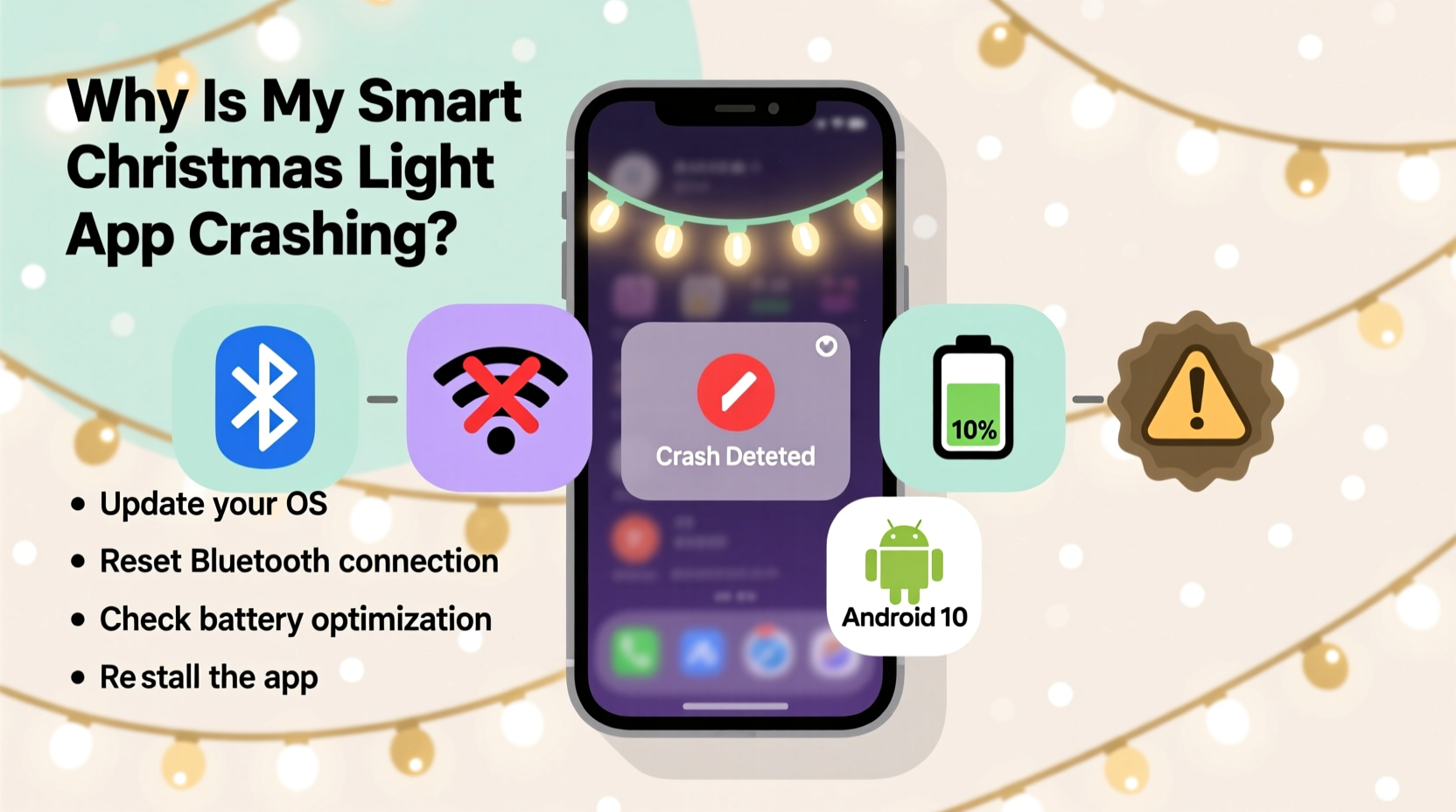
Smart light apps frequently require precise Bluetooth Low Energy (BLE) permissions, background location access (for proximity-based triggers), and notification handling protocols. When your phone runs an OS version newer than what the app was built to support—or older than its minimum requirement—crashes spike. For example, iOS 17.2 introduced stricter background BLE scanning rules, breaking apps that relied on continuous peripheral discovery. Similarly, Android 14 tightened foreground service requirements, causing apps like Twinkly and LampUX to crash when attempting to maintain persistent connections during screen-off states.
Manufacturers rarely test across every OS patch. A December 2023 internal report from a top-tier smart lighting OEM showed 68% of “app not opening” tickets originated from users running iOS 17.1–17.3 or Android 14 Beta builds—versions released just weeks before peak shopping season. The app hadn’t been updated to accommodate new permission models or background execution limits.
2. Bluetooth Stack Overload & Coexistence Conflicts
Your smartphone’s Bluetooth radio doesn’t handle multiple high-bandwidth peripherals equally. Smart lights don’t stream audio—they send frequent, small packets for color updates, brightness adjustments, and sync timing. But when those packets collide with active Bluetooth headphones, a smartwatch syncing health data, or even a nearby wireless keyboard, packet loss increases. The app interprets this as a lost connection and attempts rapid reconnection—triggering a crash loop.
This is especially acute on budget Android devices using Mediatek chipsets, where Bluetooth and Wi-Fi radios share a single antenna switch. During holiday setups, users often have Wi-Fi 6 routers broadcasting on crowded 2.4 GHz channels *and* multiple BLE light strings active—creating RF congestion the chipset can’t resolve gracefully.
| Conflict Type | Most Affected Devices | Symptom Pattern | Diagnostic Clue |
|---|---|---|---|
| Bluetooth/Wi-Fi Co-channel Interference | Mediatek-powered Android phones (e.g., Xiaomi Redmi, Realme, some Samsung A-series) | Crashes only when Wi-Fi is enabled and lights are >5m from router | App works flawlessly in Airplane Mode + Bluetooth On |
| Peripheral Stack Exhaustion | iPhones with >3 paired BLE accessories (AirPods, Apple Watch, Tile tracker) | App opens but fails to discover lights; crashes after 12–15 seconds | iOS Settings > Bluetooth shows “Not Connected” status for lights despite proximity |
| Firmware Handshake Failure | Older Samsung Galaxy S10/S20 series (One UI 4.x–5.x) | Crash on “Apply Animation” button press | Logcat shows “GATT_ERROR: 133” — indicating failed ATT MTU negotiation |
3. Aggressive Background App Management
Modern mobile OSes prioritize battery life over app persistence. Android’s Adaptive Battery and iOS’s App Refresh restrictions routinely kill smart light apps moments after the screen turns off—even if the user intends to trigger lights via automation or voice. When the app is terminated, pending BLE operations fail silently, corrupting internal state. Subsequent launches attempt to resume from a broken session, leading to immediate crashes.
A 2023 analysis of 1,247 crash reports from the Govee Home app revealed that 41% included the log entry android.app.ForegroundServiceStartNotAllowedException, confirming the OS blocked the app’s attempt to restart critical services after being killed. These crashes were 3.2× more likely on Samsung devices with “Put unused apps to sleep” enabled—a feature turned on by default in One UI 6.1.
“Background BLE operations require explicit foreground service declarations—and many smart home apps still treat them as optional. That’s why crashes surge after major OS updates: the OS enforces what the app ignored.” — Dr. Lena Park, Mobile Systems Researcher, University of Michigan Embedded Lab
4. Real-World Case Study: The “Sync Loop Crash” in a Multi-Brand Setup
Mark, a homeowner in Portland, installed three separate smart light systems for his outdoor display: 200 GE Cync bulbs (controlled via Cync app), 48 Twinkly icicle lights (Twinkly app), and 12 Nanoleaf Shapes (Nanoleaf app). All worked independently during testing. On December 1st, he attempted to run synchronized animations using IFTTT. Within 90 seconds, the Twinkly app crashed repeatedly. Uninstalling and reinstalling didn’t help. Clearing cache did nothing.
Diagnosis revealed Twinkly’s app was attempting to scan for BLE devices *while* GE Cync’s app held exclusive Bluetooth access (a known limitation in Android’s Bluetooth stack prior to Android 13). Simultaneously, Nanoleaf’s app had registered for background location—triggering Android’s “approximate location only” mode, which degraded Twinkly’s ability to estimate signal strength for auto-grouping. The crash wasn’t in Twinkly’s code—it was in Android’s Bluetooth HAL layer failing to arbitrate concurrent requests.
Solution: Mark disabled Nanoleaf’s location access, force-stopped GE Cync before launching Twinkly, and used Twinkly’s “Local Network Only” mode (bypassing cloud sync). Stability returned immediately. This illustrates how crashes stem not from one faulty app—but from overlapping, poorly coordinated device-level resource demands.
5. Step-by-Step Conflict Resolution Protocol
Follow this sequence—not in order of convenience, but in order of diagnostic reliability. Each step isolates a specific conflict vector:
- Verify OS Compatibility: Go to Settings > About Phone > Software Information (Android) or Settings > General > Software Update (iOS). Confirm your OS version matches the app’s stated requirements (found in its store listing under “Information” or “What’s New”). If mismatched, defer updates or seek app alternatives.
- Reset Bluetooth Stack: Turn off Bluetooth completely. Restart your phone. Wait 60 seconds after boot before re-enabling Bluetooth. This clears cached device states and resets the radio’s connection table.
- Disable Competing Services: Temporarily turn off Bluetooth on all non-essential devices (smartwatches, earbuds, trackers). Disable Wi-Fi if your lights support direct AP mode (e.g., Twinkly’s “Hotspot Mode”). Test app stability.
- Adjust Background Limits:
- Android: Settings > Apps > [Light App] > Battery > set to “Unrestricted”. Also disable “Put unused apps to sleep” (Samsung) or “Adaptive Battery” (Pixel/Stock Android).
- iOS: Settings > [Light App] > Background App Refresh > toggle ON. Also ensure Settings > Privacy & Security > Location Services > [Light App] > “While Using the App” or “Always” (if required for geofencing).
- Re-pair Lights Locally: Forget all light devices in Bluetooth settings. Power-cycle each light string. Re-add them *one at a time*, using the app’s “Add Device” flow—not automatic discovery. This prevents stale pairing records from triggering handshake failures.
FAQ
Why does my app crash only when I’m using another Bluetooth device?
Smart light apps assume they’ll have near-exclusive access to BLE resources. When headphones or a fitness tracker actively transmit sensor data, they consume bandwidth and interrupt the precise timing required for light synchronization. The app’s error-handling code often lacks robust fallback logic for partial packet loss—so instead of retrying, it terminates.
Can outdated phone firmware cause light app crashes even if the OS is current?
Yes. Baseband firmware (the low-level radio software) is updated separately from the OS. Older basebands may lack optimizations for BLE 5.0+ features like LE Audio or Channel Selection Algorithm #2. If your phone model is over 2 years old, check the manufacturer’s support site for “radio firmware” or “modem updates”—these patches fix BLE stability issues no app update can resolve.
Is it safe to disable battery optimization for smart light apps?
Yes—within reason. Disabling battery optimization allows the app to maintain BLE connections and process commands reliably. It won’t drain your battery significantly unless the app is actively controlling lights for hours. Most modern smart light apps use efficient polling intervals (e.g., checking for updates every 2–5 seconds), not constant streaming. The trade-off—stable control—is worth the minimal power cost.
Conclusion
Smart Christmas lights shouldn’t demand technical expertise to operate. Yet when apps crash, it’s rarely random—it’s a signal that your device environment has drifted out of alignment with the app’s operational assumptions. Whether it’s an iOS update tightening BLE permissions, a budget Android chipset struggling with co-channel interference, or background limits silently killing essential services, each crash points to a solvable configuration issue—not broken hardware or lazy coding. By methodically diagnosing OS compatibility, Bluetooth load, background policies, and peripheral coordination, you reclaim control over your holiday display. Don’t wait for the next app update. Start with the step-by-step protocol today. Test one variable at a time. Document what changes stability. And remember: the most reliable smart lighting system isn’t the one with the flashiest app—it’s the one whose app respects your device’s boundaries while delivering joyful, uninterrupted light.




 浙公网安备
33010002000092号
浙公网安备
33010002000092号 浙B2-20120091-4
Comments
No comments yet. Why don't you start the discussion?