
Smart Christmas lights promise festive convenience—remote control, color customization, music synchronization, and scheduling—all from your smartphone. But when the app won’t connect, the magic fades fast. You’re left staring at blinking bulbs with no way to control them. This issue affects users across brands like Govee, Philips Hue, Twinkly, Luminara, and many others. The good news: most connection problems are solvable with methodical troubleshooting. Whether it’s a Wi-Fi hiccup, Bluetooth range limitation, outdated firmware, or an overlooked app permission, this guide walks you through every likely cause and its solution.
Understanding How Smart Lights Connect
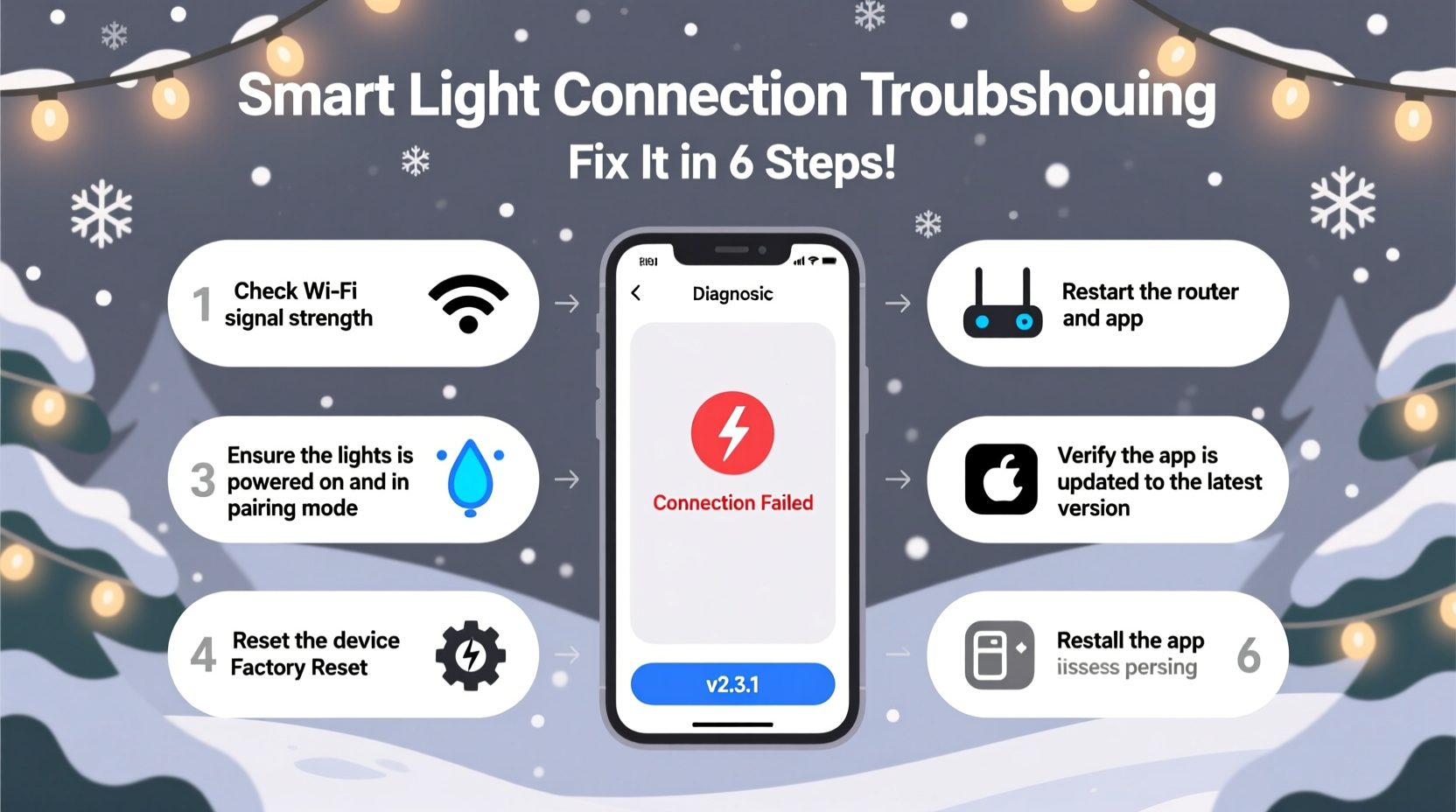
Before diving into fixes, it helps to understand how smart lights communicate. Most modern smart Christmas lights use either Wi-Fi, Bluetooth, or a hybrid of both. Entry-level sets often rely on Bluetooth, requiring your phone to be within 30 feet. Higher-end models connect directly to your home Wi-Fi network, enabling remote access via the cloud. Some systems use Bluetooth during setup and then switch to Wi-Fi for ongoing control.
The companion app acts as the bridge between you and the lights. It sends commands over your local network or the internet, depending on the model. When the app fails to connect, the breakdown can occur at any point in this chain: your phone, the app itself, your router, the lights’ hardware, or even external interference.
“Over 70% of smart lighting connectivity issues stem from network configuration errors or outdated firmware—not hardware failure.” — Rajiv Mehta, IoT Network Engineer at SmartHome Labs
Step-by-Step Troubleshooting Guide
Follow this logical sequence to isolate and resolve the problem. Start simple and progress to advanced solutions only if needed.
1. Verify Power and Physical Status
Ensure the lights are powered on and receiving electricity. A common oversight is using a faulty outlet or extension cord. Plug the strand into a different outlet known to work. Look for indicator lights on the controller box—many models blink red or yellow during pairing mode or error states.
2. Restart Your Devices
Sometimes, a fresh start resolves transient glitches.
- Unplug the lights for 30 seconds, then plug them back in.
- Restart your smartphone or tablet.
- Reopen the smart lighting app after the restart.
This clears temporary memory conflicts and resets communication protocols.
3. Check Bluetooth and Wi-Fi Settings
If your lights use Bluetooth:
- Ensure Bluetooth is enabled on your phone.
- Make sure no other device (like headphones or speakers) is actively connected and hogging bandwidth.
- Forget the light device in your phone’s Bluetooth settings, then retry pairing.
If your lights use Wi-Fi:
- Confirm your phone is connected to the same 2.4 GHz network as the lights (most don’t support 5 GHz).
- Check that your router hasn’t blocked the device via MAC filtering or parental controls.
- Temporarily disable any VPNs or firewall apps on your phone.
4. Reconnect the App to the Network
Open the app and go to device setup or “Add Light” mode. Even if the lights were previously paired, force a reconnection. Follow the on-screen prompts carefully. For Wi-Fi models, enter your network password slowly—hidden characters can lead to typos.
5. Update Firmware and App
Outdated software is a frequent culprit. Developers release updates to patch bugs and improve stability.
- Visit your app store (Google Play or Apple App Store) and check for updates to the lighting app.
- Within the app, look for a “Firmware Update” option under device settings.
- Keep the lights powered and the app open during updates—do not interrupt the process.
6. Reset the Lights to Factory Settings
When all else fails, reset the lights. The method varies by brand:
- Govee: Unplug for 10 seconds, plug in, then unplug and plug in twice more rapidly. The lights will flash to confirm reset.
- Twinkly: Hold the physical button on the controller for 15 seconds until LEDs blink red and green.
- Philips Hue: Press the reset button on the bridge or light strip controller for 10 seconds.
After resetting, go through the setup process from scratch in the app.
Common Causes and Solutions Table
| Issue | Likely Cause | Solution |
|---|---|---|
| App shows \"Device Not Found\" | Bluetooth/Wi-Fi disabled, out of range | Enable Bluetooth, move closer, restart devices |
| Connection drops frequently | Weak Wi-Fi signal or interference | Relocate router, reduce obstacles, use Wi-Fi extender |
| App crashes on launch | Outdated app or OS incompatibility | Update app, restart phone, reinstall if needed |
| Lights won’t join Wi-Fi | 5 GHz network, incorrect password, DHCP conflict | Use 2.4 GHz, verify credentials, restart router |
| App connects but commands fail | Firmware bug or signal congestion | Update firmware, power cycle lights, reduce nearby devices |
Environmental and Network Factors
Your home environment plays a bigger role than most realize. Physical barriers like walls, metal gutters, and large appliances can block Bluetooth and Wi-Fi signals. Outdoor installations are especially vulnerable to interference from neighboring networks, holiday decorations, or weatherproof enclosures made of conductive materials.
Wi-Fi congestion is another hidden factor. During the holidays, homes often have multiple smart devices active—streaming boxes, voice assistants, security cameras—which can saturate the 2.4 GHz band. Consider setting up a guest network dedicated to smart lights to reduce traffic.
Also, ensure your router supports UPnP (Universal Plug and Play). While not always required, UPnP helps devices discover each other automatically. Disable strict AP isolation settings if enabled—they prevent communication between devices on the same network.
Mini Case Study: The Garage Installation That Wouldn’t Connect
Sarah in Denver installed a set of Govee Wi-Fi LED strips along her garage eaves. The app worked during initial setup but failed the next day. She tried restarting her phone and the lights, but nothing helped.
After checking the basics, she noticed her phone showed full bars—but the lights were far from the router, inside a metal garage. Using a Wi-Fi analyzer, she found the signal dropped to -85 dBm outside. She moved her router closer to the front of the house and added a $30 Wi-Fi extender. After re-pairing, the lights connected instantly and have worked reliably since.
Sarah’s experience highlights that physical distance and building materials matter—even if your phone has strong signal, the lights might not.
Checklist: Fix Your Smart Light App Connection
Use this checklist to systematically address the issue:
- ✅ Confirm the lights are powered and controller indicator lights are on
- ✅ Ensure your phone’s Bluetooth or Wi-Fi is enabled
- ✅ Verify your phone is on the 2.4 GHz Wi-Fi network
- ✅ Restart the lights, phone, and router
- ✅ Update the app to the latest version
- ✅ Check for firmware updates in the app
- ✅ Forget the device in Bluetooth settings and re-pair
- ✅ Reset the lights to factory defaults
- ✅ Re-add the lights in the app from scratch
- ✅ Test signal strength near the installation location
Frequently Asked Questions
Can I use smart lights without Wi-Fi?
Yes, but with limitations. Bluetooth-only models work within short range and require your phone to be nearby. You lose remote access, scheduling, and voice assistant features. Some apps allow limited offline control if the lights were recently connected.
Why does my app connect sometimes but not others?
Inconsistent connections usually point to signal instability or network congestion. It could also be due to power-saving modes on your phone disconnecting background services. Disable battery optimization for the lighting app in your phone settings to maintain a persistent connection.
Do smart lights need a hub?
It depends on the brand. Govee and Twinkly lights typically connect directly to Wi-Fi or Bluetooth. Philips Hue and some high-end systems require a central hub (like the Hue Bridge) to manage communication. Without the hub, the app cannot reach the lights. Always check your model’s requirements before troubleshooting.
Expert Tips for Long-Term Reliability
Once you’ve restored connectivity, take steps to prevent future issues:
- Label your controller: Use a weatherproof tag to identify which app and network the lights use—especially helpful if you own multiple brands.
- Set update reminders: Schedule a monthly check for app and firmware updates.
- Document your setup: Take screenshots of successful configurations, including network names and passwords used.
- Use static IPs (advanced): Assign a fixed IP address to your lights in your router settings to avoid connection drops from DHCP changes.
“The most reliable smart lighting setups are those where users treat the system like any other critical tech—regular maintenance included.” — Lena Tran, Smart Home Consultant at NestAware Systems
Conclusion: Restore the Festive Glow
A non-responsive smart Christmas light app is frustrating, but rarely permanent. By methodically checking power, connectivity, software, and environmental factors, most users regain control within an hour. The key is patience and precision—don’t skip basic steps in favor of quick fixes. Remember that smart lights depend on a delicate balance of hardware, software, and network conditions. When one piece falters, the whole system can appear broken. But with the right approach, you can diagnose the root cause and enjoy seamless, colorful control all season long.




 浙公网安备
33010002000092号
浙公网安备
33010002000092号 浙B2-20120091-4
Comments
No comments yet. Why don't you start the discussion?