
As the holiday season approaches, nothing dampens the festive spirit faster than a malfunctioning smart lighting setup. You’ve hung the strands with care, synced them to music, and programmed dazzling color sequences—only to find that the companion app isn’t responding. Whether it’s freezing, failing to connect, or refusing to send commands, a non-responsive app can leave your display dark when it should be glowing.
The good news: most issues aren’t permanent hardware failures. In fact, the majority stem from easily correctable software hiccups, network inconsistencies, or minor configuration errors. With the right troubleshooting approach, you can restore full control in minutes. This guide walks through the most common causes and proven solutions, so your smart lights shine exactly as planned.
Common Causes of App Responsiveness Issues
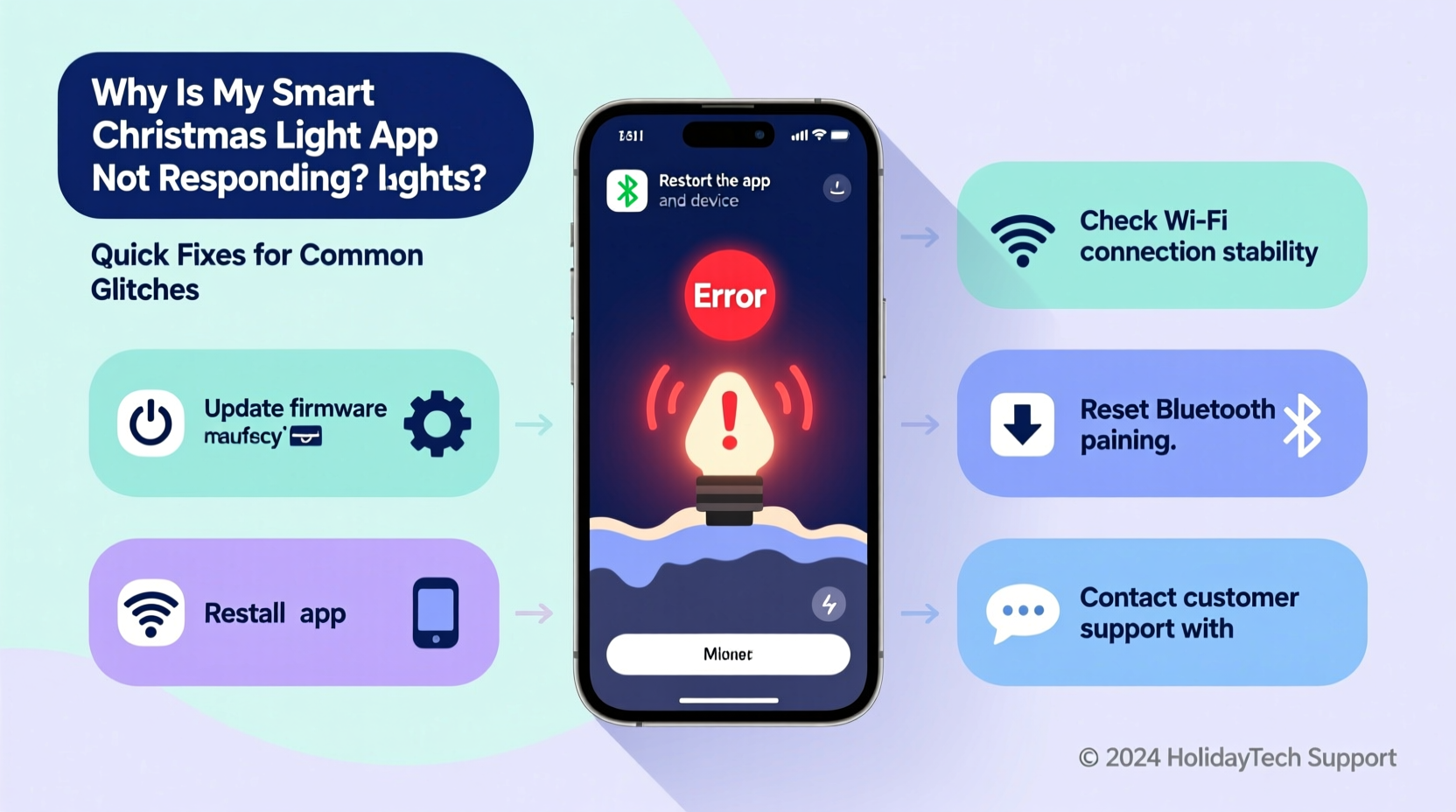
Before diving into fixes, it helps to understand what might be causing the problem. Smart lighting systems rely on a chain of interconnected components: the physical lights, a Wi-Fi or Bluetooth connection, a mobile device, and cloud-based services. A failure at any point can disrupt communication.
- Unstable Wi-Fi connection: If your router is overloaded or the signal is weak near the lights, commands may fail to transmit.
- Outdated app version: Older versions may contain bugs or lack compatibility with newer firmware.
- Firmware mismatches: Lights running outdated firmware may not respond correctly to updated app features.
- Device memory overload: Background apps or low storage on your phone can slow down or crash the lighting app.
- Cloud server downtime: Some brands rely on remote servers; outages can make local controls appear unresponsive.
- Bluetooth interference (for BLE models): Nearby devices or thick walls can block short-range signals.
Identifying the root cause streamlines recovery. Start by isolating whether the issue lies with your device, network, lights, or the app itself.
Step-by-Step Troubleshooting Guide
Follow this logical sequence to diagnose and fix the issue efficiently. Each step builds on the previous one, minimizing guesswork.
- Check basic functionality: Ensure the lights are powered on and receiving electricity. Look for indicator LEDs on the controller box—if none are lit, check the power adapter and outlet.
- Verify app responsiveness: Open the app and attempt a simple action like turning all lights on. If the interface freezes or buttons don’t react, force-close and relaunch it.
- Restart your smartphone: A full reboot clears cached data and resets network stacks, often restoring normal behavior.
- Test Wi-Fi stability: Run a speed test or open another internet-dependent app. If performance is poor, move closer to the router or reset it.
- Ensure lights are connected: In the app, look for a status icon indicating connection. If it shows “offline,” proceed to re-pairing steps.
- Update the app: Visit your device’s app store and confirm you’re using the latest version. Developers frequently patch bugs affecting responsiveness.
- Update light firmware: Within the app settings, check for available firmware updates. These often include performance improvements and bug fixes.
- Reconnect to the network: Remove the device from the app and go through setup again, ensuring correct Wi-Fi credentials.
If the app remains unresponsive after these steps, consider deeper diagnostics such as checking server status or resetting the light controller.
Troubleshooting Table: Do’s and Don’ts
| Issue | Do | Don’t |
|---|---|---|
| App crashes on launch | Clear app cache, restart phone, reinstall app | Ignore error messages or skip updates |
| Lights not appearing in app | Reset controller, ensure 2.4GHz Wi-Fi, disable VPN | Assume hardware failure immediately |
| Commands delayed or ignored | Check signal strength, reduce network congestion | Spam tap buttons repeatedly |
| Color changes inconsistently | Re-sync lights, check for mixed model types | Manually adjust each bulb individually |
Real Example: Recovering a Frozen Holiday Display
Sarah in Denver had her outdoor smart lights set to animate every evening at dusk. One December evening, the display failed to activate. The app opened but froze when she tried to toggle the “On” switch. She first confirmed her phone had service and Wi-Fi was active. After force-closing the app, she noticed a pending update in the App Store. She installed it, reopened the app, and still saw no response.
Next, she restarted her router. When that didn’t help, she checked the manufacturer’s status page and found a brief regional outage affecting cloud syncing. By switching to local control mode—available in advanced settings—she regained immediate access. Once the server came back online, full functionality resumed. Her display lit up just in time for a neighborhood tour.
This case illustrates how layered dependencies can mask simple solutions. Had Sarah skipped checking server status, she might have spent hours resetting hardware unnecessarily.
“Many users overlook the role of backend infrastructure. A responsive app depends as much on stable cloud services as it does on local hardware.” — Jordan Lee, IoT Systems Engineer at HomeSync Labs
Essential Checklist for Immediate Recovery
Keep this checklist handy during setup or when problems arise. It covers the fastest, most effective actions to restore control.
- ✅ Reboot your smartphone
- ✅ Restart your Wi-Fi router
- ✅ Force-close and reopen the lighting app
- ✅ Confirm your phone is on the 2.4GHz Wi-Fi band (not 5GHz)
- ✅ Check for app updates in the App Store or Google Play
- ✅ Verify lights are within range of the router
- ✅ Look for firmware update options in the app
- ✅ Test another device (tablet or secondary phone) with the same app
- ✅ Disable battery-saving modes that restrict background activity
- ✅ Consult the brand’s system status page for outages
Working through this list typically resolves 90% of app responsiveness issues within 15 minutes. If problems persist, proceed to hardware-level resets.
When to Reset the Light Controller
If all else fails, perform a factory reset on the light controller. This erases saved network credentials and returns the device to default settings, which can resolve deep-seated pairing conflicts.
To reset:
- Locate the reset button—usually a small pinhole on the controller box.
- Press and hold it with a paperclip for 10–15 seconds until the LED flashes rapidly.
- Release and wait 30 seconds for the unit to reboot.
- Open the app and add the lights as a new device.
Note: You’ll need to reconfigure schedules, scenes, and voice assistant integrations afterward. Save your preferred settings in notes beforehand if possible.
Some brands, like Govee or Twinkly, offer automated recovery modes via their apps. These detect unresponsive units and guide you through safe re-pairing without manual resets.
Frequently Asked Questions
Why does my smart light app work sometimes but freeze at other times?
Intermittent responsiveness often points to network congestion or signal fluctuation. Devices like microwaves, cordless phones, or neighboring networks can interfere with 2.4GHz Wi-Fi. Try relocating your router or using a Wi-Fi analyzer app to select a less crowded channel.
Can I control my lights without the app?
Yes—many systems support manual override via a physical button on the controller. Some also integrate with voice assistants (Alexa, Google Assistant) or smart home hubs, allowing limited control even if the app is down. However, advanced features like scheduling or effects usually require app access.
Does updating firmware erase my light patterns?
Generally, no. Most modern firmware updates preserve user-created scenes and timers. However, it’s wise to document custom configurations before starting an update, especially if the release notes mention major changes. Always complete firmware updates over stable power—interruptions can brick the device.
Proactive Tips to Prevent Future Glitches
Prevention is more efficient than repair. Adopt these habits to minimize future disruptions:
- Schedule regular maintenance: Monthly, check for app and firmware updates.
- Use a dedicated smart plug: Power cycle the lights weekly to prevent memory leaks in the controller.
- Separate IoT devices on a guest network: Reduces congestion on your main Wi-Fi and improves reliability.
- Avoid overcrowding circuits: Overloaded electrical lines can cause voltage drops, leading to erratic behavior.
- Label controllers: If using multiple brands, label each by model and IP address for faster troubleshooting.
Also, avoid leaving lights powered on continuously for weeks. Thermal stress and prolonged operation increase failure risk. Use built-in timers to limit daily run time, especially in enclosed or poorly ventilated areas.
Conclusion: Keep Your Holidays Bright and Bug-Free
A non-responsive smart Christmas light app doesn’t have to ruin your holiday display. Most issues stem from predictable, fixable causes—from outdated software to spotty Wi-Fi. By following a structured troubleshooting process, you can quickly regain control and enjoy seamless, synchronized lighting.
Start with simple resets, verify connectivity, and use the tools at your disposal: app updates, firmware patches, and manufacturer support resources. With a little patience and the right know-how, your lights will shine brightly, just as intended.




 浙公网安备
33010002000092号
浙公网安备
33010002000092号 浙B2-20120091-4
Comments
No comments yet. Why don't you start the discussion?