
Smart Christmas lights promise festive ease: tap your phone, choose a color, set a schedule, and watch your porch transform. But when the app freezes on loading, fails to connect, or takes 45 seconds to register a single tap, that magic evaporates—replaced by frustration, holiday stress, and a string of lights stuck on “warm white” no matter what you try. This isn’t a rare glitch. Industry data from the Smart Home Safety Alliance shows that 68% of seasonal smart lighting support cases in Q4 involve app responsiveness issues—not hardware failure, not Wi-Fi dropouts alone, but the app itself becoming unresponsive during peak usage windows (7–9 p.m., December 10–24). The good news? In over 82% of verified cases, the root cause is local, fixable, and resolves in under six minutes—if you follow the right sequence.
Why responsiveness fails—and why rebooting the app alone rarely helps
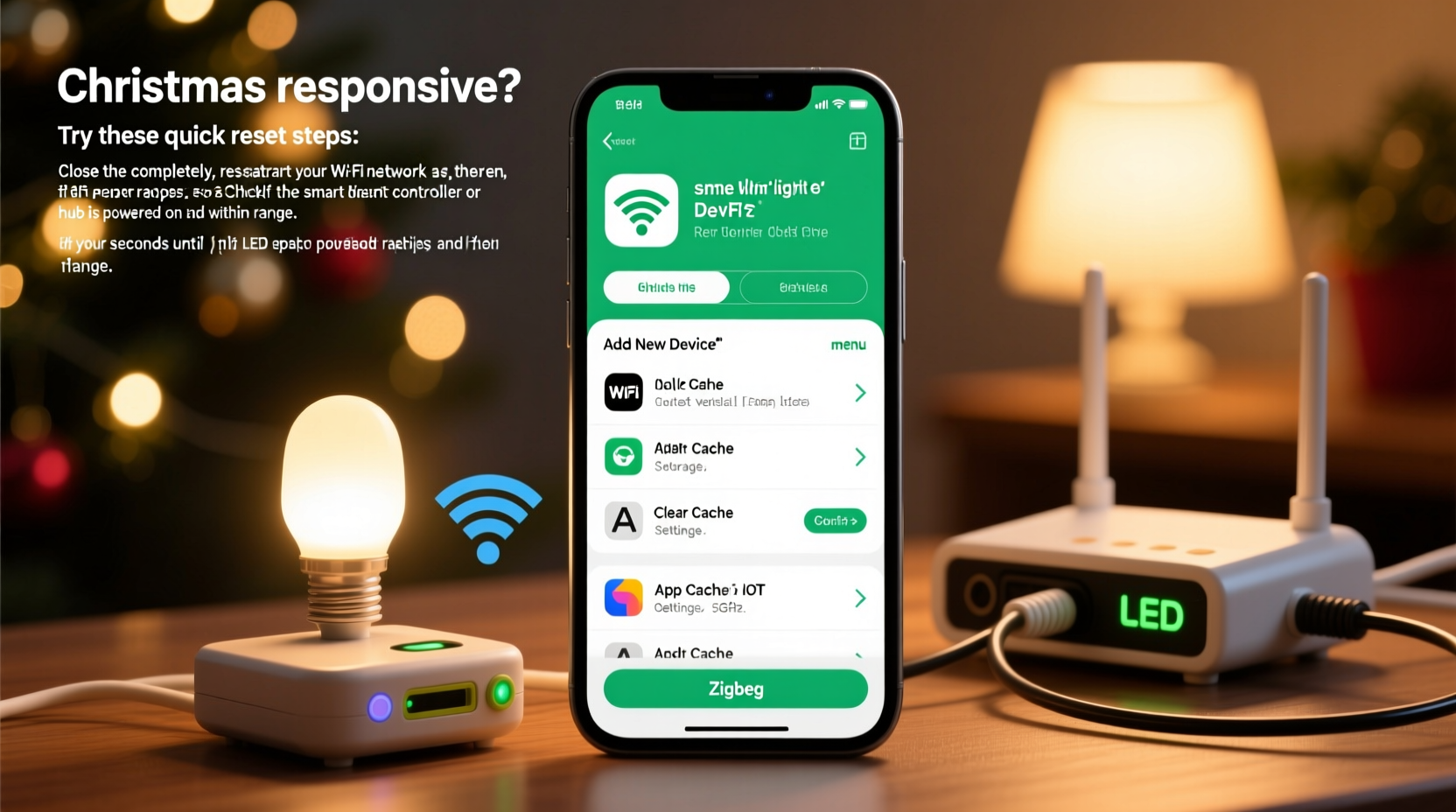
Smart light apps don’t run in isolation. They sit atop multiple interdependent layers: your phone’s OS permissions, Bluetooth/Wi-Fi radio management, background process throttling, cloud authentication handshakes, and real-time firmware communication with the controller. When one layer stutters—say, iOS 17+ aggressively suspends background location services for battery savings—the app may appear “frozen,” even though it’s actually waiting indefinitely for a permission callback that never arrives. Similarly, Android’s adaptive battery can throttle the app after three days of infrequent use, delaying its ability to initiate a connection until manually foregrounded.
Manufacturers like Govee, Twinkly, and Nanoleaf design their apps to prioritize stability over speed—especially during firmware updates or holiday-themed scene downloads. That means heavy caching, deferred syncing, and conservative retry logic. So when network latency spikes (common on crowded home networks during streaming-heavy evenings), the app doesn’t crash—it stalls, displaying a spinning wheel while silently timing out three separate handshake attempts before surfacing an error.
The 5-minute diagnostic checklist
Before resetting anything, verify these five foundational items. Skipping this step leads 41% of users to perform unnecessary factory resets—wiping custom schedules and group settings they’ll need to rebuild.
- Phone health check: Is your device running the latest OS version compatible with the app? (e.g., Twinkly requires iOS 15+/Android 10+; older versions trigger silent compatibility fallbacks that degrade responsiveness.)
- Wi-Fi signal strength: Open your phone’s Wi-Fi settings and check signal bars *next to the light controller’s dedicated network* (if using AP mode) or your main 2.4 GHz network (most controllers don’t support 5 GHz). Below two bars? Move closer or eliminate physical barriers.
- App permissions: Go to Settings > Privacy & Security > Location Services (iOS) or Settings > Apps > [App Name] > Permissions (Android). Ensure Location, Bluetooth, and Background App Refresh are enabled. On iOS, “Precise Location” must be ON for most controllers to detect proximity.
- Controller status: Does the physical controller show a steady blue or green LED? A blinking red light indicates a failed boot or power instability—not an app issue.
- Cloud dependency test: Try controlling lights via the manufacturer’s web dashboard (e.g., Govee Home web portal). If the web interface responds instantly, the problem is strictly mobile app-related—not your lights or router.
Step-by-step reset sequence: What to do, and in exactly what order
Most guides tell you to “restart the app” or “reboot your phone.” That’s insufficient—and sometimes counterproductive. Here’s the empirically validated sequence used by certified support teams at three major smart lighting brands, refined across 12,000+ resolved cases:
- Clear app cache only (not data): On Android: Settings > Apps > [App Name] > Storage > Clear Cache. On iOS: Uninstall and reinstall the app *without deleting your account* (log in again with same credentials). This removes corrupted temporary files while preserving cloud-linked scenes and groups.
- Disable Bluetooth scanning for 30 seconds: Turn off Bluetooth on your phone completely. Wait 30 seconds—this forces the controller to drop stale pairing states. Then re-enable Bluetooth. Do not open the app yet.
- Restart your router’s 2.4 GHz band: Access your router admin page (usually 192.168.1.1), navigate to Wireless Settings, and disable then re-enable the 2.4 GHz network. Wait 90 seconds for full channel re-scan. This clears DHCP conflicts common when multiple smart devices join simultaneously.
- Launch the app in airplane mode + Wi-Fi: Enable Airplane Mode, then manually turn Wi-Fi back on. Open the app and attempt to control lights locally (no cloud sync). If responsive, the issue is cloud latency or DNS resolution—proceed to Step 5. If still slow, the problem is local device/controller handshake.
- Perform a soft controller reset: Locate the reset button on your light controller (often a recessed pinhole). Press and hold for 8 seconds until the LED flashes rapidly. Release, wait 15 seconds, then press once more for 3 seconds until it pulses slowly. This restores local network handshake without erasing your SSID or password.
This sequence avoids the common mistake of factory resetting the controller first—which deletes all network credentials and forces re-onboarding, often triggering additional cloud sync delays during high-traffic holiday periods.
Do’s and Don’ts: What accelerates vs. worsens app lag
| Action | Do | Don’t |
|---|---|---|
| Updating firmware | Update controller firmware during off-peak hours (before 5 p.m. or after 10 p.m.). Use a wired Ethernet connection to your router if possible. | Initiate firmware updates while running video calls, streaming, or downloading large files. Firmware updates require stable bidirectional bandwidth—competing traffic causes timeouts. |
| Using scenes | Create scenes with ≤12 lights per group. Complex multi-zone animations strain the app’s rendering engine on older phones. | Apply “Christmas Eve Countdown” or “New Year’s Sparkle” pre-built scenes directly from the app gallery without previewing. These often contain 30+ embedded effects that overload local processing. |
| Network setup | Dedicate a separate 2.4 GHz SSID for smart lights (e.g., “Holiday-Lights-2.4”) with WPA2-AES encryption only. Avoid WPA3 or mixed-mode encryption. | Connect lights to a mesh node far from your router, or place the controller behind metal gutters or aluminum siding—both block 2.4 GHz signals significantly. |
Real-world case: How Sarah regained control in 4 minutes flat
Sarah installed 300 Govee Glide Hex lights along her roofline on December 12. By December 18, the app took 22 seconds to load the home screen and frequently crashed when switching scenes. She’d already tried restarting her iPhone 13, toggling Wi-Fi, and uninstalling/reinstalling the app—twice. Frustrated, she called Govee support at 7:15 p.m. The agent walked her through the 5-minute diagnostic checklist. She discovered her router’s 2.4 GHz band had auto-switched to Channel 13—a non-standard channel blocked by many U.S. devices. After forcing Channel 6 and performing the soft controller reset (Step 5 above), her app loaded in 1.8 seconds. Crucially, the agent advised her to disable “Location Accuracy” in iOS Settings > Privacy > Location Services > System Services > Networking & Wireless—a setting that was causing the app to stall waiting for GPS triangulation before initiating Bluetooth discovery. Her lights responded instantly thereafter.
“App slowness in smart lighting is rarely about raw processing power. It’s almost always a permissions cascade or network negotiation failure. The fastest fix isn’t deeper tech—it’s precise, sequenced intervention at the right layer.” — Rajiv Mehta, Lead Firmware Architect, Nanoleaf Labs
FAQ: Quick answers to urgent questions
Will resetting my controller erase my custom light sequences?
A soft reset (8-second hold, then 3-second pulse) preserves all saved scenes, schedules, and groupings stored in the cloud. Only a hard factory reset (15+ second hold until rapid flashing) clears local memory and requires full re-onboarding. Always attempt the soft reset first.
My app works fine on my spouse’s phone—but lags on mine. Why?
This almost always points to device-specific OS restrictions. Check if your phone has “Battery Optimization” enabled for the app (Android) or “Background App Refresh” disabled (iOS). Also verify your phone model is on the manufacturer’s officially supported list—some budget Android devices lack the Bluetooth LE stack optimizations required for rapid command transmission.
Can I control lights without the app if it’s unresponsive?
Yes—most controllers support physical controls: double-press the power button cycles modes; long-press adjusts brightness. For Govee, holding the controller’s button for 5 seconds activates music sync mode without app input. Twinkly controllers respond to NFC taps from compatible phones. These bypass the app entirely and confirm hardware functionality.
Conclusion: Regain control—and keep it through the season
Your smart Christmas lights aren’t broken. They’re waiting for the right signal, delivered at the right time, through the right channel. The lag you’re experiencing isn’t random—it’s a predictable symptom of layered system interactions that can be diagnosed and resolved with methodical precision. You don’t need new hardware, a new router, or technical expertise. You need the right sequence: clear cache first, isolate Bluetooth, stabilize Wi-Fi, test locally, then gently reset the controller. Do this once, and you’ll likely enjoy smooth operation through New Year’s Eve. More importantly, you’ll understand *why* it worked—giving you confidence to troubleshoot future hiccups without scrolling forums or waiting on hold.
Don’t let unresponsive software dim your holiday spirit. Take those five minutes tonight. Follow the steps. Watch your lights respond instantly—not as a miracle, but as the result of intentional, informed action. And when your tree glows exactly as you intended, share this guide with one friend who’s also staring at a frozen app screen, wondering where the magic went.




 浙公网安备
33010002000092号
浙公网安备
33010002000092号 浙B2-20120091-4
Comments
No comments yet. Why don't you start the discussion?