
Smart Christmas lights bring convenience, customization, and festive flair to holiday decorating. With smartphone control, scheduling, and dynamic color effects, they elevate seasonal displays like never before. But when your red appears pink, green looks yellow, or white turns blue, the magic fades fast. A common but frustrating issue—color miscalibration—can ruin the visual harmony of your setup. The good news: most problems are fixable with a few systematic checks and adjustments. Whether you're dealing with an entire string displaying incorrect hues or just one segment acting up, this guide walks through the root causes and precise solutions.
Understanding How Smart Lights Produce Color
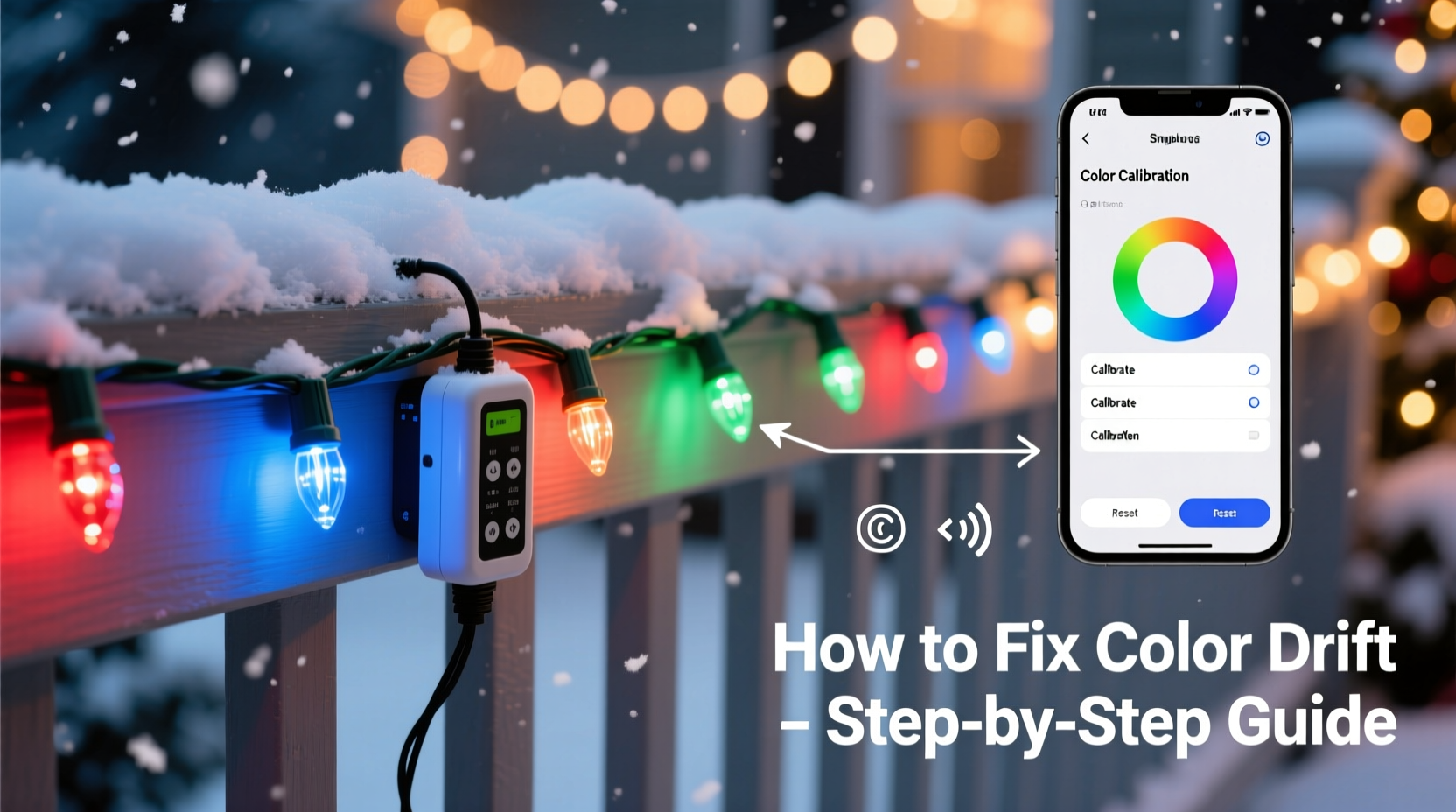
Unlike traditional incandescent bulbs that emit a single fixed color, smart Christmas lights use RGB (Red, Green, Blue) LEDs. By varying the intensity of these three primary colors, the lights can simulate millions of shades. Some models also include a dedicated white LED (RGBW) for more accurate neutral tones. The perceived color depends on precise electrical signals sent from the controller to each LED node. When any part of this system misfires—whether due to firmware glitches, hardware inconsistencies, or environmental interference—the output can deviate from what’s shown in the app.
The problem isn’t always in the bulbs themselves. Issues may stem from:
- Firmware bugs in the lighting controller
- Incorrect color profile settings in the app
- Voltage fluctuations across long light strands
- Physical damage or moisture exposure
- LED aging or manufacturing variances between batches
Before replacing hardware, it's essential to diagnose whether the issue is software-based, electrical, or physical.
Common Causes of Color Calibration Errors
1. Firmware or App Glitches
Software issues are among the most frequent culprits. Updates to mobile apps or controller firmware can introduce bugs that misinterpret color values. For example, a recent update might shift gamma curves or alter default white balance settings without user notification.
2. Incorrect White Balance Settings
Many smart light systems allow users to adjust \"warm white\" or \"cool white\" presets. If these are set incorrectly—even slightly—it skews all color mixes that include white. Since RGBW lights blend white into pastels and softer tones, an unbalanced white channel tints the entire palette.
3. Voltage Drop in Long Strands
In longer runs (especially over 50 feet), voltage diminishes toward the end of the string. Lower voltage affects LED brightness unevenly, particularly in the blue and green channels, which require higher forward voltages. This results in warmer-looking colors at the far end of the strand.
4. Mixed LED Batches or Replacement Bulbs
If you've replaced a few damaged bulbs or extended your strand with a different batch, slight variations in LED binning (manufacturer grouping by color temperature and luminance) can cause visible mismatches. Even within the same model line, LEDs from different production runs may not match perfectly.
5. Environmental Factors
Extreme cold, moisture, or UV exposure can degrade LED performance over time. Outdoor installations are especially vulnerable. Cold temperatures can temporarily reduce LED efficiency, while condensation inside connectors may create short circuits or signal noise.
“Color consistency in smart lighting relies on both hardware uniformity and stable communication. A single weak link—whether in power delivery or data transmission—can throw off the entire display.” — Dr. Alan Reeves, Electrical Engineer & Lighting Systems Specialist
Step-by-Step Guide to Fixing Color Calibration Issues
Follow this structured troubleshooting sequence to identify and resolve the root cause of your smart Christmas light color problems.
- Power Cycle the System
Unplug the lights and wait at least 30 seconds. This resets the controller and clears temporary memory glitches. Plug back in and reconnect via the app. - Check for Firmware Updates
Open your smart lighting app (e.g., Philips Hue, LIFX, Govee, Twinkly). Navigate to device settings and verify if a firmware update is available. Install it even if no issues were previously reported—manufacturers often release silent fixes. - Reset to Factory Defaults
Perform a factory reset on the controller. This varies by brand:- Govee: Hold power button for 10 seconds until lights flash rapidly.
- Twinkly: Use the app to trigger a reset under “Device Settings.”
- Philips Hue: Reset the bridge via the app or physical button.
- Test in a Controlled Environment
Move the lights indoors, away from wind, moisture, and temperature extremes. Test them on a standard outlet with stable voltage. If colors appear correct now, environmental stress was likely the cause. - Calibrate Using Built-in Tools
Some apps offer manual calibration:- Use the “White Balance” tool to adjust warm/cool white sliders until true neutral is achieved.
- Manually tweak RGB sliders for specific colors (e.g., set R=255, G=0, B=0 for pure red) and compare against a known reference.
- Segment Testing
Divide long strands into smaller sections. Test each independently. If one segment consistently shows incorrect colors, inspect for physical damage, corrosion, or loose connectors. - Replace Suspect Components
If a section fails multiple tests, replace the controller module or suspect bulbs. Avoid mixing old and new LEDs unless confirmed compatible by the manufacturer.
Troubleshooting Table: Do’s and Don’ts
| Issue | Do | Don’t |
|---|---|---|
| Colors look inconsistent along the strand | Test shorter segments; check for voltage drop | Assume all LEDs are faulty—start with power and data checks |
| App shows correct color, but lights don’t match | Update firmware; recalibrate white balance | Ignore pending updates—these often contain critical fixes |
| Only one color channel missing (e.g., no blue) | Inspect wiring; test with another controller | Continue using—this may indicate a failing data line |
| Lights flicker or change randomly | Ensure stable Wi-Fi or Bluetooth connection; reduce interference | Blame the app immediately—check for nearby RF sources first |
Mini Case Study: Resolving a Holiday Display Disaster
Mark, a homeowner in Minnesota, installed 200 Govee smart bulbs along his roofline in November. Initially, the colors matched perfectly—crisp reds, deep greens, and bright whites. By mid-December, however, the whites had taken on a bluish tint, and the reds looked washed out. He assumed the bulbs were defective and considered buying replacements.
Instead, he followed a methodical approach:
- He unplugged the system overnight during a cold snap (-15°F).
- After warming the controller indoors, he powered it back on and checked the app.
- No firmware updates were pending, but he performed a factory reset anyway.
- During reconfiguration, he noticed the “White Temperature” setting had shifted to 6500K (daylight) instead of his usual 2700K (warm white).
- He corrected the setting, recalibrated the RGB values using a color chart on his phone, and reinstalled the lights.
The colors returned to normal. The issue? A firmware bug triggered by low-temperature operation had corrupted the preset memory. Mark avoided unnecessary costs by diagnosing the real issue first.
Preventive Maintenance Checklist
To avoid future calibration problems, follow this checklist annually before and after the holiday season:
- ✅ Store lights in climate-controlled, dry containers—avoid attics or damp basements.
- ✅ Wrap cords neatly to prevent wire strain and connector damage.
- ✅ Clean connectors with isopropyl alcohol before reuse to remove oxidation.
- ✅ Update firmware and apps before installation each year.
- ✅ Test lights indoors before mounting outdoors.
- ✅ Document your preferred color settings and save backups if supported by the app.
- ✅ Replace frayed wires or cracked diffusers immediately.
Frequently Asked Questions
Can I manually calibrate smart Christmas lights?
Yes, many brands support manual calibration. Apps like Twinkly and Nanoleaf allow pixel-level color correction. Others let you adjust RGB sliders or white balance presets. Refer to your product manual for calibration mode instructions—some require holding a button combination to enter setup mode.
Why do my lights look different at night versus daytime?
Ambient light affects color perception. Colors appear more vivid in darkness. Additionally, some smart lights have ambient light sensors that auto-adjust brightness, which can subtly shift color appearance. For consistent viewing, evaluate colors under similar lighting conditions.
Will using a surge protector help prevent color issues?
Absolutely. Voltage spikes from power surges can corrupt controller memory or damage LED drivers, leading to erratic behavior. A high-quality surge protector with EMI filtering stabilizes input power and protects sensitive electronics—especially important for outdoor setups.
Conclusion: Restore the Magic of Your Holiday Lights
Color calibration issues in smart Christmas lights are more common than most users realize—but they’re rarely permanent. With a clear understanding of how RGB systems work, access to proper tools, and a logical troubleshooting process, you can restore accurate, vibrant colors to your holiday display. Most fixes don’t require technical expertise, just patience and attention to detail. Whether it’s a simple app setting, a firmware patch, or careful rewiring, the solution is usually within reach.




 浙公网安备
33010002000092号
浙公网安备
33010002000092号 浙B2-20120091-4
Comments
No comments yet. Why don't you start the discussion?