
Smart Christmas lights bring color, rhythm, and automation to the holiday season. But when they stop responding to your app—whether it’s Lumenplay, Govee, Twinkly, or another brand—the magic quickly fades. You tap commands, set scenes, and schedule routines, only to be met with silence from your string of LEDs. The good news: in most cases, this issue isn’t permanent. A simple reset, network adjustment, or firmware update can restore full functionality.
This guide walks you through the real reasons why smart lights disconnect, how to diagnose the problem, and most importantly, a step-by-step reset process that works across major brands. Whether you’re setting up for the first time or mid-season troubleshooting, these methods will get your lights dancing again—without calling customer support.
Common Causes of App Connectivity Failure
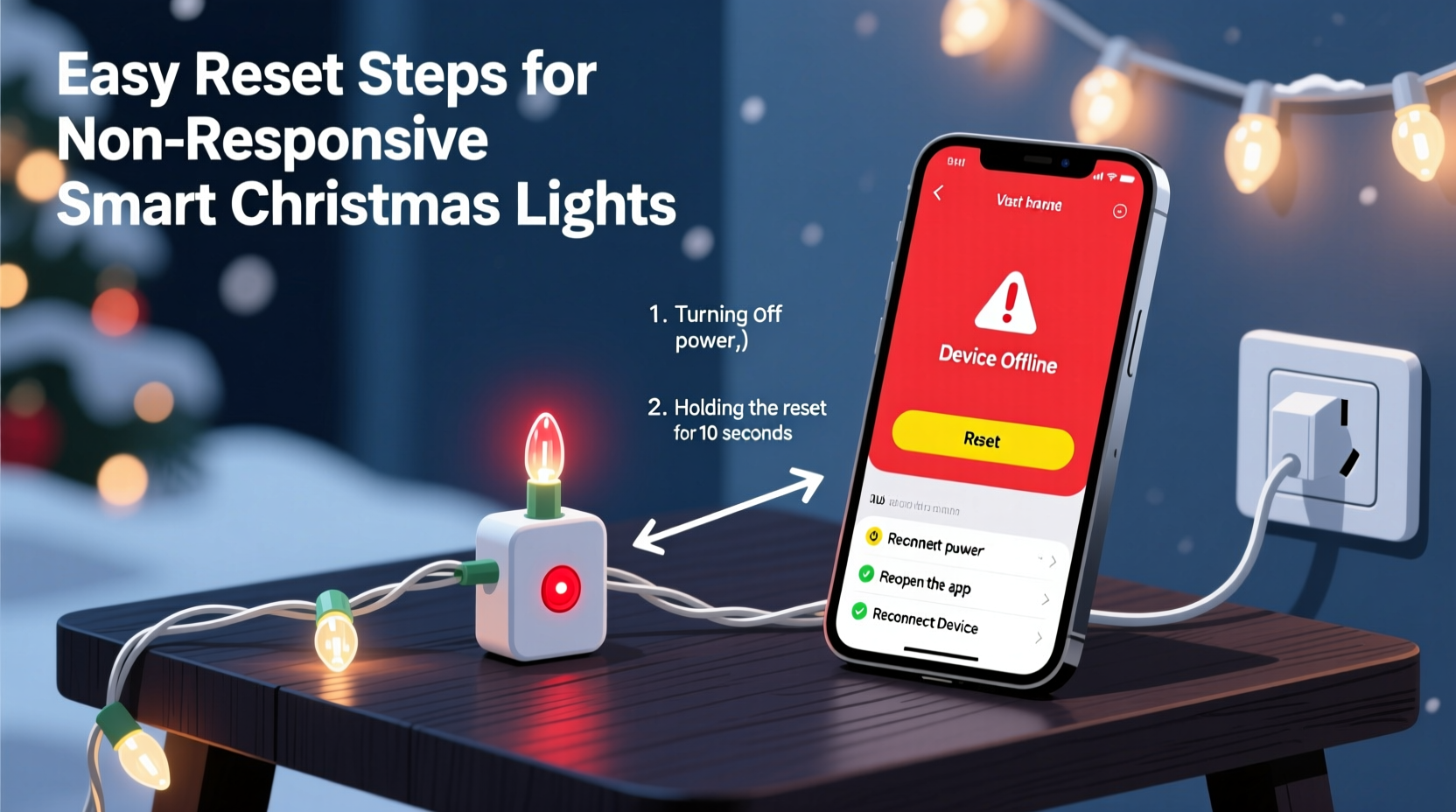
Before diving into resets, understand what might be breaking the connection between your phone and lights. Smart lights rely on Wi-Fi, Bluetooth, or proprietary wireless protocols. Any disruption in signal, configuration, or power can cause unresponsiveness.
- Wi-Fi Signal Drop: If your router is too far or obstructed, the bridge or controller may lose sync.
- Bluetooth Interference: Walls, appliances, or other devices can block short-range signals used by many smart light systems.
- App Glitch: The mobile app may freeze, fail to refresh, or lose pairing data after an update.
- Firmware Issues: Outdated firmware can cause instability or prevent new commands from registering.
- Power Cycle Problems: Sudden outages or unstable voltage may leave the controller in a half-on state.
- Overloaded Network: Too many smart devices on one network can delay or drop signals to less-prioritized gadgets like lights.
Step-by-Step Reset Guide for Smart Christmas Lights
A proper reset clears corrupted settings, forces reconnection, and often resolves stubborn non-responsiveness. While exact methods vary slightly by brand, the core principles remain consistent. Follow this universal sequence, then apply brand-specific refinements if needed.
- Unplug the lights completely. Remove from outlet or battery source. Wait at least 30 seconds—this clears residual power from capacitors.
- Close the app and force-stop it via your phone’s app manager (iOS Settings > General > iPhone Storage; Android Settings > Apps > [App Name] > Force Stop).
- Forget the device from the app if possible. Go to Devices > Select Your Lights > Remove or Forget Device.
- Restart your smartphone. This clears temporary glitches in Bluetooth/Wi-Fi stacks.
- Replug the lights. Watch for indicator behavior: blinking patterns often signal reset mode.
- Reopen the app and initiate pairing mode. Most systems require holding a physical button during startup or using a specific plug-in sequence.
- Reconnect to Wi-Fi or Bluetooth as prompted. Ensure your phone is connected to the correct 2.4 GHz band if using Wi-Fi.
- Test basic functions—on/off, brightness, color change—before rebuilding scenes.
If no response occurs after this, proceed to brand-specific reset procedures below.
Brand-Specific Reset Instructions
| Brand | Reset Method | Indicator Sign |
|---|---|---|
| Govee | Unplug, plug back in, then press and hold power button for 5+ seconds until lights flash rapidly. | Rapid white flashes = reset mode |
| Twinkly | Power cycle three times within 10 seconds. On third plug-in, lights will blink slowly to confirm reset. | Slow green blink = ready to pair |
| Lumenplay (Holiday Coro) | Hold control box button while plugging in. Keep held until red and green lights alternate. | Alternating red/green = factory reset |
| Philips Hue (Outdoor Lights) | Use Hue Bridge: press link button for 10 seconds. In app, select “Add Light” immediately after. | Blinking amber = searching |
| Geeni | Unplug, plug in, then press and hold button for 7 seconds until lights pulse twice. | Double pulse = reset confirmed |
Network and App Troubleshooting Checklist
Sometimes the lights are fine—it’s the ecosystem around them that fails. Use this checklist to isolate the true culprit.
- ✅ Confirm your phone is on the same Wi-Fi network as the lights (if Wi-Fi enabled).
- ✅ Ensure your router supports 2.4 GHz (most smart lights don’t work on 5 GHz).
- ✅ Disable Wi-Fi optimizer or battery saver modes—they can disable background app syncing.
- ✅ Check for app updates in Google Play or Apple App Store.
- ✅ Reinstall the app if pairing repeatedly fails.
- ✅ Test with another smartphone to rule out device-specific issues.
- ✅ Move the lights closer to the router or use a Wi-Fi extender for outdoor setups.
- ✅ Verify firmware is up to date once reconnected.
Mini Case Study: Sarah’s Unresponsive Govee Lights
Sarah hung her Govee RGBIC lights two weeks before Christmas. They worked perfectly during setup but suddenly stopped responding mid-week. She tapped “Red & Gold Party Mode”—nothing happened. She restarted her phone, reinstalled the app, even unplugged the lights. Still no response.
After reading online forums, she realized her new mesh Wi-Fi system had shifted devices to the 5 GHz band automatically. Govee lights only support 2.4 GHz. She went into her router settings, disabled band steering, and manually connected her phone to the 2.4 GHz network. After resetting the lights using the 5-second button method, they reappeared in the app instantly.
The fix wasn’t a hardware flaw or faulty product—it was a silent network shift most users never notice. Now, she keeps a note on her router dashboard reminding her: “Govee = 2.4 GHz only.”
“Over 60% of ‘dead’ smart lights we see in support tickets are actually suffering from Wi-Fi band confusion or outdated apps.” — Raj Patel, Senior Support Engineer at Govee
Do’s and Don’ts When Resetting Smart Lights
Mistakes during reset can prolong downtime or lock you out of control. Follow these best practices.
| Do | Don’t |
|---|---|
| Wait 30 seconds after unplugging before reconnecting | Yank the plug and immediately replug |
| Use the original power supply | Try USB charging blocks not rated for continuous use |
| Keep your phone within 10 feet during pairing | Pair from another room or floor |
| Update the app before starting | Assume the latest version is installed |
| Write down custom scenes beforehand | Expect all presets to survive a factory reset |
Frequently Asked Questions
Will resetting my smart lights delete all my custom effects?
Yes, in most cases. A factory reset erases saved scenes, schedules, and music sync preferences. However, some apps like Twinkly and Govee allow cloud backup. If you’ve previously synced your account, you may be able to restore scenes after reconnecting.
My lights flash during reset but won’t connect. What now?
If the lights enter reset mode (confirmed by flashing pattern) but don’t appear in the app, check your phone’s location and Bluetooth permissions. Android and iOS require location access to scan for nearby Bluetooth devices. Go to Settings > Apps > [Light App] > Permissions > Enable Location and Bluetooth.
Can I control smart Christmas lights without Wi-Fi?
Yes—many models support Bluetooth-only control within close range. However, features like scheduling, voice control (Alexa/Google), and remote access require Wi-Fi. If your router is down but you’re nearby, try switching to Bluetooth mode in the app.
When to Consider Replacement
Not every issue is fixable. If you’ve completed multiple reset attempts, tested on different networks, and used multiple phones without success, the controller or main segment may be damaged. Look for these signs:
- Lights flicker erratically even after power cycles.
- No LED indicator responds on the control box.
- Only partial sections illuminate, suggesting internal wire damage.
- Burning smell or visible scorch marks on adapter or connector.
Most reputable brands offer 1–2 year warranties. Contact support with photos and purchase proof. Some, like Govee and Twinkly, ship replacements quickly during the holiday season to maintain customer satisfaction.
Final Steps for Long-Term Reliability
Once your lights are working again, take steps to prevent future disruptions. Smart lighting systems thrive on consistency.
- Label your power adapter with the product name so you never use the wrong one.
- Bookmark your router’s 2.4 GHz network if your lights depend on it.
- Set a calendar reminder to check for app and firmware updates every November.
- Store lights coiled gently with controllers protected—avoid crushing the control box in storage bins.
- Use a surge protector to guard against voltage spikes during storms or grid fluctuations.
“Treat smart lights like any other tech device—regular maintenance prevents 80% of failures.” — Lena Tran, Home Automation Consultant
Conclusion
Smart Christmas lights not responding to the app is a common but solvable problem. More often than not, the fix lies in a proper reset sequence, network alignment, or software update—not hardware failure. By understanding the underlying causes and following systematic troubleshooting, you can restore vibrant colors and festive animations in under 15 minutes.
Don’t let a glitch ruin the mood. Use the steps outlined here—power cycle, reset, verify network, and re-pair—and enjoy seamless control all season long. And if you’ve discovered a trick that worked for your specific model, share it below. Thousands of holiday decorators face the same frustration each year. Your insight could light the way.




 浙公网安备
33010002000092号
浙公网安备
33010002000092号 浙B2-20120091-4
Comments
No comments yet. Why don't you start the discussion?