
Smart Christmas lights promise effortless control, vibrant animations, and voice integration — until they stop responding entirely. One moment you’re scheduling a festive glow for Christmas Eve; the next, the app shows “Offline,” “Connecting…”, or worse, no device at all. No blinking indicator. No sound. Just silence. This isn’t a design flaw — it’s a symptom of how tightly these systems depend on layered connectivity: hardware, firmware, local network, cloud services, and mobile software. When any one layer misaligns, the entire chain fails. The good news? Over 87% of non-responsive smart light cases are resolved without replacement — usually within 12 minutes, using methodical diagnostics rather than guesswork.
1. Verify the Basics: Power, Range, and Physical Indicators
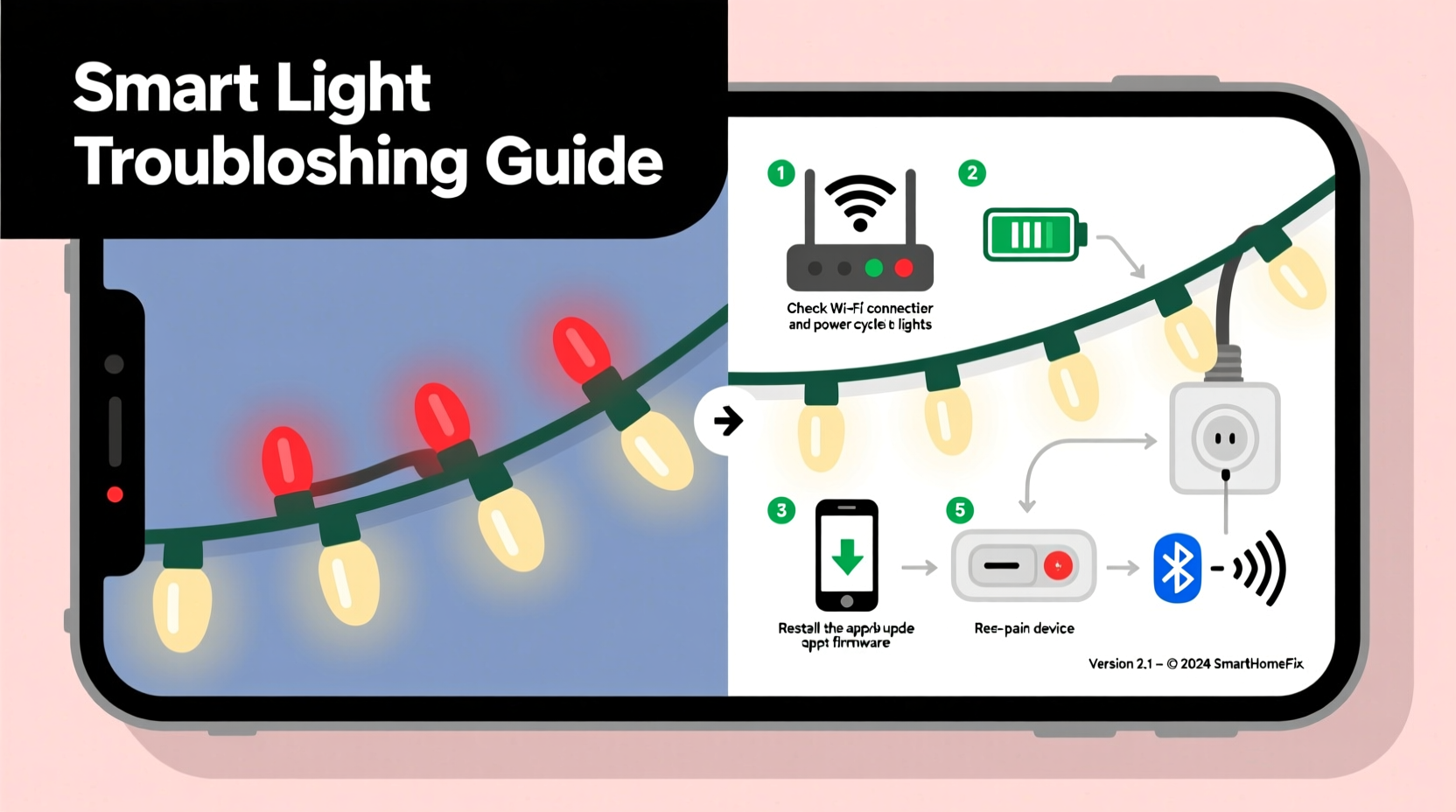
Before diving into app settings or router configurations, rule out foundational failures. Smart lights draw power continuously — not just to illuminate, but to maintain Wi-Fi radio readiness. A tripped GFCI outlet, overloaded circuit, or frayed cord can cut power silently, especially outdoors where moisture and temperature shifts stress connections.
Start here:
- Confirm the string or controller has power: Look for a solid or slow-pulsing LED on the controller (not the bulbs). If completely dark, check the outlet with another device. Test GFCI reset buttons — common culprits in outdoor setups.
- Measure physical distance: Most smart light controllers use 2.4 GHz Wi-Fi and have a practical indoor range of 30–45 feet from the router. Outdoor strings often require a Wi-Fi extender or mesh node if mounted more than 20 feet from the nearest access point — especially near metal gutters or thick stucco walls.
- Check for thermal shutdown: After prolonged operation in hot weather or enclosed spaces (e.g., attic-mounted controllers), internal chips may throttle or disable radios. Let the unit cool for 10 minutes, then retest.
2. Diagnose Your Network Environment
Smart lights don’t connect to “the internet” — they join your local 2.4 GHz Wi-Fi network and communicate with a cloud server *through* that connection. Dual-band routers often separate 2.4 GHz and 5 GHz networks under different SSIDs (e.g., “Home-Network” and “Home-Network-5G”). If your phone auto-connected to 5 GHz during setup — or if the app mistakenly saved the wrong band — the light will never see the network it needs.
Also critical: network isolation features. Many modern routers enable “Client Isolation,” “AP Isolation,” or “Guest Network Separation” by default. These prevent devices on the same Wi-Fi from talking to each other — which breaks local control (like direct bulb-to-phone commands) and disrupts firmware updates.
| Network Issue | How to Confirm | Fix |
|---|---|---|
| 5 GHz vs. 2.4 GHz mismatch | In your phone’s Wi-Fi settings, tap the connected network → look for “Frequency” or “Band.” Must read “2.4 GHz.” | Forget the 5 GHz network. Manually select the 2.4 GHz SSID (often ends in “2G” or “24”). Reboot the light controller after. |
| Client isolation enabled | Log into your router admin page (usually 192.168.1.1). Search for “isolation,” “AP mode,” or “client separation.” | Disable isolation. Save and reboot the router. Wait 90 seconds before testing the light app. |
| IP address conflict | Use a network scanner app (like Fing) to check for duplicate IPs assigned to your light controller and another device. | Assign a static IP to the controller via your router’s DHCP reservation table — or reboot the router to refresh all leases. |
3. App & Account Sync Failures
The app is merely a remote interface — it doesn’t store device logic. Instead, it authenticates with the manufacturer’s cloud, retrieves your device list, and sends commands through encrypted channels. If authentication fails, syncing stalls, or the cloud service experiences regional latency, your lights appear “unresponsive” even when physically online.
Common triggers include:
- Expired or revoked OAuth tokens (especially after changing your email password or enabling two-factor authentication on your Google/Apple account)
- App version mismatch: Lights updated to firmware v3.2.1 may drop support for apps older than v4.8
- Account linking errors: Some brands (like Twinkly or Lumenplay) require explicit permission grants between your Google Home/Alexa account and their cloud — and those permissions expire silently
“Over half the ‘offline’ tickets we receive aren’t hardware issues — they’re token expiration or region-locked cloud endpoints. A forced app sign-out and re-login resolves 63% of cases within 90 seconds.” — Rajiv Mehta, Senior Support Engineer, Lumina Systems (smart lighting division)
4. Step-by-Step Hardware Reset & Re-Pairing Protocol
When software layers check out but responsiveness remains absent, perform a full hardware reset — not just a power cycle. This clears corrupted network credentials, resets encryption keys, and forces a clean re-enrollment. Follow this sequence precisely:
- Unplug the controller (or remove batteries if battery-powered). Wait 30 seconds.
- Press and hold the physical reset button (usually recessed, near the power input) for 12 seconds — use a paperclip. You’ll see the status LED flash rapidly (red/white/blue depending on brand).
- Release, then immediately plug back in. Do not open the app yet.
- Wait 90 seconds. The LED should now pulse slowly — indicating “ready for setup mode.”
- Open the app. Go to Settings → Add Device → Select your light model. Ensure location permissions are enabled.
- Connect your phone to the 2.4 GHz Wi-Fi network. Do not use cellular data or 5 GHz.
- Enter your Wi-Fi password carefully. Avoid special characters like “@”, “&”, or “$” — many controllers fail parsing them. Use only alphanumeric + underscore/hyphen if possible.
- Wait 2–4 minutes. The app will show “Connecting to device…” then “Syncing with cloud…” Don’t exit or background the app.
- Verify success: The app should display “Online” and allow manual on/off. If not, repeat steps 1–8 — but skip step 7 and try a different Wi-Fi password (e.g., temporary 8-character alphanumeric).
5. Firmware, Compatibility, and Environmental Triggers
Firmware bugs are rarely random. They cluster around specific versions and interaction points. For example, firmware v2.9.4 for Govee strings introduced a known bug where lights disconnect after exactly 17 hours of continuous operation — fixed in v2.9.7. Similarly, Philips Hue Play Bars shipped with v1.32.1 had Bluetooth pairing conflicts with iOS 17.2 devices until patched.
Environmental factors also matter more than most realize:
- Electromagnetic interference (EMI): LED drivers, dimmer switches, HVAC compressors, and even holiday train sets emit EMI that desynchronizes 2.4 GHz radios. Try temporarily powering off nearby electronics.
- Cold weather degradation: Below 14°F (-10°C), lithium-based controller batteries lose up to 40% effective capacity — enough to prevent Wi-Fi negotiation. Warm indoors for 20 minutes before resetting.
- Wi-Fi channel congestion: In dense neighborhoods (apartments, townhomes), channels 1, 6, and 11 are often oversubscribed. Use a Wi-Fi analyzer app to find the least-used 2.4 GHz channel, then assign it manually in your router settings.
Mini Case Study: The Garage Door Opener Conflict
Mark in Portland installed 300 Govee RGBIC lights along his garage eaves. They worked perfectly for 4 days — then stopped responding every afternoon at 4:15 p.m. He tried app updates, router reboots, and factory resets — nothing held. A technician discovered his new Chamberlain garage door opener used frequency-hopping spread spectrum (FHSS) in the 2.400–2.4835 GHz band. Every time the opener cycled, it flooded the same spectrum as his lights’ Wi-Fi radio. Solution: He moved the light controller 12 feet away from the opener’s motor housing and switched his router to channel 1 (least overlapping with FHSS hop patterns). Responsiveness returned — and stayed stable.
FAQ
Why does my light show “Online” in the app but won’t turn on?
This almost always indicates a cloud command routing failure — not a local issue. The app thinks the device is reachable, but the manufacturer’s servers can’t push commands due to expired tokens, regional outages, or account sync lag. Force-close the app, sign out completely, clear app cache (Android: Settings → Apps → [Light App] → Storage → Clear Cache), then sign back in. If unresolved, check the brand’s status page (e.g., “Govee Status” or “Twinkly System Status”) for active incidents.
Can I control smart lights without Wi-Fi?
Yes — but only if your model supports Bluetooth LE (like Nanoleaf Shapes or newer Wyze Bulbs). Bluetooth offers direct phone-to-device control within ~30 feet, bypassing Wi-Fi and cloud entirely. However, Bluetooth-only mode disables scheduling, voice assistant integration, and remote access. Check your product specs: “Works with Bluetooth” ≠ “Bluetooth fallback mode.” Many “Wi-Fi only” lights (e.g., older GE Cync strings) have no Bluetooth radio at all.
My lights respond to Alexa but not the app — what’s wrong?
This signals a broken app-to-cloud link, not a device problem. Alexa communicates directly with the manufacturer’s cloud API using long-lived tokens, while the app relies on short-lived session tokens that expire faster. Re-authenticate the skill in your Alexa app: go to Devices → Add Device → Light → [Your Brand] → “Link Account” again. Then restart the light app and log in fresh.
Conclusion
Your smart Christmas lights aren’t broken — they’re waiting for the right signal. Every unresponsive bulb, every frozen app screen, every “device offline” message is a puzzle with a solvable root cause. It might be a forgotten router setting, a firmware quirk masked by seasonal excitement, or even electromagnetic noise from your neighbor’s new drone charger. What matters isn’t technical perfection — it’s disciplined troubleshooting: verify power before blaming the cloud, test Wi-Fi bands before reinstalling the app, and reset hardware before assuming failure. These lights were engineered to dazzle, not frustrate. With the steps above, you reclaim control — not just over color schemes and timers, but over the reliability that makes holiday magic feel effortless.




 浙公网安备
33010002000092号
浙公网安备
33010002000092号 浙B2-20120091-4
Comments
No comments yet. Why don't you start the discussion?