
Smart Christmas light strips promise festive automation, voice control, and dazzling color routines — all managed from your phone. But when they won’t connect to Wi-Fi, the magic fades fast. Whether you’re setting up for the first time or reactivating after storage, a failed connection can be frustrating. The good news: most issues are solvable with simple, targeted fixes. This guide breaks down the common causes and delivers practical solutions that work — no guesswork required.
Understanding Why Smart Lights Fail to Connect
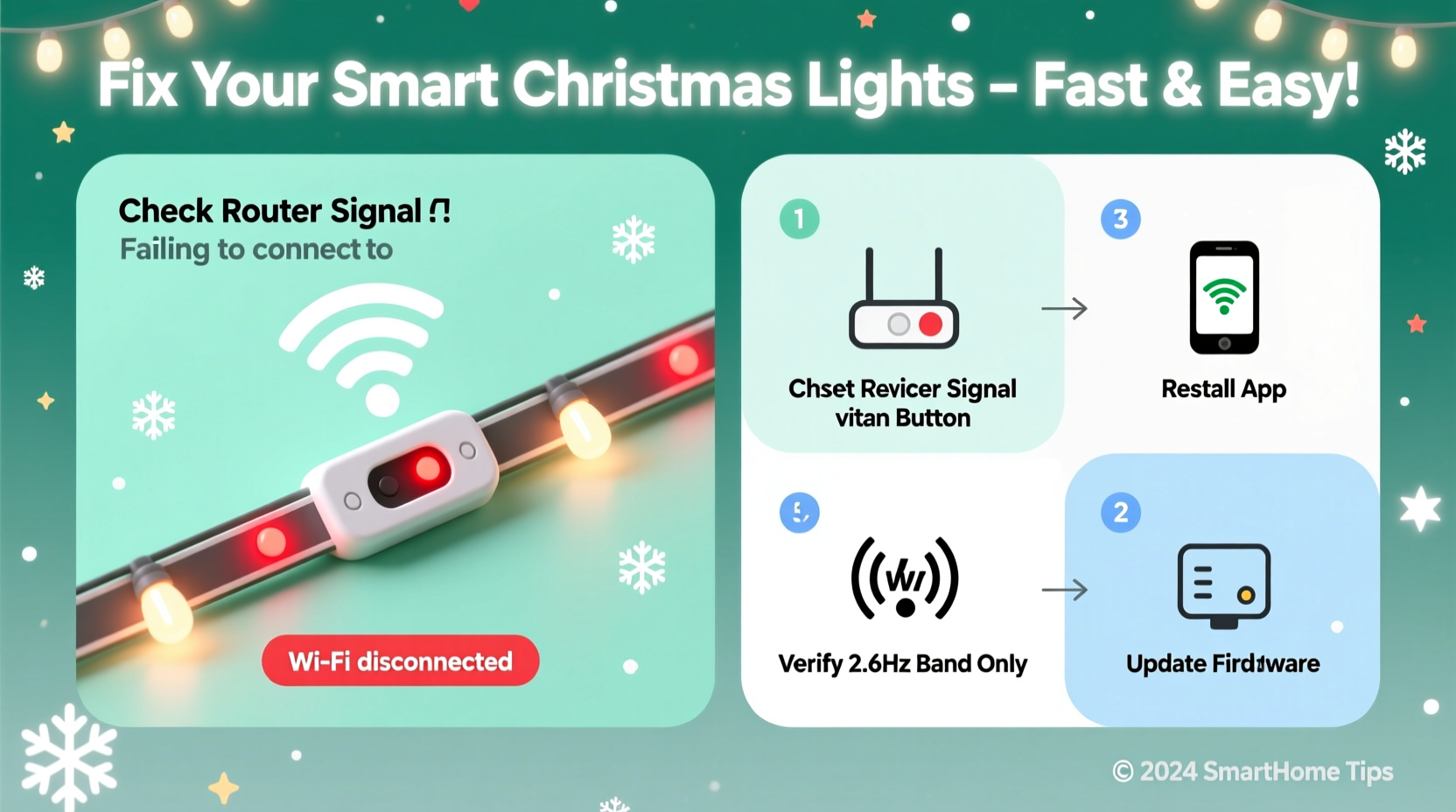
Smart light strips rely on stable communication between the device, your home network, and the cloud-based app (like Lumenplay, Govee, or Philips Hue). A failure at any point in this chain disrupts connectivity. Common culprits include incompatible Wi-Fi bands, weak signal strength, incorrect passwords, outdated firmware, or router settings blocking device access.
Unlike traditional bulbs, smart strips contain microprocessors and Wi-Fi modules sensitive to environmental and network conditions. They typically only support 2.4 GHz networks, not 5 GHz, which often trips up users with dual-band routers broadcasting a single network name (SSID).
“Over 60% of smart lighting setup failures stem from Wi-Fi band confusion or signal interference.” — David Lin, IoT Network Engineer at HomeTech Labs
Step-by-Step Guide to Restore Connectivity
Follow this structured process to diagnose and resolve your smart light’s Wi-Fi issue efficiently. Most problems are resolved within 15 minutes using these steps.
- Power cycle the light strip: Unplug the strip for 30 seconds, then plug it back in. This resets the internal module and clears temporary glitches.
- Verify your Wi-Fi network: Confirm your router is broadcasting a 2.4 GHz network. If your SSID combines both bands, temporarily separate them in your router settings.
- Check signal strength: Move your phone and the light strip closer to the router. Walls, metal objects, and appliances like microwaves interfere with 2.4 GHz signals.
- Re-enter Wi-Fi credentials: In the app, delete the current network and manually retype your password. Avoid copy-pasting, as special characters may not transfer correctly.
- Reset the light strip: Locate the reset button (often a small pinhole) and hold it for 10–15 seconds until the lights flash rapidly. This returns the device to factory settings.
- Reconnect via the app: Open your smart lighting app, select “Add Device,” and follow the prompts. Ensure your phone is connected to the 2.4 GHz network during setup.
Common Setup Mistakes and How to Avoid Them
Even tech-savvy users make errors during initial pairing. Recognizing these pitfalls speeds up recovery.
- Mistaking 5 GHz for 2.4 GHz: Many apps don’t warn you if you're on the wrong band. Check your phone’s Wi-Fi settings — some display “2.4G” next to the network name.
- Using complex passwords: Special characters like @, &, or % can cause parsing errors. Temporarily switch to a simpler password during setup, then revert afterward.
- Ignoring router security settings: Features like AP Isolation or Client Isolation prevent devices on the same network from communicating. This blocks smart lights from syncing with your phone.
- Assuming the app works instantly: Some apps take up to two minutes to detect a resetting device. Be patient and avoid rapid retries, which can overload the system.
Do’s and Don’ts During Setup
| Action | Do | Don't |
|---|---|---|
| Network Selection | Use a dedicated 2.4 GHz SSID | Connect to a combined 5/2.4 GHz network |
| Password Entry | Type manually; avoid symbols | Copy-paste from password managers |
| Device Reset | Hold reset for 10–15 seconds | Tap briefly or assume one blink is enough |
| Phone Settings | Turn off mobile data and Bluetooth | Switch networks mid-setup |
Advanced Fixes for Persistent Connection Issues
If basic troubleshooting fails, deeper technical adjustments may be necessary. These apply to modern dual-band routers and dense wireless environments.
Disable AP Isolation
AP Isolation prevents devices on the same network from interacting — a security feature that breaks smart home functionality. Access your router’s admin page (usually via 192.168.1.1), navigate to Wireless Settings, and turn off AP Isolation or Client Isolation.
Assign a Static IP Address
DHCP fluctuations can cause lights to drop offline. Assign a static IP through your router’s DHCP reservation list. Find your light’s MAC address in the app or router client list, then bind it to a fixed local IP (e.g., 192.168.1.150).
Update Firmware
Manufacturers release patches for connectivity bugs. Check the app for firmware updates under Device Settings. If unavailable, visit the brand’s website for standalone tools (e.g., Govee’s desktop updater).
Use a Wi-Fi Extender Strategically
If your lights are far from the router, a range extender can help — but only if it broadcasts a separate 2.4 GHz network. Mesh systems like Eero or Google Nest automatically handle band steering, making them ideal for smart homes.
Real Example: Fixing a Govee Light Strip After Holiday Storage
Sarah in Denver unpacked her Govee RGBIC lights for the holidays, only to find they wouldn’t reconnect. She’d upgraded her router over the summer and unknowingly enabled AP Isolation. The app showed “Connecting…” indefinitely.
She tried resetting the strip and re-entering her password — no success. Then she checked her router settings and discovered AP Isolation was active. After disabling it and rebooting the router, she reset the lights again. Within 90 seconds, the app detected the device and completed setup. Her lights synced perfectly and responded to voice commands via Alexa.
Sarah’s case highlights how backend changes — even unrelated upgrades — can silently break smart device functionality. Always consider recent network modifications when diagnosing connection issues.
Troubleshooting Checklist
Use this checklist to methodically eliminate causes:
- ✅ Power cycled the light strip
- ✅ Confirmed 2.4 GHz Wi-Fi is active and visible
- ✅ Phone is connected to 2.4 GHz network
- ✅ Mobile data is turned off during setup
- ✅ Entered Wi-Fi password manually (no special characters)
- ✅ Disabled AP Isolation on the router
- ✅ Performed a full factory reset on the light
- ✅ Updated the app and firmware
- ✅ Moved the strip closer to the router temporarily
- ✅ Tried setup with a different smartphone or tablet
Frequently Asked Questions
Can smart Christmas lights work without Wi-Fi?
Yes, but with limited functionality. Most strips retain basic on/off and color modes via physical buttons or IR remotes. However, scheduling, voice control, app customization, and music sync require an active Wi-Fi connection.
Why does my app say “Device Not Found” after reset?
This usually means the app isn’t detecting the light’s setup mode. Ensure your phone is on the same 2.4 GHz network, close the app completely, and restart it. Also verify that location services are enabled (required for Android to scan local devices).
Will a new router break my existing smart lights?
Potentially. Changing your SSID, password, or enabling features like AP Isolation or MAC filtering can disconnect devices. When upgrading routers, re-add smart lights as new devices. Save old settings temporarily to simplify reconnection.
Optimizing Long-Term Reliability
Once connected, maintain stability with proactive habits. Schedule monthly check-ins where you power cycle the strip and confirm firmware status. Label your 2.4 GHz network clearly (e.g., “Home-2.4”) to avoid future confusion.
During off-season storage, keep lights coiled loosely in a dry container. Extreme cold or humidity can degrade internal circuitry, leading to boot failures later. Before next use, test them near the router to ensure quick reconnection.
“Treat smart lights like any networked device — regular maintenance prevents 80% of recurring issues.” — Lena Park, Smart Home Support Lead at TechAid Solutions
Conclusion
A smart Christmas light strip that won’t connect to Wi-Fi is rarely a lost cause. Most failures stem from overlooked network settings or simple setup errors. By verifying your 2.4 GHz connection, disabling restrictive router features, and following a disciplined reset process, you can restore functionality quickly. Advanced users benefit from static IPs and mesh networks, but even beginners can succeed with patience and precision.




 浙公网安备
33010002000092号
浙公网安备
33010002000092号 浙B2-20120091-4
Comments
No comments yet. Why don't you start the discussion?