
Smart Christmas lights promise a seamless holiday experience—color changes, schedules, and festive effects controlled by simple voice commands. But when your lights stay silent after saying “Hey Google, turn on the tree,” frustration sets in fast. You're not alone. Thousands of users face voice recognition failures during the most magical time of year. The good news? Most issues are fixable with systematic troubleshooting. This guide dives into the real reasons behind unresponsive smart lighting and delivers practical, tested solutions so you can restore voice control and enjoy a fully automated holiday display.
Understanding How Voice Control Works with Smart Lights
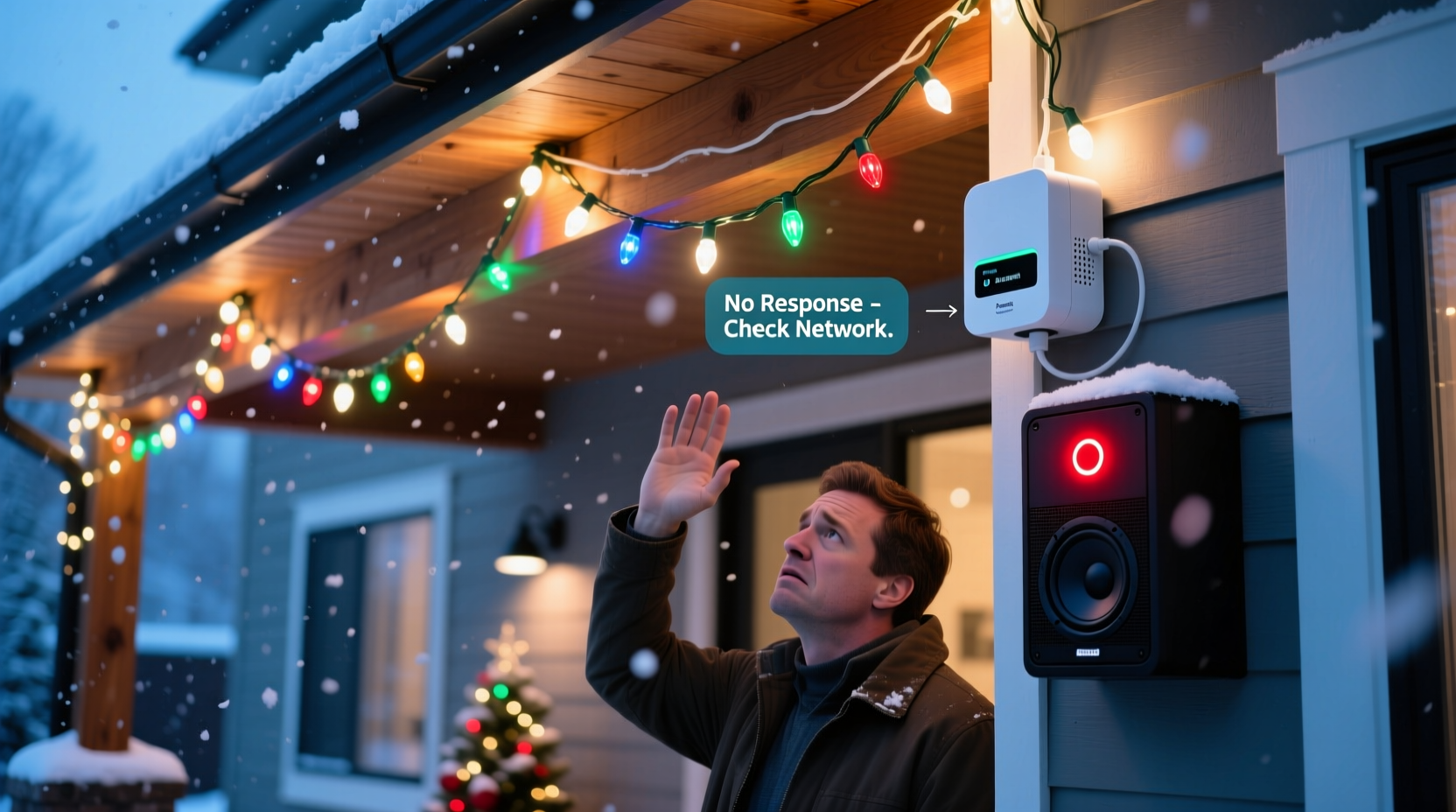
Before jumping into fixes, it helps to understand how voice assistants like Amazon Alexa, Google Assistant, or Apple Siri interact with smart Christmas lights. These systems rely on a chain of connected components: your voice → smart speaker/microphone → Wi-Fi network → cloud server → smart hub or direct device communication → the lights themselves. Any break in this chain disrupts functionality.
For example, if your lights connect via a bridge (like Philips Hue or LIFX), the signal must travel from your voice assistant through your home Wi-Fi to the bridge, then to the bulbs. If any segment—Wi-Fi strength, power supply, app permissions, or firmware—is compromised, the command fails silently.
“Voice control depends on multiple layers of connectivity. A single point of failure can make an entire system appear broken.” — Marcus Lin, Smart Home Integration Specialist
Common Causes of Non-Responsive Voice Commands
When smart lights ignore voice input, the root cause usually falls into one of five categories:
- Connectivity Issues: Unstable Wi-Fi or Bluetooth connections prevent command delivery.
- Integration Problems: The smart light isn’t properly linked to your voice assistant platform.
- Firmware or App Glitches: Outdated software may block new commands or cause miscommunication.
- Power or Hardware Failures: Tripped circuits, faulty adapters, or damaged strands stop response entirely.
- Voice Recognition Errors: Misheard names, background noise, or incorrect wake words derail execution.
Each category requires a different diagnostic approach. Jumping straight to resetting devices without isolating the issue often wastes time. Instead, follow a structured method to identify where the breakdown occurs.
Step-by-Step Guide to Restore Voice Functionality
Follow this sequence to systematically diagnose and resolve voice command failures:
- Verify Physical Power and Connection
Ensure the light strand is plugged in, the outlet works (test with another device), and no fuses have blown. Check for visible damage along the cord or connectors. - Confirm App-Based Control
Open your smart lighting app (e.g., Kasa, Wiz, Philips Hue). Try turning the lights on manually. If the app doesn’t respond, the issue lies upstream—likely Wi-Fi or hub related. - Check Wi-Fi Signal Strength
Move closer to your router or use a Wi-Fi analyzer app to measure signal strength at the lights’ location. Signals below -70 dBm often cause dropouts. Consider using a Wi-Fi extender if needed. - Reconnect the Skill/Action in Your Voice Assistant
In the Alexa app or Google Home, go to “Skills & Games” or “Assistant Settings,” find your lighting brand, and disable then re-enable the integration. This refreshes authentication tokens that sometimes expire. - Re-discover Devices
Tell your assistant to “discover devices” or “find new devices.” Wait two minutes and check if the lights appear under controllable devices. - Update Firmware and Apps
Visit your lighting manufacturer’s app and check for firmware updates. Also update the voice assistant app itself through your phone’s app store. - Test Voice Command Accuracy
Use the exact device name as registered in the app. For example, if the bulb is named “Tree Top Light,” say “Turn on Tree Top Light,” not “the top one on the tree.” Avoid ambiguous phrasing.
If all steps fail, perform a factory reset on the light system per the manufacturer’s instructions—usually involving rapid on/off cycles—and set everything up from scratch.
Do’s and Don’ts When Troubleshooting Voice Commands
| Action | Do | Don’t |
|---|---|---|
| Naming Devices | Use clear, unique names like “Front Porch Lights” | Avoid generic names like “Lights” or “Bulb 1” |
| Network Setup | Connect lights to a 2.4 GHz Wi-Fi band (most compatible) | Don’t use 5 GHz unless explicitly supported |
| Voice Commands | Speak clearly, pause after wake word, use full device names | Don’t shout or rush commands; avoid noisy environments |
| Updates | Enable auto-updates for apps and firmware | Don’t ignore update notifications for weeks |
| Testing | Test one change at a time to isolate causes | Don’t reset everything simultaneously |
Mini Case Study: The Holiday Display That Wouldn’t Listen
Jamie installed a new set of Wiz Color LED string lights around her porch, linked them to the Wiz app, and connected the skill to Alexa. On the first night, she said, “Alexa, turn on the porch lights,” and nothing happened. She repeated the command three times before giving up.
Over the next two days, she tried rebooting the Echo Dot, restarting her router, and even renaming the device—all without success. Frustrated, she posted online and received a suggestion: check the Wi-Fi band. Her router broadcasted both 2.4 GHz and 5 GHz under the same name (SSID). The Wiz lights only support 2.4 GHz, but her phone had automatically connected the bulbs to the 5 GHz network during setup.
She separated the bands in her router settings, forced the lights onto the 2.4 GHz network, and restarted discovery in Alexa. Within seconds, the lights appeared. The phrase “Alexa, turn on the porch lights” finally worked—just in time for her neighborhood’s holiday tour.
This case highlights how subtle network configurations can sabotage voice control—even when everything else seems correct.
Tips for Preventing Future Voice Command Failures
Once you’ve restored functionality, take proactive steps to keep your system responsive throughout the season and beyond.
- Create a Naming Convention: Use consistent prefixes like “Xmas_” or “Holiday_” followed by location (e.g., Xmas_LivingRoom_Tree).
- Schedule Reboots: Some users schedule monthly reboots of their router and hubs to clear memory leaks and maintain stability.
- Use Routines Wisely: Instead of relying solely on voice, create routines like “Good Morning” or “Deck the Halls” that trigger multiple actions reliably.
- Monitor Device Status: Periodically open your smart home app to ensure all lights show as “online.” Offline status indicates deeper connectivity problems.
Essential Checklist for Immediate Action
Use this checklist the next time your smart lights stop responding to voice commands:
- ✅ Confirm the lights are powered and receiving electricity
- ✅ Test control via the mobile app
- ✅ Ensure Wi-Fi is stable and operating on 2.4 GHz
- ✅ Re-link the smart lighting skill in Alexa or Google Home
- ✅ Run a device discovery command
- ✅ Verify the device name matches exactly what you’re saying
- ✅ Check for pending firmware or app updates
- ✅ Restart the smart speaker and router if needed
Frequently Asked Questions
Why do my smart lights work in the app but not with voice commands?
This typically means the connection between your voice assistant and the lighting service is broken. Even if the lights are online and controllable locally, the third-party integration may have expired or been disabled. Re-enabling the skill or action usually resolves this.
Can interference from other smart devices affect voice control?
Yes. While voice assistants process audio locally, heavy network traffic from video cameras, streaming devices, or multiple smart appliances can delay command processing. Prioritize your smart lighting on your router using Quality of Service (QoS) settings if available.
How do I know if my smart lights support my voice assistant?
Check the product packaging or manufacturer’s website for compatibility icons: “Works with Alexa,” “Google Assistant,” or “Apple HomeKit.” If unsure, search the Alexa Skills Store or Google Home directory for your brand name before purchasing.
Final Thoughts: Regain Control of Your Holiday Ambiance
Your smart Christmas lights should enhance the season, not become a source of stress. When voice commands fail, the solution is rarely a single fix—it’s a process of elimination across hardware, software, and network layers. By understanding how these systems communicate and applying targeted diagnostics, you can quickly restore seamless voice control.
Remember, consistency matters. Maintain updated firmware, use precise naming, and monitor connectivity regularly. A few minutes of maintenance now can prevent hours of frustration later. The holidays are short enough—don’t let technology dim the spirit.




 浙公网安备
33010002000092号
浙公网安备
33010002000092号 浙B2-20120091-4
Comments
No comments yet. Why don't you start the discussion?