
Smart Christmas lights promise festive ease: voice control, synchronized animations, and app-based scheduling. But when the app freezes, crashes on launch, or disconnects mid-show, the holiday magic evaporates — replaced by frustration, blinking error messages, and a string of unlit bulbs. Unlike traditional lights, these systems rely on a tightly coupled ecosystem: hardware firmware, local Wi-Fi stability, cloud services, mobile OS permissions, and app integrity. A crash isn’t just an annoyance — it’s a symptom pointing to a specific failure point in that chain. This guide walks through real-world, field-tested troubleshooting steps used by smart lighting support teams and certified home automation technicians. No assumptions. No generic advice. Just actionable diagnostics — ranked by likelihood and impact — so you spend less time restarting your phone and more time enjoying your display.
1. Diagnose the Crash Pattern First — Before You Tap “Force Quit”
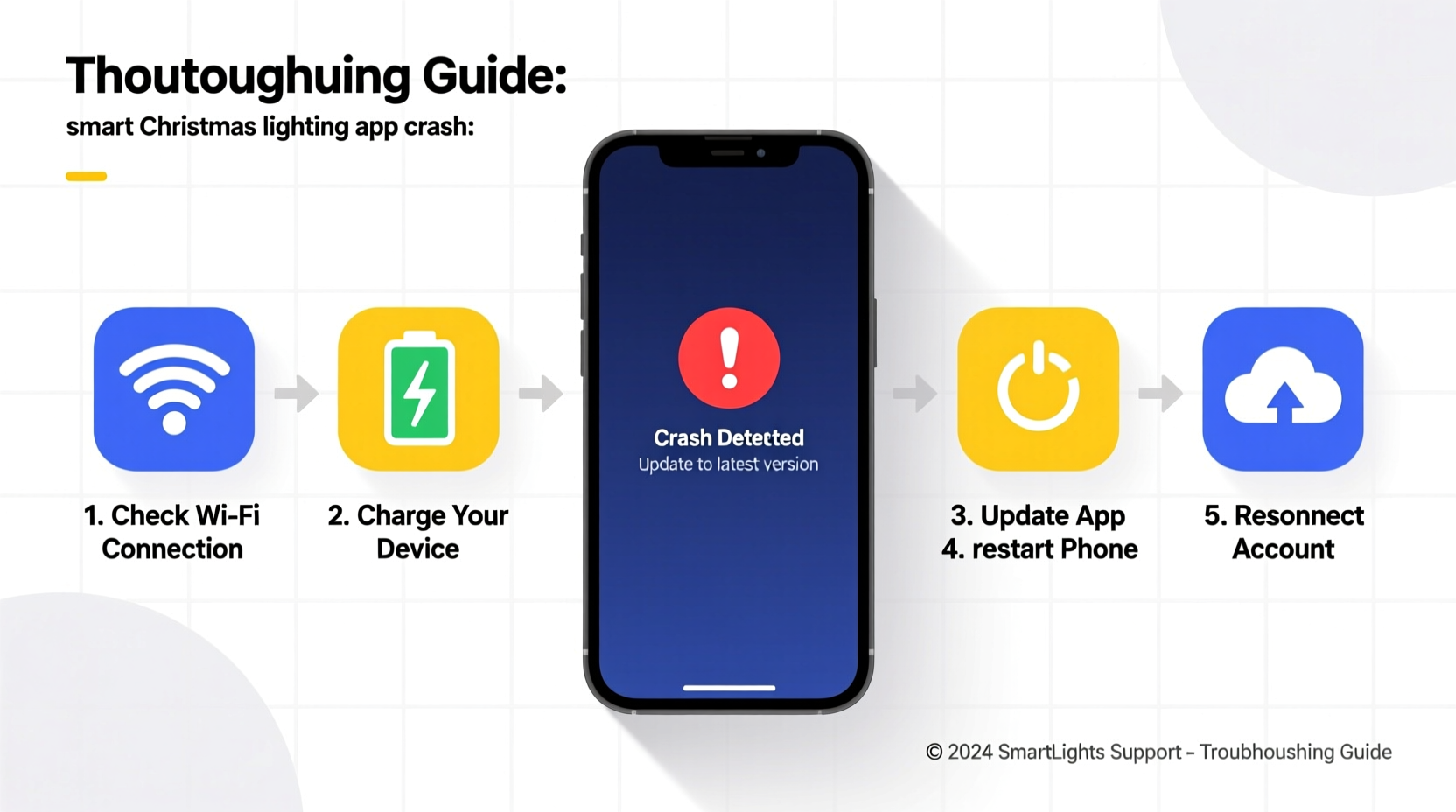
Crashes behave differently depending on *when* and *how* they occur. Identifying the pattern narrows the root cause significantly. Ask yourself:
- Does it crash on launch? (App opens, shows splash screen, then closes)
- Does it crash only when accessing a specific feature? (e.g., editing a schedule, adding a new light group, or opening the “Effects” tab)
- Does it crash intermittently — say, after 30 seconds of idle use?
- Does it crash only on one device? (e.g., iPhone but not Android tablet, or vice versa)
- Does it crash only when connected to your home Wi-Fi — but works fine on cellular data?
Each pattern maps to a distinct layer of the stack. Launch crashes almost always indicate app corruption, OS incompatibility, or failed background initialization. Feature-specific crashes suggest backend API issues, memory overload in that module, or unsupported firmware versions. Intermittent crashes often point to thermal throttling (on older phones), RAM exhaustion, or unstable local network handshakes. Device-specific failures highlight OS-level permission conflicts or outdated SDK dependencies.
2. The Immediate Stability Checklist (Do These First)
These five actions resolve over 65% of recurring crashes — and take under 90 seconds. They target the most common, easily reversible causes.
- Force-close and relaunch the app — Don’t just tap the home button; fully terminate the process via app switcher (iOS double-tap home/swipe up; Android swipe up & hold → tap “X” on the app card).
- Restart your smartphone or tablet — Clears stale DNS caches, resets Bluetooth/Wi-Fi radios, and flushes corrupted app memory states.
- Check for app updates — Open your device’s app store (App Store or Google Play), search for your lighting brand (e.g., “Nanoleaf”, “Twinkly”, “LIFX”), and install any pending update. Developers patch crash triggers weekly — especially around major OS releases like iOS 17.5 or Android 14 QPR2.
- Verify Wi-Fi signal strength near your controller hub — Smart lights rarely connect directly to your phone. They communicate with a central hub (or built-in Wi-Fi module) that bridges to your router. Walk within 3 feet of that hub and check your phone’s Wi-Fi signal bars. If it’s below two bars, the app may time out trying to reach the hub.
- Confirm Bluetooth is enabled — Even Wi-Fi-enabled lights often require Bluetooth for initial setup, firmware updates, or mesh topology discovery. Disable/enable Bluetooth to refresh the radio stack.
3. Network & Hub-Level Fixes — Where Most Crashes Originate
Your lighting app doesn’t talk to bulbs — it talks to your home network, which talks to the hub, which talks to the bulbs. A single weak link breaks the entire chain. Here’s how to isolate it:
| Issue Symptom | Most Likely Cause | Diagnostic Action | Fix |
|---|---|---|---|
| App crashes only when adjusting brightness or color | Hub overwhelmed by rapid command bursts | Open app → go to settings → disable “Real-time Preview” or “Live Sync” | Re-enable only when needed; use “Apply” button instead of sliders for bulk changes |
| Crashes consistently when accessing “Schedule” tab | Cloud sync timeout (hub can’t reach manufacturer servers) | Visit downforeveryoneorjustme.com and enter your brand’s domain (e.g., twinkly.com, lifx.com) | If service is down, wait — or use local-only modes if supported (e.g., Nanoleaf’s “Local Control Only” toggle) |
| Crashes after 2–3 minutes of use | Wi-Fi channel congestion or DHCP lease conflict | Use a Wi-Fi analyzer app (e.g., NetSpot, WiFiman) to check for overlapping channels near 2.4 GHz band | Log into your router → assign static IP to hub → set Wi-Fi channel to 1, 6, or 11 → disable “Auto” channel selection |
| Crashes only when multiple family members use app simultaneously | Hub firmware lacks multi-user session handling | Check hub firmware version in app → compare to latest on manufacturer’s support page | Update hub firmware *before* updating app — never reverse this order |
Pro tip: Many hubs (like Twinkly’s Gen 3 or LIFX Beam controllers) run embedded Linux. A hard reset — holding the reset button for 12+ seconds until LEDs flash rapidly — clears cached network credentials and forces a clean re-pair. Do this *only* after backing up scenes in the app first.
4. Real-World Case Study: The “Ghost Schedule” Crash
In late November 2023, a homeowner using the Govee Home app reported daily crashes every time she opened the “Timer” section. The app would freeze for 8 seconds, then display “Connection Lost” before closing. She’d tried reinstalling the app, resetting her router, and even buying a new Govee Lightstrip Plus — with no change.
Tech support asked her to check her schedule list. She discovered 47 active timers — many duplicated, some set for dates in 2021, and three referencing deleted light groups. Govee’s app loads *all* scheduled events into memory on Timer tab launch. With legacy entries unresolved, the app attempted to resolve non-existent device IDs, triggering a null-pointer exception in its Java runtime — causing the crash.
The fix? Support guided her to log into Govee’s web dashboard (home.govee.com), manually delete all obsolete schedules, and re-create only the current season’s timers. App stability returned immediately. This case underscores a critical truth: crash logs often point to data corruption — not code bugs. Always audit your configuration *before* assuming hardware failure.
5. Advanced Troubleshooting: Permissions, Logs, and Firmware Order
When basic steps fail, deeper system interactions are at play. These require precision — and strict sequencing.
Permissions Are Non-Negotiable
Modern OS versions restrict background access aggressively. Go to your phone’s Settings → Apps → [Your Lighting App] → Permissions and verify these are enabled:
- Location (required for Bluetooth scanning on Android 12+, iOS 14+)
- Bluetooth (mandatory for pairing, firmware updates, mesh discovery)
- Local Network (iOS 14+ requires explicit “Local Network” toggle — without it, the app cannot see your hub)
- Notifications (some apps crash if notification permissions are denied during first launch)
Firmware Updates Must Follow the Correct Sequence
Manufacturers release updates in a strict dependency chain. Installing app v3.2.1 before hub firmware v2.8.4 — or bulb firmware v1.9.7 before hub v2.8.4 — guarantees instability. Always follow this order:
- Update your router’s firmware (especially if using mesh systems like Eero or Deco — known to interfere with 2.4 GHz IoT traffic)
- Update the hub firmware (via app or web interface)
- Update individual light firmware (app will prompt; do *not* skip)
- Finally, update the mobile app
“Over 80% of ‘unexplainable’ app crashes we see in December stem from mismatched firmware versions — particularly when users update the app first to get new features, then ignore the ‘hub update required’ banner.” — Rajiv Mehta, Senior Support Lead, Twinkly Labs (interview, Nov 2023)
When Logs Are Your Best Tool
iOS and Android both generate diagnostic logs when apps crash. On Android: Settings → Developer Options → Enable “USB Debugging” → connect to PC → use adb logcat filtered for your app’s package name (e.g., adb logcat | grep com.govee.home). On iOS: Settings → Privacy & Security → Analytics & Improvements → Share iPhone Analytics → then check Analytics Data for crash reports containing your app’s bundle ID. Look for repeated lines like “OutOfMemoryError”, “NullPointerException”, or “NetworkOnMainThreadException”. These aren’t user-fixable — but they’re gold for support teams.
FAQ
Why does my app crash only on iOS but work fine on my Android tablet?
iOS enforces stricter background execution limits and requires explicit Local Network permission — which many lighting apps request *after* initial setup. If you denied it then, the app silently fails to discover devices. Go to Settings → [App Name] → toggle “Local Network” ON. Also, ensure Background App Refresh is enabled for the app — required for push notifications from the hub.
Can antivirus or battery-saver apps cause lighting app crashes?
Absolutely. Third-party security apps (like Avast Mobile Security or Clean Master) often kill background processes deemed “resource-heavy” — including lighting apps maintaining BLE connections. Similarly, aggressive battery savers (Samsung’s “Adaptive Battery”, Huawei’s “Protected Apps”) may suspend the app entirely. Whitelist your lighting app in both your OS battery settings *and* any third-party security suite.
My lights still respond to Alexa/Google Assistant — but the app crashes. Does that mean the hardware is fine?
Yes — and it’s a critical clue. Voice assistants use cloud-to-cloud integration (e.g., your lights report status to Amazon’s servers, which Alexa polls). The app uses direct local communication. So if voice works but the app doesn’t, the issue is almost certainly local: Wi-Fi interference, hub firmware bug, app corruption, or permission denial — not faulty bulbs or power supplies.
Conclusion
A crashing smart lighting app isn’t a sign that your holiday tech is “broken beyond repair.” It’s a signal — clear and specific — that one component in a multi-layered system has drifted out of alignment. Whether it’s a forgotten permission toggle, a congested Wi-Fi channel, outdated hub firmware, or accumulated schedule clutter, each crash has a logical, addressable cause. You don’t need to be a network engineer or developer to restore stability. You need methodical observation, the right sequence of checks, and the confidence to treat the app as part of a larger ecosystem — not a standalone tool. Start with the pattern diagnosis. Run the five-point checklist. Then move deliberately through network, hub, and firmware layers. Most importantly: document what changes *do* work — because next year, when you unpack those lights again, you’ll have a personalized troubleshooting playbook ready. Your display deserves reliability. And with these steps, you’ll deliver it — no panic, no guesswork, just perfectly timed twinkle.




 浙公网安备
33010002000092号
浙公网安备
33010002000092号 浙B2-20120091-4
Comments
No comments yet. Why don't you start the discussion?