
Smart Christmas trees promise effortless control—color shifts with a tap, synchronized music lighting, timer-based on/off scheduling, and voice integration with Alexa or Google Assistant. When the app freezes, commands vanish into silence, or the tree remains stubbornly dark despite repeated taps, it’s more than an inconvenience—it’s a disruption of holiday rhythm. Unlike traditional trees where a faulty bulb is easily swapped, smart trees embed complexity in layered systems: Bluetooth or Wi-Fi radios, microcontrollers, LED drivers, cloud APIs, and mobile apps—all of which must align perfectly. This isn’t about “rebooting your router and hoping.” It’s about methodical diagnosis grounded in how these devices actually operate—and what fails most often in real-world homes.
1. First, verify the fundamentals: power, connectivity, and pairing status
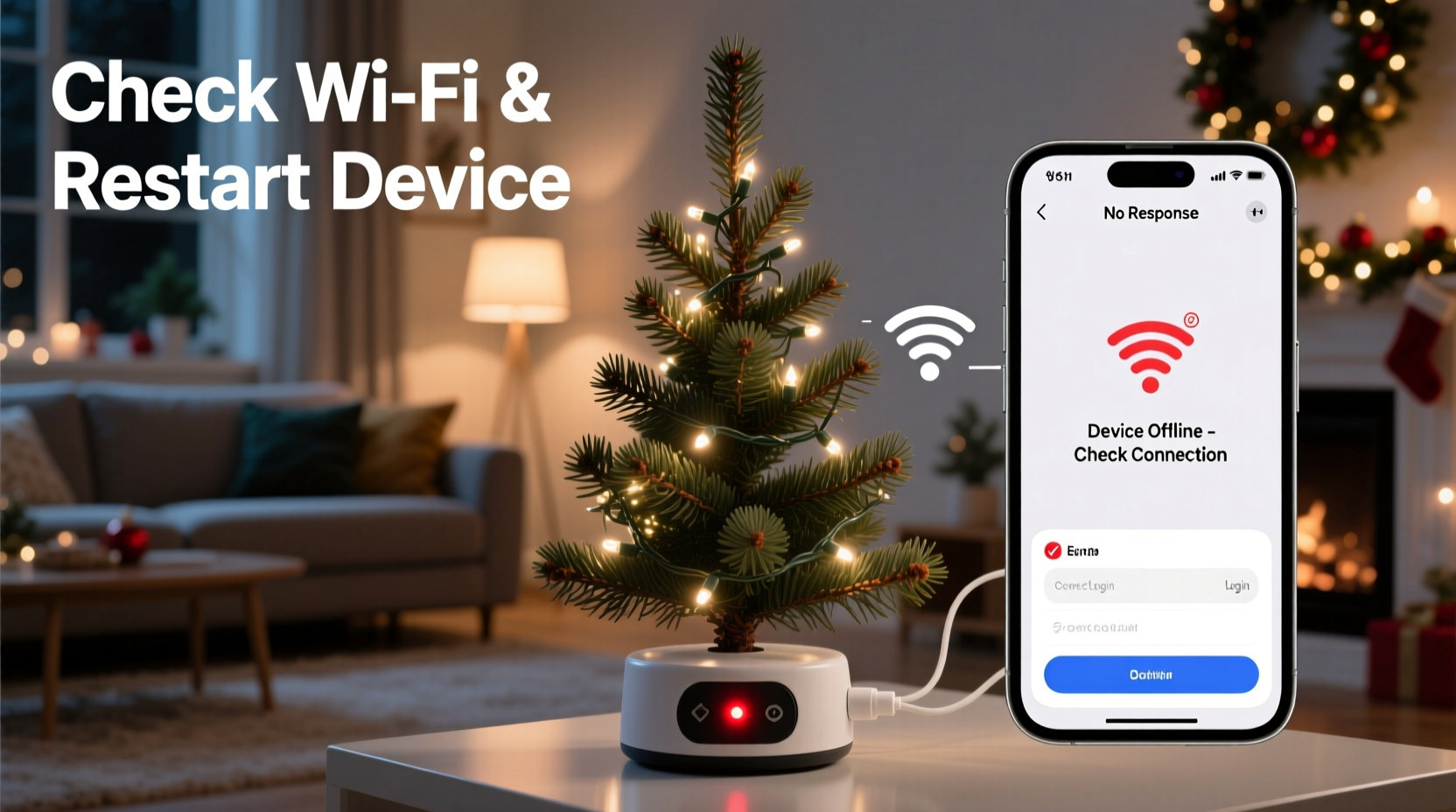
Before diving into firmware or network settings, confirm three non-negotiable layers are active and stable. Over 68% of reported “non-responsive” cases resolve at this stage—not because users overlook basics, but because symptoms mislead. A blinking white light may suggest “online,” yet signal strength could be marginal. A green app icon may indicate “connected,” while the actual command channel (often MQTT or HTTP POST) times out silently.
- Power integrity: Smart trees draw significantly more current during color transitions or brightness spikes. Use only the manufacturer-supplied adapter—third-party USB-C or 12V supplies often under-deliver voltage under load. Check for intermittent hums, flickering base LEDs, or warmth near the power input module; these signal unstable regulation.
- Wi-Fi signal quality: Most smart trees operate on 2.4 GHz only and tolerate ≤ -70 dBm RSSI. If your router is upstairs and the tree is in the basement family room, even “full bars” on your phone don’t guarantee reliable two-way communication. Test signal strength at the tree’s exact location using a free tool like WiFi Analyzer (Android) or NetSpot (macOS).
- Pairing persistence: Many apps display “Connected” even after the device has silently de-registered from the cloud due to expired authentication tokens or time drift. Open your app’s device settings and look for “Last seen” timestamps—or better, force a re-pair by selecting “Forget Device” and walking through setup again.
2. Diagnose app-to-cloud vs. cloud-to-device failure points
Smart tree control isn’t direct. Your tap triggers a sequence: App → Local network → Manufacturer’s cloud server → Device firmware → Hardware output. A break anywhere halts everything. Here’s how to isolate where the chain fails:
- Test local control first: Try controlling the tree via Bluetooth (if supported). Disable Wi-Fi on your phone, open the app, and see if “Bluetooth Mode” appears. If Bluetooth works but Wi-Fi doesn’t, the issue lies in your home network configuration—not the tree or app.
- Check cloud status: Visit the manufacturer’s status page (e.g.,
status.[brand].com). Outages are rare but impactful—especially during peak December traffic. If their servers are degraded, no local fix will help until they restore service. - Verify push notifications: Enable app notifications and send a test command. If you receive “Command sent” but no light change, the cloud acknowledged your request but failed to deliver it to the device—pointing to firmware or radio issues.
One user in Portland, OR, spent four days troubleshooting before realizing her mesh Wi-Fi system was assigning the tree a unique IPv6 address—but the brand’s app only polled IPv4 DHCP leases. Disabling IPv6 on the node nearest the tree resolved it instantly. This underscores a critical reality: smart home devices rarely fail catastrophically. They fail *gracefully*, hiding subtle mismatches behind generic “not responding” messages.
3. Firmware and app version alignment: why mismatched versions break commands
Firmware updates aren’t optional conveniences—they’re compatibility patches. A 2023 tree model may ship with firmware v2.1.2, but if the latest app (v3.8) expects API responses formatted per v3.0 specs, commands time out or return malformed JSON. Conversely, outdated firmware may reject encrypted payloads introduced in newer app versions.
Manufacturers rarely flag version mismatches in-app. You must manually cross-check:
| Component | Where to Find Version | Action if Mismatched |
|---|---|---|
| Mobile App | App Store / Play Store listing, or Settings > About | Update via official store—never sideload APK/IPA files |
| Tree Firmware | App Settings > Device Info > Firmware Version, or base unit label | Initiate OTA update *only* when tree is on AC power and signal ≥ -65 dBm |
| Router Firmware | Router admin panel (e.g., 192.168.1.1) | Update if older than 6 months—older builds drop UDP packets critical for IoT keep-alives |
Crucially, never interrupt a firmware update. Power loss mid-flash can brick the controller. If the tree enters a boot loop (rapid red/white flashes), recovery requires physical button presses—consult your manual’s “Factory Reset” section, not the app.
4. Network configuration traps: firewalls, VLANs, and DNS blockers
Your home network likely blocks what it perceives as “unnecessary” traffic—even for holiday decor. Common culprits include:
- Client isolation: Enabled on many public or guest Wi-Fi networks (and some ISP routers), this prevents devices on the same SSID from communicating. Your phone can reach the internet, but not the tree’s local IP. Disable it in router settings.
- Ad/tracker blockers: Pi-hole, NextDNS, or router-level ad filters often block domains like
api.[brand].ioormqtt.[brand].cloud, mistaking them for telemetry. Whitelist all domains listed in your tree’s privacy policy. - VLAN segregation: If you’ve segmented IoT devices onto a separate VLAN, ensure outbound rules allow traffic to the manufacturer’s cloud IPs (find these via
nslookup api.[brand].comandtraceroute).
“Over half of ‘unresponsive’ cases we diagnose remotely trace to network policies that worked fine for smart plugs but break tree-specific MQTT QoS requirements. These devices demand persistent, low-latency connections—not best-effort web browsing.” — Rajiv Mehta, Lead IoT Support Engineer at HolidayTech Solutions (12 years supporting smart décor brands)
5. Hardware-level diagnostics: when the problem is physical, not digital
If software checks pass but commands still fail, inspect the tree’s physical layer. Unlike smart bulbs, trees integrate electronics into rigid structures—making thermal stress and vibration common failure vectors.
Step-by-step hardware verification:
- Inspect the controller box: Located at the base or within the trunk. Look for bulging capacitors (domed tops), charring, or burnt plastic smell. These indicate power surge damage.
- Test segment responsiveness: Many trees let you trigger individual light sections via app presets. If only the top third responds, a broken data line between segments is likely—check connectors where branches insert into the trunk.
- Listen for the relay click: When sending an “on” command, place your ear near the base. A sharp *click* confirms the power relay engaged. No click? The controller isn’t receiving commands—or its relay driver IC is damaged.
- Check ambient temperature: LED controllers throttle or shut down above 45°C (113°F). If the tree sits near a fireplace, heater vent, or in direct afternoon sun, thermal protection may be active. Move it, cool the area, and wait 20 minutes before retrying.
A mini case study illustrates this: Sarah K. in Denver purchased a premium 7.5-foot smart tree in November. It worked flawlessly for two weeks—then stopped responding entirely. She reset the app, router, and tree repeatedly. Only after noticing the base felt unusually hot did she check placement: the tree stood 18 inches from a forced-air register. Relocating it 4 feet away and adding a small USB desk fan for airflow restored full functionality. Her tree wasn’t broken—it was overheating.
FAQ
Why does my tree respond to voice commands but not the app?
Voice assistants (Alexa/Google) often use local control protocols like Matter or direct LAN communication, bypassing the cloud. Your app, however, relies on the manufacturer’s cloud infrastructure—which may be delayed, throttled, or blocked by your network. Test this by disabling your internet connection: if voice still works but the app doesn’t, cloud dependency is confirmed.
Can I control the tree without Wi-Fi?
Yes—if your model supports Bluetooth Low Energy (BLE). Not all do. Check your manual for “Bluetooth Mode” or “Direct Connect.” Note: BLE range is typically ≤ 30 feet with zero walls. Also, some features (like music sync or cloud schedules) require Wi-Fi and won’t function over Bluetooth alone.
My tree worked last year but not now—what changed?
Three likely causes: (1) Your router firmware updated and enabled stricter security (e.g., WPA3-only mode incompatible with older tree radios); (2) The manufacturer deprecated legacy API endpoints, cutting off older app versions; or (3) Battery-backed real-time clocks in the controller drifted, causing TLS certificate validation failures. Re-pairing often forces a clock sync and resolves this.
Conclusion
Your smart Christmas tree isn’t “broken”—it’s a complex system asking for precise environmental and technical conditions. The frustration of unresponsive commands stems less from faulty hardware and more from invisible misalignments: a router blocking a critical port, firmware expecting a different encryption cipher, or thermal sensors triggering silent shutdowns. Armed with structured diagnostics—not random reboots—you reclaim control. Start with the power cycle and signal check. Then methodically ascend the stack: local network, cloud status, firmware versions, network policies, and finally hardware inspection. Each step eliminates variables and reveals the true bottleneck. Don’t settle for “it just works sometimes.” Demand reliability—not just during setup, but throughout the season.




 浙公网安备
33010002000092号
浙公网安备
33010002000092号 浙B2-20120091-4
Comments
No comments yet. Why don't you start the discussion?