
Smart doorbells have transformed home security by delivering real-time alerts when someone approaches your front door. But when your device stops detecting motion, it defeats the purpose of having one in the first place. Whether you're using a Ring, Nest, Arlo, or another brand, sudden motion detection failures are frustrating—and often solvable. The issue may stem from settings, environmental factors, hardware faults, or connectivity problems. Understanding the root cause is key to restoring full functionality and peace of mind.
Common Causes of Motion Detection Failure
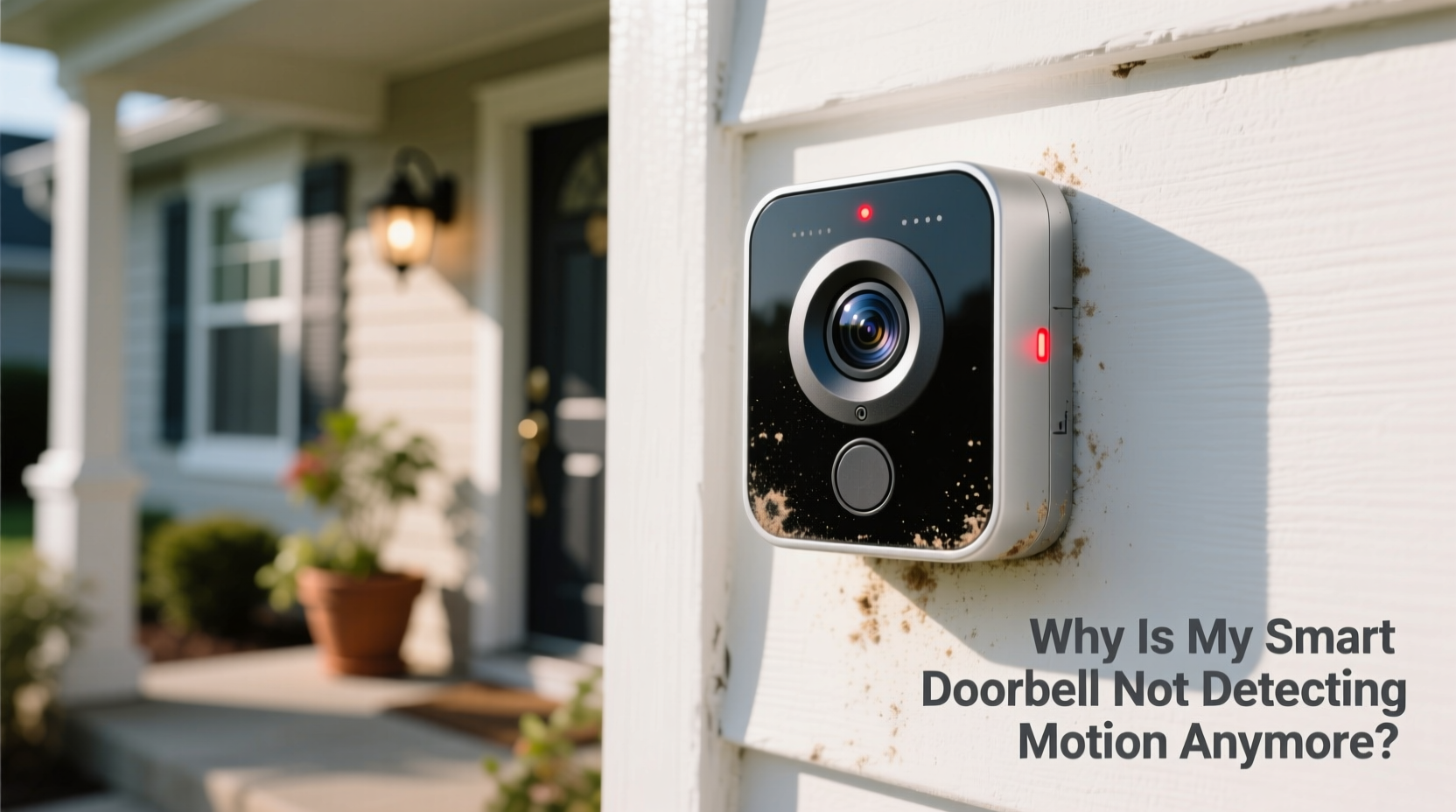
Motion detection relies on a combination of infrared sensors, software algorithms, Wi-Fi stability, and proper configuration. When any part of this system fails, alerts stop coming through. Here are the most frequent reasons your smart doorbell might no longer detect motion:
- Sensor obstruction or dirt: Dust, cobwebs, or smudges on the lens can block the infrared sensor.
- Incorrect sensitivity settings: If motion sensitivity is set too low, minor movements won’t trigger alerts.
- Wi-Fi connectivity issues: Poor signal strength can delay or prevent alert transmission even if motion is detected.
- Firmware or app bugs: Outdated firmware or software glitches can disable features temporarily.
- Power supply problems: Battery-powered models may enter power-saving mode; wired units could suffer from voltage drops.
- Environmental interference: Direct sunlight, reflective surfaces, or moving foliage can confuse sensors or lead users to disable detection zones.
- Geofencing or scheduling conflicts: Some systems automatically disable notifications based on location or time.
Step-by-Step Troubleshooting Guide
Follow this systematic approach to diagnose and resolve motion detection issues. Start with simple checks before progressing to advanced solutions.
- Verify physical obstructions. Inspect the doorbell’s exterior for dirt, spider webs, or snow blocking the sensor. Gently wipe the lens and motion detector area.
- Check the mobile app status. Open your doorbell’s companion app (e.g., Ring, Google Home) and confirm the device is online and reporting normal status.
- Review motion settings. Navigate to the motion detection section in the app. Ensure detection is enabled and sensitivity is set to medium or high.
- Inspect motion zones. Many smart doorbells allow customizable detection areas. Confirm that your desired zone (e.g., walkway, porch) is activated and properly sized.
- Test Wi-Fi signal strength. Weak connectivity can cause missed alerts. Use the app’s network test feature or check signal bars near the doorbell location.
- Restart the device. Power cycle your doorbell by disconnecting it briefly (for wired models) or removing/reinserting the battery (for wireless).
- Update firmware. Check for available updates in the app. Firmware patches often fix known bugs affecting motion detection.
- Reboot your router. Network instability can disrupt communication between the doorbell and cloud servers.
- Perform a factory reset. As a last resort, reset the device and reconfigure it from scratch—this clears corrupted settings.
When to Contact Support
If all troubleshooting steps fail, contact the manufacturer’s support team. Provide them with details such as device model, firmware version, error messages, and steps already attempted. Persistent failure after a reset may indicate a hardware defect covered under warranty.
Do’s and Don’ts of Smart Doorbell Maintenance
| Do’s | Don’ts |
|---|---|
| Regularly clean the lens and sensor area | Use abrasive cleaners or cloths that scratch the surface |
| Set appropriate motion sensitivity levels | Disable motion zones entirely due to false alerts—adjust instead |
| Ensure stable Wi-Fi with at least -70 dBm signal strength | Install the doorbell behind glass or in enclosed spaces that block IR signals |
| Update firmware monthly or enable auto-updates | Ignore repeated notification delays—they may signal deeper issues |
| Position the doorbell at recommended height (4–5 feet) | Mount it where sprinklers, swinging branches, or pets frequently pass |
Real-World Example: A Case of False Alarms Leading to Disabled Detection
Consider the case of Mark, a homeowner in Portland who installed a Ring Video Doorbell 3. After two weeks, he disabled motion alerts because his phone was bombarded with notifications every few minutes—even when no one was at the door. He assumed the device was broken. Upon reviewing the footage, he noticed that each alert coincided with tree branches swaying in the wind just inside the detection zone.
Instead of giving up, Mark adjusted the motion zone to exclude the tree line and lowered sensitivity slightly. He also cleaned a thin film of pollen off the lens. Within hours, the false alerts stopped, and legitimate visitor detections resumed. His experience highlights how environmental factors and misconfiguration—not hardware failure—are often to blame.
“Many customers think their doorbell has failed when it’s actually responding too well. Proper calibration turns a nuisance into reliable security.” — David Lin, Technical Support Lead at Ring
Expert Tips for Optimizing Motion Detection
Maximizing the effectiveness of your smart doorbell requires more than just fixing current issues—it involves proactive optimization. These strategies help maintain consistent performance over time.
Calibrate Detection Zones Based on Traffic Patterns
Most apps let you draw custom zones. Focus detection on paths leading to your door, not driveways, streets, or gardens where animals or vehicles trigger false alarms. For homes with side entrances, create separate zones and label them clearly.
Avoid Placement Near Heat Sources
Infrared sensors detect heat differentials. Installing your doorbell near exhaust vents, HVAC units, or dark-colored walls that absorb heat can reduce accuracy. Choose shaded areas with minimal thermal fluctuation.
Monitor Battery Health (for Wireless Models)
Battery-powered doorbells like Ring Stick Up Cam or Blink devices may disable non-critical functions—including motion alerts—when charge drops below 20%. Enable low-battery notifications and recharge promptly.
Use Dual-Band Wi-Fi Strategically
If your router broadcasts both 2.4 GHz and 5 GHz networks, connect your doorbell to the 2.4 GHz band. It has better range and wall penetration, which is crucial for outdoor devices. Reserve 5 GHz for high-bandwidth indoor use.
FAQ: Frequently Asked Questions
Why does my doorbell record motion but not send alerts?
This usually points to app notification settings rather than detection failure. Check your smartphone’s notification permissions and ensure “Motion Alerts” are enabled in the app. Also, verify that Do Not Disturb or Focus modes aren’t silencing alerts.
Can weather affect motion detection?
Yes. Heavy rain, fog, or snow can scatter infrared signals and reduce sensor accuracy. Extreme temperatures may also impact battery performance and internal electronics. Most modern doorbells are weather-resistant, but prolonged exposure to harsh conditions can degrade performance over time.
How often should I update my doorbell’s firmware?
Manufacturers release updates periodically to improve stability and security. Enable automatic updates if available. Otherwise, check for new firmware monthly in the app settings. Never ignore critical updates labeled “security patch” or “motion fix.”
Conclusion: Restore Confidence in Your Smart Security System
Your smart doorbell is only as effective as its ability to alert you to activity. When motion detection stops working, it doesn’t mean the device is beyond repair—most issues are fixable with methodical troubleshooting. From cleaning the sensor to fine-tuning detection zones and ensuring strong Wi-Fi, small adjustments can restore full functionality. Remember that optimal performance comes from regular maintenance and smart configuration, not just plug-and-play installation.
Take action today: inspect your doorbell, review your settings, and perform a live test. Share your experience or questions in the comments below—your insight could help another homeowner regain control of their smart security setup.




 浙公网安备
33010002000092号
浙公网安备
33010002000092号 浙B2-20120091-4
Comments
No comments yet. Why don't you start the discussion?