
Smart doorbells have become essential for home security, offering real-time alerts, video monitoring, and two-way communication from anywhere. But when your device suddenly goes offline, it leaves you vulnerable and frustrated. Whether you're greeted with a “No Connection” message in the app or notice delayed notifications, the root cause is often related to Wi-Fi, power, or configuration problems. Understanding how to systematically diagnose and resolve these issues ensures your smart doorbell stays online and functional.
The good news is that most offline doorbell problems are fixable without professional help. By methodically checking your network, device status, and environmental factors, you can restore connectivity in minutes — not hours. This guide walks through common causes, actionable fixes, and preventive strategies to keep your smart doorbell reliably connected.
Common Causes of Smart Doorbell Disconnection
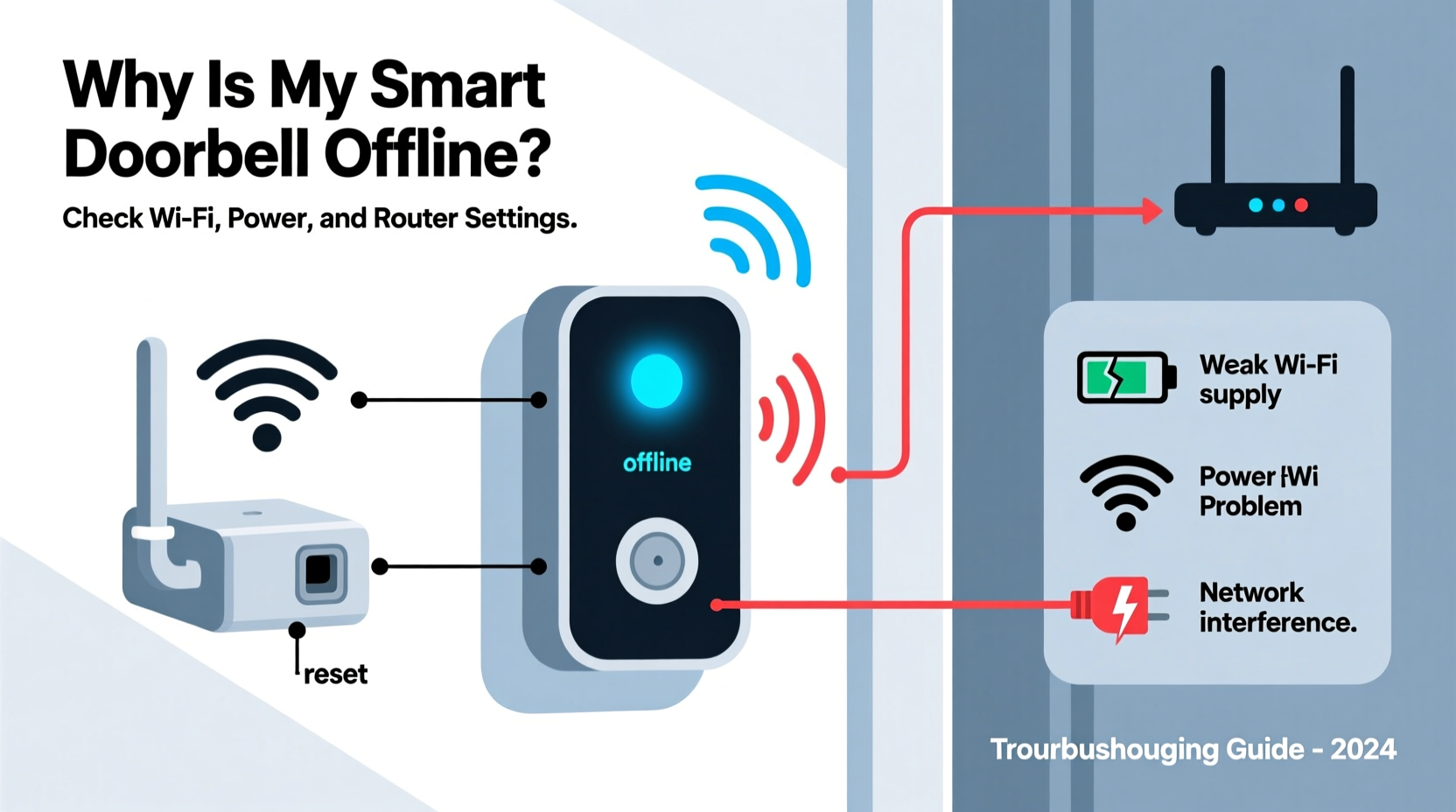
A smart doorbell going offline isn’t always due to one single factor. Multiple interconnected systems — power supply, Wi-Fi signal strength, router settings, and firmware — must all function correctly. When any piece fails, the entire connection can collapse.
- Weak Wi-Fi signal: If your doorbell is far from the router or separated by thick walls, signal degradation can cause intermittent disconnections.
- Power interruptions: Battery-powered models may go offline when charge drops too low. Wired units can fail if transformer output is insufficient or wiring is loose.
- Router or modem restarts: Internet outages or equipment reboots disconnect all linked devices until they reconnect automatically — which doesn’t always happen smoothly.
- Firmware or app glitches: Outdated software may contain bugs that disrupt connectivity or prevent proper handshake with the network.
- Network configuration changes: Switching routers, changing passwords, or enabling new security protocols (like WPA3) can break existing device connections.
- ISP or cloud service downtime: Occasionally, the issue lies beyond your control — such as an outage at the manufacturer’s server or your internet provider.
Step-by-Step Troubleshooting Guide
Follow this logical sequence to identify and fix the root cause efficiently. Start simple and progress to more complex diagnostics only if needed.
- Verify the doorbell status indicators. Most smart doorbells have LED lights that signal connection state. A solid blue light might mean connected, while blinking red could indicate low power or Wi-Fi failure. Consult your model’s manual for exact meanings.
- Check your smartphone app. Open the companion app (e.g., Ring, Nest, Arlo) and look for error messages like “Offline,” “Unable to Connect,” or “No Signal.” These clues point toward network vs. device issues.
- Test your Wi-Fi network. Ensure your phone connects to the same Wi-Fi network used by the doorbell. Try loading a webpage — if your internet is down, so will be your doorbell.
- Reboot your router and modem. Unplug both for 30 seconds, then plug the modem back in first. Wait until all lights stabilize before powering the router. This clears temporary glitches and refreshes IP assignments.
- Move closer to the doorbell and attempt a local connection. Some models allow direct Wi-Fi tethering during setup. If you can connect locally but not remotely, the issue is likely network-related rather than device failure.
- Restart the doorbell itself. For wired models, turn off power at the breaker for 10 seconds. For battery-powered units, remove and reinsert the battery after a short pause.
- Reconnect the doorbell to Wi-Fi. In the app, navigate to device settings and select “Reconnect to Wi-Fi.” Enter your network credentials again, ensuring correct case and no hidden typos.
- Update firmware and app. Check for pending updates in the app or manufacturer’s website. Outdated versions often lack critical patches for stability and security.
When Reconnection Fails: Advanced Checks
If standard steps don’t restore connectivity, consider deeper technical factors:
- Check 2.4 GHz vs. 5 GHz band compatibility. Most smart doorbells only support 2.4 GHz networks. If your router broadcasts a combined SSID (both bands under one name), the doorbell may accidentally try to connect to the incompatible 5 GHz band.
- Disable MAC filtering or firewall rules. Some routers block unknown devices by default. Temporarily disable strict filters to see if the doorbell reconnects.
- Assign a static IP address. Dynamic IPs can change after a reboot, causing confusion. Assigning a reserved IP ensures consistent recognition on the network.
- Inspect DNS settings. Rarely, incorrect DNS configurations prevent access to cloud servers. Try switching to public DNS like Google (8.8.8.8) or Cloudflare (1.1.1.1).
Do’s and Don’ts of Smart Doorbell Connectivity
| Do | Don't |
|---|---|
| Use a 2.4 GHz Wi-Fi network for better range and compatibility | Assume your dual-band router automatically selects the right frequency |
| Place your router centrally or use extenders to boost outdoor coverage | Install the doorbell behind metal doors or dense masonry without testing signal first |
| Label wires and take photos before disconnecting during maintenance | Cut or modify factory wiring unless specified in the manual |
| Regularly clean the doorbell lens and charging contacts (if applicable) | Expose battery units to extreme temperatures for prolonged periods |
| Monitor battery levels monthly for wireless models | Wait until the device dies completely before recharging |
Real-World Example: Resolving Persistent Offline Alerts
Sarah installed a popular brand of smart doorbell last winter. By spring, she began receiving frequent “Device Offline” alerts, especially during storms. Initially, she assumed it was weather-related, but even on clear days, the camera dropped intermittently.
She followed basic troubleshooting — restarted the router, checked her phone’s connection, and verified the app was updated — but nothing helped. Then she noticed her neighbor’s smart lights were also acting up. That led her to suspect her aging router.
After logging into her router admin panel, she discovered it was broadcasting a single SSID for both 2.4 GHz and 5 GHz bands. Her doorbell kept attempting to join the 5 GHz network and failing silently. She split the bands into separate networks (e.g., “Home-WiFi-2G” and “Home-WiFi-5G”), manually reconnected the doorbell to the 2.4 GHz version, and the issue resolved immediately.
This case illustrates how seemingly minor network settings can have major impacts on IoT device performance — and why isolating variables matters.
Expert Insight: Network Stability for Smart Homes
“Many homeowners don’t realize that smart devices are sensitive to network consistency, not just speed. A stable 2.4 GHz signal with minimal interference is more valuable than raw bandwidth.” — Marcus Lin, Senior Network Engineer at HomeSecure Systems
“Always treat your smart doorbell like a critical endpoint. If it’s offline, your front-door visibility is gone. Proactive monitoring beats reactive fixes every time.” — Lena Patel, Smart Home Security Consultant
Troubleshooting Checklist
- ✅ Confirm your home Wi-Fi is active and other devices are connected
- ✅ Check the doorbell’s LED indicator for signs of power or connectivity
- ✅ Restart your router and modem
- ✅ Power cycle the doorbell (unplug/reinsert battery or cut power briefly)
- ✅ Ensure the doorbell is connected to the 2.4 GHz Wi-Fi band
- ✅ Verify the Wi-Fi password hasn’t changed recently
- ✅ Update the doorbell’s firmware and app to the latest version
- ✅ Test signal strength near the doorbell using a Wi-Fi analyzer app
- ✅ Consider adding a Wi-Fi extender or mesh node if signal is weak
- ✅ Contact customer support if all else fails, providing error codes and logs
Frequently Asked Questions
Why does my smart doorbell keep going offline at night?
Intermittent disconnections at specific times may stem from scheduled router features like parental controls, automatic reboots, or energy-saving modes that reduce signal strength. Check your router settings for any timed events. Also, nighttime temperature drops can affect battery performance in outdoor units, especially in colder climates.
Can a strong Wi-Fi signal still result in an offline doorbell?
Yes. Signal strength measures how well the radio waves reach the device, but data integrity depends on other factors: network congestion, channel interference (from neighboring networks), outdated encryption protocols, or blocked ports. Even with full bars, poor throughput or packet loss can prevent successful communication with cloud servers.
How do I know if the problem is with my ISP or the doorbell company?
Visit the manufacturer’s status page (e.g., status.ring.com) to check for ongoing outages. You can also test your ISP uptime via sites like downdetector.com. If both appear normal, the issue is likely local. Try connecting another device in the same location — if it struggles to load websites, the bottleneck is your network.
Prevent Future Downtime
Once you’ve restored your doorbell’s connection, take steps to minimize future disruptions:
- Enable push notifications for network status. Many apps alert you when a device disconnects — enable these so you’re notified instantly.
- Invest in a mesh Wi-Fi system. Units like Google Nest Wifi or Eero provide seamless outdoor coverage and automatic band steering, reducing dead zones.
- Schedule routine maintenance. Every three months, inspect battery levels, clean sensors, verify firmware, and test chime synchronization.
- Document your setup. Keep a note of your Wi-Fi password, device model number, and installation date. Store it securely — it speeds up troubleshooting later.
- Use a UPS for your router. A small uninterruptible power supply keeps your network alive during brief outages, preventing disconnections.
Conclusion: Stay Connected, Stay Secure
Your smart doorbell is only as reliable as the network it runs on. While occasional hiccups are normal, persistent offline issues demand attention. By understanding the interplay between power, Wi-Fi, and configuration, you gain control over your home’s digital front door.
Most connectivity problems are solvable with patience and systematic checks. Don’t jump to replacing hardware — start with the basics, follow the troubleshooting path, and leverage tools like Wi-Fi analyzers and status dashboards. With proactive care, your smart doorbell can deliver years of uninterrupted service.




 浙公网安备
33010002000092号
浙公网安备
33010002000092号 浙B2-20120091-4
Comments
No comments yet. Why don't you start the discussion?