
Flickering smart lights can be more than just an annoyance—they disrupt ambiance, interfere with routines, and raise concerns about safety and reliability. When your smart bulb starts blinking unexpectedly, dimming without cause, or pulsing during use, the immediate question becomes: Is this a sign of hardware failure, or is something in your network environment causing instability? The truth is, both Wi-Fi interference and bulb-specific issues can trigger flickering, but they manifest differently and require distinct troubleshooting approaches. Understanding the root cause not only helps restore consistent lighting but also prevents long-term damage to your smart home ecosystem.
Understanding How Smart Lights Work
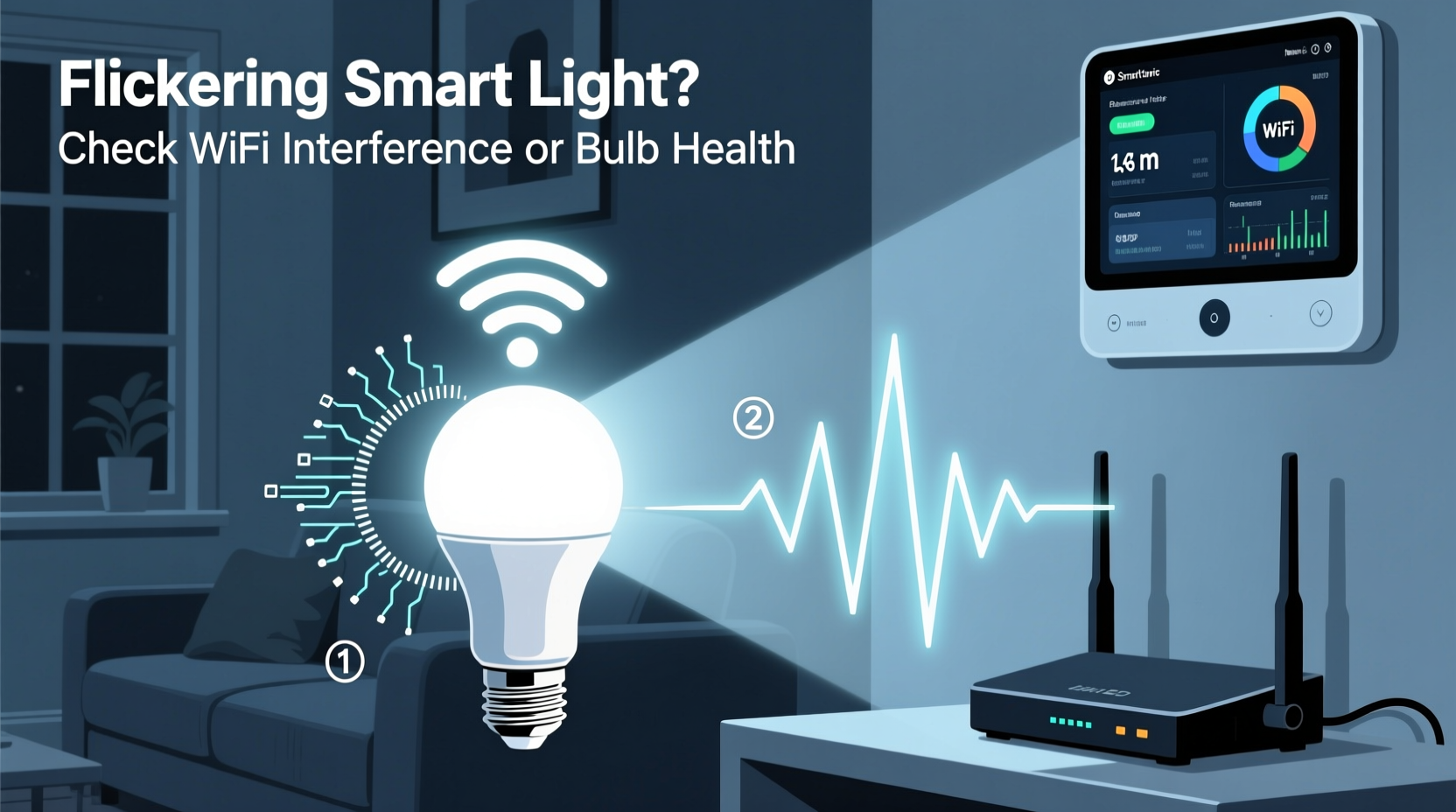
Smart bulbs operate by receiving commands via wireless protocols—most commonly Wi-Fi or Zigbee—through a connected hub or directly from your router. Unlike traditional incandescent or LED bulbs that receive constant power, smart bulbs rely on microprocessors to interpret signals, adjust brightness, change color, and respond to voice or app controls. This complexity introduces new points of failure. A flicker might not indicate a failing filament; instead, it could signal communication breakdowns between the bulb and your network.
The internal circuitry of a smart bulb includes a driver that converts AC power into DC for the LEDs and a radio module (Wi-Fi, Bluetooth, or Zigbee) that maintains connectivity. Any disruption in either power delivery or signal reception can result in erratic behavior, including intermittent flickering. Because these systems are interdependent, isolating the cause requires methodical testing rather than guesswork.
Common Causes of Flickering: Wi-Fi vs. Bulb Issues
Flickering isn’t a single-symptom diagnosis—it’s a symptom with multiple possible origins. The two primary culprits are network-related interference and physical/electrical problems within the bulb itself. Knowing the difference allows for faster resolution.
Wi-Fi Interference: When Your Network Causes the Blink
In dense urban environments or homes with many connected devices, Wi-Fi congestion is common. Smart bulbs communicate frequently with your router, even when idle. If the signal drops momentarily due to interference, the bulb may reset briefly, causing a visible flicker.
Common sources of Wi-Fi interference include:
- Nearby routers operating on the same 2.4 GHz channel
- Large appliances like microwaves or refrigerators emitting electromagnetic noise
- Thick walls or metal fixtures blocking signal strength
- Overloaded networks with streaming devices, gaming consoles, or multiple IoT gadgets
One telltale sign of Wi-Fi-related flickering is inconsistency—lights flicker more at certain times of day (e.g., evenings when usage peaks), or only specific bulbs far from the router behave erratically.
Bulb or Fixture Problems: Hardware Behind the Flicker
On the other hand, if the issue lies within the bulb or its electrical environment, flickering tends to be localized and persistent. Possible causes include:
- A failing LED driver inside the bulb
- Incompatible dimmer switches interfering with low-power electronics
- Loose connections in the socket or fixture
- Power surges or voltage fluctuations in household wiring
- Manufacturing defects or end-of-life degradation
If only one bulb flickers regardless of network conditions—or if replacing it immediately resolves the issue—the problem is likely hardware-based.
Step-by-Step Guide to Diagnosing the Cause
To determine whether Wi-Fi interference or a bulb issue is responsible, follow this structured diagnostic process:
- Isolate the affected bulb(s): Note which lights flicker and whether multiple bulbs across rooms show similar behavior.
- Check proximity to the router: Bulbs farther from the router are more prone to signal loss. Move a flickering bulb closer temporarily to see if stability improves.
- Restart your router and bulbs: Power cycle your router and turn off smart bulbs for 30 seconds. Reconnect and observe changes.
- Use a Wi-Fi analyzer app: Tools like NetSpot or Wi-Fi Analyzer (Android) show channel congestion. Switch your router to a less crowded 2.4 GHz channel (e.g., 1, 6, or 11).
- Test with Ethernet-connected devices: If other Wi-Fi devices (phones, laptops) experience lag or disconnections near the bulb’s location, the issue is likely network-wide.
- Replace the bulb: Swap the flickering bulb with a known-working one. If the problem moves with the bulb, it’s defective.
- Inspect the fixture and switch: Ensure the bulb is tightly screwed in and check for signs of arcing or overheating. Try a non-smart bulb in the same socket—if it flickers, the fixture or wiring may be at fault.
This sequence helps eliminate variables systematically. Most users find answers within the first five steps.
Do’s and Don’ts: Managing Smart Light Stability
| Action | Do | Don't |
|---|---|---|
| Router Placement | Place centrally, elevated, away from metal objects | Keep near microwaves, cordless phones, or thick concrete walls |
| Bulb Installation | Screw in firmly; avoid overtightening | Use in enclosed fixtures unless rated for it |
| Dimmer Compatibility | Use trailing-edge dimmers designed for LEDs | Pair with old leading-edge dimmers meant for incandescents |
| Network Management | Set up a dedicated 2.4 GHz SSID for IoT devices | Overload network with high-bandwidth activities near critical zones |
| Maintenance | Update firmware regularly via app | Ignore error notifications or outdated software alerts |
Mini Case Study: Resolving Chronic Flickering in a Suburban Home
Mark, a homeowner in Austin, TX, installed ten smart bulbs across his living room, kitchen, and bedrooms. Within weeks, he noticed random flickering, especially after dinner when family members streamed video on tablets and phones. Initially, he assumed the bulbs were defective and replaced two under warranty—but the issue persisted.
He followed a structured approach: First, he used a Wi-Fi analyzer and discovered his router was on channel 9, heavily overlapped with three neighboring networks. He switched to channel 1, reducing interference. Next, he created a separate 2.4 GHz network named “IoT_Devices” exclusively for smart bulbs and sensors. After re-pairing the bulbs to this network, flickering dropped by 80%.
The final culprit was a dimmer switch in the living room. Though marketed as \"LED-compatible,\" it wasn’t designed for low-wattage smart bulbs. Replacing it with a Lutron Caséta trailing-edge dimmer eliminated the last of the flickers. Mark’s experience underscores that real-world solutions often involve layered fixes—not just one root cause.
Expert Insight: What Industry Professionals Say
“Many customers blame the bulb when the real issue is network hygiene. A stable IoT network should prioritize range and consistency over speed. For smart lighting, a strong, clean 2.4 GHz signal matters more than gigabit throughput.” — Raj Patel, Senior IoT Engineer at HomeNet Dynamics
“Never underestimate the impact of legacy electrical infrastructure. Old dimmers, shared neutrals, and poor grounding can make even premium smart bulbs behave unpredictably.” — Dana Liu, Electrical Systems Consultant
Troubleshooting Checklist: Fix Flickering Fast
- ✅ Confirm all bulbs are securely installed
- ✅ Restart your router and smart hub (if applicable)
- ✅ Move a flickering bulb closer to the router to test signal dependence
- ✅ Use a Wi-Fi scanner to identify and reduce channel congestion
- ✅ Check for firmware updates in your smart lighting app
- ✅ Replace suspect bulbs with known-good units
- ✅ Verify compatibility with dimmer switches or multi-way circuits
- ✅ Test the socket with a standard incandescent or LED bulb
- ✅ Consider adding a Wi-Fi extender or mesh node near problematic areas
- ✅ Consult an electrician if flickering correlates with voltage issues or breaker trips
FAQ: Common Questions About Flickering Smart Lights
Can Wi-Fi interference really make my lights flicker?
Yes. Smart bulbs maintain a constant connection to your network. If the signal drops—even briefly—the bulb may reboot or misinterpret commands, resulting in a visible flicker. This is especially common in homes with weak coverage or high device density.
Are some smart bulbs more prone to flickering than others?
Yes. Lower-cost models may use inferior drivers or radios with poor signal sensitivity. Brands like Philips Hue, LIFX, and Nanoleaf invest in robust firmware and interference-resistant design, making them less susceptible to network hiccups. However, even premium bulbs can flicker if installed in incompatible fixtures or unstable electrical environments.
Should I switch to Zigbee or Z-Wave instead of Wi-Fi bulbs?
If you’re experiencing chronic Wi-Fi issues, yes. Zigbee and Z-Wave operate on less congested frequencies and use mesh networking, where bulbs relay signals to each other, improving reliability. These systems require a central hub (like Samsung SmartThings or Amazon Echo Plus), but they offer superior stability for large installations.
Preventing Future Flickering: Long-Term Best Practices
Once you’ve resolved the immediate flickering issue, adopt preventive habits to maintain system health:
- Monitor network performance monthly using apps like Google Home Network or Ubiquiti’s UniFi tools.
- Schedule regular firmware updates—many manufacturers release patches that improve radio efficiency and power management.
- Label and track bulb locations in your app to quickly identify recurring issues.
- Install a mesh Wi-Fi system (e.g., Eero, Google Nest Wifi) if your home exceeds 1,500 sq ft or has dead zones.
- Avoid mixing incompatible dimmers—if you must use dimmable smart bulbs, ensure switches are specifically rated for low-load electronic lighting.
Proactive maintenance reduces reactive troubleshooting and extends the lifespan of both bulbs and network infrastructure.
Conclusion: Take Control of Your Smart Lighting Experience
Flickering smart lights don’t have to be a mystery. Whether the source is Wi-Fi interference or a failing bulb, the solution begins with observation, followed by systematic testing. Most issues are fixable without costly replacements—often requiring only a router adjustment, firmware update, or compatible dimmer swap. By understanding how smart bulbs interact with your home’s electrical and network systems, you gain control over comfort, safety, and efficiency.




 浙公网安备
33010002000092号
浙公网安备
33010002000092号 浙B2-20120091-4
Comments
No comments yet. Why don't you start the discussion?