
There’s nothing quite like the magic of synchronized lights pulsing to the beat of holiday music—until they don’t. You’ve spent time setting up your smart light strips, synced them to your favorite playlist, and invited friends over for a festive evening, only to find the lights frozen or lagging behind the rhythm. Frustrating? Absolutely. But more importantly, fixable.
Smart lighting systems promise dynamic, immersive experiences, especially during celebrations. When they fail to sync with music, the issue often lies in configuration, environment, or compatibility—not hardware failure. Understanding the root causes can save you from last-minute panic and ensure your next party dazzles as intended.
Common Causes of Music Sync Failure
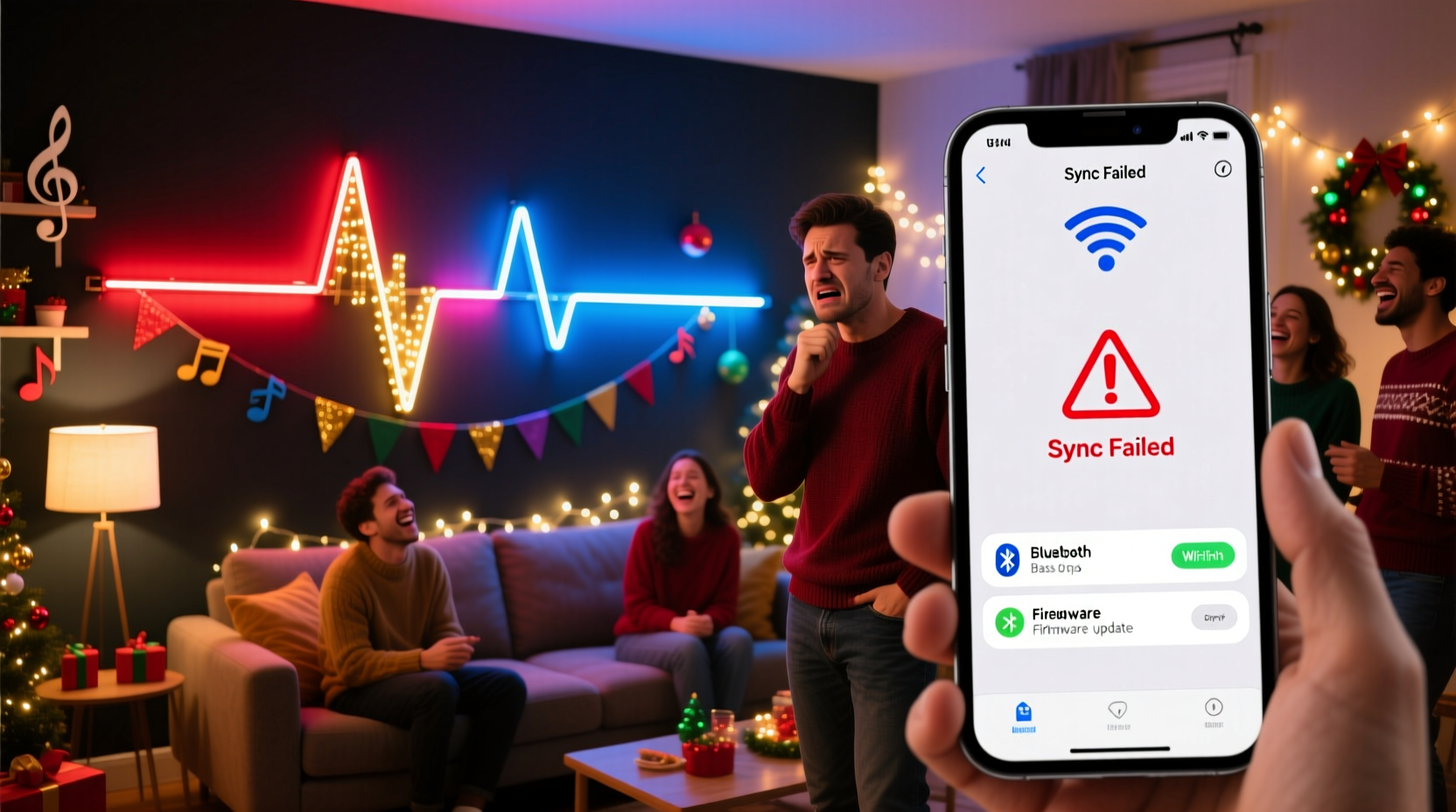
Music synchronization in smart light strips relies on real-time audio analysis, app processing, and communication between devices. A breakdown at any point disrupts the experience. Below are the most frequent culprits:
- Weak Wi-Fi or Bluetooth signal: If your lights rely on wireless connectivity, interference or distance can delay or block audio data transmission.
- Incorrect audio source selection: Some apps require you to manually select which device’s audio is being analyzed. If the app is listening to the phone’s microphone instead of system audio, sync fails.
- High latency in audio processing: Budget-friendly apps may process audio slowly, causing lights to react late—especially noticeable with fast beats.
- Incompatible music sync mode: Not all smart light systems support true real-time music sync. Some offer “party mode” that mimics rhythm without actual audio input.
- Overloaded network or app crashes: Too many connected devices or outdated firmware can cause instability.
- Background app restrictions: On mobile devices, battery-saving modes may limit app performance, pausing background processes like audio analysis.
Step-by-Step Troubleshooting Guide
Follow this structured approach to diagnose and resolve sync issues efficiently. Most problems can be corrected within 30 minutes using these steps.
- Verify physical connections and power
Ensure the light strip is powered and within range of its hub or router. Loose adapters or weak USB power sources can cause intermittent behavior. - Check app permissions
Open your smart lighting app (e.g., Philips Hue Sync, Govee, LIFX) and confirm it has microphone access. Without this, it cannot analyze external audio. - Select the correct audio input mode
Navigate to the music sync settings. Choose “Microphone” if using ambient sound, or “System Audio” if playing from the same device. For better results, route audio through a central speaker connected to the controlling device. - Test in a quiet environment
Background noise can confuse audio analysis. Turn off other music sources, TVs, or loud conversations during testing. - Adjust sensitivity and response speed
Most apps allow you to set bass emphasis, brightness response, and reaction delay. Increase sensitivity for subtle beats; reduce it if lights flicker erratically. - Restart all components
Power cycle the light strip, reboot your phone/tablet, and restart your router if using Wi-Fi-based control. - Update firmware and app
Visit the manufacturer’s app store page and check for updates. Outdated software is a leading cause of sync failures.
Optimizing Your Setup for Reliable Performance
Even after fixing immediate issues, long-term reliability depends on proper optimization. The following strategies ensure consistent music sync during high-demand events like holiday parties.
Use a Dedicated Device for Audio Control
Rather than relying on your smartphone—which may receive calls or notifications—use an old tablet solely for controlling lights. Install the lighting app, disable notifications, and mount it near your speakers. This minimizes interruptions and maintains stable audio processing.
Improve Network Stability
If your lights use Wi-Fi or Bluetooth, reduce congestion:
- Place your router centrally and away from metal objects.
- Use the 5 GHz band if available (less interference than 2.4 GHz).
- Limit the number of active smart devices during the event.
Choose the Right Music Genre
Not all music works equally well with light sync. Tracks with strong, predictable beats (like pop, EDM, or funk) produce clearer visual patterns. Classical or ambient music with soft dynamics may not trigger visible responses. Pre-test your playlist to confirm responsiveness.
Do’s and Don’ts: Smart Light Sync Best Practices
| Do | Don’t |
|---|---|
| Use wired power adapters instead of low-output USB ports | Run lights on underpowered mobile power banks |
| Position microphone-enabled device near main speakers | Place phone across the room behind furniture |
| Test sync with full volume before guests arrive | Assume settings from last year still apply |
| Keep firmware updated monthly | Ignore app update notifications |
| Use dedicated audio routing apps like SoundSeeder (Android) or Airfoil (Mac) | Rely on inconsistent Bluetooth speaker pairing |
Real-World Example: Fixing a Failed Holiday Display
Consider Mark, a homeowner in Denver who hosts an annual Christmas open house. Last year, his $120 RGBIC light strips from a popular brand failed to pulse with music despite working perfectly during setup. Guests noticed the static glow while upbeat carols played—a major letdown.
After the event, Mark investigated. He discovered that his new mesh Wi-Fi system had prioritized smart thermostats and security cameras, deprioritizing the light strips’ data packets. Additionally, the lighting app was set to “ambient mode,” picking up muffled sounds instead of direct audio feed.
His solution:
- He switched the lights to a local Bluetooth connection instead of Wi-Fi.
- He used a spare tablet running the latest app version, placed next to his Sonos speaker.
- He enabled “System Audio Pass-Through” in developer settings (Android).
This year, the lights danced flawlessly to every beat. His party received rave reviews—and he avoided repeating the same mistake.
“Reliability in smart lighting isn’t just about the hardware—it’s about integration. The best lights fail if the ecosystem isn’t tuned.” — Lena Torres, Smart Home Integration Specialist, CEDIA Certified
Checklist: Pre-Party Smart Light Sync Readiness
Use this checklist 24 hours before your event to ensure everything runs smoothly:
- ✅ Confirm microphone permission is enabled in the lighting app
- ✅ Test music sync with your planned playlist at expected volume
- ✅ Ensure all lights are within signal range (Bluetooth: 30 ft max; Wi-Fi: near router)
- ✅ Update the app and firmware to the latest versions
- ✅ Disable battery saver or do-not-disturb modes on the control device
- ✅ Position the audio source (phone/tablet) near primary speakers
- ✅ Set brightness and color preferences in advance
- ✅ Have a backup plan (e.g., pre-programmed scene or manual override)
Frequently Asked Questions
Can I sync smart lights to music without internet?
Yes, if your lights support Bluetooth or local control. Many models, such as those from Govee or Nanoleaf, offer offline music sync via microphone or direct audio input. Wi-Fi-dependent systems like Philips Hue require a stable network even for local processing.
Why do my lights flash randomly during music playback?
This usually indicates overly sensitive settings or background noise interference. Lower the sensitivity threshold in the app and ensure no competing audio sources (e.g., TV, kitchen radio) are active. Also, verify that the correct audio input mode is selected.
Do all smart light strips support real music sync?
No. Some budget models only offer preset “music-like” effects without actual audio analysis. True music sync requires either a built-in microphone, system audio access, or integration with platforms like Hue Sync or Razer Chroma. Always check product specifications before purchase.
Conclusion: Shine Bright This Holiday Season
Your smart light strips are capable of transforming ordinary gatherings into unforgettable experiences—but only when properly configured. Music sync issues are rarely permanent; they’re typically the result of overlooked settings, environmental factors, or outdated software. By understanding how audio detection works, optimizing your setup, and testing ahead of time, you can eliminate surprises and focus on what matters: celebrating with loved ones.
Don’t wait until the night before the party to troubleshoot. Invest an hour now to calibrate your lights, update your apps, and fine-tune the rhythm response. The difference between flickering disappointment and a vibrant, beat-perfect display comes down to preparation.




 浙公网安备
33010002000092号
浙公网安备
33010002000092号 浙B2-20120091-4
Comments
No comments yet. Why don't you start the discussion?