
It’s December. Your outdoor light display is set, the tree is glowing, and then—without warning—the entire string goes dark. Not at midnight. Not during a storm. But at 2:17 a.m. on a Tuesday. You check the app: no active schedule. The plug shows “online.” The outlet has power. Yet the lights stay off until you manually toggle it. This isn’t magic—it’s a malfunction with real causes, most of which are fixable in under 15 minutes.
Smart plugs have revolutionized holiday lighting, offering remote control, energy monitoring, and automation. But their convenience hinges on stable connectivity, accurate timekeeping, and predictable software behavior. When that foundation cracks—even slightly—the result is erratic power delivery that feels like sabotage by your own tech. This article explains exactly why your smart plug cuts power randomly, how to distinguish between hardware failure and configuration error, and how to fully reset scheduling without losing your broader smart home setup.
Why Smart Plugs Cut Power Unexpectedly: 5 Common Causes
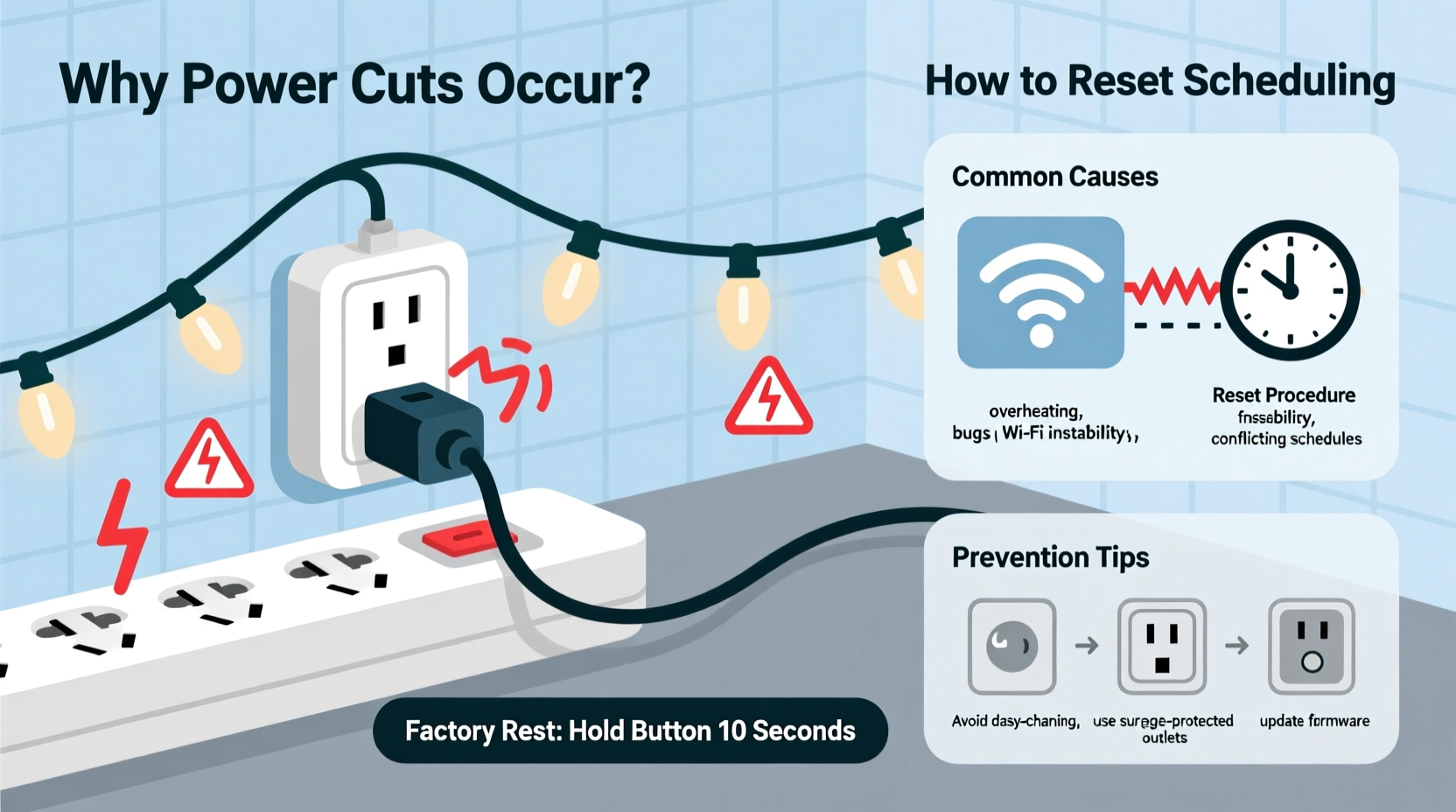
Random power interruption rarely stems from a single issue. More often, it’s the intersection of environmental, network, and software factors. Here’s what’s likely happening—and how each cause manifests:
- Wi-Fi instability or signal dropouts: Smart plugs rely on continuous two-way communication with your router and cloud servers. If the plug briefly disconnects (e.g., due to interference from microwaves, holiday LED transformers, or crowded 2.4 GHz channels), it may revert to a failsafe state—often “off”—or fail to receive the “stay on” command from a scheduled routine.
- Time sync drift or timezone misconfiguration: Scheduling depends on precise internal clock alignment. If your plug’s firmware doesn’t auto-sync time daily—or if your phone/app is set to a different timezone than your physical location—the plug may execute schedules hours early or late. One user in Denver reported lights turning off at 3 p.m. because their plug synced to Pacific Time instead of Mountain.
- Conflicting or overlapping schedules: Many apps allow multiple timers (e.g., “On at 4:30 p.m.” + “Off at 11:00 p.m.” + “On for 2 hours at sunset”). When sunset timing shifts daily—or when local weather services feed inaccurate sunrise/sunset data—the plug may interpret conflicting instructions as a shutdown trigger.
- Firmware bugs in holiday-season updates: Manufacturers often push last-minute firmware patches before peak usage. In late 2023, a widely used plug model shipped version 2.4.8 with a bug that caused scheduled “on” commands to expire after 16 hours—meaning lights scheduled to turn on at 4 p.m. would cut off at 8 a.m. the next day, even if no “off” timer existed.
- Overheating or electrical load issues: While rare with modern UL-listed plugs, sustained high-wattage loads (e.g., 300+ feet of incandescent mini-lights drawing 400–600W) can cause thermal cutoff. Unlike mechanical switches, smart plugs monitor internal temperature and will shut down silently—not tripping a breaker, but cutting power preemptively.
How to Diagnose the Real Culprit (Not Just the Symptom)
Assume nothing. “Random” is rarely random—it’s just undocumented. Start here to isolate the root cause:
- Check the plug’s activity log in-app: Don’t rely on memory. Open your smart plug app (TP-Link Kasa, Wemo, Meross, etc.) and navigate to the device’s history tab. Look for timestamps of every on/off event—including those you didn’t initiate. Note whether cuts happen at consistent intervals (e.g., every 12 hours) or correlate with other events (e.g., right after your phone loses Wi-Fi).
- Test offline behavior: Turn off your phone’s Wi-Fi and mobile data. Then wait 5 minutes. Does the plug still follow its schedule? If yes, the schedule is stored locally (a good sign). If not, it’s cloud-dependent—and vulnerable to internet outages or server delays.
- Measure actual power draw: Use a basic $15 Kill A Watt meter between the plug and your light string. Record wattage over 10 minutes. If readings spike erratically above the plug’s rated capacity (e.g., >1800W on a 15A/1800W plug), thermal cutoff is likely. Consistent draws below rating point to software—not hardware.
- Verify time source accuracy: In your smartphone’s settings, confirm “Set time automatically” is enabled and your timezone is correct. Then open the smart plug app and check its device info screen: does it show “Last synced: [within last 2 hours]”? If syncs are infrequent or show “Failed,” time drift is probable.
- Inspect physical environment: Is the plug near a garage door opener, wireless speaker, or HVAC system? These emit RF noise that disrupts 2.4 GHz signals. Also check for heat buildup: touch the plug casing after 2 hours of operation. Warmth is normal; hot-to-the-touch is not.
Resetting Scheduling: A Step-by-Step Protocol
“Resetting scheduling” isn’t one action—it’s a sequence designed to eliminate ghost rules, corrupted time data, and app-server mismatches. Follow these steps in order. Skipping any step risks reintroducing the same issue.
- Disable all existing schedules: In your app, go to the plug’s scheduling section and toggle off *every* active rule—even ones you think are irrelevant. Do not delete them yet.
- Clear local app cache: On iOS, offload the app (Settings > General > iPhone Storage > [App Name] > Offload App), then reinstall. On Android, go to Settings > Apps > [App Name] > Storage > Clear Cache (not “Clear Data”—that erases accounts).
- Force a full time resync: Unplug the smart plug. Wait 60 seconds. Plug it back in. Within 30 seconds, open the app and go to Device Settings > Firmware Update. Even if “up to date” appears, tap “Check for Updates” again—this triggers an immediate NTP time sync.
- Delete and recreate schedules: Now—only now—delete all schedules permanently. Create new ones using absolute times (e.g., “On at 4:00 p.m.”), not relative triggers (e.g., “At sunset”). Set “Off” times at least 30 minutes after your intended end time to absorb minor sync lag.
- Enable local execution (if supported): Some plugs (e.g., newer Tapo or Kasa models) offer “Local Control Only” mode in advanced settings. Enable this. It bypasses the cloud entirely, reducing latency and eliminating internet-dependent failures.
Do’s and Don’ts of Smart Plug Holiday Scheduling
| Do | Don’t |
|---|---|
| Use a dedicated 2.4 GHz Wi-Fi network for smart devices (separate from your main SSID) | Run smart plugs on the same 2.4 GHz channel as your baby monitor or cordless phone |
| Label your plug physically (e.g., “Front Porch Lights”) to avoid accidental toggles | Assign multiple light strings to one plug without verifying total wattage |
| Set schedules in 15-minute increments—not “at dusk”—to avoid astronomical data errors | Rely solely on “Sunset/Sunrise” triggers for critical displays (they’re notoriously inaccurate in urban canyons or hilly terrain) |
| Update firmware *before* Thanksgiving—not the week of Christmas | Ignore firmware update notifications; many fixes address seasonal load issues |
| Test your full schedule for 48 hours before the big neighborhood walk-through | Assume “works once” equals “works reliably”—test across multiple days and conditions |
Real-World Case Study: The Suburban Light Cutoff
In November 2023, Sarah M. in Columbus, Ohio, installed four Kasa KP125 plugs for her front-yard display. For three weeks, everything worked perfectly—until December 7. At precisely 1:43 a.m. nightly, all lights cut off. Her app showed no scheduled off-time. She checked logs: every night, the plug registered “Cloud Command: OFF” at that time—but she’d never sent one.
Diagnosis revealed two layered issues: First, her home Wi-Fi router had a known bug where DHCP lease renewals at 1:30 a.m. caused brief 12-second disconnections. Second, her Kasa app was set to “Auto-Sync Sunset” mode, which fetched updated sunset data hourly. During the DHCP dropout, the plug received a corrupted sunset payload that included an erroneous “off at 1:43 a.m.” instruction. Because the plug stored this in volatile memory (not flash), it executed it nightly until rebooted.
Sarah fixed it by: (1) switching her router to static IP assignment for smart devices, (2) disabling sunset sync in the app, and (3) creating fixed-time schedules. No hardware replacement was needed—just understanding how network fragility propagates into scheduling logic.
“Most ‘random’ smart plug failures aren’t random at all—they’re deterministic responses to environmental stressors we overlook: Wi-Fi churn, time sync failures, or firmware edge cases triggered only under holiday load. Treat your plug like a networked appliance, not a dumb switch.” — Dr. Lena Torres, Embedded Systems Researcher, UC San Diego IoT Lab
FAQ: Quick Answers to Urgent Questions
Will resetting my smart plug erase my entire smart home setup?
No—if you’re only resetting scheduling or performing a soft reboot (holding the button), your account, device names, and routines in platforms like Alexa or Google Home remain intact. A full factory reset (usually 10+ seconds held) *will* remove the plug from your app and require re-adding, but it won’t affect other devices on your network.
Can I use two different scheduling apps (e.g., Kasa + IFTTT) for the same plug?
Technically yes, but strongly discouraged. Conflicting commands create race conditions: App A says “on,” App B says “off,” and the plug executes whichever arrives last—or crashes trying. Pick one authoritative scheduler and disable all others. If you need complex logic, use IFTTT *as the sole controller*, not alongside the native app.
My lights flicker right before cutting off—is that normal?
No. Flickering precedes thermal cutoff or voltage instability. Immediately unplug and check: (1) total wattage vs. plug rating, (2) for loose connections in the light string’s male/female plugs, and (3) whether the outlet itself powers other high-draw devices (e.g., space heater on same circuit). Flickering indicates electrical stress—not software.
Conclusion: Take Control, Not Guesswork
Your smart plug isn’t broken. It’s communicating—just not in a language you’ve learned to read yet. Random power cuts are symptoms, not diagnoses. They point to gaps in network reliability, time integrity, or configuration hygiene—issues that respond predictably to methodical troubleshooting. You don’t need to replace hardware, pay for premium support, or tolerate frustration through the holidays. You need a clear diagnostic path, a repeatable reset protocol, and the confidence to treat your smart plug as the networked device it is—not a black box.
This season, reclaim your light display. Run the 5-minute diagnosis. Apply the step-by-step reset. Verify with real-world testing. Then enjoy the glow—not the guesswork. And when your neighbor asks how you got their lights to stay on past midnight, share what you’ve learned. Because the best holiday tech isn’t the flashiest—it’s the one that just works, quietly and consistently, night after night.




 浙公网安备
33010002000092号
浙公网安备
33010002000092号 浙B2-20120091-4
Comments
No comments yet. Why don't you start the discussion?