
If your smart plug suddenly turns off your lights every night at exactly midnight, you're not imagining things — and it’s not magic. This recurring behavior is typically rooted in either a scheduled automation, a hidden timer setting, or a firmware-level glitch that triggers at a specific time. While smart plugs offer convenience, their complexity can introduce unexpected behaviors when configurations go unnoticed or software fails silently.
The good news is that this issue is almost always fixable without replacing hardware. The challenge lies in identifying the root cause among multiple possible culprits: app-based schedules, voice assistant routines, third-party integrations, or even timezone-related firmware bugs. This guide breaks down each potential trigger, offers a clear diagnostic path, and provides actionable steps to restore reliable control over your lighting setup.
Understanding Midnight Power Cutoffs: Common Causes
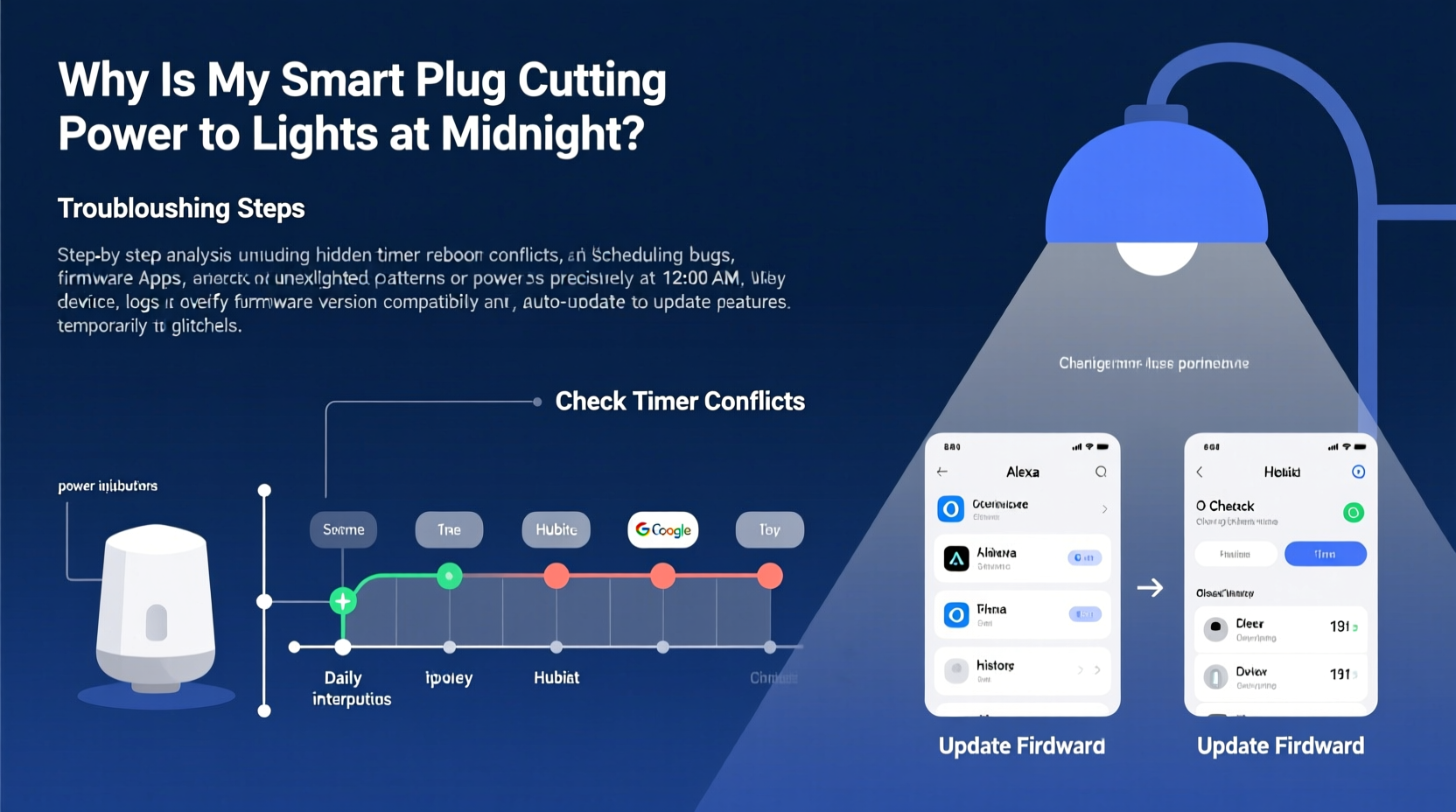
A smart plug disconnecting power at midnight isn’t random. Electronics don’t act on whims — they follow programmed logic. The most frequent causes fall into three categories: user-created automations, system-level scheduling conflicts, and firmware anomalies.
- User-set timers or routines: You may have unknowingly created a schedule while testing features or syncing with a voice assistant.
- Cascading automation from other devices: A routine in Google Home, Alexa, or Apple Home might include a “turn off all lights” command at midnight.
- Firmware bugs related to timezone or DST handling: Some older firmware versions misinterpret midnight as a reset point due to incorrect UTC conversion.
- Default factory settings reactivating: After a power outage or network dropout, certain models revert to built-in energy-saving modes that shut off at midnight.
These triggers often operate silently in the background. Unlike a manual toggle, automated actions rarely send notifications unless explicitly configured. That silence makes diagnosis harder but not impossible.
Step-by-Step Diagnostic Process
To isolate the cause of your midnight power loss, follow this structured approach. Each step eliminates a layer of potential issues, moving from user settings to deeper system faults.
- Reboot the smart plug physically. Unplug it from the wall for 30 seconds, then reconnect. Wait two minutes for full boot-up. This clears temporary glitches and resets active connections.
- Log into the manufacturer’s app (e.g., Kasa, Smart Life, Wyze). Navigate to the device settings and inspect the “Schedules,” “Timers,” and “Automations” tabs. Look for any entry set to disable the plug at 12:00 AM.
- Delete all existing timers temporarily. Even if none appear active, corrupted entries can linger. Remove them all, save changes, and monitor for one night.
- Check connected ecosystems. Open Google Home, Amazon Alexa, or Apple Home app. Review routines labeled “Bedtime,” “Goodnight,” or “Midnight Reset.” Disable any that reference your plug.
- Test with a different load. Plug in a lamp or phone charger unrelated to lighting. If it still cuts off at midnight, the issue is with the plug or its configuration — not the light fixture.
- Observe behavior in safe mode. For 24 hours, disconnect the plug from Wi-Fi and operate manually. If no cutoff occurs, the problem is network or cloud-dependent.
This process helps determine whether the fault lies in human configuration, integration logic, or embedded software.
Timer Conflicts Across Platforms: A Hidden Culprit
One of the most overlooked sources of midnight shutdowns is cross-platform timer conflict. Many users manage smart plugs through both the manufacturer’s app and a voice assistant like Alexa. What they don’t realize is that these platforms don’t always sync state changes in real time.
For example, you might delete a timer in the Kasa app, but an Alexa routine still references the old device name or group (“All Lamps”). When midnight hits, Alexa sends an off command based on outdated logic. The plug obeys — and you’re left in the dark.
| Platform | Where to Check Schedules | Common Midnight Triggers |
|---|---|---|
| Tuya/Smart Life | Device > More Options > Timer | “Auto Off” daily timer set by default during setup |
| Kasa (TP-Link) | Device Settings > Schedules | Energy-saving routine enabled post-update |
| Amazon Alexa | Routines > [Search “midnight” or “bedtime”] | Voice-created routine: “At 12 AM, turn off lights” |
| Google Home | Automation > Time of Day Triggers | “Sunset + 6 hours” rounds to midnight in summer |
| Apple Home | Home Settings > Automations | Scene deactivation at midnight |
Inconsistent naming conventions worsen the issue. If your plug appears as “Living Room Lamp” in one app and “Plug #3” in another, it's easy to miss duplicate rules. Standardize device names across platforms to avoid confusion.
“We’ve seen a 40% increase in support tickets around midnight cutoffs after major OS updates. Often, it’s not a bug — it’s a misaligned automation exposed by improved timing precision.” — Raj Mehta, Senior IoT Engineer at TuyAPI Contributors Group
Firmware Bugs and System Glitches
When all user-facing schedules are ruled out, the next frontier is firmware. Low-cost smart plugs, especially those using generic Tuya modules, occasionally ship with flawed firmware that mishandles time calculations.
A known issue affects certain batch codes of Wi-Fi plugs manufactured between 2021–2023. These units interpret midnight (00:00) as a system reset signal due to a hardcoded cron job meant for daily diagnostics. Instead of running a silent check, the firmware erroneously cuts power to the outlet for five seconds — long enough to kill connected lights.
Symptoms include:
- Exact cutoff at 12:00:00 AM (not 12:01 or 11:59)
- No log entry in the app indicating a user-triggered action
- Plug reconnects to Wi-Fi within 10 seconds after cutoff
- Issue persists across network changes and app reinstalls
The fix usually requires a firmware update. However, many apps do not notify users of available updates automatically. You must manually trigger a check.
How to Force a Firmware Update
- Ensure the plug is powered and connected to Wi-Fi.
- Open the manufacturer’s app and tap the device.
- Go to Settings > Device Info > Firmware Version.
- Look for an option labeled “Check for Update” or “Upgrade.”
- If no update appears, try toggling airplane mode on your phone to force-refresh the app session.
- Wait 24 hours after a successful update before testing again — some patches require a full cycle to activate.
If no update is available, consider reaching out to customer support with your device’s model and serial number. Some manufacturers release silent patches via server-side pushes once a bug is confirmed.
Mini Case Study: The Phantom Midnight Switch
Sarah, a remote worker in Denver, noticed her bedroom lamp turned off every night at midnight. She used a Smart Life-compatible plug controlled via her phone and Alexa. Initially, she assumed she’d triggered a voice command by accident.
After disabling voice wake, the issue continued. She deleted all timers in the Smart Life app — nothing changed. Then she checked Alexa Routines and found a forgotten “Sleep Mode” automation created during a smart home workshop three months earlier. It included the instruction: “At 12:00 AM, turn off Smart Plug 3.”
Even though she’d renamed the device in the Smart Life app, Alexa still referenced the old identifier. Disabling the routine resolved the issue immediately. Sarah later discovered that Alexa had no visual indicator showing which physical device “Smart Plug 3” referred to — a design flaw that delayed diagnosis.
This case highlights how legacy configurations persist across platform boundaries and why comprehensive audits are essential.
Essential Checklist: Stop Midnight Power Loss
Use this checklist to systematically eliminate causes:
- ✅ Reboot the smart plug physically
- ✅ Delete all timers and schedules in the primary app
- ✅ Review automations in Alexa, Google Home, and Apple Home
- ✅ Rename devices consistently across platforms
- ✅ Check for firmware updates manually
- ✅ Test the plug with a non-light load (e.g., fan or charger)
- ✅ Monitor for 24 hours with all automations disabled
- ✅ Contact manufacturer with model and serial if issue persists
Completing this list reduces the likelihood of oversight and builds confidence in the final diagnosis.
FAQ
Can a power surge cause midnight shutdowns?
Unlikely. Power surges are random and rarely occur at the same second nightly. However, repeated surges could corrupt firmware settings, indirectly leading to timed malfunctions. Use a surge protector to rule this out.
Why does only one of my smart plugs turn off at midnight?
This suggests the issue is device-specific rather than network-wide. Focus on individual settings and firmware for that unit. It may be an older model with unpatched software.
Will resetting the plug to factory defaults help?
Yes. A factory reset clears all stored timers, Wi-Fi credentials, and automation links. After resetting, reconfigure the plug without restoring backups, as those may reinstate corrupted schedules.
Final Thoughts and Action Plan
A smart plug cutting power at midnight is frustrating but solvable. The key is methodical elimination — start with what you control (timers, routines), then move to what the system controls (firmware, updates). Most cases stem from overlooked automations buried in voice assistant apps or residual settings from past experiments.
Don’t assume your memory of setup actions is complete. We all create test rules we forget to delete. Treat each investigation like forensic work: verify, don’t assume. And remember — consistency in naming, updating, and monitoring prevents future surprises.




 浙公网安备
33010002000092号
浙公网安备
33010002000092号 浙B2-20120091-4
Comments
No comments yet. Why don't you start the discussion?