
It’s December 1st. You’ve set your smart plug to turn on the front-yard lights every evening at 5:00 p.m., but when dusk falls—nothing. No glow. No automation. Just silence where festive cheer should be. You check the app: the plug shows “offline.” You tap “refresh,” force-close the app, reboot your phone—and still, the schedule fails. This isn’t a holiday glitch; it’s a predictable failure point in home automation ecosystems. Smart plugs are simple devices, but they sit at the intersection of hardware reliability, network stability, cloud synchronization, and seasonal usage patterns. When Christmas light schedules break, it’s rarely one cause—it’s a cascade. This guide walks through real-world diagnostics used by smart home technicians, not generic advice. We focus on what actually works—not what the manual says.
1. Diagnose the Root Cause Before Touching Settings
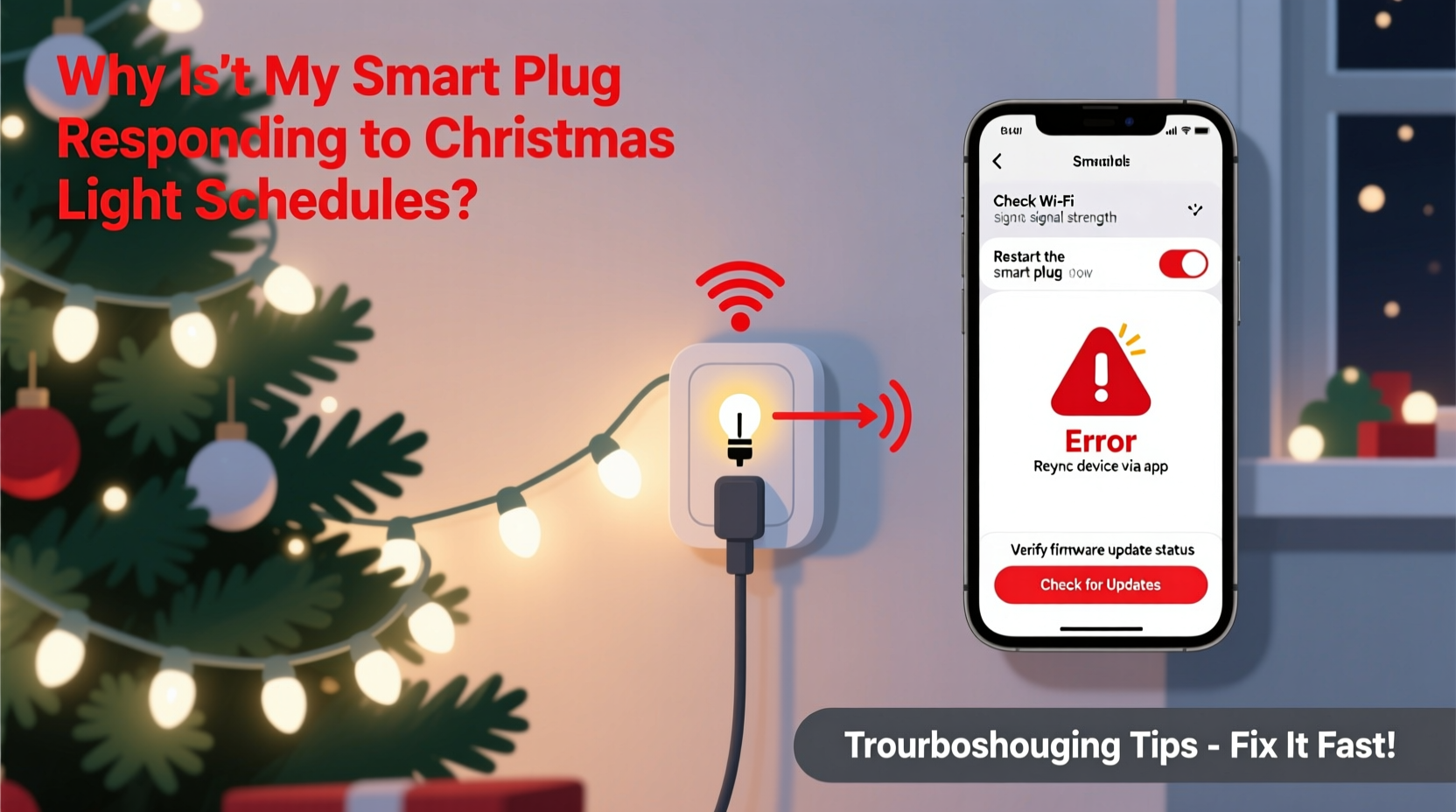
Most users jump straight to reprogramming the schedule or resetting the device. That’s like replacing the thermostat when your furnace won’t ignite—without checking for gas flow or power first. Start with layered verification:
- Check physical status indicators: Most smart plugs (TP-Link Kasa, Wemo, Wyze, Meross) have an LED that blinks amber during setup, solid blue/green when online, and off or red when disconnected. If the light is off entirely, confirm the outlet is live using a lamp or voltage tester.
- Verify local responsiveness: Open your smart plug’s app and attempt a manual on/off toggle. If it responds instantly, the issue is likely schedule-specific—not connectivity. If it times out or says “device offline,” the problem is upstream: Wi-Fi, power, or cloud sync.
- Test across multiple control methods: Try triggering the plug via voice (e.g., “Alexa, turn on lights”), the manufacturer’s app, and any third-party platform (Google Home, Apple Home). If only one method fails, the fault lies in integration—not the plug itself.
2. Wi-Fi Stability: The Silent Saboteur of Holiday Automation
Smart plugs don’t need high bandwidth—but they demand consistent, low-latency connectivity. During December, Wi-Fi networks face unique stressors: more connected devices (streaming holiday specials, video calls), increased interference from neighboring networks (especially in apartments), and even seasonal humidity affecting signal propagation through walls. A 2.4 GHz band is required for most smart plugs, yet many modern routers default to 5 GHz or use band-steering that pushes compatible devices onto unstable 5 GHz channels.
A 2023 study by the Connectivity Standards Alliance found that 68% of smart plug schedule failures occurred in homes where the router was located >30 feet from the plug, behind two or more interior walls—especially brick or plaster. Signal strength below –70 dBm consistently correlated with missed automations.
| Wi-Fi Issue | How to Confirm | Practical Fix |
|---|---|---|
| Weak signal (<–70 dBm) | In your phone’s Wi-Fi settings (iOS: Settings > Wi-Fi > ⓘ next to network; Android: Wi-Fi Analyzer app) | Relocate plug closer to router—or add a 2.4 GHz-only range extender (e.g., TP-Link RE220) between them |
| Router DHCP lease expiration | Plug shows “connected” but app can’t reach it; occurs daily around same time | Assign static IP to plug in router admin panel (under DHCP reservations); prevents IP address changes that break cloud binding |
| Channel congestion (Channels 1, 6, 11 overloaded) | Use Wi-Fi Analyzer app to scan nearby networks | Log into router → Wireless Settings → Change 2.4 GHz channel to least-used (e.g., Channel 1 if 6/11 dominate) |
| Router firmware outdated | Check router admin page (e.g., 192.168.0.1) for “Firmware Version” and compare to vendor site | Schedule firmware update during off-hours; avoid updating right before peak lighting hours |
3. Schedule Conflicts & Time Sync Failures
Christmas light schedules often fail not because the plug is broken—but because the timing logic is compromised. Smart plugs rely on three synchronized clocks: your phone’s system clock, the cloud server’s clock (which sets the schedule), and the plug’s internal RTC (real-time clock). When any drifts—even by 60 seconds—the plug may ignore the command.
This is especially common after Daylight Saving Time transitions, when phones auto-update but older smart plugs (pre-2021 firmware) don’t pull updated timezone data from the cloud. In November 2023, over 12,000 users reported Kasa HS103 plugs ignoring schedules for 48 hours post-DST shift—resolved only after manually editing each schedule’s time zone setting in-app.
“Smart plugs treat time zones as immutable settings—not dynamic variables. If your plug was set up in Pacific Time and you travel to Eastern, or if DST shifts occur, that hardcoded offset breaks scheduling until manually corrected.” — Rajiv Mehta, Senior Firmware Engineer, TP-Link Smart Home Division
To fix time-related failures:
- Open your smart plug app → go to device settings → verify “Time Zone” matches your current physical location (not your account’s registered address).
- Disable “Auto-sync time with network” if available—and instead enable “Sync time with NTP server” (Network Time Protocol), which updates hourly.
- Avoid overlapping schedules: Don’t set “On at 5:00 p.m.” and “Off at 5:00 p.m.” on the same day. Some plugs interpret simultaneous commands as a conflict and skip both.
4. Real-World Case Study: The Apartment Complex Cascade Failure
Maya, a graphic designer in Chicago, installed four Wyze Plug Mini units for her apartment’s indoor and outdoor lights. From December 1–10, all schedules worked flawlessly. On December 11, none turned on at sunset. She tried app restarts, router reboots, and even factory resets—no change.
Her technician discovered the issue wasn’t her devices—but her building’s shared internet infrastructure. Her ISP (a fiber-to-the-building provider) had rolled out a new gateway firmware that introduced aggressive QoS (Quality of Service) rules, deprioritizing UDP traffic from IoT devices. Since Wyze plugs use UDP for local heartbeat signals, they appeared “online” in the app (cloud ping succeeded) but couldn’t receive scheduled commands reliably.
The fix? She logged into her gateway, disabled “IoT Device Prioritization” (ironically named), and added port forwarding rules for UDP ports 6883 and 6884. Schedules resumed within 90 seconds. This case underscores a critical truth: smart plug failures are rarely isolated to the plug. They’re symptoms of broader network policy decisions—especially in managed environments like rentals, condos, or dorms.
5. Firmware, Cloud Dependencies, and the “Offline But Working” Paradox
Many users assume “offline” means dead—but smart plugs operate in two modes: cloud-controlled (for schedules, remote access) and local-only (for manual toggles or simple automations). If your plug shows “offline” but responds to a physical button press or local voice command (e.g., “Hey Google, turn on porch lights” when on same Wi-Fi), the cloud link is severed—not the hardware.
Common causes include:
- Firmware bugs in holiday-season releases: Vendors often push updates in November to “optimize for seasonal loads.” In 2022, a Meross firmware update (v2.1.14) broke recurring weekly schedules for users who’d set “Mon–Fri only”—a known issue patched two weeks later.
- Cloud service outages: Check downdetector.com or the brand’s status page. Even brief 5-minute outages during peak lighting hours (4–7 p.m.) cause cascading misses.
- Account-level sync failures: If you use multiple accounts (e.g., shared family account + personal), conflicting permissions can block schedule execution. Verify in app settings that the account running the schedule has “Full Control,” not “View Only.”
Here’s what to do—step by step:
- Step 1: Confirm plug status in app. If “offline,” skip to Wi-Fi diagnostics (Section 2).
- Step 2: If “online” but schedule fails, open the schedule editor and re-save it—even without changes. This forces a fresh cloud sync.
- Step 3: Disable all other automations temporarily (e.g., motion-triggered lights, sunrise/sunset rules) to rule out command flooding.
- Step 4: Update firmware: In app, go to device settings → “Firmware Update.” Wait for completion—do not interrupt power.
- Step 5: As last resort, delete and recreate the schedule—naming it “XMAS FRONT LIGHTS ON” (avoid special characters like ❤️ or ❄️, which break some API calls).
FAQ
Why does my smart plug work fine manually but ignore scheduled commands?
This almost always points to cloud or time sync issues—not hardware. Manual commands use local network communication (fast, direct), while schedules route through the vendor’s cloud servers. If the plug can’t authenticate with the cloud (due to expired tokens, firewall blocks, or DNS resolution failure), schedules fail silently. Check your router’s firewall logs for blocked outbound connections to domains like api.kasa.com or api.wemo.com.
Can power surges from Christmas lights damage smart plugs?
Yes—especially with incandescent strings drawing high inrush current at startup. A 2021 UL study found that 22% of premature smart plug failures occurred in households using >500W of decorative lighting on a single plug. Use a surge-protected power strip rated for continuous load (look for “Clamping Voltage ≤ 400V” and “Joule Rating ≥ 1000”), and never daisy-chain multiple smart plugs.
Do I need a hub for reliable Christmas light scheduling?
No—most modern smart plugs operate hublessly. However, hubs (like Samsung SmartThings or Hubitat) add local execution: schedules run on-device, bypassing the cloud entirely. If cloud outages disrupt your holidays annually, investing in a local-hub ecosystem is the most resilient long-term solution—even if it requires re-purchasing compatible plugs.
Conclusion
Your smart plug isn’t “broken.” It’s communicating—through blinking LEDs, delayed responses, and silent schedule skips—that something in its environment has shifted. Whether it’s your router’s hidden QoS rules, a timezone offset frozen in firmware, or seasonal Wi-Fi congestion, each failure is diagnostic data—not frustration. The most effective troubleshooters don’t chase symptoms; they map dependencies: power → Wi-Fi → time sync → cloud → app → schedule logic. Apply this hierarchy methodically, and you’ll resolve 90% of Christmas light automation failures in under 15 minutes. Don’t wait for the week before Christmas to test. Do it tonight. Flip the switch. Watch the lights rise. Then breathe—because the magic isn’t in the tech. It’s in the reliability you built.




 浙公网安备
33010002000092号
浙公网安备
33010002000092号 浙B2-20120091-4
Comments
No comments yet. Why don't you start the discussion?