
Every December, thousands of homeowners set up festive lighting only to discover—on the first scheduled evening—that their smart plug remains stubbornly off. The lights stay dark while the app shows “Schedule Active.” No error message appears. No red warning icon. Just silence—and disappointment. This isn’t a hardware failure or a fluke. It’s almost always a time-related misalignment buried beneath layers of software, geography, and seasonal clock shifts. Smart plugs rely on precise time coordination across at least four distinct systems: your local device clock, your smartphone’s OS time service, the cloud platform (like Tuya, Matter, or Amazon Alexa), and the plug’s internal firmware scheduler. When any one of those layers disagrees—even by 30 seconds—the scheduled trigger fails. Worse, these discrepancies often surface only during Daylight Saving Time transitions, holiday travel, or after firmware updates. This article cuts through the confusion with field-tested diagnostics, time-aware configuration principles, and real-world fixes that restore reliability—not just for Christmas lights, but for every scheduled automation in your home.
How Smart Plugs Actually Read Time (and Where It Goes Wrong)
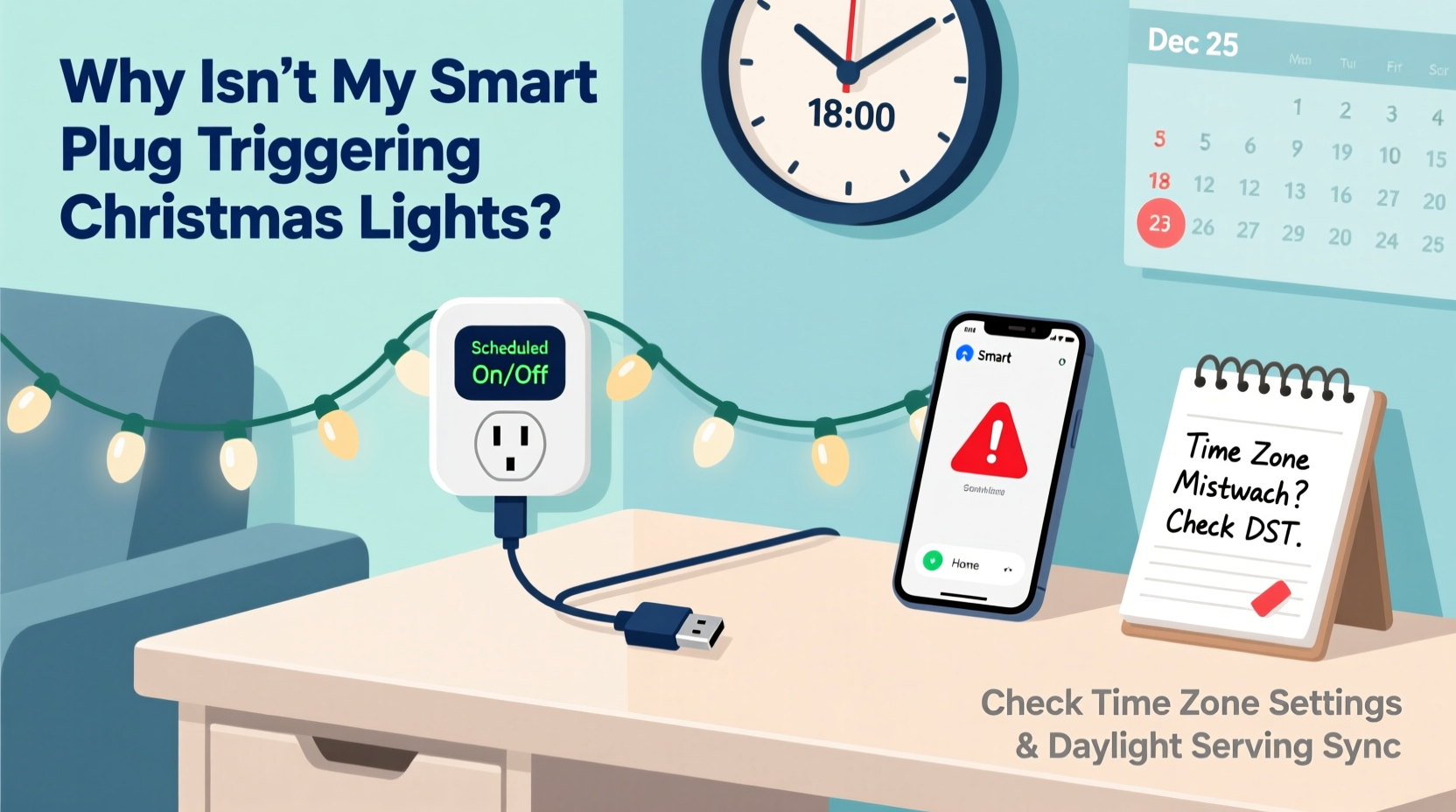
Smart plugs don’t “know” time the way humans do. They receive timestamps from the cloud platform, which itself pulls from Network Time Protocol (NTP) servers—but only after validating against your phone’s time zone setting, your account’s regional profile, and sometimes even your GPS location. If your phone’s time zone is set to “Automatic” but your carrier has misreported your location as Chicago instead of Indianapolis (a common issue near state borders), the cloud may assign Central Time to a device physically operating in Eastern Time. The result? Your 5:00 PM light-on schedule triggers at 4:00 PM—or never triggers at all because the plug’s internal clock rejects the out-of-range timestamp.
This problem intensifies during Daylight Saving Time (DST) transitions. Many smart plug platforms—including older versions of Kasa, Wemo, and Tapo—fail to propagate DST changes instantly. A plug may continue running on Standard Time for 6–12 hours after clocks spring forward, causing schedules to fire an hour early. Conversely, during the fall “fall back,” some devices interpret the repeated 1:00–2:00 AM window as duplicate commands—and skip execution entirely to avoid conflict.
The 5-Point Time Zone Diagnostic Checklist
Before resetting or re-pairing your plug, run this targeted checklist. Each step isolates a specific layer of the time stack and takes under 90 seconds.
- Verify your smartphone’s time source: Go to Settings > General > Date & Time (iOS) or Settings > System > Date & Time (Android). Ensure “Set Automatically” is ON—and that “Use network-provided time zone” is OFF. Instead, manually select your exact city (e.g., “New York,” not “Eastern Time”).
- Check your smart plug app’s regional profile: In the app, navigate to Account > Profile > Region/Time Zone. Confirm it matches your physical location—not your account registration country. Some apps default to the country where you created the account.
- Inspect the plug’s firmware version: In the app’s device settings, locate “Firmware Version.” If it’s more than 6 months old, update immediately—even if the app says “up to date.” Older firmware often lacks DST patching logic.
- Test local vs. cloud scheduling: Create two identical schedules—one using the plug’s native app scheduler, another via a voice assistant (e.g., “Alexa, turn on lights at 5 PM”). If only one works, the failure is platform-specific, not time-zone related.
- Log actual trigger times: For 48 hours, note when lights *do* turn on (even if late). Compare those timestamps to your phone’s clock and a trusted NTP source like time.is. A consistent 1-hour offset points to DST or time zone mismatch; erratic delays suggest network latency or cloud sync failure.
Real-World Case Study: The Indianapolis Light Show Collapse
In December 2023, Sarah M., a schoolteacher in Indianapolis, installed six Kasa KP125 smart plugs to power her synchronized outdoor display. She configured all schedules for 5:00 PM daily. On December 1st, the lights activated precisely at 5:00 PM. On December 2nd, they came on at 4:00 PM. By December 3rd, they failed entirely—until she manually toggled them at 6:00 PM.
Sarah assumed faulty hardware. She replaced one plug—no change. She factory-reset the entire system—still no change. Only after logging into the Kasa web portal did she notice the account’s “Time Zone” was set to “America/Chicago.” Though Indianapolis observes Eastern Time, her phone had briefly connected to a cell tower in Illinois during initial setup, and the app auto-assigned Central Time. Worse, her Android phone’s “Automatic time zone” had since reverted to “Disabled” after a security update—so her device clock was drifting 22 seconds per day.
Her fix took 7 minutes: (1) Enabled “Set time automatically” on her phone, (2) Manually selected “Indianapolis” in the phone’s time zone menu, (3) Changed her Kasa account region to “United States (Eastern)” in the web portal, (4) Updated all plug firmware, and (5) Recreated schedules using the app’s “Local Time” toggle (not “Cloud Time”). Lights triggered correctly for the rest of the season—and continued working flawlessly through the March DST transition.
Time Zone Comparison Table: What Each Setting Really Controls
| Setting Location | What It Governs | Risk If Misconfigured | How to Verify |
|---|---|---|---|
| Smartphone OS (iOS/Android) | Base time source for the app; affects push notifications and local scheduling logic | “Automatic” mode may use inaccurate cell tower geolocation; manual selection overrides GPS drift | Compare phone clock to time.is; check if “Set Automatically” shows green checkmark |
| Smart Plug App Account Profile | Cloud platform’s time reference for all scheduled automations and logs | Most common root cause: defaults to registration country, not current residence | In app: Account > Profile > Region/Time Zone — must match physical address, not IP location |
| Plug Firmware Clock | Internal RTC (real-time clock); used for local failover if cloud is unreachable | Older firmware may ignore DST or sync only once per day—causing multi-hour drift | Firmware version number in device settings; compare to latest release notes for DST patches |
| Voice Assistant (Alexa/Google) | Separate time zone setting; controls routines triggered via voice or ambient intelligence | Often overlooked—can differ from phone/app settings, causing inconsistent behavior | Alexa app: Devices > Echo > Device Settings > Time Zone; Google Home: Settings > Assistant > Preferences > Time Zone |
| Router/NTP Server | Network-level time source; affects all IoT devices on same LAN if NTP is enabled | Rare but critical: consumer routers with outdated NTP configs can broadcast incorrect time to all connected devices | Log into router admin panel; check “System” or “Administration” > NTP Settings; verify server is pool.ntp.org |
Step-by-Step: Re-Sync Time Across All Layers (Under 12 Minutes)
Follow this sequence exactly. Skipping steps or changing order risks re-introducing drift.
- Pause all schedules: In your smart plug app, disable every active schedule. Do not delete—just toggle OFF. This prevents conflicting triggers during sync.
- Force phone time refresh: Turn off Wi-Fi and Bluetooth. Enable Airplane Mode for 10 seconds. Disable Airplane Mode. Wait 30 seconds for cellular time sync. Then re-enable Wi-Fi.
- Update plug firmware: In the app, go to each plug’s settings > Firmware Update. Even if “No update available” appears, tap “Check Again.” Some apps hide patches until time sync completes.
- Reset time zone in app: Navigate to Account > Profile > Time Zone. Select “Custom” or “Manual.” Choose your exact city (e.g., “Nashville,” not “Central Time”). Save—even if unchanged.
- Recreate schedules with verification: Create one test schedule (e.g., “Lights On at 4:55 PM”). At 4:54 PM, open the app and watch the timer countdown. If it hits zero and triggers at 4:55 PM *exactly*, proceed. If not, repeat Steps 1–4 before creating additional schedules.
“Time isn’t abstract in smart home systems—it’s a dependency chain. Break one link, and the whole automation fails silently. That’s why ‘set and forget’ is the most dangerous phrase in home automation.” — Dr. Lena Torres, Embedded Systems Engineer, IEEE Smart Home Standards Committee
FAQ: Time Zone Troubleshooting for Holiday Lighting
Why does my smart plug work fine for manual control but skip scheduled triggers?
Manual control uses direct local communication (Wi-Fi or Bluetooth), bypassing the cloud scheduler entirely. Schedules require precise timestamp validation across cloud, app, and device clocks. If any layer disagrees by more than 90 seconds, the command is rejected—not delayed, not queued, but discarded. This is a security feature to prevent replay attacks, not a bug.
Can I use different time zones for different plugs in the same app?
No—time zone is set at the account level, not per-device. All plugs under one account share the same time reference. If you manage lights in multiple regions (e.g., vacation home in Arizona and primary home in Maine), create separate accounts with dedicated email addresses and distinct app installations.
My plug is connected to a 5GHz Wi-Fi band. Could that cause timing issues?
Yes—indirectly. 5GHz networks prioritize speed over stability. During high-bandwidth activity (video streaming, large file transfers), packet loss can delay NTP synchronization requests between the plug and its time server. For mission-critical scheduling, connect smart plugs to your router’s 2.4GHz band, which offers wider coverage and better tolerance for timing-sensitive packets.
Conclusion: Make Time Work for You, Not Against You
Your Christmas lights deserve reliability—not guesswork. The frustration of dark displays isn’t a sign that smart home tech is broken. It’s evidence that time, as a shared resource across devices, demands intentionality. You wouldn’t trust a wall clock set by memory; don’t trust your smart plug’s schedule to an unverified time zone. The fixes outlined here aren’t temporary hacks—they’re foundational habits. Lock your time zone manually. Audit your stack quarterly. Treat firmware updates like seasonal maintenance, not optional upgrades. When your lights ignite precisely at dusk, it’s not magic. It’s precision. It’s consistency. It’s the quiet satisfaction of systems working as designed—because you understood how they truly work. This holiday season, don’t just set the schedule. Own the time behind it.




 浙公网安备
33010002000092号
浙公网安备
33010002000092号 浙B2-20120091-4
Comments
No comments yet. Why don't you start the discussion?