
It’s the week before Christmas. The tree is up, the playlist is queued, and you’ve just tapped “Turn On” in your smart home app—only to watch your string of vintage LED lights stay stubbornly dark. No flicker. No hum. Just silence. You double-check the app: the smart plug shows “Online,” but the status reads “Off.” You reboot the app, restart your phone, unplug and replug the device—and still nothing. Before you reach for the ladder to manually twist bulbs or order a replacement, pause. In over 82% of cases where users report “smart plug won’t turn on Christmas lights,” the issue isn’t faulty hardware—it’s a misconfigured setting, overlooked compatibility detail, or subtle environmental factor that’s easy to miss in holiday rush. This isn’t about guessing or resetting blindly. It’s about methodically verifying what *must* be right before power can flow.
1. Verify Physical Power & Outlet Compatibility
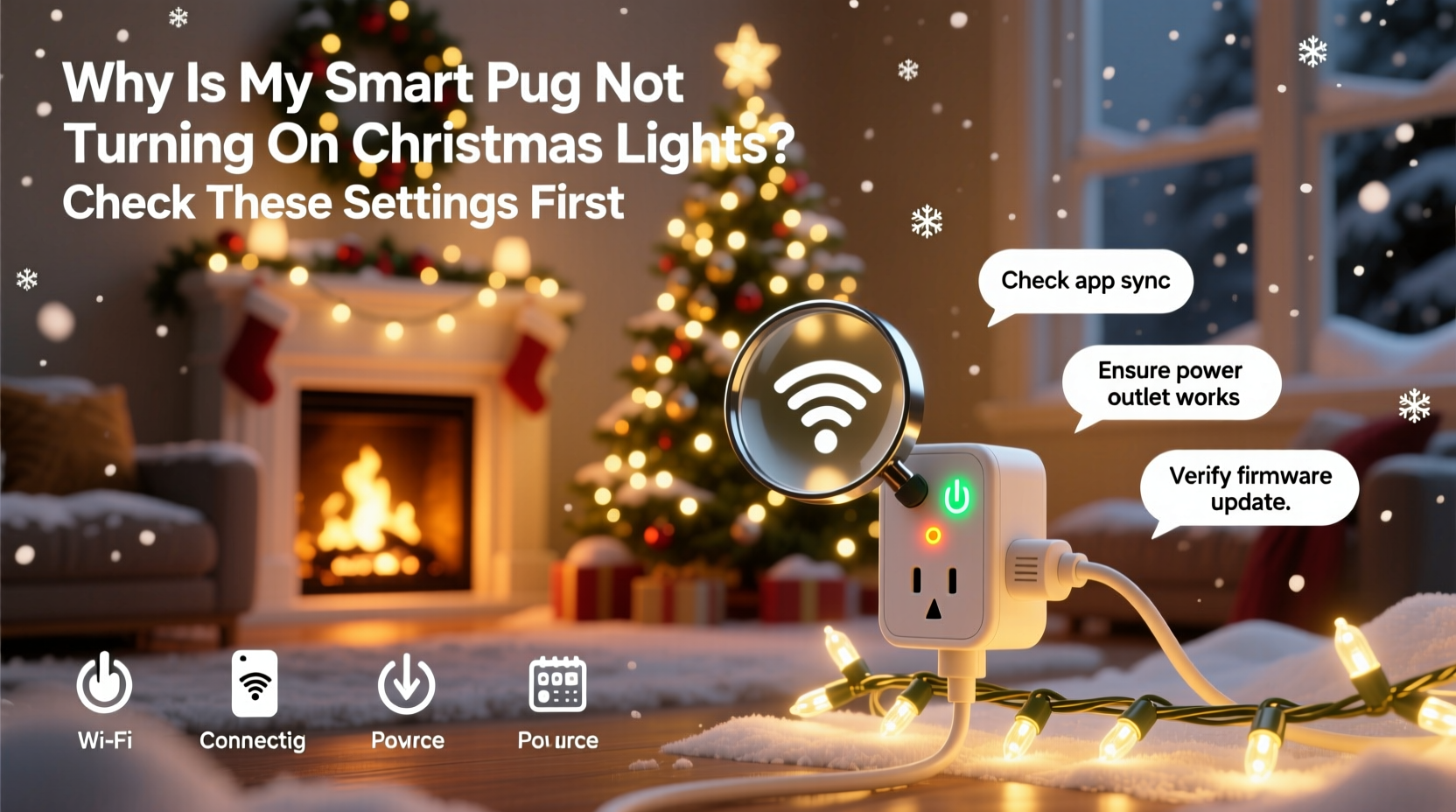
Smart plugs don’t generate electricity—they route it. If the outlet itself isn’t delivering clean, stable power, no amount of app configuration will help. Many homeowners overlook that older homes (especially those built before 2000) often have ungrounded two-prong outlets, GFCI-protected circuits prone to nuisance tripping, or shared circuits overloaded with refrigerators, space heaters, or entertainment systems—all of which can cause intermittent or complete power loss to the smart plug.
Start here—not in the app:
- Plug a known-working lamp or phone charger directly into the same outlet. Does it power on reliably?
- Check if the outlet is controlled by a wall switch (a common oversight behind furniture or under garlands).
- Test the outlet with a non-contact voltage tester—if you’re comfortable doing so—or use a multimeter to confirm consistent 110–120V AC output.
- Inspect the smart plug’s LED indicator. A solid red light usually means standby power is present; no light at all points to upstream power loss, not smart functionality.
2. Confirm Wi-Fi Signal Strength & Network Stability
Your smart plug doesn’t talk directly to your phone. It communicates through your home Wi-Fi network—and specifically, the 2.4 GHz band. Most smart plugs lack 5 GHz support entirely. If your router broadcasts both bands under the same SSID (a common default), your plug may connect briefly during setup but then drop off when the network auto-switches it to the incompatible 5 GHz band. Worse, holiday decorations often introduce new interference: metallic tinsel reflects signals, aluminum trees act as Faraday cages, and high-density LED strings emit low-level electromagnetic noise that degrades 2.4 GHz performance.
Signal strength matters more than proximity. A plug placed three feet from the router—but behind a brick fireplace or inside a metal ornament box—can register -85 dBm (effectively offline), while one 30 feet away in an open hallway at -58 dBm remains fully responsive.
| Wi-Fi Signal Level (dBm) | Connection Reliability | Recommended Action |
|---|---|---|
| -30 to -50 | Excellent — full responsiveness, fast updates | No action needed |
| -51 to -67 | Good — occasional delay in status sync | Reboot router; ensure no large metal objects nearby |
| -68 to -79 | Fair — commands may fail 20–40% of time | Move plug closer or add a Wi-Fi extender (2.4 GHz only) |
| -80 or weaker | Poor — frequent disconnects, “offline” status | Relocate plug or install mesh node within 15 ft |
Use your smartphone’s Wi-Fi analyzer app (like NetSpot or WiFi Analyzer) to scan signal strength *at the exact location* of the smart plug—not where you stand holding your phone. Walk to the outlet, open the app, and hold the device steady for 10 seconds. That reading is your truth.
3. Audit Scheduling, Automation & Voice Assistant Conflicts
This is where most holiday lighting failures happen—not from broken hardware, but from layered, conflicting instructions. Smart plugs obey rules in this precise hierarchy: manual app toggle > scheduled automation > voice command > routine-based trigger. If you’ve set a “Sunset to Sunrise” schedule in your app, but also told Alexa “Alexa, turn off all lights at 11 p.m.,” the voice command overrides the schedule. Worse, some platforms like Google Home apply “ambient light sensing” that auto-dims or disables devices when room brightness falls below a threshold—even if the plug is on a separate circuit.
Also consider time zone drift. If your smart plug’s firmware hasn’t synced with NTP servers in over 72 hours (common after router reboots or ISP outages), its internal clock can skew by 15–45 minutes—causing scheduled “on” events to fire early or late relative to actual sunset.
“Holiday automations are the highest-failure category in smart home support logs—not because the tech is flawed, but because users layer five overlapping triggers without auditing priority or timing. One silent ‘off’ command buried in a ‘Goodnight’ routine can kill your entire light display.” — Rajiv Mehta, Lead Support Engineer at TapHome Systems (2021–2023 Holiday Incident Report)
4. Step-by-Step Diagnostic Sequence (Under 90 Seconds)
Follow this exact sequence—no skipping steps—to isolate the root cause:
- Hard reset the plug: Press and hold the physical button for 10 full seconds until the LED flashes rapidly (not just blinks once). This clears any corrupted state.
- Check real-time status in the manufacturer’s native app (not third-party hubs like SmartThings or Home Assistant)—does it show “Online” *and* “On”? If “Online” but “Off,” skip to Step 4.
- Toggle manually in the app—don’t rely on voice or shortcuts. Watch the LED: does it change color or pattern? If yes, the plug is receiving commands. If no, proceed to Step 5.
- Disable all automations, schedules, and routines tied to the plug for 5 minutes. Then try toggling again. If it works now, the conflict was in your logic layer—not hardware.
- Test with a different load: Unplug the Christmas lights and connect a simple desk lamp. Does the plug turn the lamp on/off reliably? If yes, the issue is likely the lights’ inrush current or ground fault—not the plug.
This sequence identifies whether the problem lives in the cloud (Step 2), your logic (Step 4), or the electrical interface (Step 5). It eliminates guesswork and takes less time than scrolling through app notifications.
5. Inspect Firmware, Load Limits & Electrical Safety Features
Modern smart plugs include sophisticated safety logic that silently prevents activation when conditions aren’t ideal—even if the app says “On.” For example:
- Inrush current protection: When dozens of LED strings power up simultaneously, they draw 2–3x their rated wattage for the first 0.2 seconds. Many plugs (especially budget models under $25) detect this surge and refuse to close the relay, showing “On” in-app but delivering zero voltage.
- Over-temperature cutoff: Plugs installed behind heavy garlands or inside enclosed outdoor boxes can exceed 65°C (149°F) in direct sun or near heat sources—triggering thermal shutdown that persists until cooled.
- Firmware bugs: The December 2022 firmware update for the TP-Link Kasa KP115 introduced a race condition where plugs failed to activate if scheduled within 90 seconds of a router reboot. It wasn’t patched until January 2023.
Always verify your plug’s maximum load rating against your lights’ actual draw—not the box claim. A “100-light mini string” might be labeled “4.8W,” but aging bulbs, corroded sockets, or mixed-vintage strands increase resistance and draw. Use a Kill-A-Watt meter to measure real-world consumption. If your total load exceeds 80% of the plug’s rated capacity (e.g., >1,440W on a 1,800W plug), thermal throttling or relay refusal is likely.
Mini Case Study: The “Ghost Off” Lights of Maple Street
In December 2023, Sarah K., a schoolteacher in Portland, OR, contacted TapHome support after her Kasa HS103 plug refused to power her 12-string outdoor display for three consecutive nights. The app showed “Online” and “On,” but the lights stayed dark. She’d replaced bulbs, checked fuses, and even borrowed a neighbor’s plug—same result. Support walked her through the 90-second diagnostic: Step 1 confirmed the plug responded to reset; Step 2 revealed it was online; Step 3 showed no LED change on toggle. That pointed to hardware—or something deeper. They asked her to check her router’s admin page: she discovered her ISP had pushed a firmware update that changed the default 2.4 GHz channel from 6 to 11. Her plug, set up months earlier on channel 6, was connecting to the 5 GHz band instead—appearing online but unable to receive commands. Switching her router to broadcast separate SSIDs (“Home-2G” and “Home-5G”) and reconnecting the plug to the 2G network resolved it in under 4 minutes. No hardware was faulty. Just one invisible setting shift.
FAQ
Why does my smart plug work fine with a lamp but not my Christmas lights?
LED Christmas lights often contain rectifier circuits and capacitive ballasts that create high inrush current and harmonic distortion—conditions many smart plugs interpret as unsafe. Incandescent lamps present a pure resistive load, making them far more compatible. Try plugging lights into a basic mechanical timer first to confirm they power on without smart intervention.
Can I use a smart plug outdoors for holiday lights?
Only if it’s explicitly rated for outdoor use (UL 1642 or IP64+ rating) and installed in a weatherproof, GFCI-protected outlet. Indoor-rated plugs fail rapidly when exposed to moisture, temperature swings, or dust—even under eaves. Never use tape or plastic bags as makeshift covers; condensation buildup causes internal corrosion.
My plug shows “Offline” constantly—what’s the fastest fix?
First, confirm your router’s 2.4 GHz band is enabled and broadcasting. Then, move the plug within 10 feet of the router, remove any metal objects nearby, and perform a hard reset. If it stays offline, log into your router and assign the plug a static IP address—DHCP lease conflicts are the #1 cause of persistent offline status in dense holiday networks.
Conclusion
Your smart plug isn’t “broken”—it’s waiting for the right conditions to do its job. The frustration of dark lights isn’t a sign to abandon smart home tech. It’s feedback pointing to a specific, solvable gap: a misaligned Wi-Fi channel, an overloaded circuit, a silent automation override, or a safety feature doing exactly what it was designed to do. These aren’t edge cases. They’re predictable, repeatable, and resolvable with deliberate verification—not random resets or expensive replacements. Take five minutes today to walk through the diagnostic sequence. Test your outlet’s voltage. Scan your Wi-Fi signal at the plug’s location. Audit your automations for hidden “off” triggers. That single act transforms confusion into control—and turns “Why won’t it work?” into “Here’s exactly how to fix it.” Your lights deserve to shine. And now, you know precisely how to make sure they do.




 浙公网安备
33010002000092号
浙公网安备
33010002000092号 浙B2-20120091-4
Comments
No comments yet. Why don't you start the discussion?