
Smart speakers have become central to modern homes, handling everything from weather updates to music streaming and voice-controlled home automation. But when your device starts echoing—repeating your commands or distorting audio—it disrupts the experience and raises concerns about functionality. Audio feedback isn’t just annoying; it can signal deeper issues in setup, environment, or firmware. Understanding the root causes and knowing how to resolve them ensures your smart speaker performs reliably.
Unlike traditional speakers, smart speakers process sound input and output simultaneously, making them prone to acoustic feedback loops under certain conditions. The echo may manifest as a delayed repeat of your voice, robotic repetition, or garbled playback during calls or media streaming. Fortunately, most echo problems are fixable with systematic troubleshooting.
Understanding How Smart Speakers Work—and Why They Echo
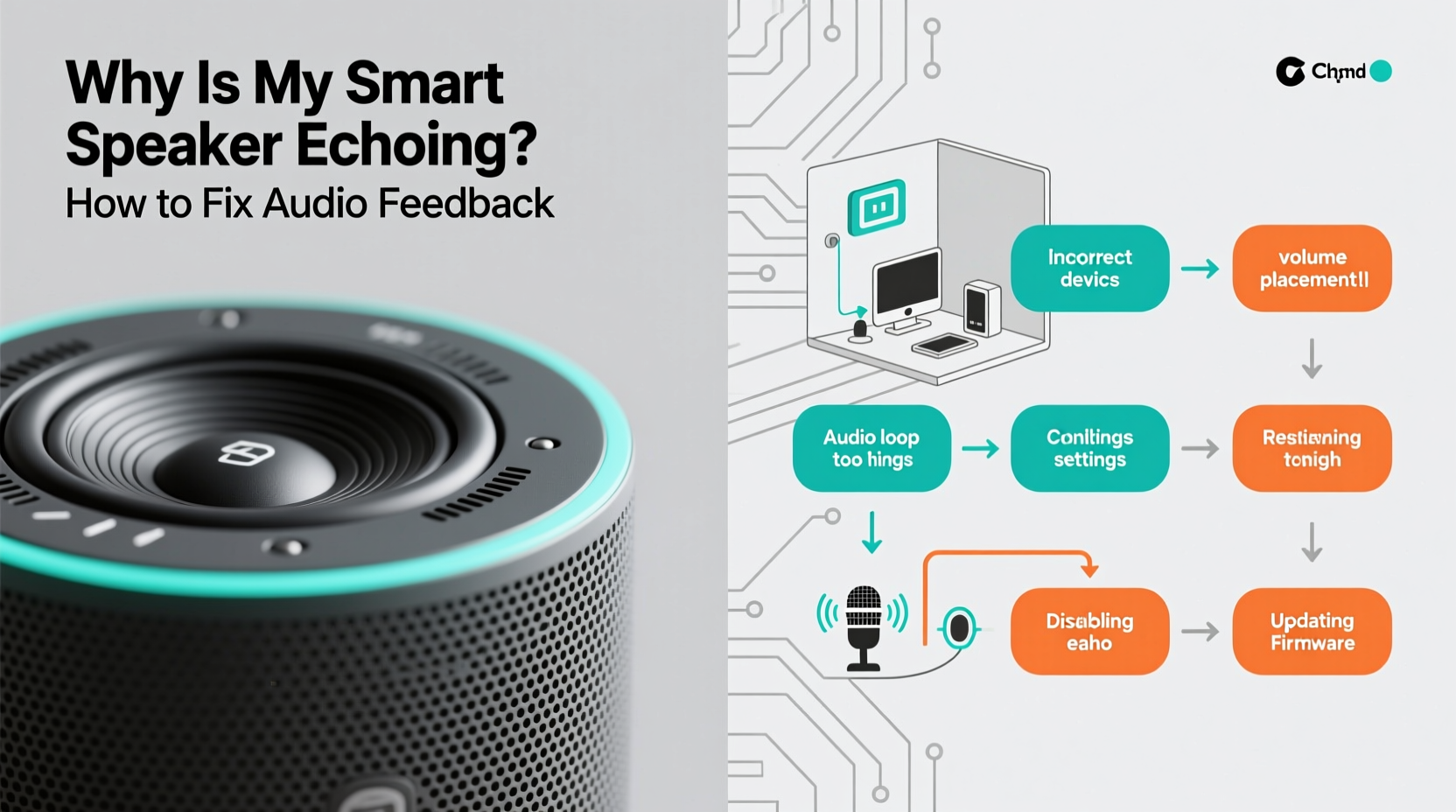
Smart speakers use built-in microphones to detect wake words (like “Alexa,” “Hey Google,” or “Siri”) and respond via internal speakers. This constant listening-and-response cycle creates a potential feedback loop if not managed correctly. When the speaker plays audio that the microphone picks up again, it may reprocess and re-output that sound, creating an echo.
Common technical contributors include:
- Acoustic feedback: Sound from the speaker re-enters the microphone, especially in small or reflective rooms.
- Multiple devices activated: More than one smart speaker responds to the same command.
- Software glitches: Firmware bugs or outdated software may impair audio processing.
- Hardware sensitivity: Overly sensitive microphones can pick up speaker output as new input.
Environmental factors also play a major role. Hard surfaces like glass, tile, or bare walls reflect sound waves, increasing the chance of feedback. Poor speaker placement—such as near a wall corner or inside a cabinet—can amplify these effects.
“Echoing in smart speakers is rarely a hardware defect. In over 70% of cases, it’s caused by environmental acoustics or overlapping device responses.” — Dr. Alan Reyes, Senior Acoustic Engineer at Sonos Labs
Step-by-Step Guide to Diagnose and Fix Echo Issues
Resolving echo requires isolating the cause. Follow this structured approach to identify and eliminate the problem efficiently.
- Test with one device at a time. Disable all but one smart speaker. Issue a voice command and observe if the echo persists. If it stops, the issue likely stems from multiple devices responding.
- Change the room location. Move the speaker away from walls, mirrors, or large glass surfaces. Place it at ear level in an open area to reduce sound reflection.
- Lower speaker volume temporarily. High volume increases the chance of microphone pickup. Reduce output by 20–30% and test again.
- Check for software updates. Open your smart assistant app (e.g., Alexa, Google Home) and verify the device firmware is current.
- Reboot the device. Unplug the speaker for 30 seconds, then reconnect. This clears temporary memory glitches.
- Perform a factory reset (if needed). Use the app or physical button combination to reset the device, then set it up again.
Common Causes and Their Solutions
Different scenarios create different types of echoes. Identifying the pattern helps target the right fix.
| Issue Type | Possible Cause | Solution |
|---|---|---|
| Delayed voice repetition | Microphone picking up speaker output | Reposition speaker, reduce volume, enable echo cancellation in app settings |
| Robotic double-response | Two devices answering the same command | Disable multi-room groups or rename devices to avoid overlap |
| Static or buzzing echo | Electrical interference or damaged hardware | Replace power adapter, test on different outlet, contact support |
| Call audio loops | Poor noise suppression during voice calls | Use call mode settings, ensure only one device joins the call |
| No echo during music, only voice | Firmware bug in voice processing | Update software, disable & re-enable wake word detection |
Case Study: The Kitchen Speaker That Wouldn’t Stop Repeating
A homeowner in Portland reported that her Google Nest Mini repeated every command twice, sometimes with a metallic tone. The device was mounted inside a kitchen cabinet with the door slightly open. Initial attempts to reboot and update failed. Upon inspection, it became clear that the hard wood surfaces and enclosed space created strong sound reflections. The speaker’s output bounced back into its mic array, tricking it into thinking a second command had been issued.
The solution? Relocating the speaker to an open shelf, away from cabinets and sinks. Volume was reduced to 50%, and the “Far-Field Voice Recognition” setting was adjusted in the Google Home app. Within minutes, the echo disappeared. This case underscores how environment—not hardware—is often the real culprit.
Optimizing Settings to Prevent Future Echo
Manufacturers build in features to minimize feedback, but they’re not always enabled by default. Adjusting key settings enhances performance and reduces echo risk.
- Enable echo cancellation: Found under audio or microphone settings in most apps. This uses algorithms to suppress feedback before it occurs.
- Adjust microphone sensitivity: Some devices allow you to fine-tune mic responsiveness. Lower sensitivity reduces false triggers.
- Use “Do Not Disturb” during calls: Schedule quiet periods or manually disable other speakers when making voice calls.
- Customize wake word response: Choose less common wake phrases to reduce accidental activation by nearby devices.
Device-Specific Fixes
Different platforms offer unique tools. Here’s how to address echo based on your brand:
- Amazon Echo: In the Alexa app, go to Settings > Device Settings > [Your Device] > Accessibility > Enable “Reduce Call Echo.” Also, disable “Drop In” if unused.
- Google Nest: Open Google Home app > Device settings > Sound > Turn on “Speech Enhancement” and “Noise Cancellation.”
- Apple HomePod: Ensure “Personal Requests” is on, and check that “Audio Feedback” under Siri settings isn’t set to “Always.”
These settings help the device distinguish between user speech and its own output, reducing misinterpretations.
Preventive Checklist: Keep Your Smart Speaker Echo-Free
Maintain consistent performance with this routine checklist:
- ✅ Position speaker in open space, away from walls and reflective surfaces
- ✅ Limit volume to 60% or lower in small rooms
- ✅ Update firmware monthly or enable auto-updates
- ✅ Test microphone sensitivity quarterly using voice commands
- ✅ Disable unused devices during voice calls or video chats
- ✅ Clean speaker grille gently with a dry microfiber cloth to prevent dust buildup affecting sound
- ✅ Avoid placing near TVs, radios, or other audio sources that may trigger false wake-ups
“Just like tuning a guitar, smart speakers need periodic calibration. A quick monthly check prevents long-term issues.” — Lena Patel, Smart Home Consultant at TechHaven
Frequently Asked Questions
Can Wi-Fi interference cause audio echo?
No, Wi-Fi issues typically cause delays or disconnections, not echo. However, poor connectivity can lead to fragmented audio playback, which might be mistaken for feedback. Ensure your speaker has strong signal strength (minimum -65 dBm) for optimal performance.
Why does my smart speaker echo only during phone calls?
This often happens when both your phone and smart speaker are active during a call. The speaker picks up audio from the phone’s speaker and repeats it. To fix this, either disconnect the smart speaker from the call or turn off its microphone during mobile calls.
Is echo a sign my smart speaker is hacked?
Almost never. Echoing is overwhelmingly due to technical or environmental factors. Signs of compromise include unexplained recordings, unauthorized purchases, or unfamiliar devices on your account—none of which relate directly to audio feedback.
Final Thoughts: Take Control of Your Smart Audio Experience
An echoing smart speaker doesn’t mean you need a replacement. Most issues stem from simple oversights in placement, settings, or device coordination. By understanding how audio feedback forms and applying targeted fixes, you restore clarity and reliability to your voice assistant.
The convenience of hands-free control shouldn’t come at the cost of constant repetition or distorted sound. With proper setup and regular maintenance, your smart speaker can deliver crisp, responsive interactions every time. Don’t tolerate persistent echo—diagnose, adjust, and optimize.




 浙公网安备
33010002000092号
浙公网安备
33010002000092号 浙B2-20120091-4
Comments
No comments yet. Why don't you start the discussion?