
Smart speakers have transformed the way we communicate, stream music, and manage our homes. But nothing disrupts the experience faster than an echo during a call. Whether you're catching up with family or joining a remote meeting, hearing your own voice bounce back can be frustrating and unprofessional. The good news? Most echo issues are fixable with simple troubleshooting steps. Understanding the root causes—ranging from hardware placement to software glitches—can help you eliminate the problem for good.
Why Smart Speakers Echo During Calls: Common Causes
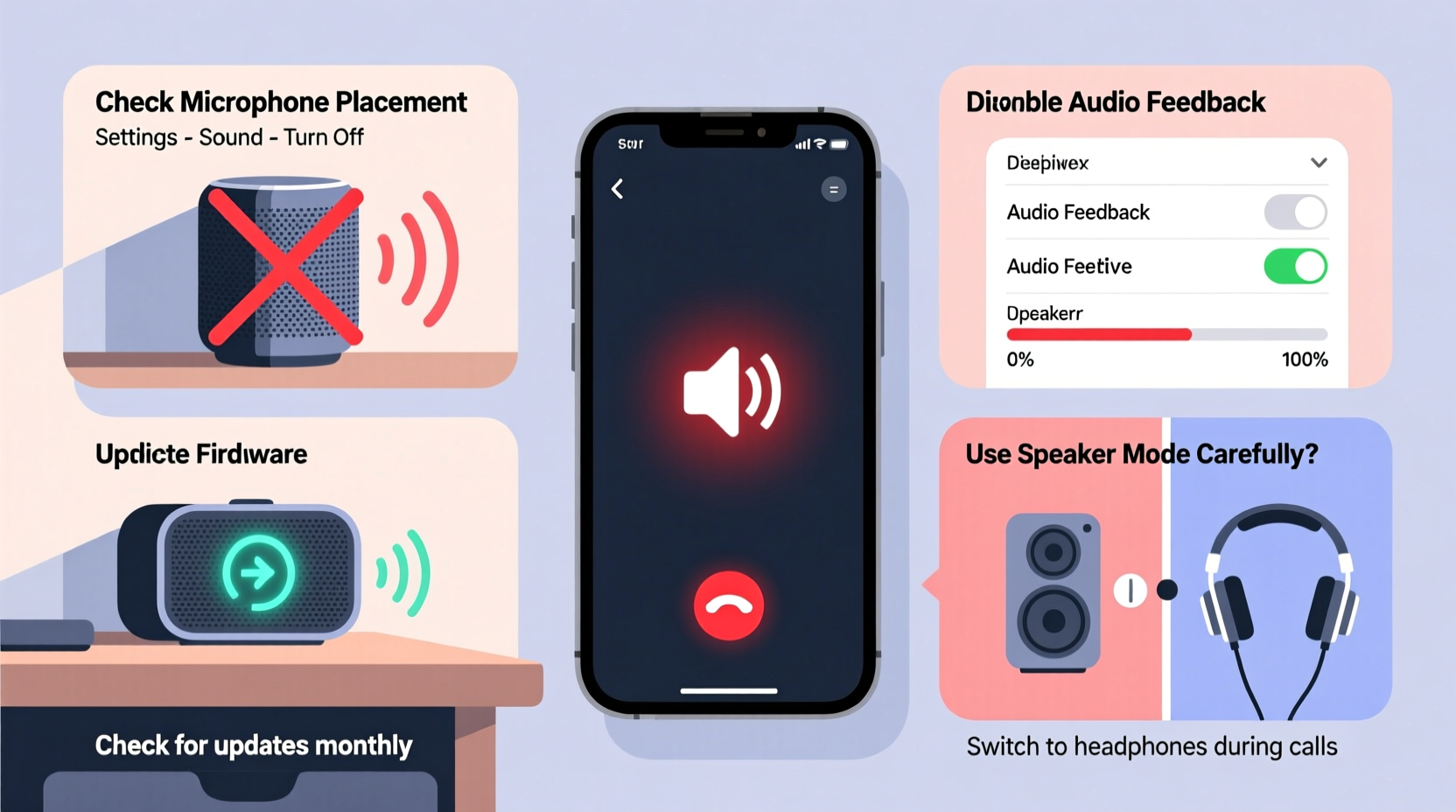
An echo occurs when sound output from the speaker is picked up again by the microphone, creating a feedback loop. In the context of smart speakers, this typically happens during voice calls or video chats where both input (microphone) and output (speaker) are active simultaneously. While modern devices use echo cancellation algorithms, several factors can overwhelm or bypass these systems.
- Acoustic Feedback Loop: The speaker plays sound, which is then captured by its own microphone, especially in small or reflective rooms.
- Poor Room Acoustics: Hard surfaces like glass, tile, or bare walls reflect sound, increasing the chance of echo.
- Speaker-Microphone Proximity: If multiple smart devices are close together, one may pick up audio from another’s speaker.
- Firmware or Software Bugs: Outdated or buggy firmware can impair echo cancellation features.
- High Speaker Volume: Excessive volume increases the likelihood of microphone pickup.
- Duplication of Audio Devices: Having more than one smart speaker active in the same call can create overlapping audio streams.
Step-by-Step Guide to Eliminate Echo on Your Smart Speaker
Follow this systematic approach to identify and resolve the source of the echo. These steps apply to most major brands, including Amazon Echo, Google Nest, and Apple HomePod.
- Lower the speaker volume. Start by reducing the playback level. High volume forces microphones to pick up sound more easily. Test the call at 50% volume and adjust upward only if necessary.
- Reposition the device. Move the speaker away from walls, mirrors, or other reflective surfaces. Place it at ear level and in the center of the room if possible.
- Disable nearby smart devices. If you have multiple speakers in the same room, disable all but one during calls. This prevents cross-talk and overlapping audio capture.
- Check for firmware updates. Go into your smart speaker’s app (e.g., Alexa or Google Home) and ensure the device is running the latest software version. Updates often include audio performance improvements.
- Restart the device. Unplug the speaker for 30 seconds, then plug it back in. This clears temporary memory glitches that might affect echo cancellation.
- Test with a different call type. Try making a standard voice call versus a video call. Some platforms handle echo better than others.
- Use a headset or external mic. For critical calls, connect Bluetooth headphones with a built-in microphone to bypass the speaker’s mic entirely.
Do’s and Don’ts When Troubleshooting Echo Issues
| Do’s | Don’ts |
|---|---|
| Place the speaker in an open area, away from corners | Put the speaker directly against a wall or inside a cabinet |
| Keep volume at moderate levels during calls | Maximize volume to compensate for poor acoustics |
| Update firmware regularly | Ignore pending software updates |
| Use only one smart speaker per call | Activate multiple speakers in the same room during a call |
| Add soft furnishings (rugs, curtains) to reduce reflections | Leave the room empty and echo-prone |
Real-World Example: How Sarah Fixed Her Echoing Echo Dot
Sarah, a remote worker in Chicago, began experiencing echo every time she joined Zoom meetings through her Echo Dot. Colleagues reported hearing her voice twice, slightly delayed. She first assumed it was her internet connection, but after testing speed and stability, the issue persisted.
She followed a methodical process: lowering the volume didn’t help, but moving the device from her bookshelf (lined with glass doors) to the middle of her desk reduced the echo significantly. Still, faint repetition remained. Then, she realized her second Echo Dot in the bedroom was also online and set to receive announcements. Disabling it during meetings eliminated the echo completely.
The real culprit? Two devices picking up the same audio stream. Once isolated, her primary Echo Dot functioned flawlessly. This case highlights how environmental setup and multi-device interference can combine to create persistent echo issues—even when individual components are working correctly.
“Most echo complaints we see stem not from hardware failure, but from configuration and environment. A well-placed speaker with updated firmware resolves 90% of cases.” — David Lin, Senior Audio Engineer at SmartHome Labs
Advanced Fixes for Persistent Echo Problems
If basic troubleshooting doesn’t resolve the echo, consider these deeper solutions:
Reset Network Settings
Network latency or packet loss can interfere with real-time audio processing. Reboot your router and reconnect the smart speaker to ensure stable communication between the device and cloud servers responsible for echo cancellation.
Factory Reset the Device
When software corruption is suspected, a factory reset can restore default settings. In the Alexa or Google Home app, go to device settings and select “Factory Reset.” Note: You’ll need to reconfigure Wi-Fi and preferences afterward.
Use a Wired Connection (If Available)
Some high-end smart speakers support Ethernet via a hub or adapter. A wired connection reduces latency and improves synchronization between audio input and output, enhancing echo suppression.
Switch Calling Platforms
Not all calling apps use the same audio processing algorithms. For example, calling via WhatsApp or Skype may produce cleaner results than using built-in voice calling features. Test alternatives to see if the echo persists across platforms.
Checklist: Quick Fix Routine for Smart Speaker Echo
Use this checklist the next time you notice echo during a call. It takes less than five minutes and covers the most common causes.
- ✅ Lower speaker volume to 40–60%
- ✅ Reposition device away from walls and reflective surfaces
- ✅ Disable other smart speakers in the vicinity
- ✅ Restart the smart speaker (unplug for 30 seconds)
- ✅ Check for and install firmware updates
- ✅ Test the call with a different contact or platform
- ✅ Confirm no other audio devices (like TVs or phones) are broadcasting nearby
Frequently Asked Questions
Can Wi-Fi signal strength cause echo on smart speakers?
Indirectly, yes. Weak or unstable Wi-Fi can introduce audio lag, which disrupts the timing required for digital echo cancellation. A delayed audio response may cause the microphone to pick up delayed output, creating perceived echo. Ensure your speaker has strong signal strength—ideally above -65 dBm—and consider using a Wi-Fi extender if needed.
Does background noise contribute to echo?
Background noise itself doesn’t cause echo, but it can overload the microphone and reduce the effectiveness of noise and echo cancellation algorithms. Loud environments force the system to work harder, potentially allowing feedback loops to slip through. Use your speaker in quiet spaces when possible, and avoid running appliances like fans or vacuums during calls.
Will covering the microphone stop the echo?
No—this will disable voice input entirely, making calls impossible. Instead of blocking the mic, address the root cause: acoustic feedback. Covering microphones is not a safe or functional solution and may damage the device’s sensors over time.
Final Thoughts: Clear Audio Is Within Reach
Dealing with echo on your smart speaker doesn’t require technical expertise—just a clear understanding of how sound interacts with devices and environments. Most issues stem from placement, volume, or multi-device interference, all of which are easy to correct. By applying consistent best practices—updating firmware, optimizing room layout, and managing connected devices—you can enjoy crisp, professional-quality calls every time.
Remember, smart speakers rely on sophisticated software to cancel echo in real time. When that system is overwhelmed by poor conditions, it falters. Your role is to create an environment where that technology can work effectively. Small adjustments often yield dramatic improvements.




 浙公网安备
33010002000092号
浙公网安备
33010002000092号 浙B2-20120091-4
Comments
No comments yet. Why don't you start the discussion?