
Smart speakers have become central to modern homes—handling everything from setting alarms to controlling lights and playing music. But when yours starts glitching only at night, it’s more than an annoyance; it disrupts routines, affects sleep quality, and undermines trust in the device. Unlike random daytime hiccups, nighttime issues often follow a pattern, suggesting specific environmental or network-related causes. Understanding why this happens—and how to fix it—is essential for restoring seamless functionality.
This guide dives into the real-world reasons behind nocturnal smart speaker glitches, backed by technical insight and user experiences. From Wi-Fi congestion to power fluctuations and software quirks, we’ll explore what triggers these problems and deliver practical, tested solutions you can apply immediately.
Why Nighttime Glitches Occur: The Hidden Triggers
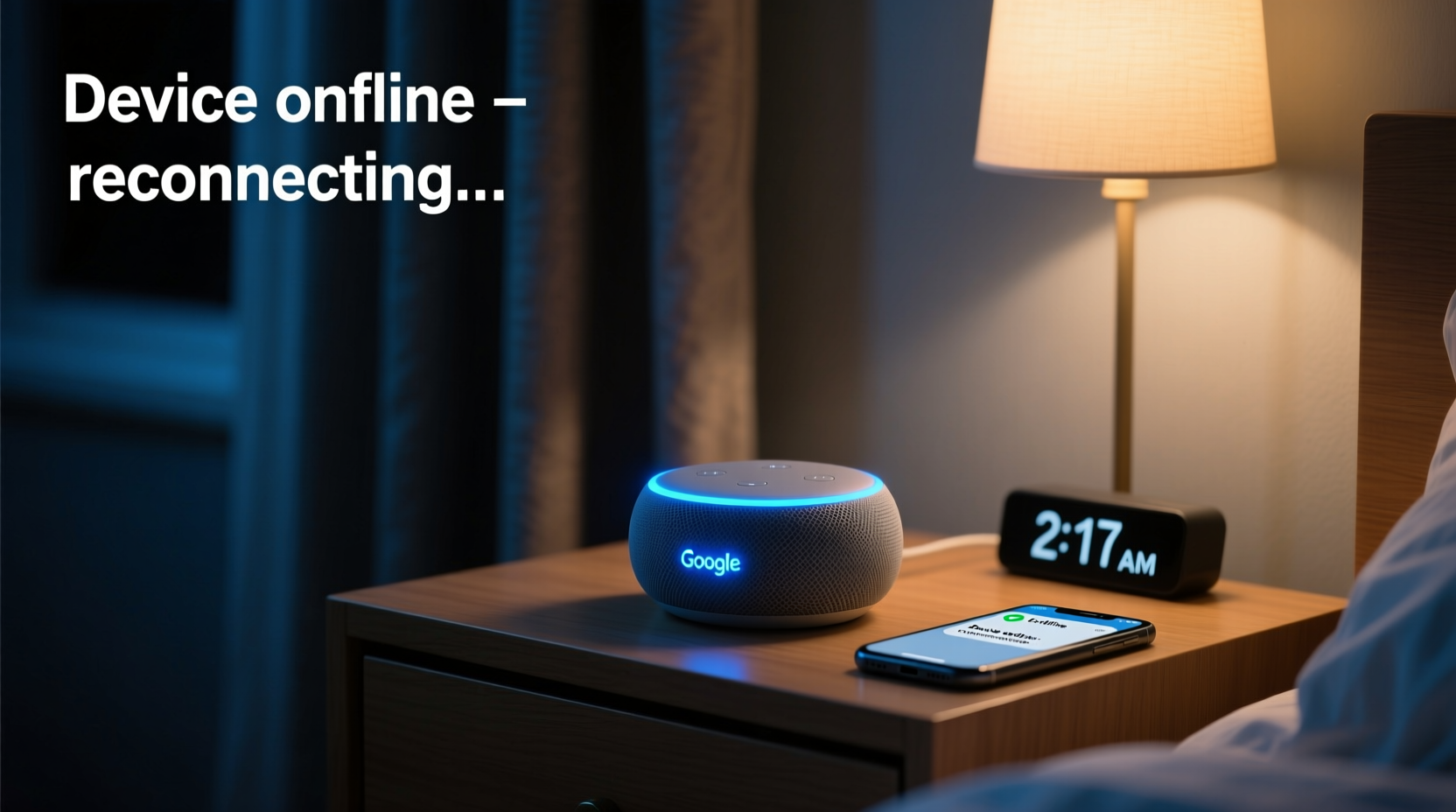
Glitches such as sudden voice assistant errors, audio distortion, unresponsive commands, or random reboots are more likely to occur at night due to a combination of usage patterns, network load, and home infrastructure. During evening hours, household internet activity peaks. Multiple devices stream video, download updates, or sync data—especially after 7 PM. This surge increases bandwidth demand and can degrade signal quality, particularly for low-power devices like smart speakers.
Another factor is background software maintenance. Many smart speakers and their associated apps perform automatic updates, voice model syncing, or cloud backups during off-peak hours—typically between 10 PM and 4 AM. If your speaker attempts to process these tasks while also responding to voice commands, it may struggle with limited processing power, leading to stuttering or freezing.
Electrical interference is another overlooked culprit. At night, appliances like refrigerators, HVAC systems, or dimmer switches cycle on and off. These generate electromagnetic noise that can interfere with the speaker’s internal electronics or its Wi-Fi reception, especially if placed near such devices.
Common Causes and How to Diagnose Them
Before jumping into fixes, identify the root cause. Not all glitches stem from the same issue. Below are five frequent sources of nighttime malfunctions and ways to test each one:
- Wi-Fi Congestion: Test your network speed at different times using a mobile app like Speedtest by Ookla. If speeds drop significantly at night, your router may be overwhelmed.
- Outdated Firmware: Check your speaker’s settings in the companion app (e.g., Alexa, Google Home) to see if a pending update exists. Delayed updates can cause instability.
- Power Supply Issues: Try plugging the speaker into a different outlet using the original adapter. Voltage drops or poor-quality chargers can lead to erratic behavior.
- Background Syncing: Review your app settings for options labeled “sync,” “backup,” or “auto-update.” Disabling non-critical background tasks may reduce strain.
- Interference from Other Devices: Temporarily turn off nearby electronics like microwaves, cordless phones, or baby monitors to see if glitches stop.
A simple way to isolate the problem is to run a “quiet night” test: disconnect all non-essential devices from your Wi-Fi network after 9 PM and observe the speaker’s behavior. If glitches cease, network overload is likely the cause.
Step-by-Step Guide to Fix Nighttime Smart Speaker Glitches
Follow this structured approach to resolve persistent issues. Each step builds on the previous one, ensuring no stone is left unturned.
- Restart Your Smart Speaker and Router
Unplug both devices for 30 seconds, then power them back on. This clears temporary memory and resets network connections. Wait two minutes before testing voice commands. - Update Firmware and App Software
Open your smart speaker’s app (e.g., Amazon Alexa, Google Home). Navigate to Settings > Device Settings > About > Check for Updates. Install any available firmware updates. Also ensure your phone/tablet app is up to date via the App Store or Google Play. - Optimize Wi-Fi Signal Strength
Place your router centrally and avoid obstructions like metal furniture or thick walls. Use the app’s signal strength indicator (usually under “Device Health”) to confirm your speaker has strong reception (preferably above 70%). Consider a Wi-Fi extender if the signal is weak. - Switch to 5 GHz Band (If Supported)
Dual-band routers offer 2.4 GHz (longer range, more interference) and 5 GHz (faster, less crowded). Connect your smart speaker to the 5 GHz band if it supports it. Note: not all models do, but newer ones like Echo 4th Gen+ or Nest Audio are compatible. - Schedule Off-Peak Usage or Disable Nightly Syncing
In your app settings, look for options to delay updates until daytime. For example, in Google Home, go to Settings > Assistant > Device Settings > [Your Speaker] > Software Update Preferences and disable automatic updates at night. - Use Quality-of-Service (QoS) Settings on Your Router
Log into your router’s admin panel (usually via 192.168.1.1). Enable QoS and prioritize traffic for your smart speaker’s IP or MAC address. This ensures consistent bandwidth even during high-use periods. - Replace Faulty Power Adapters
Never use third-party chargers unless they’re certified. A mismatched voltage can cause overheating or intermittent shutdowns. Stick to the manufacturer-supplied adapter.
“Many nighttime glitches aren’t device failures—they’re symptoms of network strain or outdated firmware. Addressing these often resolves over 80% of reported issues.” — David Lin, Senior Network Engineer at IoT Solutions Group
Do’s and Don’ts: Quick Reference Table
| Do | Don’t |
|---|---|
| Place the speaker away from appliances and mirrors | Put it near microwaves or refrigerators |
| Use the original power adapter | Share outlets with high-draw devices like space heaters |
| Enable automatic updates—but set them for daytime | Ignore firmware notifications for weeks |
| Test with one device connected to Wi-Fi at night | Assume the problem is random without isolating variables |
| Reset the speaker if glitches persist after troubleshooting | Factory reset without backing up routines and preferences |
Real-World Example: How Sarah Fixed Her Echo’s Midnight Glitches
Sarah, a teacher from Portland, noticed her Amazon Echo Dot would cut out every night around 10:30 PM. It would either mishear commands or stop responding entirely. She tried restarting it multiple times with no lasting improvement. After reading online forums, she suspected Wi-Fi issues but wasn’t sure how to verify.
She downloaded the Alexa app and checked the device health section, which showed a weak signal (38%) despite being only 15 feet from the router. Investigating further, she realized her router was tucked behind a bookshelf and shared a power strip with her desktop computer and gaming console—all active at night.
She moved the router to a central table, switched the Echo to the 5 GHz network, and enabled QoS prioritization through her ISP’s router portal. Within two days, the glitches disappeared. “I didn’t realize how much other electronics were interfering,” she said. “Now it works perfectly—even when I ask for weather at midnight.”
Proactive Maintenance Checklist
Prevention is better than repair. Use this checklist monthly to keep your smart speaker running smoothly:
- ✅ Restart the speaker and router once per week
- ✅ Verify firmware is up to date
- ✅ Confirm strong Wi-Fi signal (above 70%)
- ✅ Clean dust from speaker grilles with a soft brush
- ✅ Review app permissions and disable unused skills/routines
- ✅ Audit connected devices on your network for security and load
- ✅ Ensure no new appliances or electronics have been added nearby
Frequently Asked Questions
Can LED lights or dimmer switches interfere with my smart speaker?
Yes. Cheap or poorly shielded LED bulbs and dimmer switches emit radio frequency interference (RFI), which can disrupt Wi-Fi signals in the 2.4 GHz band. Switch to reputable brands with FCC certification, or relocate the speaker at least three feet away from lighting fixtures.
Why does my speaker work fine during the day but glitch at night?
This typically points to increased network congestion or scheduled background processes. More devices come online in the evening, and cloud services often push updates overnight. Combine this with potential electrical interference from cycling appliances, and nighttime becomes the perfect storm for glitches.
Should I factory reset my smart speaker if it keeps glitching?
Only after exhausting other options. A factory reset erases all custom settings, including alarms, routines, and paired devices. However, if software corruption is suspected—such as repeated crashes after updates—it can be an effective last resort. Be sure to write down important configurations before proceeding.
Final Thoughts: Take Control of Your Smart Home Experience
Nighttime smart speaker glitches don’t have to be a mystery—or a permanent inconvenience. With a methodical approach, most issues can be diagnosed and resolved using tools and knowledge already within reach. The key is recognizing patterns, eliminating interference, and optimizing your home network for reliability rather than just speed.
These devices are designed to make life easier, not add stress after dark. By applying the fixes outlined here—from updating firmware to managing Wi-Fi bands and power sources—you reclaim control over your smart environment. Don’t tolerate inconsistent performance. Small adjustments today can lead to years of reliable service.




 浙公网安备
33010002000092号
浙公网安备
33010002000092号 浙B2-20120091-4
Comments
No comments yet. Why don't you start the discussion?