
Smart speakers have transformed the way we interact with technology at home. From playing music to controlling lights, they respond to our voices with impressive speed—when everything works. But when your device consistently mishears “Play jazz music” as “Call Jason,” or ignores you entirely, frustration builds quickly. Voice recognition errors aren’t just annoying—they can make a cutting-edge device feel useless.
The good news: most voice recognition problems are fixable. They rarely stem from hardware failure and instead result from environmental factors, user habits, or software settings. By understanding the root causes and applying targeted fixes, you can restore accuracy and reliability to your smart speaker’s listening ability.
Understanding Why Smart Speakers Mishear Commands
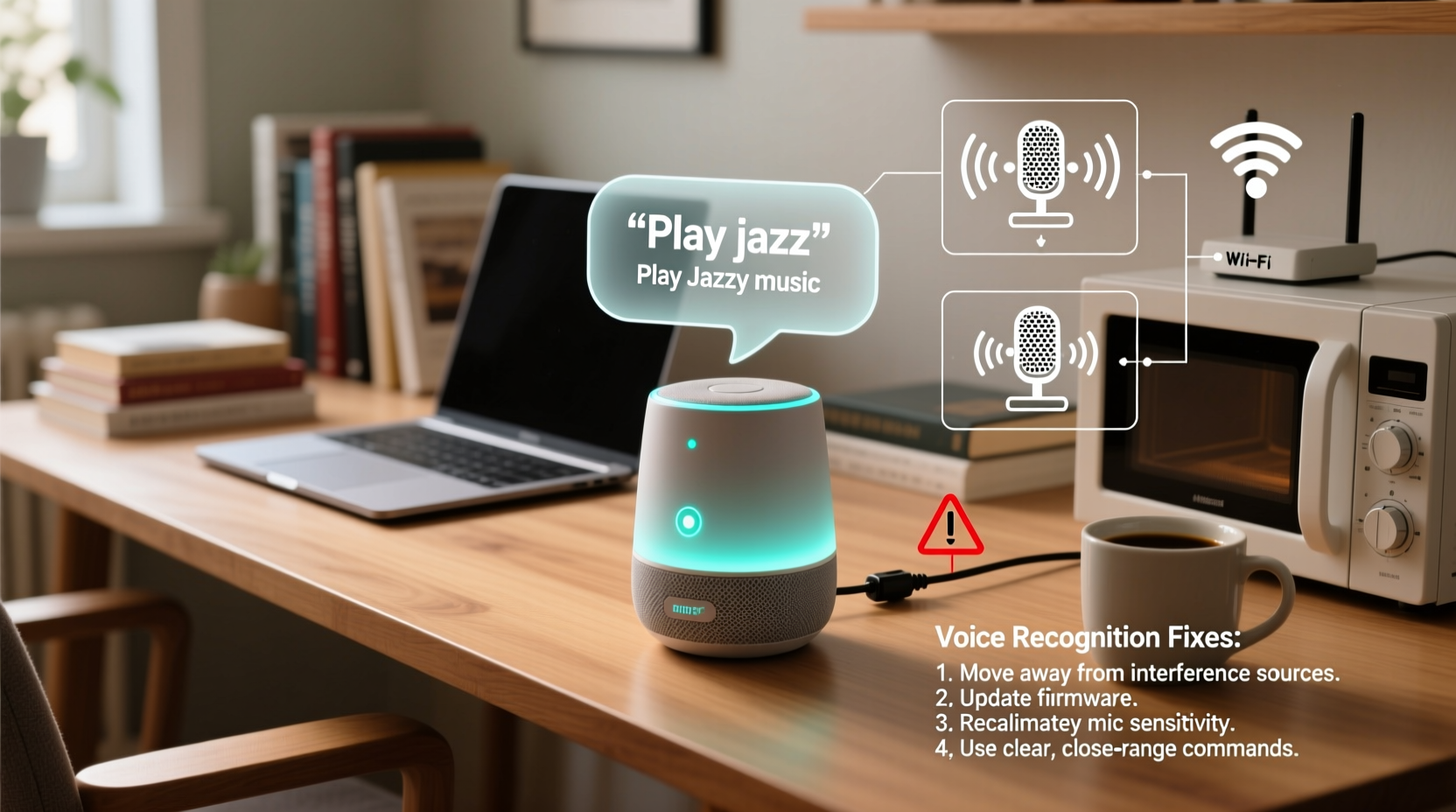
Voice assistants like Amazon Alexa, Google Assistant, and Apple Siri rely on complex algorithms to convert spoken language into actionable commands. These systems use automatic speech recognition (ASR), natural language processing (NLP), and machine learning models trained on vast datasets of human speech. Despite their sophistication, several real-world variables interfere with accurate interpretation.
Common culprits include background noise, microphone obstructions, distance from the device, regional accents, and even improper wake word detection. Over time, accumulated dust or firmware bugs can also degrade performance. The key is identifying which factor—or combination—is affecting your setup.
“Voice recognition isn’t perfect because human speech varies wildly in tone, speed, and accent. Devices must balance sensitivity with accuracy, which sometimes leads to false triggers or missed commands.” — Dr. Lena Patel, Speech Recognition Researcher at MIT Media Lab
Step-by-Step Guide to Fix Voice Recognition Issues
Follow this structured troubleshooting process to systematically eliminate potential causes. Most users see improvement within 20 minutes.
- Check for Physical Obstructions
Ensure the microphone ports aren’t covered by fabric, dust, or objects. Gently clean them with a dry cotton swab if needed. Avoid liquids or compressed air, which could damage internal components. - Reposition the Device
Place the speaker on an open surface, away from walls and corners. Ideal placement is at ear level, centered in frequently used rooms. Avoid placing it inside cabinets or behind furniture. - Reduce Background Noise
Turn off TVs, fans, or appliances generating constant sound. Even low-level white noise can confuse microphones trying to isolate voice patterns. - Test Your Internet Connection
Voice processing often happens in the cloud. Run a speed test; aim for at least 2 Mbps upload. Restart your router if latency exceeds 100ms. - Update Firmware and App Software
Open your smart assistant app (e.g., Alexa or Google Home). Check for pending updates under Settings > Device Updates. Install any available patches. - Re-register Your Voice Profile (if supported)
In apps that support voice match, retrain the system by repeating key phrases clearly. This helps the AI adapt to subtle changes in your speech over time. - Reset and Reconnect the Device
If issues persist, perform a factory reset via the physical button on the speaker, then set it up again through the app. This clears corrupted settings and reinstalls core services.
Environmental and Usage Factors That Impact Accuracy
Your environment plays a bigger role than many realize. A smart speaker in a kitchen during dinner prep faces more challenges than one in a quiet bedroom. Consider these often-overlooked influences:
- Ambient Humidity: High moisture levels can affect microphone sensitivity, especially in bathrooms or near dishwashers.
- Room Acoustics: Hard surfaces like tile or glass cause echoes, making it harder for microphones to pinpoint your voice.
- Accent and Dialect: While modern systems support diverse accents, some regional pronunciations still trip up ASR models, particularly in fast speech.
- Multiple Speakers: If several people use the same device, overlapping voice profiles may reduce individual accuracy unless properly configured.
To optimize acoustics, place soft materials like rugs or curtains nearby. For households with multiple languages or strong accents, enabling dialect-specific training modules (available in Google Assistant settings) can yield noticeable improvements.
Do’s and Don’ts for Optimal Voice Recognition
| Do’s | Don’ts |
|---|---|
| Speak clearly and at a moderate pace | Shout or speak too rapidly |
| Use simple, direct command structures (e.g., “Turn on the living room light”) | Use ambiguous phrasing (“Make it brighter”) |
| Keep the device updated and connected to stable Wi-Fi | Ignore firmware update notifications |
| Train the system using voice profile tools | Assume the device learns perfectly without feedback |
| Position the speaker centrally in high-use areas | Hide it behind books or inside enclosed shelves |
Mini Case Study: Restoring Reliability in a Noisy Household
The Thompson family in Denver struggled with their Google Nest Mini. Despite clear commands, the speaker often responded incorrectly or not at all. Children’s laughter, kitchen appliances, and frequent TV use created a challenging acoustic environment. Initial attempts—restarting the device and moving it closer—provided only temporary relief.
After reviewing usage logs in the Google Home app, they noticed error spikes during dinnertime. They implemented three changes: relocating the speaker from the countertop to a shelf near the dining area, turning off the overhead fan during voice interactions, and retraining the voice match feature using adult voices only. Within two days, successful command recognition rose from 65% to over 92%, based on manual tracking.
This case illustrates how layered issues require layered solutions—not just technical fixes but behavioral adjustments too.
Voice Recognition Checklist: Is Your Smart Speaker Set Up for Success?
Use this checklist to audit your current setup and ensure optimal performance:
- ✅ Microphone switch is turned ON (if applicable)
- ✅ No physical blockage over microphone array
- ✅ Device placed on an elevated, open surface
- ✅ Connected to a strong Wi-Fi signal (minimum -67 dBm RSSI)
- ✅ Firmware and companion app are up to date
- ✅ Wake word sensitivity is set appropriately (not too high/low)
- ✅ Voice profile has been trained with your voice (where supported)
- ✅ Background noise sources minimized during critical commands
- ✅ Regional language and dialect settings match your speech
- ✅ Alternative wake words tested (e.g., “Computer” instead of “Alexa”)
Frequently Asked Questions
Why does my smart speaker hear me sometimes but not others?
Inconsistent recognition usually points to variable conditions rather than a broken device. Changes in background noise, your position relative to the speaker, or internet stability can all impact performance. Also, if multiple devices share the same wake word, one might capture the command before another processes it.
Can accents really affect voice recognition?
Yes. While major platforms support dozens of accents, accuracy varies. Accents with unique vowel shifts or consonant reductions (e.g., Scottish, Southern American, or Indian English) may require additional training or manual correction. Some users report better results after selecting a regional variant (like “English (India)” instead of generic English) in device settings.
Should I reset my smart speaker if it keeps mishearing me?
Resetting should be a last step after exhausting other options. It erases custom settings and requires re-pairing with smart home devices. However, if you've tried cleaning, updating, and repositioning without success, a factory reset can resolve hidden software glitches that impair microphone function or voice processing.
Advanced Fixes: When Basic Troubleshooting Isn’t Enough
If standard methods fail, consider deeper interventions:
- Use a Mesh Network: In large homes, Wi-Fi dead zones cause intermittent connectivity. A mesh system ensures consistent signal strength, reducing delays in voice data transmission.
- Enable Voice Logs for Debugging: Both Alexa and Google allow you to review voice history. Check whether the system transcribed your words correctly. If text matches what you said but action wasn't taken, the issue lies in command interpretation, not recognition.
- Replace Older Devices: Speakers older than 3–4 years may lack updated microphones or processing power to handle modern AI demands. Newer models feature beamforming mics and noise-cancellation tech that significantly boost clarity.
- Leverage Routines for Ambiguous Commands: Instead of relying on free-form speech, create routines with exact triggers. For example, say “Good morning” to initiate a sequence that turns on lights, reads news, and starts coffee—all without requiring precise phrasing each time.
Additionally, some third-party apps offer enhanced diagnostics. Tools like Wireshark (for network analysis) or manufacturer-specific debug modes can reveal packet loss or audio clipping, though these are best suited for technically inclined users.
Conclusion: Take Control of Your Voice Experience
Your smart speaker should work seamlessly, not leave you repeating yourself in frustration. Misheard commands are rarely a sign of defective hardware but rather symptoms of mismatched expectations, suboptimal placement, or overlooked settings. With deliberate adjustments—from retraining voice profiles to optimizing room acoustics—you can dramatically improve recognition accuracy.
Start with the basics: clean the device, update the software, and speak clearly. Then move to advanced strategies like wake word customization and network optimization. Small changes compound into a smoother, more reliable experience.




 浙公网安备
33010002000092号
浙公网安备
33010002000092号 浙B2-20120091-4
Comments
No comments yet. Why don't you start the discussion?