
Smart speakers have become central to modern homes, offering hands-free control over music, lighting, schedules, and more. But when your device consistently mishears you—responding with irrelevant answers or ignoring you altogether—it disrupts the convenience it was designed to provide. The root of the problem often lies in microphone performance, environmental interference, or software limitations. Understanding why this happens and how to fix it can restore seamless interaction and bring back the reliability you expect from your voice assistant.
How Smart Speaker Microphones Work
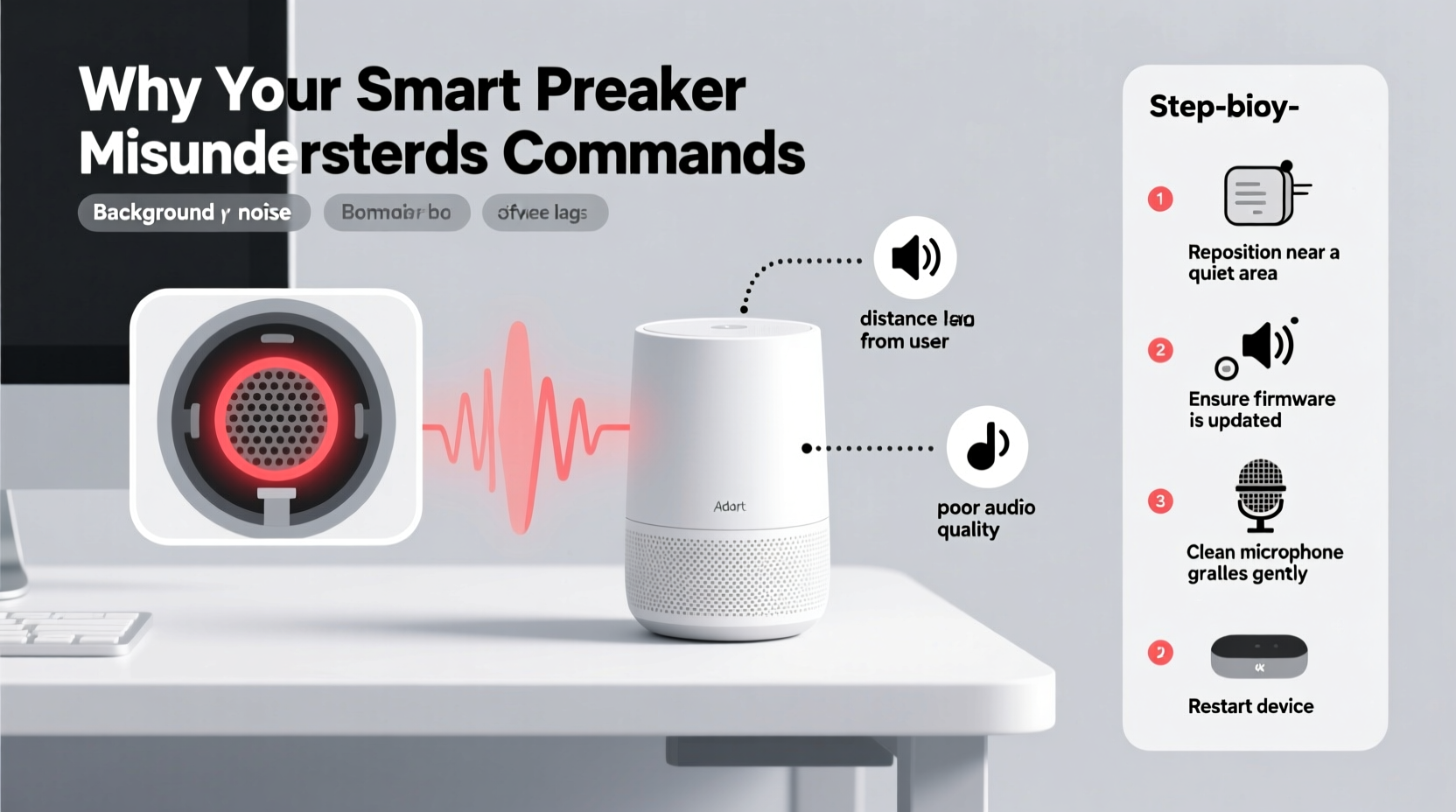
Smart speakers rely on an array of microphones—typically two to seven—to capture your voice from across the room. These mics use beamforming technology to focus on sound coming from a specific direction, filtering out background noise. Once your voice command is picked up, it’s processed locally for wake-word detection (like “Hey Google” or “Alexa”) and then sent to the cloud for interpretation. A successful response depends on clear audio input, accurate signal processing, and proper network connectivity.
When any part of this chain fails, misunderstandings occur. For example, if the microphone is blocked or compromised by ambient noise, the system may misinterpret “Play jazz music” as “Play has music.” Similarly, outdated firmware might fail to recognize newer speech patterns or regional accents.
“Microphone sensitivity and acoustic environment are the two most critical factors in voice assistant accuracy.” — Dr. Lena Patel, Audio Systems Engineer at MIT Media Lab
Common Causes of Voice Recognition Errors
Before jumping into fixes, it’s essential to identify what’s causing the miscommunication. Below are the most frequent culprits:
- Physical obstructions: Dust, fabric, or objects covering the mic array reduce sound clarity.
- Background noise: TVs, fans, pets, or loud conversations interfere with voice pickup.
- Distance and placement: Being too far from the speaker or placing it in a corner diminishes mic effectiveness.
- Firmware or app bugs: Outdated software can degrade voice processing performance.
- Accent or speech pattern mismatch: Some assistants struggle with non-standard pronunciations or fast speech.
- Hardware degradation: Over time, mic components can wear out, especially in dusty or humid environments.
Step-by-Step Troubleshooting Guide
Follow this logical sequence to diagnose and resolve microphone-related issues:
- Check for physical blockages. Inspect the top or side grilles where mics are located. Gently clean with a dry microfiber cloth or soft brush. Avoid liquids or compressed air, which can damage internal components.
- Reposition the device. Place the speaker on an open surface, away from walls, cabinets, or electronic devices that emit interference. Ideal height is between 3 and 5 feet off the ground.
- Reduce ambient noise. Turn off nearby appliances during voice use. Consider using the speaker in quieter rooms or during low-activity hours.
- Restart the device. Unplug it for 30 seconds, then plug it back in. This clears temporary glitches in audio processing.
- Update firmware and app. Open your assistant’s mobile app (e.g., Alexa, Google Home) and check for updates under device settings.
- Retrain voice recognition. Use voice profile features to recalibrate how your assistant understands your speech. For example, Google Assistant allows voice match training, while Alexa offers accent-specific tuning.
- Perform a factory reset. If problems persist, reset the device and set it up again. This eliminates corrupted settings that may affect mic function.
Mic Performance: Do’s and Don’ts
| Do | Don't |
|---|---|
| Place the speaker in a central location with clear airflow around the mic array | Put it inside a cabinet or cover it with objects |
| Use a dedicated power adapter (not a low-output USB port) | Power it through a shared power strip with high-draw devices |
| Clean the mic grille monthly with a dry, soft brush | Use water, alcohol, or aerosols near the microphone |
| Speak clearly and at a moderate pace | Shout or whisper from across large rooms |
| Enable voice personalization in the app | Assume the default settings work optimally for all users |
Real-World Case: Fixing Persistent Misunderstandings in a Busy Household
Sarah, a mother of two in Austin, Texas, noticed her Amazon Echo kept misinterpreting commands. “Alexa, turn off the lights” became “Alexa, tune into live,” triggering the radio instead. After testing various fixes, she discovered the issue stemmed from multiple overlapping problems: the speaker was tucked behind a bookshelf, her children often left toys on top of it, and the device hadn’t updated in months.
She followed the troubleshooting steps: moved the Echo to a coffee table centerpiece, cleaned the top grille, restarted the device, and installed pending updates. She also retrained Alexa’s voice profile using the app’s guided session. Within 48 hours, command accuracy improved from roughly 60% to over 95%. “It was like getting a new device,” she said. “I didn’t realize how much placement and updates mattered.”
Advanced Fixes for Persistent Mic Issues
If basic troubleshooting doesn’t resolve the issue, consider these deeper solutions:
Calibrate Room Acoustics
Some smart speakers, like Google Nest Audio, offer automatic room calibration. Say, “Hey Google, optimize for this room,” and the device emits test tones to adjust mic sensitivity based on echo and absorption. Repeat this after rearranging furniture or changing wall decor.
Adjust Voice Assistant Language Settings
If English isn’t your first language or you speak with a regional accent, ensure the assistant uses the correct dialect. In the Google Home app, go to Assistant > Languages and select “English (U.S.) – Regional Accent” options. For Alexa, choose “Pronunciation” under Voice Settings and manually correct misheard words.
Test with Alternative Wake Words
If “Hey Google” or “Alexa” triggers false positives or missed detections, some devices allow alternative phrases. Alexa supports “Echo,” “Amazon,” or “Computer.” Changing the wake word can reduce confusion in noisy environments or households with similar-sounding names.
Use a Wi-Fi Analyzer
Poor network stability affects how quickly your voice data reaches the cloud. Use a free Wi-Fi analyzer app to check signal strength near your speaker. If below -70 dBm, consider relocating the router, adding a mesh extender, or switching to a less congested band (e.g., 5 GHz instead of 2.4 GHz).
When It Might Be Time for Replacement
Even with optimal care, hardware has a lifespan. If your speaker is more than three years old and continues to mishear despite all fixes, internal microphone degradation may be irreversible. Signs include:
- Frequent “I didn’t catch that” responses even in quiet rooms
- Inability to detect the wake word from normal distances
- One-sided audio recording (e.g., only left mics working)
- Crackling or distorted playback during voice feedback
Manufacturers typically support devices with updates for 3–5 years. Older models lose access to new speech recognition algorithms, making them less accurate over time. Upgrading to a newer version often brings better mic arrays, noise cancellation, and AI-powered understanding.
FAQ: Common Questions About Smart Speaker Mic Issues
Can dust really affect my smart speaker’s microphone?
Yes. Dust buildup on the mic grille can muffle incoming sound, leading to incomplete or incorrect command capture. Regular cleaning with a dry, soft brush prevents this. Avoid vacuum cleaners, as static can damage sensitive components.
Why does my speaker understand my partner better than me?
Voice assistants learn from repeated interactions. If one person uses the device more frequently, the system adapts to their voice patterns. To improve recognition for all users, each person should complete voice training in the app and speak naturally during setup.
Is it safe to cover my smart speaker’s microphone when not in use?
Physically covering the mic disables functionality but doesn’t harm the device. Some users place a small tape flap over the mic array for privacy. However, ensure the material is non-abrasive and removed carefully to avoid residue. Alternatively, use the mute button if available.
Final Checklist: Restore Your Smart Speaker’s Accuracy
- ✅ Clean the microphone grille gently with a dry cloth
- ✅ Reposition the speaker in an open, central area
- ✅ Reduce background noise during voice commands
- ✅ Restart the device and check for firmware updates
- ✅ Retrain voice recognition using the assistant app
- ✅ Test mic function with a “What did I just say?” query
- ✅ Calibrate room acoustics if supported
- ✅ Upgrade to a newer model if issues persist beyond 3 years
Conclusion: Take Control of Your Voice Experience
Your smart speaker should respond accurately and reliably, not leave you repeating commands in frustration. Most microphone issues stem from preventable causes—poor placement, neglect, or outdated software—that can be resolved with simple, consistent actions. By understanding how voice recognition works and applying targeted fixes, you reclaim the full potential of your device. Don’t accept constant misunderstandings as normal. Diagnose, adjust, and optimize. Your voice deserves to be heard clearly.




 浙公网安备
33010002000092号
浙公网安备
33010002000092号 浙B2-20120091-4
Comments
No comments yet. Why don't you start the discussion?