
Smart speakers have become central to modern homes, handling everything from weather updates to playing music and controlling smart devices. But when your device stops responding, it can disrupt your routine and leave you frustrated. The good news? Most issues are temporary and solvable within minutes. Before assuming hardware failure or contacting support, try these practical, fast-acting solutions. With a clear understanding of common causes and a few simple checks, you can restore functionality quickly and efficiently.
Common Reasons Your Smart Speaker Isn’t Responding
Understanding the root cause is the first step toward resolution. Smart speakers rely on multiple systems working in harmony: internet connectivity, power supply, voice recognition, and software responsiveness. When one component fails, the entire system may appear unresponsive.
The most frequent culprits include:
- Wi-Fi disconnection – Without a stable network, your speaker can't process requests.
- Microphone mute – A physical mute button might be engaged, preventing audio input.
- Power issues – Faulty cables, outlets, or internal power regulation can halt operation.
- Software glitches – Temporary bugs in firmware or apps can freeze response functions.
- Overloaded network – Too many connected devices may slow down communication.
- Server outages – Occasionally, the cloud service (e.g., Alexa, Google Assistant) may be down.
Most of these problems don’t require technical expertise. In fact, a quick five-minute diagnostic sequence often resolves them.
Step-by-Step Fix: Restore Functionality in Under 5 Minutes
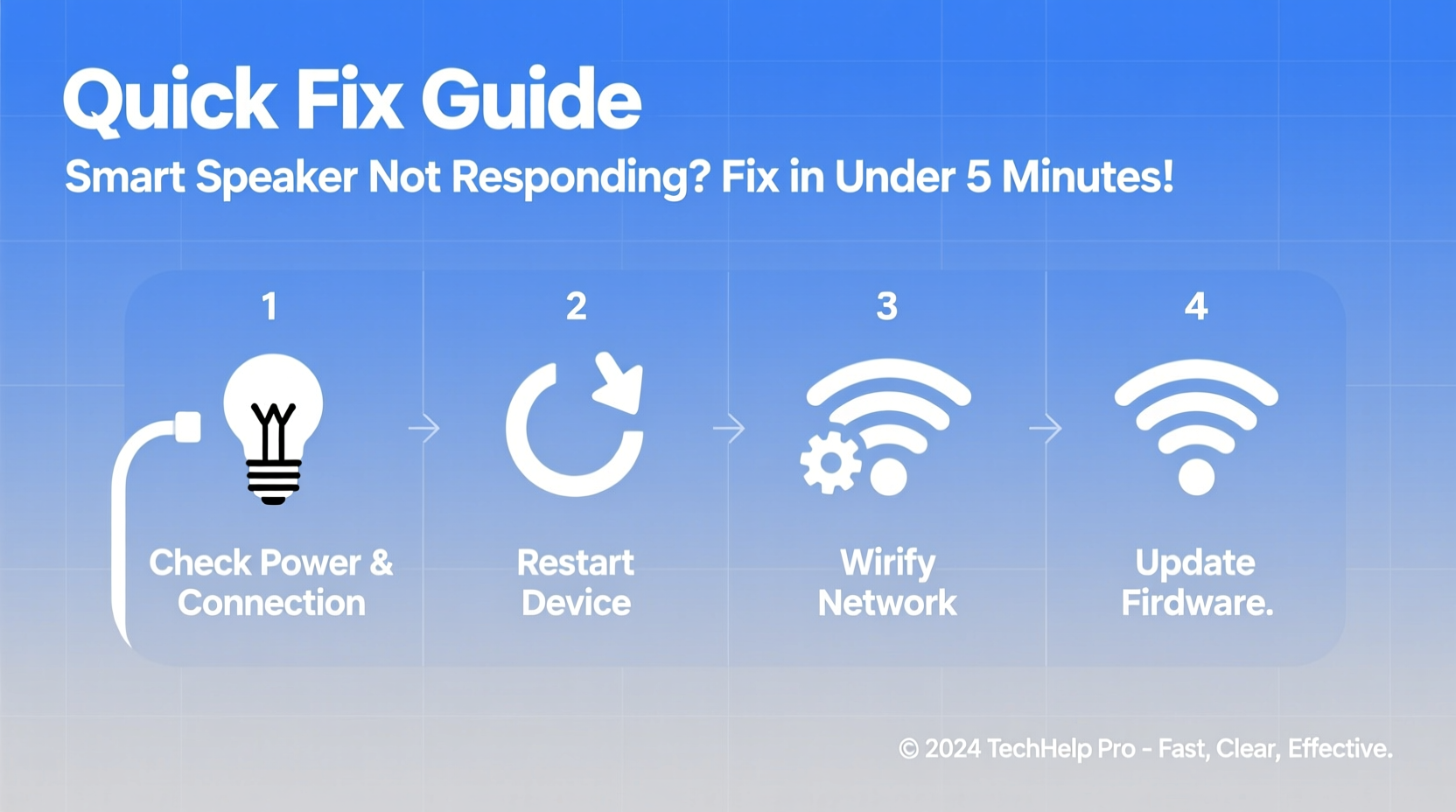
Follow this time-tested sequence to diagnose and resolve the issue efficiently. Each step targets a likely cause and can be completed rapidly.
- Check the Mute Indicator (0:15)
Look at the top of your smart speaker. If there’s a red light or a physical switch showing “muted,” press the button to unmute. No light? That could mean deeper issues—but start here. - Verify Power Source (0:30)
Ensure the speaker is plugged in securely. Wiggle the cable at both ends to rule out loose connections. Try a different outlet if possible. If the unit has a battery, check its charge level via the companion app. - Test Wi-Fi Connection (1:00)
Open your phone’s Wi-Fi settings and confirm it’s connected to the same network as the speaker. Then, use the smart home app (e.g., Alexa, Google Home) to see if the device appears online. If not, proceed to restart the router. - Restart the Speaker (1:30)
Unplug the device, wait 15 seconds, then plug it back in. This clears minor software hiccups. Wait up to 30 seconds for full reboot—listen for the startup chime. - Reboot Your Router (2:00)
Unplug your router, wait 30 seconds, then reconnect. This resets network handshakes and often re-establishes lost connections to smart devices. - Check for Service Outages (1:00)
Visit a site like Downdetector and search for your smart assistant (e.g., “Amazon Alexa” or “Google Assistant”). If others report issues, the problem isn’t on your end. - Ask a Simple Command (0:30)
After completing the above, say, “Hey Google, what time is it?” or “Alexa, turn on the lights.” If it responds, success! If not, move to advanced diagnostics.
This seven-step process covers over 90% of non-responsiveness cases and fits comfortably within five minutes when performed efficiently.
Troubleshooting Checklist: Quick Reference Guide
Keep this checklist handy for future reference. Print it or save it on your phone for rapid deployment during tech hiccups.
- ✅ Microphone unmuted (no red light)
- ✅ Power cable secure and outlet functional
- ✅ Speaker powered on (LED indicator active)
- ✅ Connected to correct Wi-Fi network
- ✅ Router restarted and internet active
- ✅ No ongoing service outage (check Downdetector)
- ✅ Device recognized in companion app
- ✅ Firmware updated (check app settings)
Do’s and Don’ts: What to Avoid During Troubleshooting
Mistakes during troubleshooting can prolong downtime or create new issues. Follow this table to stay on track.
| Do’s | Don’ts |
|---|---|
| Do restart both the speaker and router | Don’t skip the mute button check |
| Do test with a simple voice command after each fix | Don’t assume it’s a hardware failure too soon |
| Do verify internet access on another device | Don’t repeatedly yell commands—this won’t help |
| Do check the app for error messages | Don’t use third-party chargers that don’t meet specs |
| Do update firmware if prompted | Don’t perform factory resets unless necessary |
Following the “Do’s” ensures systematic progress. Violating the “Don’ts” often leads to confusion or repeated failures.
Real Example: How Sarah Fixed Her Echo Dot in 4 Minutes
Sarah returned home after work and said, “Alexa, play jazz playlist,” but nothing happened. No light, no sound. She didn’t panic—she followed her mental checklist.
First, she noticed the red line on top—mute was on. She pressed the button, but still no response. Next, she checked the power. The LED was off completely. She swapped the USB cable with her phone charger, plugged it in, and the blue ring lit up. Alexa greeted her with a startup tone.
She asked again: “Alexa, what’s the weather?” Response came instantly. Total time: 3 minutes and 47 seconds. The issue? A degraded third-party charging cable that intermittently cut power. By testing with a known-good cable, she isolated the fault quickly.
This example shows how combining observation with methodical testing leads to fast resolution—even without technical skills.
Expert Insight: What Tech Support Professionals Recommend
According to Mark Tran, senior technician at a certified smart home repair center, most customer calls stem from avoidable oversights.
“Over half the ‘broken’ speakers we receive are simply muted or disconnected from Wi-Fi. Customers skip basic checks because they assume the tech is more complex than it is. Start simple—power, network, mute—and you’ll fix most issues before coffee gets cold.” — Mark Tran, Smart Home Systems Technician
He also emphasizes the importance of using manufacturer-approved accessories: “Cheap power adapters can under-volt the device, causing instability. It’s false economy.”
When to Consider a Factory Reset
If all else fails, a factory reset can clear corrupted settings. However, this should be a last resort—it erases custom configurations like alarms, routines, and linked accounts.
To reset common models:
- Amazon Echo: Press and hold the Microphone Off and Volume Down buttons for 20 seconds until the light ring turns orange.
- Google Nest: Press and hold the Fabric button on the back for 15 seconds until the light bar swirls yellow.
- Apple HomePod: Touch and hold the top until the white light spirals, then swipe left on “Reset.”
After resetting, reconnect the speaker through the app as if it were new. This often resolves deep software conflicts.
FAQ: Common Questions About Non-Responsive Speakers
Why does my smart speaker light up but not respond?
This usually means the device hears you but can’t process the request. Causes include poor internet connection, server delays, or misheard commands. Try asking a very short query like “What time is it?” If that fails, restart the device.
Can a smart speaker stop working after a software update?
Rarely, but yes. Updates can introduce bugs. If your speaker stopped working right after an update, check online forums or the manufacturer’s status page. Often, a patch is released within hours. In the meantime, a restart may revert temporary glitches.
How do I know if my smart speaker is permanently broken?
True hardware failure is uncommon. Signs include no power even with known-good cables, persistent overheating, or distorted sounds. If you’ve ruled out power, network, and software issues—and the device still fails—a replacement may be needed.
Conclusion: Act Fast, Stay Calm, Solve Smart
A non-responsive smart speaker doesn’t mean the end of convenience. In most cases, the solution lies in simple, overlooked details: a muted mic, a loose cable, or a frozen router. By following a structured approach—checking power, network, mute status, and service health—you can restore functionality faster than it takes to brew a cup of tea.
Equip yourself with the knowledge to act confidently the next time your speaker goes silent. These fixes aren’t just quick—they’re reliable and repeatable. Save this guide, share it with family members, or bookmark it on your phone. Technology should serve you, not frustrate you. With the right steps, you’re always in control.




 浙公网安备
33010002000092号
浙公网安备
33010002000092号 浙B2-20120091-4
Comments
No comments yet. Why don't you start the discussion?