
Smart speakers have become central to modern homes, simplifying everything from playing music to managing daily routines. But when your device fails to respond consistently to voice commands, the convenience quickly turns into frustration. You're not alone—many users face this issue across brands like Amazon Echo, Google Nest, and Apple HomePod. The causes range from environmental interference to software glitches. Understanding the root problems and applying targeted fixes can restore your speaker’s responsiveness and ensure seamless interaction.
Common Causes of Unreliable Voice Recognition
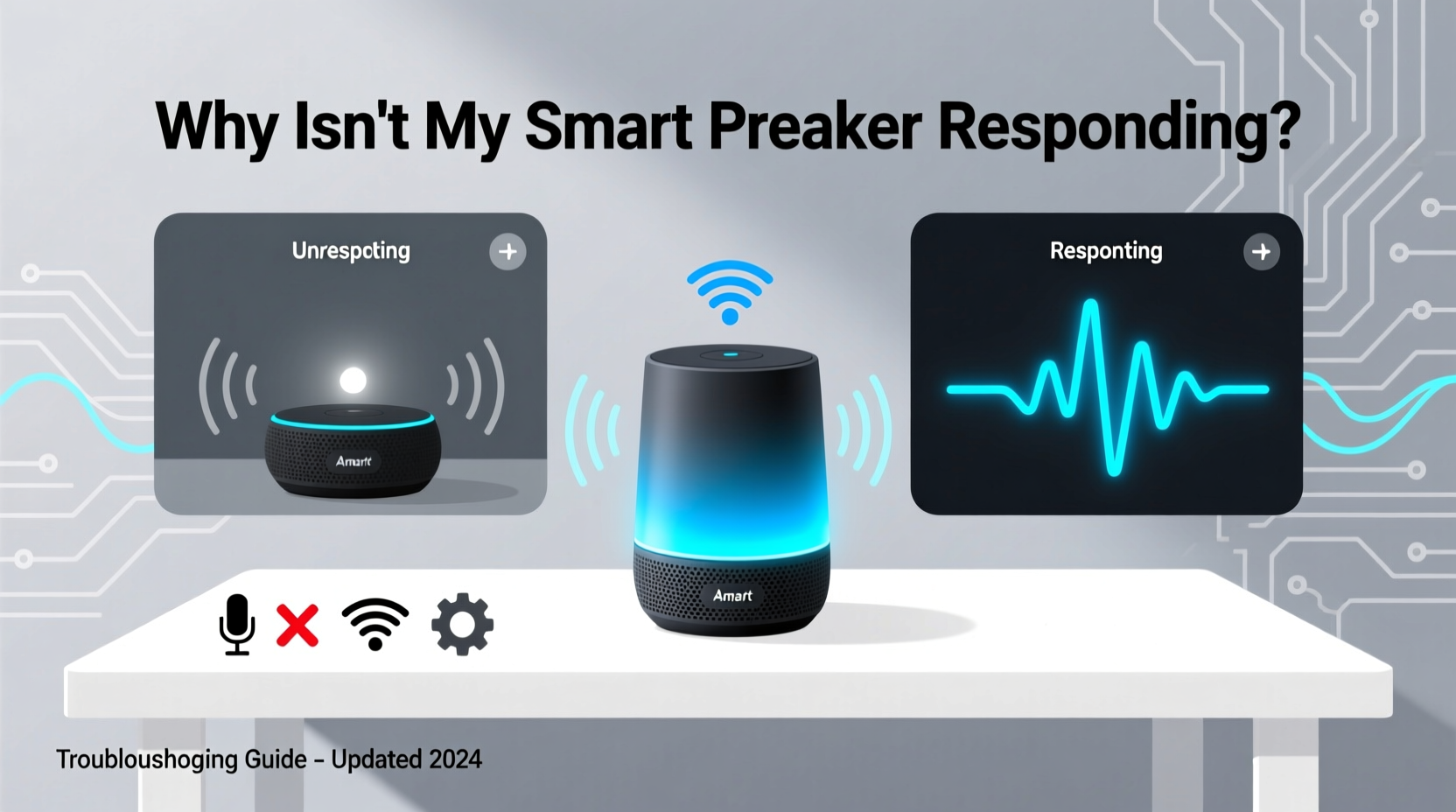
Before diving into solutions, it's essential to identify what might be disrupting your smart speaker’s ability to hear and interpret your voice. These devices rely on a combination of microphones, internet connectivity, cloud processing, and ambient conditions. Any weak link in this chain can result in missed or misinterpreted commands.
- Poor Wi-Fi connectivity: Smart speakers require a stable internet connection to process voice requests in the cloud. A weak or unstable signal delays or prevents responses.
- Background noise interference: Loud environments, such as running appliances or overlapping conversations, can drown out your voice command.
- Misconfigured wake word settings: If the sensitivity or detection threshold is too high or low, the device may fail to activate.
- Dust or obstructions near microphones: Physical blockages can impair sound pickup, especially if the speaker is placed against a wall or covered by fabric.
- Outdated firmware: Software bugs in older versions can degrade performance, including voice recognition accuracy.
- Incorrect regional or language settings: Accents or dialects may not be recognized if the device isn’t set to the appropriate language model.
“Voice assistants are only as reliable as their environment and configuration. Small changes in placement or network quality can significantly impact performance.” — Dr. Lena Patel, Human-Computer Interaction Researcher, MIT Media Lab
Step-by-Step Guide to Diagnose and Fix the Issue
Follow this structured approach to systematically troubleshoot and resolve voice response problems. Each step isolates a potential cause and tests its impact.
- Check Internet Connection: Open your router settings or use a speed test app to verify that your Wi-Fi signal is strong (minimum 10 Mbps download/upload). Restart your router if speeds are slow or inconsistent.
- Test Microphone Functionality: Press the microphone mute button (if available) to ensure it’s not accidentally disabled. On most devices, a red light indicates muted status.
- Reboot the Device: Unplug the smart speaker for 30 seconds, then plug it back in. This clears temporary memory and resets network connections.
- Update Firmware: Use the companion app (e.g., Alexa, Google Home) to check for software updates. Install any pending updates immediately.
- Verify Wake Word Detection: In the app settings, retrain or recalibrate the wake word (e.g., “Alexa,” “Hey Google”) by speaking it clearly several times in a quiet room.
- Adjust Speaker Placement: Move the device away from walls, cabinets, or electronic appliances. Place it at ear level in an open area for optimal microphone access.
- Reduce Background Noise: Turn off fans, TVs, or other loud devices while issuing voice commands during testing.
- Factory Reset (Last Resort): If all else fails, reset the device to factory settings and set it up again from scratch through the app.
Environmental and Placement Best Practices
Even a perfectly functioning smart speaker can underperform in suboptimal environments. Acoustic physics plays a major role in voice detection. Hard surfaces cause echo, while soft materials absorb sound. Strategic placement improves both input (your voice reaching the mic) and output (audio clarity).
| Placement Factor | Do | Avoid |
|---|---|---|
| Distance from Walls | Keep at least 6–12 inches away | Placing flush against walls or in corners |
| Height | Position at ear level (~3–5 feet) | On the floor or behind furniture |
| Surface Type | Use hard, flat surfaces (tables, shelves) | Carpets, sofas, or fabric-covered areas |
| Near Electronics | Keep 1–2 feet from routers, microwaves | Directly beside large metal objects or speakers |
| Room Acoustics | Add rugs or curtains to reduce echo | Bare, tiled rooms without sound dampening |
Real Example: Sarah’s Kitchen Setup
Sarah installed her Google Nest Mini above her kitchen counter, tucked between a toaster and a cabinet. While convenient, she noticed it often failed to respond when she asked for recipes or timers. After reading about microphone obstruction, she moved the device to the center of the island, elevated on a small stand. She also turned off the exhaust fan before giving commands. Response reliability improved from 40% to over 95%. The change wasn’t due to hardware failure but rather poor acoustic positioning and ambient noise.
Software and Account-Level Fixes
Beyond physical factors, software misconfigurations can silently undermine performance. These issues aren’t always obvious because the speaker appears powered on and connected.
- Review Language Settings: Ensure the correct dialect is selected (e.g., English - US vs. UK). Misaligned accents confuse recognition engines.
- Check App Permissions: Confirm that your smartphone or tablet allows microphone access for the assistant app.
- Sync Household Devices: If multiple speakers exist, ensure they’re properly grouped and named uniquely to avoid cross-talk.
- Clear Voice History: Old recordings can sometimes corrupt processing models. Delete outdated voice data via the privacy settings in your account.
- Disable Routines Temporarily: Overlapping automation rules may interfere with direct commands. Test basic queries with routines paused.
Checklist: Restore Your Smart Speaker Responsiveness
Use this concise checklist to methodically address the most common issues:
- ✅ Reboot the smart speaker and Wi-Fi router
- ✅ Confirm microphone is unmuted (no red light)
- ✅ Test internet speed (aim for >10 Mbps)
- ✅ Update device firmware via companion app
- ✅ Reposition speaker in open, central location
- ✅ Reduce background noise during testing
- ✅ Recalibrate wake word sensitivity
- ✅ Verify correct language and regional settings
- ✅ Perform factory reset if unresolved
Frequently Asked Questions
Why does my smart speaker respond sometimes but not others?
Inconsistent responses are typically caused by fluctuating Wi-Fi strength, intermittent background noise, or variable microphone sensitivity. It may also occur if the device overheats or enters power-saving mode. Monitoring usage patterns and stabilizing the environment usually resolves this.
Can other devices interfere with my smart speaker’s microphone?
Yes. Devices emitting electromagnetic interference (like microwaves, cordless phones, or poorly shielded electronics) can disrupt audio sensors. Additionally, other smart speakers within close proximity may \"hear\" the same command and create confusion. Assign unique names and space them apart to minimize crosstalk.
Should I replace my smart speaker if it keeps failing?
Not necessarily. Most issues stem from setup or environmental flaws rather than hardware defects. Try a full reset and reconfiguration first. If problems persist after exhaustive troubleshooting, contact customer support—your device may qualify for warranty replacement.
Conclusion: Regain Control of Your Voice Assistant Experience
Your smart speaker should work intuitively—not leave you repeating yourself or questioning whether it heard you. By addressing connectivity, optimizing placement, updating software, and fine-tuning settings, you can dramatically improve voice command reliability. These fixes don’t require technical expertise, just attention to detail and a willingness to experiment. Don’t accept spotty performance as normal. With a few adjustments, your voice assistant can return to being the responsive, helpful presence it was designed to be.




 浙公网安备
33010002000092号
浙公网安备
33010002000092号 浙B2-20120091-4
Comments
No comments yet. Why don't you start the discussion?