
Smart speakers have become central to modern homes—handling everything from weather updates to playing music on command. But when your device starts playing music without being asked, it can be unsettling, even alarming. Is someone listening? Has your device been hacked? Or is it just a glitch?
The truth is, random music playback is more common than most users realize—and in nearly all cases, it has a logical explanation rooted in settings, connectivity, or user behavior. The good news: most causes are fixable with a few adjustments to your privacy settings, voice recognition preferences, and connected services.
This guide breaks down the real reasons behind unexpected music playback, offers actionable fixes, and helps you regain full control over your smart speaker’s behavior—all while protecting your privacy.
Common Causes of Random Music Playback
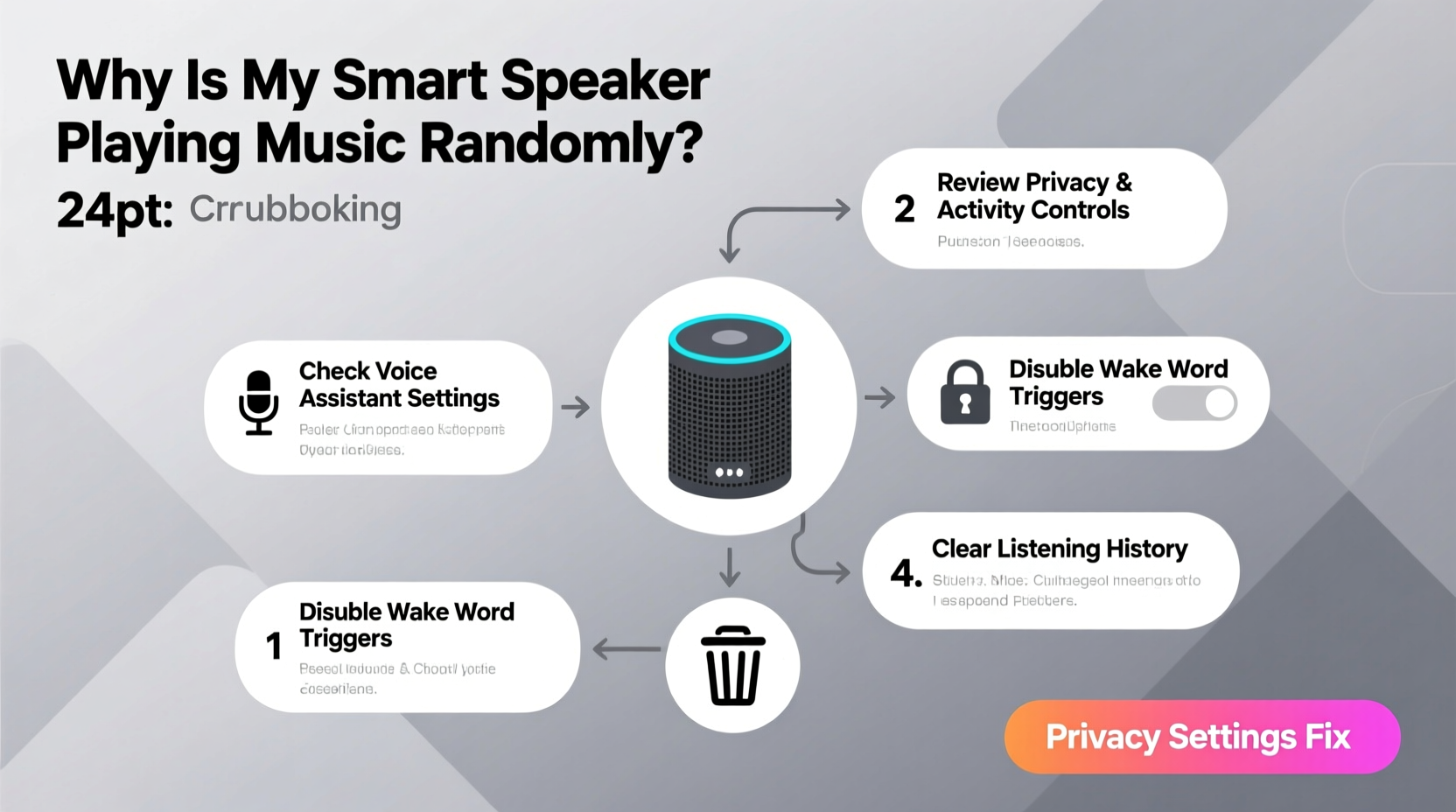
Before jumping to conclusions about hacking or malfunction, consider these frequent technical and behavioral triggers:
- Voice misinterpretation: Background noise, similar-sounding words, or accidental wake-word activation can trigger unintended commands.
- Connected app integrations: Third-party apps (like Spotify or Pandora) may auto-play based on routines, recommendations, or shared household controls.
- Shared device access: Family members, guests, or voice profiles may issue commands you're unaware of.
- Firmware bugs: Outdated or buggy software can cause erratic behavior, including unsolicited audio output.
- Account syncing issues: If multiple devices are linked to the same account, one action might ripple across all speakers.
While rare, unauthorized access to your account can also result in strange behavior. However, this is typically accompanied by other red flags like changed passwords, unfamiliar login locations, or altered routines.
Step-by-Step Fix: Secure Your Smart Speaker
If your smart speaker keeps playing music out of nowhere, follow this structured troubleshooting process to isolate and resolve the issue.
- Check recent voice history: Review your assistant’s activity log. For Amazon Alexa, go to Settings > History. For Google Assistant, visit assistant.google.com. Look for unexplained commands like “Play music” or “Turn on playlist.”
- Disable unnecessary skills or actions: Third-party integrations often enable autoplay features. Remove unused or suspicious apps under Skills & Games (Alexa) or Assistant Settings > Apps (Google).
- Review routines and automations: A scheduled routine may be set to play music at certain times. Check Routines in your app and delete any you didn’t create.
- Update firmware: Ensure your speaker runs the latest software version. In the Alexa or Google Home app, navigate to Device Settings > About > Check for Updates.
- Reset voice recognition training: Over time, voice models can degrade. Re-train your voice profile under Voice Match settings to improve accuracy.
- Reboot the device: Unplug your speaker for 30 seconds, then plug it back in. This clears temporary glitches and resets network connections.
After completing these steps, monitor your speaker for 24–48 hours. If playback continues, proceed to deeper privacy and security checks.
Privacy Settings That Prevent Unauthorized Playback
Your smart speaker’s default settings may prioritize convenience over control. Adjusting key privacy options reduces false triggers and blocks unwanted access.
| Setting | Action | Why It Matters |
|---|---|---|
| Voice Recording Auto-Delete | Enable auto-delete after 3 or 18 months | Limits stored voice data and reduces exposure if breached |
| Microphone Off When Idle | Use physical mute button or schedule mute times | Prevents accidental wake-ups during quiet hours |
| Require Confirmation for Playback | Set to “Always ask before playing” in music preferences | Stops autoplay from recommendations or vague commands |
| Disable Voice Purchasing | Turn off in Alexa/Assistant settings | Reduces risk of unintended purchases or commands |
| Two-Factor Authentication (2FA) | Enable on your Amazon or Google account | Blocks unauthorized logins even if password is compromised |
These settings don’t eliminate functionality—they refine it. You’ll still get quick responses when needed, but with fewer surprises.
“Most cases of random playback stem from misconfigured automation or misunderstood voice inputs—not breaches. Tightening privacy settings gives users both control and peace of mind.” — Dr. Lena Patel, IoT Security Researcher at Stanford Cyber Initiative
Real Example: How One User Fixed Unwanted Spotify Playlists
Sarah, a remote worker in Portland, noticed her Echo Dot would suddenly start playing lo-fi beats around 3 p.m. daily—even when no one was home. At first, she assumed it was a glitch. After reviewing her Alexa app, she discovered a routine labeled “Focus Mode” that activated at 3 p.m. and played a Spotify playlist.
The surprise? She never created it.
Digging deeper, Sarah realized she had tested a third-party productivity skill weeks earlier that automatically set up routines. Though she stopped using the skill, the routine remained active. Disabling the integration and deleting the routine stopped the playback instantly.
Her takeaway: always audit routines and connected apps after trying new features. Automation is powerful—but silent until it acts.
Checklist: Secure Your Smart Speaker in 10 Minutes
Use this quick checklist to lock down your device and prevent future incidents:
- ✅ Review voice command history for unrecognized entries
- ✅ Delete unused skills, apps, or integrations
- ✅ Disable or edit all automated routines
- ✅ Enable two-factor authentication on your account
- ✅ Turn on auto-delete for voice recordings
- ✅ Physically test the mute button and confirm LED indicator works
- ✅ Update device firmware to the latest version
- ✅ Rename your device to something unique (e.g., “Kitchen Speaker”) to avoid confusion with other devices
- ✅ Set up voice profiles for all household members to reduce misidentification
- ✅ Perform a monthly review of connected services and permissions
This routine takes less than ten minutes but significantly improves reliability and trust in your device.
Frequently Asked Questions
Can someone hack my smart speaker to play music remotely?
It’s extremely unlikely unless they’ve gained access to your account. Most hacks involve phishing or reused passwords. By enabling two-factor authentication and using strong, unique passwords, you effectively block remote access. There are no known widespread exploits that let strangers directly control a properly secured smart speaker.
Why does my speaker play music when I say something unrelated, like “I’m heading out”?
This is usually due to false wake-word detection. Words like “Alexa,” “Echo,” or “Okay Google” can be mimicked by similar-sounding phrases. To reduce this, retrain your voice model, lower microphone sensitivity if available, or use a less common wake word (e.g., “Computer” instead of “Alexa”). Also, ensure your speaker isn’t near sources of echo or background chatter.
How do I stop my smart speaker from playing recommended songs automatically?
Both Alexa and Google Assistant have settings to disable autoplay. For Alexa: go to Settings > Music & Podcasts > Autoplay and toggle it off. For Google: open the Google Home app, tap your device, go to Media > Autoplay next song, and disable it. This stops suggested tracks from queuing after your chosen music ends.
When to Factory Reset Your Device
If problems persist despite troubleshooting, a factory reset may be necessary. This wipes all settings, accounts, and preferences—returning the speaker to its original state.
To reset:
- Amazon Echo: Press and hold the Mute and Volume Down buttons for 15 seconds until the light ring turns orange.
- Google Nest: Press and hold the Mic Mute button until the voice says “Factory resetting,” then wait several minutes.
After resetting, set up the device again with updated security practices. Avoid restoring old backups if they contain problematic routines or permissions.
Conclusion: Take Control of Your Smart Speaker Experience
Random music playback isn’t magic—or malice. It’s a symptom of complex systems interacting in ways we don’t always anticipate. By understanding how voice assistants interpret commands, manage connected apps, and respond to automation, you can eliminate surprises and enjoy a smarter, safer experience.
Your smart speaker should serve you—not act on its own. With a few strategic adjustments to privacy settings, routine management, and account security, you can stop the mystery music for good. These changes don’t require technical expertise—just attention and consistency.
Start today. Review your voice history. Delete forgotten routines. Enable two-factor authentication. And reclaim the quiet confidence that comes with knowing your device works for you—exactly as intended.




 浙公网安备
33010002000092号
浙公网安备
33010002000092号 浙B2-20120091-4
Comments
No comments yet. Why don't you start the discussion?