
There’s nothing more unsettling than hearing music blast from your smart speaker when you didn’t ask for it. Whether it's classical tunes at 3 a.m., an unfamiliar playlist, or a sudden burst of ambient sounds, unexplained audio playback can be frustrating—and even alarming. The good news is that in most cases, this behavior has a logical explanation. From voice assistant glitches to connected app triggers, several factors could be behind the mystery. Understanding these causes and knowing what settings to review can help you regain control over your smart speaker and ensure it only plays what you want, when you want.
Common Causes of Random Music Playback
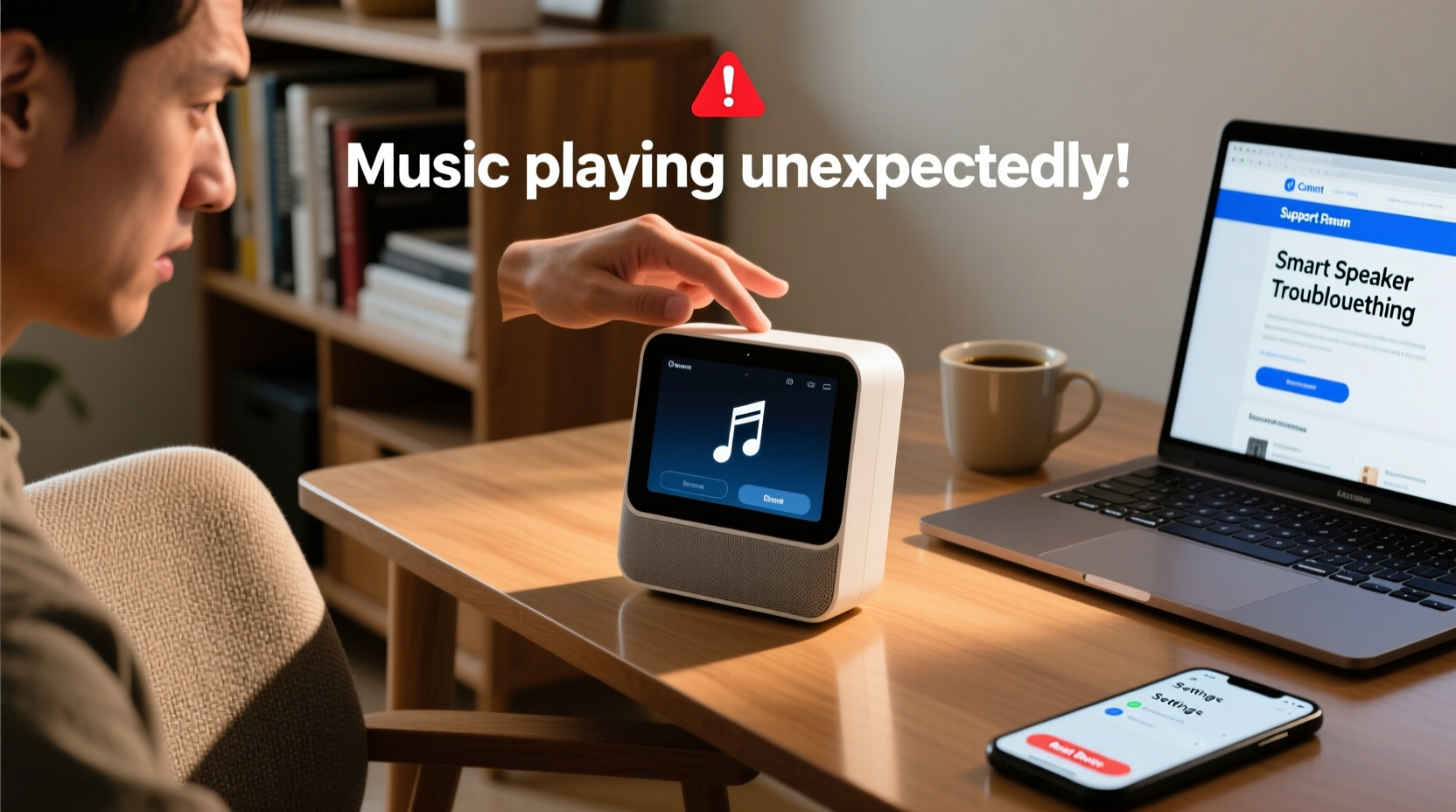
Smart speakers like Amazon Echo, Google Nest, and Apple HomePod are designed to respond to voice commands and integrate with various apps and services. However, their connectivity and automation features can sometimes lead to unintended consequences. Below are the most frequent culprits behind random music playback:
- Voice misinterpretation: Background noise, similar-sounding words, or accidental wake-word activation (like “Alexa,” “Hey Google”) can trigger a command the speaker thinks it heard.
- Linked third-party apps: Apps such as Spotify, Pandora, or iHeartRadio may have active routines or integrations that initiate playback without direct input.
- Shared household access: Other users on your Wi-Fi network or linked accounts might be controlling the speaker remotely.
- Scheduled routines: Automated routines set up for alarms, weather updates, or music playlists may be misconfigured.
- Hacked or unauthorized access: While rare, compromised account security can allow external parties to issue commands.
- Firmware bugs: Outdated or buggy software may cause erratic behavior, including spontaneous playback.
Step-by-Step Guide to Diagnose and Fix the Issue
Resolving random music playback requires a systematic approach. Follow this step-by-step process to identify and eliminate the root cause.
- Check recent activity logs: Open your smart speaker’s companion app (e.g., Alexa app, Google Home) and review the history of voice commands or device actions. Look for unrecognized requests or timestamps that match the unwanted playback.
- Disable unused skills and integrations: Third-party skills (on Alexa) or actions (on Google) can trigger media. Disable any you don’t actively use under “Skills & Games” or “Assistant Settings.”
- Review and edit routines: Navigate to the Routines section in your app. Delete or modify any automated schedules that include music playback, especially those triggered by time, motion sensors, or phrases easily mistaken for wake words.
- Test microphone sensitivity: Some devices allow you to adjust how sensitive the microphones are to voice commands. Reducing sensitivity can prevent false activations from TV audio or conversation.
- Reboot the device: Power cycle your smart speaker by unplugging it for 30 seconds, then reconnecting. This clears temporary glitches and resets network connections.
- Update firmware: Ensure your speaker is running the latest software version. Updates often patch known bugs related to voice processing and media handling.
- Inspect shared access settings: Check if other family members or guests have permission to control your speaker. Remove unknown or unnecessary users from your account.
Security Settings to Review Immediately
Unwanted music could indicate a deeper security issue. It’s essential to audit your privacy and access controls regularly.
| Setting | Action Required | Risk if Ignored |
|---|---|---|
| Two-factor authentication (2FA) | Enable on your Amazon/Google/Apple account | Unauthorized access to voice history and device control |
| Device permissions | Remove old or unrecognized devices | Someone else accessing your speaker remotely |
| Voice recording history | Delete past recordings; disable saving if preferred | Stored data being used maliciously or inaccurately interpreted |
| Drop In and announcements | Turn off unless actively used | Others broadcasting audio to your speaker |
| Bluetooth pairing | Forget unused devices; disable auto-connect | A nearby phone automatically playing music through your speaker |
“Many cases of random playback stem not from hacking, but from overlooked automation features. Users often forget they enabled a ‘Good Morning’ routine that includes music—then wonder why it plays at odd times.” — David Lin, Smart Home Security Consultant
Real-Life Example: The Case of the Midnight Playlist
Sarah, a remote worker in Austin, began noticing her Google Nest Mini would play jazz music around 2 a.m. multiple times a week. She lived alone and never scheduled anything. After ruling out ghosts, she investigated.
Using the Google Home app, she checked her Assistant history and found a recurring command labeled “Play smooth jazz.” The timestamp showed it originated from her own account—but she hadn’t spoken it. Digging deeper, she discovered a forgotten routine titled “Relaxation Mode” that was set to activate between 1 a.m. and 3 a.m. if motion was detected in her hallway. Her cat, wandering at night, was triggering the sensor.
Sarah deleted the routine and adjusted her motion sensitivity settings. The music stopped immediately. This case highlights how automation, while convenient, can backfire if not monitored.
Essential Checklist: Stop Random Music Playback Now
Use this actionable checklist to secure your smart speaker and prevent future surprises:
- ✅ Review voice command history in your companion app
- ✅ Disable or delete all unused routines and automations
- ✅ Turn off Drop In, Announcements, and Broadcast features if not needed
- ✅ Unlink third-party music apps you no longer use
- ✅ Enable two-factor authentication on your account
- ✅ Update your smart speaker’s firmware to the latest version
- ✅ Reboot the device after making changes
- ✅ Test by saying potential wake-word lookalikes near the speaker (e.g., “Alexa” vs. “Alaska”)
- ✅ Consider muting the microphone overnight using the physical button
- ✅ Educate household members about voice assistant etiquette and sharing settings
Frequently Asked Questions
Can someone hack my smart speaker to play music?
While possible, it’s highly unlikely if your account has strong security. Most incidents are due to misconfigured settings, shared access, or accidental voice triggers. Always use a strong password and enable two-factor authentication to minimize risk.
Why does my Alexa play music when I haven’t said anything?
This usually happens because Alexa misheard a word that sounds like its wake word (e.g., “election” sounding like “Alexa”). It may also be responding to a routine, a Bluetooth device connecting automatically, or a notification from a linked service. Review your Alexa app history to see what triggered the action.
How do I stop my Google Home from turning on by itself?
First, disable any routines that might activate it. Then, go to the Google Home app, select your device, and under “Voice Match,” consider turning off voice recognition if you live in a noisy environment. You can also mute the microphone manually or schedule quiet hours.
Preventive Best Practices for Long-Term Control
Once you’ve resolved the immediate issue, adopt habits that keep your smart speaker functioning reliably. Think of it like maintaining any high-tech appliance—regular oversight prevents bigger problems.
Set a monthly reminder to review your smart speaker’s settings. Check for new app permissions, firmware updates, and any unusual activity in the command log. Limit the number of people who can control your devices, and avoid linking accounts from services you don’t actively use.
If you use voice assistants with children or roommates, establish clear guidelines. Accidental commands are more common in busy households. You might even assign unique wake words if your platform supports it—such as changing “Alexa” to “Echo” to reduce false triggers.
Finally, consider segmenting your home network. Placing IoT devices like smart speakers on a separate guest network can limit exposure if one device is compromised. Many modern routers support this feature through app-based controls.
Conclusion
Random music playback from your smart speaker isn’t magic—it’s mechanics. Whether caused by a misunderstood phrase, a forgotten automation, or a security gap, the solution lies in careful inspection and proactive management. By reviewing your settings, securing your account, and understanding how your device interprets commands, you can enjoy the convenience of voice control without the surprise concerts.




 浙公网安备
33010002000092号
浙公网安备
33010002000092号 浙B2-20120091-4
Comments
No comments yet. Why don't you start the discussion?