
Smart speakers have become central to modern homes, offering voice-controlled access to music, news, smart home devices, and more. But when your device responds sluggishly—or not at all—it disrupts the seamless experience you expect. A delayed response from your smart speaker isn’t just frustrating; it often signals underlying connectivity or performance issues. The good news? Most of these problems are fixable with a methodical approach. This guide breaks down the common causes of slow responses, walks through proven troubleshooting techniques, and equips you with tools to restore your speaker’s responsiveness for good.
Understanding the Root Causes of Slow Response
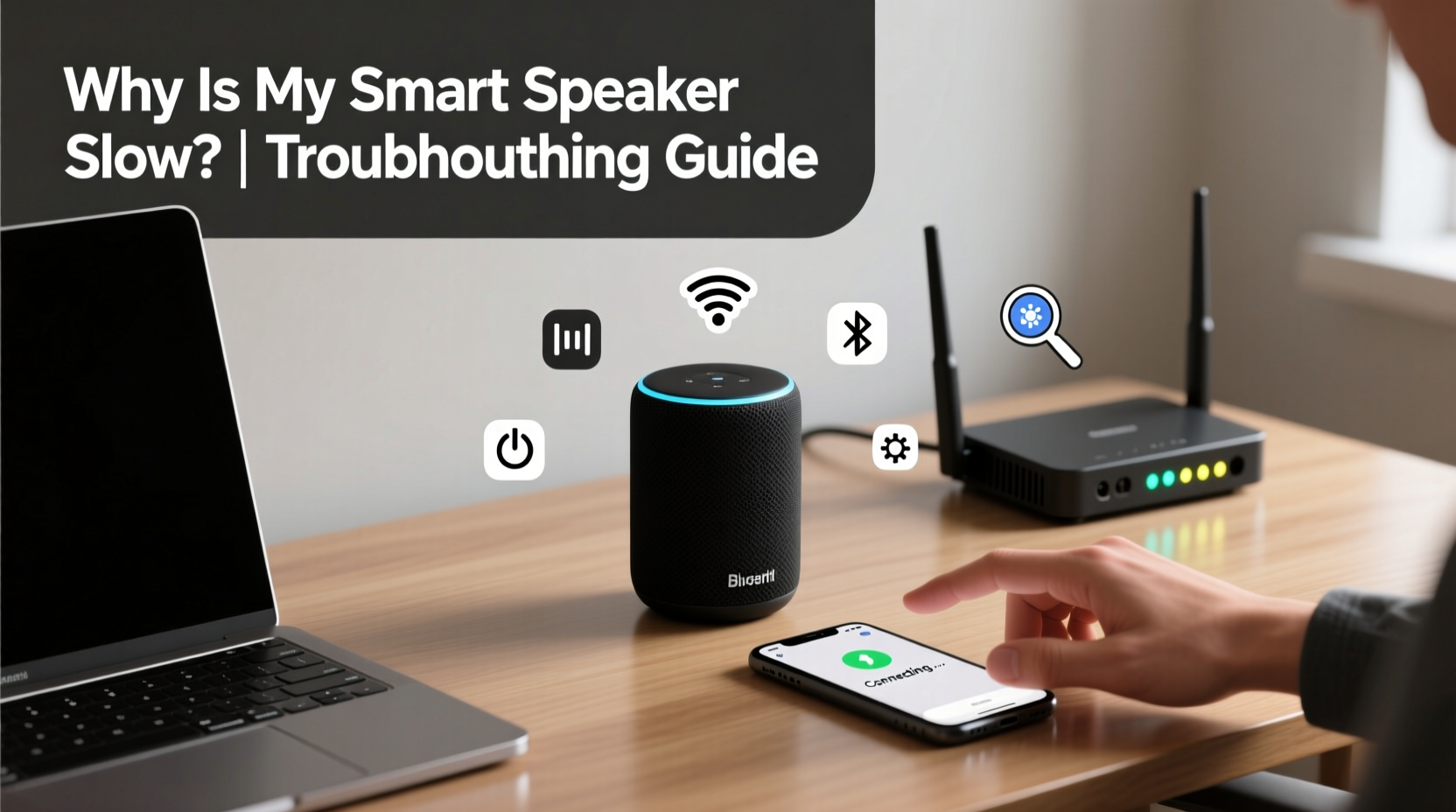
Before diving into fixes, it’s essential to understand what might be causing the delay. Smart speakers rely on multiple systems working in harmony: Wi-Fi connectivity, cloud-based voice processing, local hardware performance, and app integration. When one component falters, the entire chain slows down.
Common culprits include:
- Weak Wi-Fi signal: Distance from the router or physical obstructions can degrade connection quality.
- Network congestion: Too many devices using bandwidth simultaneously can delay data transmission.
- Outdated firmware: Manufacturers release updates to improve stability and speed—ignoring them can impact performance.
- Server-side delays: Occasionally, the issue lies with the voice assistant provider (e.g., Amazon Alexa, Google Assistant) experiencing high traffic or outages.
- Hardware limitations: Older models may struggle with newer software demands.
- Background interference: Bluetooth devices, microwaves, or cordless phones can disrupt 2.4 GHz Wi-Fi bands.
Pinpointing the exact cause requires a layered diagnostic process. Jumping straight to a factory reset without investigation may waste time if the real issue is simply poor router placement.
Step-by-Step Troubleshooting Guide
Follow this structured approach to identify and resolve the root cause of your smart speaker’s sluggish behavior.
- Reboot your smart speaker and router. Power cycling both devices clears temporary glitches. Unplug them for 30 seconds, then restart. This resolves about 40% of minor connectivity hiccups.
- Check internet speed at the speaker’s location. Use a smartphone or tablet connected to the same network to run a speed test. Aim for at least 5 Mbps download speed for reliable voice assistant performance.
- Verify Wi-Fi signal strength. In your device’s Wi-Fi settings, look for signal bars or dBm readings. Below -70 dBm indicates a weak signal. Consider relocating the speaker closer to the router.
- Ensure firmware is up to date. Open your smart assistant app (e.g., Alexa, Google Home) and check for pending updates under device settings.
- Reduce network congestion. Disconnect unused devices or schedule heavy downloads (like game updates) during off-peak hours.
- Switch to a less crowded Wi-Fi channel. Access your router settings and change the 2.4 GHz channel to 1, 6, or 11—these are non-overlapping and less prone to interference.
- Test with another network. If possible, connect the speaker to a mobile hotspot. If it responds quickly, the issue is your home network.
- Factory reset as a last resort. Only after exhausting other options should you reset the device and re-pair it from scratch.
When to Suspect Server-Side Issues
Sometimes, the delay isn’t on your end. Voice assistants depend on cloud servers to process requests. If Amazon or Google experiences downtime, even a perfectly configured speaker will lag.
To verify:
- Visit downdetector.com and search for “Alexa” or “Google Assistant.”
- Check official status pages like AWS Status (for Alexa) or Google Workspace Status.
If widespread outages are reported, patience is the only remedy—no local fix will help until services are restored.
Optimizing Your Network for Smart Speaker Performance
A robust Wi-Fi setup is the foundation of responsive smart speaker operation. Consider these long-term improvements to prevent future slowdowns.
Use Dual-Band Routers Strategically
Most smart speakers operate on the 2.4 GHz band due to better wall penetration, but this band is also more congested. While 5 GHz offers faster speeds, it has shorter range. The solution? Keep your smart speaker on 2.4 GHz but reserve 5 GHz for high-bandwidth devices like laptops and streaming boxes.
Upgrade to a Mesh Network System
If your home is large or has dead zones, traditional routers may not suffice. Mesh Wi-Fi systems like Google Nest Wifi, Eero, or Netgear Orbi distribute signal evenly across multiple nodes, ensuring consistent coverage.
“Mesh networks have reduced latency for voice commands by up to 60% in multi-story homes.” — Rajiv Mehta, Senior Network Engineer at HomeTech Labs
Enable Quality of Service (QoS)
QoS is a router feature that prioritizes certain types of traffic. Configure your router to give higher priority to voice assistant traffic or assign your smart speaker a static IP with elevated bandwidth allocation.
Do’s and Don’ts: Best Practices for Smart Speaker Maintenance
| Do’s | Don’ts |
|---|---|
| Place the speaker centrally, away from walls and metal objects | Put the speaker inside a cabinet or behind furniture |
| Keep firmware updated monthly | Ignore update notifications for weeks |
| Use a surge protector to avoid electrical damage | Plug directly into an overloaded power strip |
| Restart the device weekly to clear memory cache | Leave it running continuously without maintenance |
| Monitor network performance with apps like Wi-Fi Analyzer | Assume slow response is always the speaker’s fault |
Real-World Example: Resolving a Persistent Delay Issue
Consider Sarah, a remote worker in a two-story suburban home. Her Echo Dot in the kitchen responded slowly every afternoon. She tried restarting it multiple times, but the issue returned within hours.
Following a structured diagnosis:
- She ran a speed test near the speaker and found upload speeds below 1 Mbps during peak hours.
- Checking her router, she discovered her children were streaming videos and playing online games simultaneously.
- After enabling QoS and setting her Echo Dot as a high-priority device, response time improved from 4–5 seconds to under 1 second.
The root cause wasn’t faulty hardware or poor placement—it was bandwidth competition. By adjusting router settings, Sarah resolved the issue permanently without spending a dime.
Comprehensive Checklist for Immediate Action
Use this checklist to systematically troubleshoot and fix slow smart speaker responses:
- ✅ Reboot smart speaker and router
- ✅ Run a Wi-Fi speed test near the device
- ✅ Confirm signal strength is above -70 dBm
- ✅ Check for firmware or app updates
- ✅ Reduce active devices on the network
- ✅ Move the speaker closer to the router temporarily for testing
- ✅ Switch to a less congested Wi-Fi channel
- ✅ Test speaker on a mobile hotspot
- ✅ Verify service status for Alexa/Google Assistant
- ✅ Enable QoS and prioritize voice traffic
- ✅ Consider upgrading to a mesh Wi-Fi system if needed
- ✅ Perform factory reset only if all else fails
Completing this list ensures no stone is left unturned. Most users see improvement after just the first few steps.
Frequently Asked Questions
Can a slow internet connection affect my smart speaker?
Yes. Even though voice commands are small in data size, they require a stable, low-latency connection to reach cloud servers. Latency above 100 ms can noticeably delay responses. Streaming music or video through the speaker demands even more bandwidth and suffers more acutely from slow speeds.
Why does my smart speaker work fine in the morning but lag in the evening?
This pattern typically points to network congestion. Evening hours see increased usage from streaming, gaming, and video calls. Implementing QoS or expanding your network capacity can balance the load and maintain consistent performance.
Is it worth replacing an older smart speaker model?
If you own a first- or second-generation device, yes. Newer models feature faster processors, improved microphones, and better Wi-Fi chips. For example, the Echo (4th Gen) processes wake-word detection locally, reducing reliance on the cloud and cutting response time by nearly half compared to older versions.
Final Steps to Ensure Long-Term Reliability
Maintaining a fast, reliable smart speaker goes beyond one-time fixes. Build habits that support continuous performance:
- Schedule monthly maintenance: reboot devices and check for updates.
- Monitor network health using free tools like Fing or NetSpot.
- Label and organize smart devices on your network for easier troubleshooting.
- Stay informed about firmware updates and new features via manufacturer newsletters.
Technology evolves quickly, and so do the demands placed on your home network. Proactive care ensures your smart speaker remains a helpful, responsive companion rather than a source of frustration.




 浙公网安备
33010002000092号
浙公网安备
33010002000092号 浙B2-20120091-4
Comments
No comments yet. Why don't you start the discussion?