
Waking up to the sound of your smart speaker suddenly activating in the middle of the night can be unsettling — even alarming. Whether it's announcing the weather, playing music, or simply lighting up with no command given, these unexplained behaviors disrupt sleep and raise concerns about privacy and device reliability. The good news? Most causes are technical quirks, not malfunctions or breaches. Understanding the root causes behind nighttime activations allows you to regain control, improve your device’s performance, and restore peace to your home.
Common Reasons Smart Speakers Activate at Night
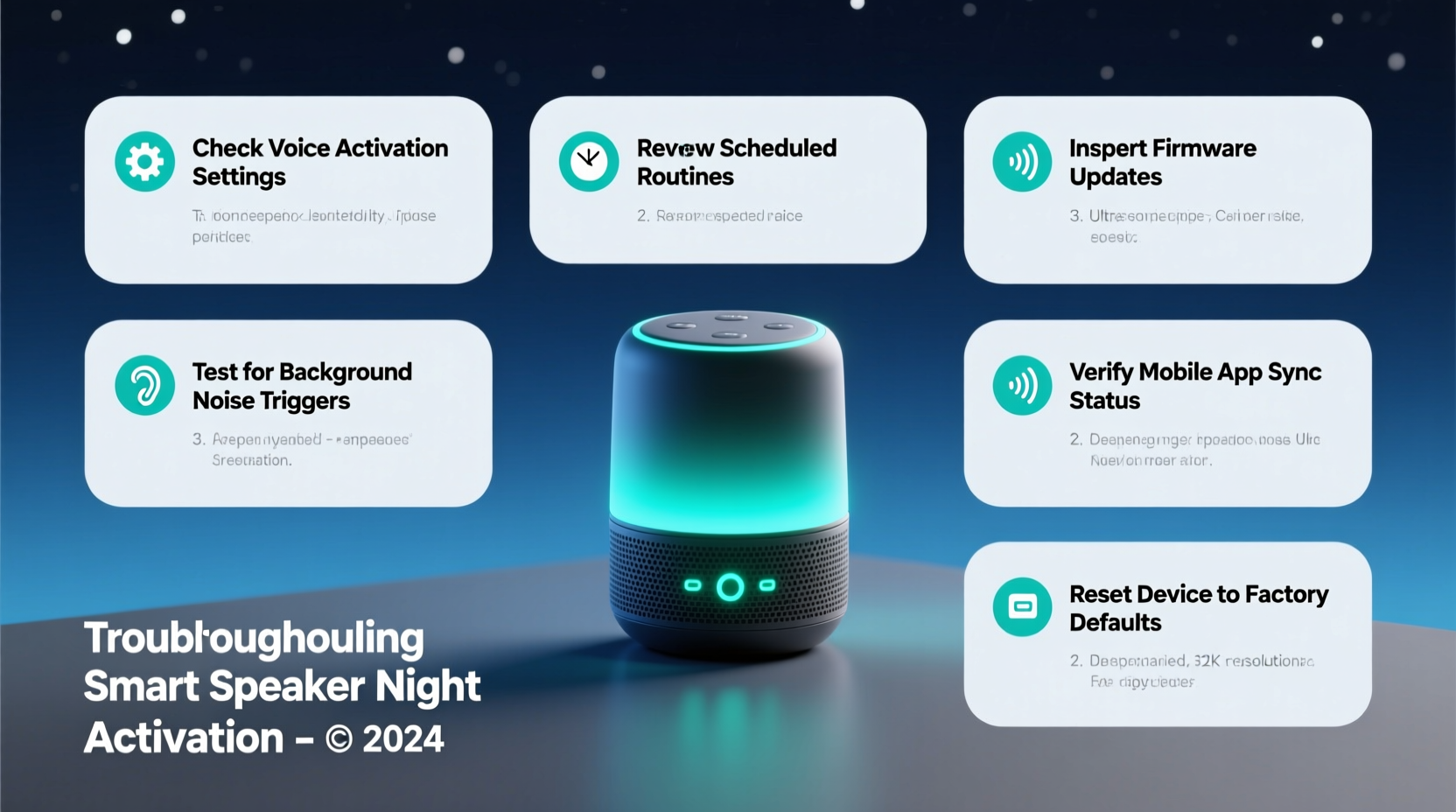
Smart speakers like Amazon Echo, Google Nest, and Apple HomePod rely on voice recognition, scheduled routines, and background connectivity. While designed for convenience, certain features and settings can inadvertently trigger unintended behavior during quiet hours.
- Voice misinterpretation: Background noise, snoring, pet sounds, or TV audio can mimic wake words like “Alexa,” “Hey Google,” or “Hey Siri.”
- Scheduled routines: Automated actions such as daily briefings, weather updates, or bedtime reminders may be set without clear recollection.
- Firmware bugs: Outdated or buggy software can cause erratic responses, including phantom activations.
- Bluetooth interference: Paired devices sending signals (e.g., phones syncing notifications) might prompt responses.
- App integrations: Third-party services (like smart home apps or calendar alerts) can trigger events if misconfigured.
Step-by-Step Guide to Diagnose and Fix Nighttime Activations
Resolving unwanted smart speaker activations requires a methodical approach. Follow this timeline to isolate and eliminate the issue:
- Review recent activity logs: Check your companion app (e.g., Alexa or Google Home) for voice history. Look for unrecognized commands between 10 PM and 6 AM.
- Disable or reschedule routines: Navigate to Routines in your app and turn off any that run overnight. Test by disabling all, then re-enable one at a time.
- Adjust microphone sensitivity: In device settings, reduce sensitivity or enable \"Voice Model\" learning so the speaker better recognizes your voice.
- Update firmware: Ensure your speaker runs the latest software version. Updates often patch known bugs affecting wake-word detection.
- Disconnect Bluetooth devices: Temporarily unpair phones, tablets, or wearables to rule out signal-based triggers.
- Relocate the speaker: Move it away from TVs, windows (external noise), or HVAC vents that generate airflow-induced sounds.
- Test in silence: Place the speaker in another room overnight with mics off. Reactivate in the morning to see if the issue persists.
“Over 70% of reported ‘phantom activations’ stem from misunderstood wake words or forgotten automation rules.” — Dr. Alan Reeves, IoT Systems Engineer at Stanford Digital Living Lab
Do’s and Don’ts: Managing Smart Speaker Behavior
| Action | Do | Don't |
|---|---|---|
| Wake Word Settings | Use voice profiling to train the device on your speech patterns. | Keep default sensitivity high in noisy environments. |
| Routine Management | Label and timestamp all automations for easy tracking. | Create overlapping routines that could conflict. |
| Maintenance | Check for updates monthly; reboot device weekly. | Ignore software update notifications indefinitely. |
| Privacy Controls | Regularly delete voice recordings via the app. | Leave mic always-on in sensitive areas like bedrooms. |
| Device Placement | Position speaker centrally, away from reflective surfaces. | Place near appliances with motors (fridge, AC units). |
Real-World Case: The Midnight Weather Report
Sarah, a teacher from Portland, began waking up every night around 2:17 AM to her Google Nest Mini saying, “Good morning! Here’s today’s forecast.” Confused and frustrated, she assumed someone was hacking her device. After reviewing her Google Home app, she discovered a routine titled “Morning Briefing” set to activate at 2:00 AM — a typo made months earlier when she intended 8:00 AM. Despite changing it, the system had cached the old time due to a failed sync. Clearing the routine and recreating it resolved the issue immediately.
This case highlights two key points: human error in setup and the importance of verifying digital configurations rather than assuming technical failure. Many users overlook simple scheduling mistakes because they expect devices to “just work.” Regular audits prevent such oversights.
Advanced Fixes for Persistent Glitches
If basic troubleshooting fails, deeper intervention may be required. These steps address firmware-level issues and network anomalies:
Factory Reset and Re-pairing
When erratic behavior continues, reset the device to factory settings. This clears corrupted configurations and forces a clean setup process. For most models:
- Press and hold the Action button (usually a dot or dash icon) for 25 seconds.
- Wait for the light ring to turn orange, then release.
- Reconnect via the mobile app, reapply Wi-Fi, and rebuild routines carefully.
Network Isolation
Some smart speakers react unpredictably when sharing networks with unstable IoT devices. Consider placing your speaker on a separate VLAN or guest network to minimize cross-talk. Alternatively, disable multicast DNS (mDNS) flooding through router settings if multiple assistants coexist.
Disable Unnecessary Skills and Integrations
Third-party skills (e.g., joke bots, horoscope readers) sometimes push unsolicited notifications. Audit installed skills monthly and remove those unused. Also, revoke access to apps that request broad permissions but provide little value.
“Think of your smart speaker like a digital employee — it needs clear instructions, regular check-ins, and boundaries to perform reliably.” — Lena Patel, Senior UX Designer at VoiceFirst Labs
Preventive Maintenance Checklist
To avoid future surprises, adopt this monthly maintenance checklist:
- ✅ Review voice history for unrecognized activations
- ✅ Audit and organize all active routines
- ✅ Delete stored voice recordings older than 30 days
- ✅ Confirm firmware is up to date
- ✅ Test microphone mute function physically and in-app
- ✅ Evaluate placement for acoustic interference
- ✅ Remove unused third-party skills or connected accounts
- ✅ Reboot the device to clear memory cache
Performing these checks takes less than ten minutes but significantly reduces the risk of false triggers and improves overall responsiveness.
FAQ: Common Questions About Nighttime Smart Speaker Activation
Can someone remotely access my smart speaker at night?
Unauthorized remote access is extremely rare due to end-to-end encryption and authentication protocols. Most nighttime activations have local causes — misheard commands, scheduled routines, or software bugs. However, always use strong passwords, enable two-factor authentication, and review connected devices regularly to maintain security.
Should I turn off my smart speaker at night?
While not necessary, using the physical mute button provides peace of mind and eliminates listening risks. If you rely on alarms or emergency functions, keep it on but optimize settings (e.g., disable non-essential routines, lower volume after bedtime).
Why does my speaker light up but say nothing?
This usually indicates the device detected something resembling a wake word but couldn’t process a valid command. It may also reflect internal status checks, Bluetooth pings, or failed connection attempts. Frequent silent activations suggest overly sensitive microphones or nearby electronic interference.
Conclusion: Regain Control and Sleep Soundly
Your smart speaker should enhance your life, not disturb your rest. Unwanted nighttime activations are rarely signs of serious malfunction — they’re typically the result of overlooked settings, environmental factors, or minor software hiccups. By systematically evaluating routines, adjusting sensitivity, updating firmware, and maintaining digital hygiene, you can eliminate these disruptions for good.
Start tonight: open your smart assistant app, review your routines, check the last 48 hours of voice history, and consider enabling the mute button before bed. Small changes lead to significant improvements in both functionality and comfort. A well-tuned smart speaker operates seamlessly — quietly supporting your day without invading your night.




 浙公网安备
33010002000092号
浙公网安备
33010002000092号 浙B2-20120091-4
Comments
No comments yet. Why don't you start the discussion?