
Smart thermostats promise convenience, energy savings, and precise climate control. But when they start misbehaving—refusing to turn on the heat, displaying inaccurate temperatures, or disconnecting from Wi-Fi—the frustration can outweigh the benefits. You're not alone. Millions of homeowners experience intermittent issues with devices like Nest, Ecobee, Honeywell Home, and others. The good news: most problems are fixable without a technician. Understanding the root causes and knowing how to reset your device quickly can restore comfort in minutes.
Common Signs Your Smart Thermostat Is Acting Up
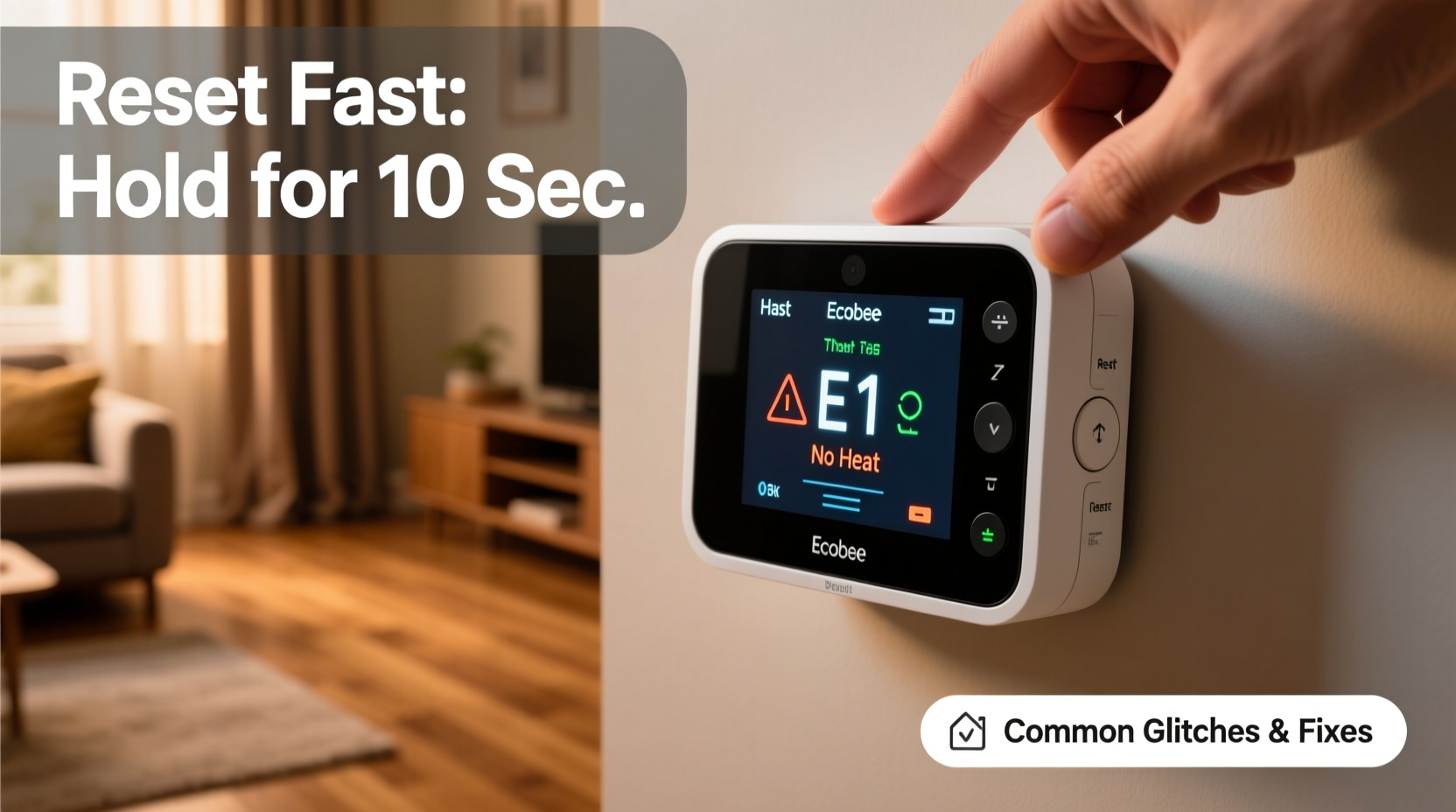
Before troubleshooting, confirm that what you're experiencing is actually a malfunction. Occasional hiccups are normal, but persistent symptoms suggest deeper issues. Watch for these red flags:
- Inconsistent temperature readings: The thermostat shows 72°F while a standalone thermometer reads 65°F.
- Frequent disconnections from Wi-Fi: The app alerts you that the device is offline multiple times a day.
- Delayed response to commands: Adjusting the temperature takes several minutes to register or has no effect.
- System won’t turn on: No power to the HVAC system despite correct scheduling.
- Random reboots: The screen flickers off and restarts without cause.
- Scheduling errors: It skips programmed settings or activates at wrong times.
These behaviors often stem from software bugs, connectivity issues, or hardware limitations. Recognizing patterns helps narrow down solutions.
Top 5 Causes of Smart Thermostat Glitches
Understanding why your thermostat fails is half the battle. Here are the most frequent culprits behind erratic behavior.
1. Power Supply Issues
Unlike traditional thermostats, smart models require consistent power for screens, sensors, and Wi-Fi modules. Many rely on a C-wire (common wire) for continuous voltage. If your HVAC system lacks one, the thermostat may “steal” power from heating/cooling cycles—a method known as power sharing. This can lead to brownouts during short cycles, causing resets or sluggish performance.
2. Wi-Fi Instability
Even strong home Wi-Fi can suffer interference from appliances, thick walls, or router congestion. A thermostat located far from the router or near microwaves and cordless phones may drop connection frequently. Without stable internet, remote access fails and firmware updates stall.
3. Outdated Firmware
Manufacturers release regular firmware updates to patch bugs, improve efficiency, and add features. If your device hasn’t updated in months, it might be running buggy code. Some thermostats fail silently during update attempts, leaving them in limbo.
4. Sensor Interference
Smart thermostats use built-in ambient sensors to detect room temperature. Placing them near drafts, direct sunlight, or heat-emitting electronics (like TVs or lamps) skews readings. Some models also use occupancy sensors; if blocked or confused by pets, they may shut off heating prematurely.
5. Compatibility Problems
Not all HVAC systems work seamlessly with every smart thermostat. Older furnaces, multi-stage setups, or heat pumps with auxiliary heat may require specific configurations. Mismatched voltage (e.g., 24V vs. 120V) or missing wiring can cause communication breakdowns between the thermostat and furnace.
“Over 60% of ‘faulty’ thermostat reports we receive are actually due to improper installation or missing C-wires.” — Mark Reynolds, HVAC Support Lead at EcoTech Systems
Step-by-Step Guide to Resetting Your Smart Thermostat Fast
A proper reset clears temporary glitches, reconnects network signals, and forces a fresh boot. Follow this universal sequence—adapted slightly per brand—for maximum effectiveness.
- Turn off HVAC power at the breaker. Locate your furnace or air handler’s circuit breaker and switch it off. This prevents electrical feedback during reset.
- Remove the thermostat faceplate. Gently pull it from the wall mount. For touch-sensitive units, press and hold the edges until it releases.
- Wait 30 seconds. This allows capacitors in both the thermostat and HVAC system to discharge fully.
- Reattach the thermostat. Snap it back into place securely.
- Restore power at the breaker. Wait 60–90 seconds for the system to reboot.
- Check display and connectivity. Look for startup animation, Wi-Fi signal, and accurate time/date.
- Reconnect to Wi-Fi via the app. Open your thermostat’s mobile app and follow prompts to rejoin your network.
- Verify sensor readings. Compare indoor temperature on the thermostat with a separate thermometer.
If the above doesn’t resolve the issue, proceed to a factory reset—this erases all settings and returns the device to out-of-box state.
How to Perform a Factory Reset by Brand
| Brand | Method | Time to Complete |
|---|---|---|
| Nest Learning Thermostat | Settings > Reset > All Settings > Confirm | 2–3 minutes |
| Ecobee SmartThermostat | Menu > Settings > Reset > Clear All Data | 3 minutes |
| Honeywell Home T9/T10 | Hold Menu + Back buttons for 10 sec until screen flashes | 2 minutes |
| Emerson Sensi | Settings > System > Restore Default Settings | 1.5 minutes |
| Google Nest Thermostat (round) | Quickly rotate ring clockwise three times to access reset menu | 2 minutes |
After a factory reset, you’ll need to reconfigure Wi-Fi, set schedules, and recalibrate sensors. Do this during mild weather to avoid discomfort.
Troubleshooting Checklist: Fix It in Under 15 Minutes
Use this checklist whenever your thermostat behaves oddly. Most issues are resolved within two rounds of inspection.
- ✅ Check HVAC breaker—is it tripped?
- ✅ Verify thermostat screen has power—any dim glow or blank display?
- ✅ Ensure Wi-Fi is active elsewhere in the house.
- ✅ Move nearby electronics (lamps, speakers) away from the unit.
- ✅ Confirm date and time are correct—wrong time breaks automation.
- ✅ Restart your router—unplug for 30 seconds, then plug back in.
- ✅ Inspect wiring—look for loose, frayed, or disconnected wires.
- ✅ Test fan operation manually through the thermostat menu.
- ✅ Update firmware via the app—look under “Device Info” or “Settings.”
- ✅ Reboot the thermostat using the soft reset method above.
If all steps fail, consider whether environmental factors play a role. High humidity, attic installations, or proximity to bathrooms can introduce moisture damage over time.
Real-World Example: When a Software Update Went Wrong
Sarah K., a homeowner in Portland, OR, woke up to a frozen house one winter morning. Her Nest thermostat showed no power, though the furnace breaker was on. She tried restarting it—no response. After checking wiring and confirming the C-wire was connected, she called customer support.
The agent discovered that a recent automatic firmware update had corrupted the bootloader. The only solution was a forced factory reset using a hidden recovery mode: holding the thermostat ring while plugging it back in after a 60-second power cut. Once reset, the device re-downloaded the latest stable firmware and resumed normal function.
Sarah learned two lessons: first, never disable update notifications; second, keep the manufacturer’s support number saved. Since then, she schedules updates during daytime hours and keeps a space heater nearby during cold snaps.
When to Call a Professional
Most thermostat issues are DIY-friendly. However, certain scenarios demand expert help:
- You smell burning near the thermostat or see discoloration on wires.
- The HVAC system clicks on and off rapidly (short cycling), which could indicate relay or control board failure.
- Your multimeter shows less than 24V AC at the thermostat terminals (indicating transformer issues).
- You lack a C-wire and want to install one—working with low-voltage wiring near high-voltage components poses risks.
A licensed HVAC technician can diagnose compatibility issues, test system voltage, and ensure safe integration. They can also migrate legacy systems to modern controls with confidence.
FAQ: Common Questions About Smart Thermostat Problems
Why does my smart thermostat lose Wi-Fi every night?
This often occurs when your router enters sleep mode or applies parental controls during scheduled hours. Check your router settings for any time-based restrictions. Alternatively, assign a static IP address to the thermostat to maintain a persistent connection.
Can a dead phone affect my smart thermostat?
No. While remote access requires a connected smartphone, the thermostat operates independently once configured. Scheduling, geofencing, and local sensors continue functioning even if your phone is off or out of range.
How do I know if my thermostat needs a firmware update?
Most apps notify you automatically. You can also check manually: open the app, go to device settings, and look for “Firmware Version.” If an update is available, install it immediately—especially if it includes stability fixes.
Conclusion: Regain Control With Confidence
Smart thermostats simplify home comfort—but only when they work as intended. Glitches happen, whether from software quirks, environmental interference, or outdated hardware. Now that you understand the most common causes and have a fast reset protocol at hand, you’re equipped to handle disruptions swiftly. Don’t tolerate inconsistent heating or unreliable automation. Apply the checklist, perform timely resets, and protect your investment with proactive maintenance. Your home—and your peace of mind—deserve reliable performance.




 浙公网安备
33010002000092号
浙公网安备
33010002000092号 浙B2-20120091-4
Comments
No comments yet. Why don't you start the discussion?