
Smart thermostats promise comfort, energy savings, and seamless control over your home’s climate. But when they start behaving erratically—refusing commands, displaying incorrect temperatures, or disconnecting from Wi-Fi—the convenience turns into frustration. These devices rely on a complex blend of sensors, software, and connectivity, all of which can fail under certain conditions. Understanding the root causes behind these issues and knowing how to fix them can save you time, money, and discomfort.
Whether your Nest suddenly stopped responding, your Ecobee won’t maintain a schedule, or your Honeywell keeps rebooting, most problems have straightforward solutions. From simple resets to deeper diagnostics, this guide walks through the most common glitches, what triggers them, and proven methods to get your system back online.
Common Signs Your Smart Thermostat Is Malfunctioning
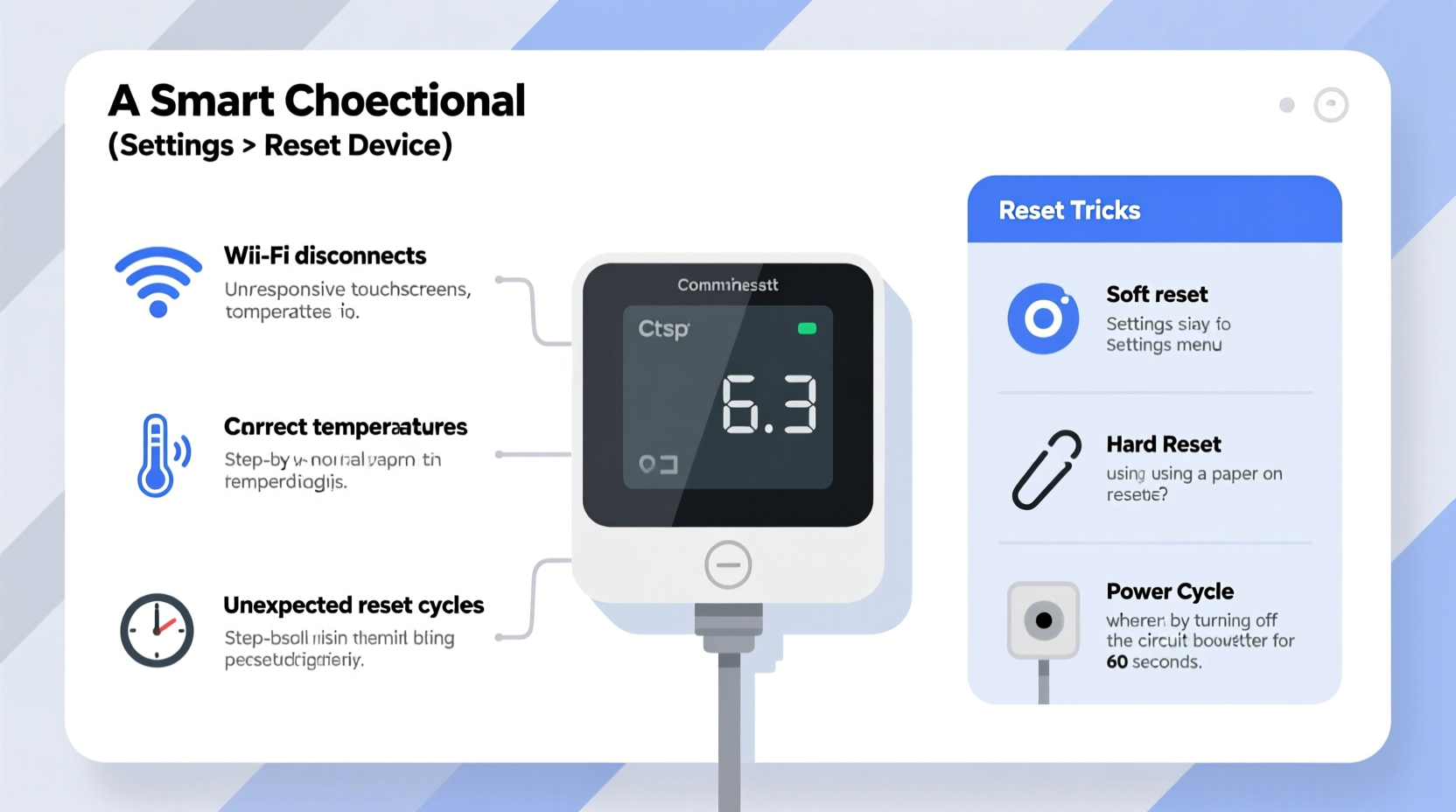
Before diving into fixes, it's important to recognize the symptoms of a failing or glitchy smart thermostat. These aren't always obvious, and some behaviors might be mistaken for HVAC system issues rather than thermostat faults.
- Inaccurate temperature readings: The thermostat displays a room temperature significantly different from a standalone thermometer.
- Wi-Fi disconnections: Frequent loss of remote access or app notifications about offline status.
- Unresponsive touchscreen: Delayed response or complete unresponsiveness to taps or swipes.
- Schedule disruptions: Heating or cooling runs at wrong times despite correct programming.
- Frequent rebooting: The screen flickers or restarts repeatedly without user input.
- HVAC system not turning on: No fan activity or heating/cooling even when setpoints are exceeded.
These issues may stem from hardware defects, outdated firmware, poor installation, or environmental interference. Identifying the pattern helps narrow down whether the problem is with the device itself or its ecosystem.
Top 5 Causes of Smart Thermostat Glitches
1. Power Supply Instability
Unlike traditional thermostats, smart models require consistent power to run processors, Wi-Fi modules, and touchscreens. Many rely on a C-wire (common wire) for continuous voltage. Without one, they draw power intermittently from heating circuits, leading to low-battery warnings, random reboots, or shutdowns during prolonged HVAC use.
2. Wi-Fi and Network Issues
Smart thermostats depend on stable internet connections for remote access and automatic updates. Weak signal strength, router congestion, or IP conflicts can cause disconnections. Some models struggle with dual-band routers if not properly configured to use the 2.4 GHz band.
3. Outdated Firmware
Manufacturers release regular firmware updates to patch bugs, improve efficiency, and enhance compatibility. A thermostat running old software may exhibit erratic behavior or fail to communicate with newer HVAC components.
4. Sensor Interference
Internal temperature sensors can be affected by direct sunlight, drafts, or nearby electronics. If mounted near a window or above a lamp, the thermostat may “feel” heat unrelated to ambient room temperature, causing overcooling or overheating.
5. Improper Installation or Wiring
Even minor wiring errors—like reversed Rh and Rc wires or loose connections—can prevent proper communication between the thermostat and furnace. DIY installations often miss subtle compatibility requirements, especially with older HVAC systems.
“Over 60% of reported smart thermostat issues we see in service calls are due to missing C-wires or incorrect wiring configurations.” — James Landon, HVAC Technician & Smart Home Integrator
Troubleshooting Checklist: Step-by-Step Reset and Repair Guide
Before calling a technician or replacing the unit, follow this comprehensive checklist to diagnose and resolve the most frequent problems.
- Check power source and battery level
Verify if the thermostat shows low power warnings. If it uses a rechargeable battery, ensure it's charging. For units without a C-wire, consider installing one or using a power extender kit provided by the manufacturer. - Restart the thermostat
Perform a soft reset: Press and hold the power/menu button (varies by model) for 10 seconds until the screen goes black and restarts. This clears temporary glitches without erasing settings. - Reconnect to Wi-Fi
Go to Settings > Network, forget the current network, and reconnect. Ensure you're using a 2.4 GHz band and that the password is correct. Restart your router if needed. - Verify HVAC system operation manually
Bypass the thermostat by briefly connecting the R and W wires at the furnace terminal. If the heater turns on, the issue lies with the thermostat or its settings, not the furnace. - Update firmware
Check the manufacturer’s app or website for available updates. Most modern thermostats update automatically, but manual checks can reveal pending patches. - Calibrate temperature sensor
Place a calibrated thermometer next to the thermostat for two hours. If there’s more than a 2°F difference, adjust the offset in settings (found under Preferences > Temperature Calibration). - Perform a factory reset
Use only as a last resort. Navigate to Settings > Reset > Factory Reset. You’ll lose all schedules and preferences and need to re-pair with Wi-Fi and apps.
When to Consider Professional Help
If the thermostat continues malfunctioning after a full reset and reinstallation, consult an HVAC professional. Persistent issues may indicate incompatible equipment, transformer voltage drops, or damaged control boards in your furnace.
Do’s and Don’ts: Avoiding Future Smart Thermostat Problems
| Do’s | Don’ts |
|---|---|
| Install a C-wire for uninterrupted power | Mount the thermostat near heat sources like lamps or windows |
| Update firmware monthly via the app | Ignore persistent error codes on the display |
| Use a surge protector for your HVAC system | Assume Wi-Fi issues are always the thermostat’s fault |
| Label wires during installation or upgrades | Force-fit a smart thermostat on incompatible systems without an adapter |
| Test HVAC operation seasonally | Perform factory resets without backing up schedules |
Following best practices reduces the likelihood of recurring issues and extends the lifespan of both the thermostat and your HVAC system.
Real-World Example: How One Homeowner Fixed a \"Dead\" Nest Thermostat
Sarah from Portland noticed her Google Nest Learning Thermostat stopped responding one winter morning. The screen was blank, and her heat wouldn’t turn on. She checked the app—offline. After verifying her Wi-Fi was working, she removed the thermostat from its base and saw no charge indicator.
Her HVAC system was over 15 years old and didn’t have a C-wire installed. The Nest had been powering itself through the heating cycle, but during a long cold spell, constant heating drained the internal battery faster than it could recharge.
Sarah contacted an electrician who installed a C-wire adapter. Once connected, the thermostat powered up immediately and synced with her account. She also enabled Eco Temperatures to reduce runtime strain. Since then, she hasn’t had another outage—even during extended freezes.
This case highlights how environmental stress combined with inadequate power infrastructure can cripple even advanced devices.
Frequently Asked Questions
Why does my smart thermostat keep disconnecting from Wi-Fi?
Intermittent Wi-Fi loss is often due to weak signal strength, router overload, or being connected to a 5 GHz band (which has shorter range). Move your router closer, reduce interference from appliances, or switch to a 2.4 GHz network. Also, ensure the thermostat isn’t behind thick walls or metal surfaces that block signals.
Can a smart thermostat damage my HVAC system?
No, a properly installed smart thermostat cannot damage your HVAC system. However, incorrect wiring or mismatched voltage can cause malfunctions. Always verify compatibility before installation, especially with older furnaces or heat pumps requiring specific wiring sequences.
How often should I reset my smart thermostat?
You shouldn’t need to reset it regularly. Occasional reboots (once every few months) can clear memory leaks, but frequent resets suggest underlying issues like power instability or firmware bugs. Focus on resolving the root cause instead of resetting repeatedly.
Conclusion: Regain Control With Simple Fixes
A glitchy smart thermostat doesn’t mean you need a replacement. Most issues stem from easily correctable factors—power supply gaps, outdated software, or suboptimal placement. By methodically diagnosing the problem and applying targeted fixes, you can restore full functionality and continue enjoying intelligent climate control.
The key is not to panic at the first sign of trouble. Use the troubleshooting steps outlined here, refer to your device’s manual, and don’t hesitate to contact customer support with specific error messages. With a little technical awareness, you can keep your smart thermostat running smoothly for years.




 浙公网安备
33010002000092号
浙公网安备
33010002000092号 浙B2-20120091-4
Comments
No comments yet. Why don't you start the discussion?