
Smart thermostats promise comfort, energy savings, and seamless control—all from your smartphone or voice assistant. But when your device starts behaving erratically—failing to connect, dropping Wi-Fi, or refusing commands—it can quickly turn a high-tech convenience into a source of frustration. More often than not, the culprit lies in connectivity issues. The good news: most problems are fixable without replacing hardware or calling a technician. Understanding the root causes and knowing how to methodically diagnose and resolve them can restore your system’s reliability and keep your home climate under intelligent control.
Common Signs of Connectivity Problems
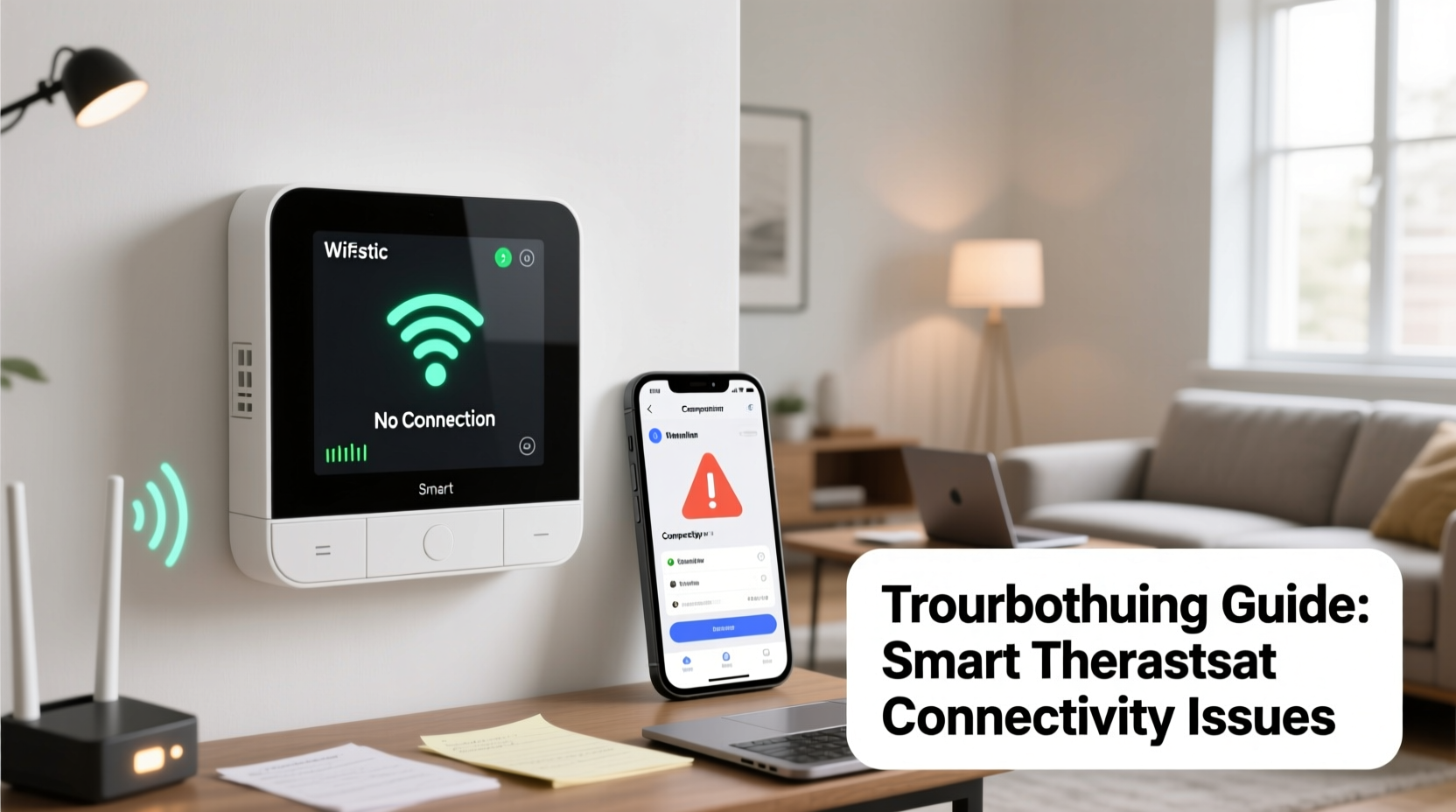
Before diving into solutions, it's important to recognize what constitutes a connectivity issue. These aren't always obvious. A thermostat that \"acts up\" might display symptoms that seem unrelated to networking at first glance. Key indicators include:
- Inability to connect to the mobile app or web dashboard
- Frequent disconnections from Wi-Fi (shown by offline status)
- Delayed or failed responses to remote adjustments
- Loss of scheduling features or geofencing functionality
- Intermittent operation where the thermostat works briefly then disconnects
- Error messages like “No Internet,” “Wi-Fi Unavailable,” or “Router Not Found”
These behaviors often stem from network instability rather than thermostat failure. Unlike mechanical HVAC issues, connectivity problems are typically software- or environment-related, making them easier—and cheaper—to resolve once diagnosed correctly.
Step-by-Step Guide to Diagnosing and Fixing Connection Issues
Follow this structured approach to isolate and correct the underlying cause of your smart thermostat’s erratic behavior. Each step builds on the previous one, ensuring you don’t skip over simple fixes while chasing complex ones.
- Verify Power Supply
Ensure your thermostat has consistent power. Many smart models require a C-wire (common wire) for continuous voltage. Without it, they may draw power intermittently from the heating/cooling cycle, leading to resets and dropped connections. Check if the screen dims or reboots during HVAC operation—this could signal insufficient power. - Check Wi-Fi Signal Strength at the Thermostat Location
Use a Wi-Fi analyzer app on your phone to measure signal strength near the thermostat. A weak signal (below -70 dBm) can cause frequent dropouts. Walls, metal ductwork, and large appliances often interfere with signals. Move your phone to the same wall as the thermostat and compare its signal to other rooms. - Reboot Your Devices
Restart your thermostat, router, and modem. This clears temporary glitches in both firmware and network stacks. Turn off the thermostat via the circuit breaker for 30 seconds, then restore power. Simultaneously reboot your router by unplugging it for 10 seconds before plugging it back in. - Confirm Correct Wi-Fi Credentials
After a router password change or firmware update, your thermostat may fail to reconnect. Go into setup mode and re-enter your Wi-Fi network name (SSID) and password carefully. Avoid special characters in passwords, which some thermostats struggle to parse. - Ensure Compatibility with Network Band
Most smart thermostats only support 2.4 GHz Wi-Fi networks. If your router broadcasts a combined 2.4 GHz and 5 GHz network under the same name (SSID), the thermostat might attempt to connect to the incompatible 5 GHz band and fail. Separate the bands in your router settings so each has a unique SSID. - Update Firmware
Manufacturers regularly release updates to improve stability and security. Check your thermostat’s app or settings menu for available firmware updates. An outdated version may contain bugs affecting network performance. - Assign a Static IP Address (Optional but Helpful)
Dynamic IP addresses assigned by DHCP can change after reboots, causing confusion for connected devices. Assigning a static IP to your thermostat within your router’s configuration prevents this. Refer to your router manual for instructions on reserving an IP based on the device’s MAC address.
Environmental and Network Factors That Impact Performance
Even with perfect setup, external factors can degrade connectivity. Being aware of these helps prevent recurring issues.
Physical Obstructions: Concrete walls, metal studs, and mirrors absorb or reflect Wi-Fi signals. If your thermostat is installed on an exterior wall or behind a bookshelf, consider relocating it or adding a Wi-Fi extender.
Network Congestion: Homes with many connected devices (smart lights, cameras, TVs) may experience bandwidth contention. Schedule heavy downloads or streaming during non-critical times, or prioritize your thermostat using Quality of Service (QoS) settings in your router.
Router Age and Placement: Older routers may lack modern protocols like WPA3 or MU-MIMO, reducing efficiency. Place your router centrally, elevated, and away from microwaves or cordless phones that emit interference.
| Factor | Impact on Thermostat | Solution |
|---|---|---|
| Distance from Router | Weak signal leads to disconnections | Install mesh node or Wi-Fi extender |
| 5 GHz Network Only | Thermostat cannot connect | Enable 2.4 GHz band with separate SSID |
| Power Fluctuations | Device resets disrupt connectivity | Install C-wire or use a power extender kit |
| Outdated Router Firmware | Compatibility issues with IoT devices | Update router firmware regularly |
“Over 60% of smart thermostat support calls we receive are related to Wi-Fi misconfiguration, not hardware defects.” — David Lin, Senior Support Engineer at Ecobee
Mini Case Study: Resolving Intermittent Disconnections in a Two-Story Home
Mark, a homeowner in Portland, noticed his Nest thermostat would go offline every few hours, especially during winter mornings. The HVAC system still ran on schedule, but remote access failed, and geofencing stopped working. He confirmed the thermostat had a C-wire and was running the latest firmware. After testing signal strength with a Wi-Fi app, he found the reading at the thermostat (located in a hallway upstairs) was -78 dBm—very poor.
His router was in the basement, two floors below, separated by concrete flooring and metal ducts. He upgraded to a mesh Wi-Fi system, placing a satellite node on the main floor halfway between the router and thermostat. Post-installation, the signal improved to -52 dBm, and the thermostat remained online consistently. Additionally, he separated his 2.4 GHz and 5 GHz networks to prevent accidental misconnection. The entire fix cost less than $150 and took under an hour.
Troubleshooting Checklist: Regain Control of Your Smart Thermostat
Use this checklist to systematically address connectivity issues. Print it or follow along digitally until your thermostat stabilizes.
- ✅ Confirm the thermostat has stable power (C-wire or power kit installed)
- ✅ Test Wi-Fi signal strength at the thermostat location (aim for -60 dBm or better)
- ✅ Reboot thermostat, router, and modem
- ✅ Verify correct Wi-Fi network and password entry
- ✅ Ensure thermostat is connecting to 2.4 GHz network (not 5 GHz)
- ✅ Separate dual-band SSIDs if combined
- ✅ Check for and install firmware updates
- ✅ Reduce interference from nearby electronics
- ✅ Consider Wi-Fi extenders or mesh systems for large homes
- ✅ Contact ISP or thermostat support if all else fails
Frequently Asked Questions
Can a smart thermostat work without Wi-Fi?
Yes, but with limitations. It will continue regulating temperature based on local schedules and sensors, but you’ll lose remote access, software updates, weather-based adjustments, and voice control. Some models also disable advanced features like energy reports.
Why does my thermostat keep disconnecting even though other devices stay connected?
This usually points to compatibility or sensitivity differences. Smart thermostats have simpler Wi-Fi chips than smartphones or laptops and may struggle with weaker signals or certain encryption types. They also can’t switch networks automatically. If your phone shows full bars but the thermostat drops offline, it may be hitting a threshold the thermostat can’t handle.
Should I use a guest network for my smart thermostat?
No. Guest networks often block device-to-device communication and restrict access to cloud services. Since your thermostat needs to talk to manufacturer servers and your phone app, placing it on a guest network will prevent proper function. Always use the primary secured network.
Expert Tips for Long-Term Stability
Once you’ve restored connectivity, take steps to prevent future disruptions. Proactive maintenance ensures years of reliable service.
- Schedule quarterly network audits: Walk through your home with a signal meter app to catch degradation early.
- Label your networks clearly: Name your 2.4 GHz network “Home-2G” and 5 GHz “Home-5G” to avoid confusion during setup.
- Monitor firmware updates: Enable notifications in your thermostat app so you’re alerted when patches are available.
- Document your setup: Keep a note of your thermostat’s MAC address, IP reservation, and installation date. This speeds up troubleshooting later.
“Prevention beats repair. A five-minute monthly check can save hours of downtime.” — Lisa Tran, Smart Home Integration Specialist
Conclusion: Take Control Back Today
Your smart thermostat should enhance your life, not complicate it. When connectivity falters, the solution is rarely as dramatic as replacement. By methodically checking power, signal strength, network settings, and firmware, you can resolve most issues yourself—often in under an hour. Don’t let intermittent outages undermine trust in your smart home ecosystem. With the right knowledge and tools, you can ensure your thermostat stays online, responsive, and efficient year-round.




 浙公网安备
33010002000092号
浙公网安备
33010002000092号 浙B2-20120091-4
Comments
No comments yet. Why don't you start the discussion?